Introduction
This year at CES 2026, NVIDIA announced an upgrade to its Super Resolution software dubbed DLSS 4.5. This new software version proposes improved image quality with a 2nd gen Transformer Model, use of new dynamic multiframe generation, and a new 6X Frame Generation mode. All of these improvements are targeted to improve image quality and smoothness in real time.
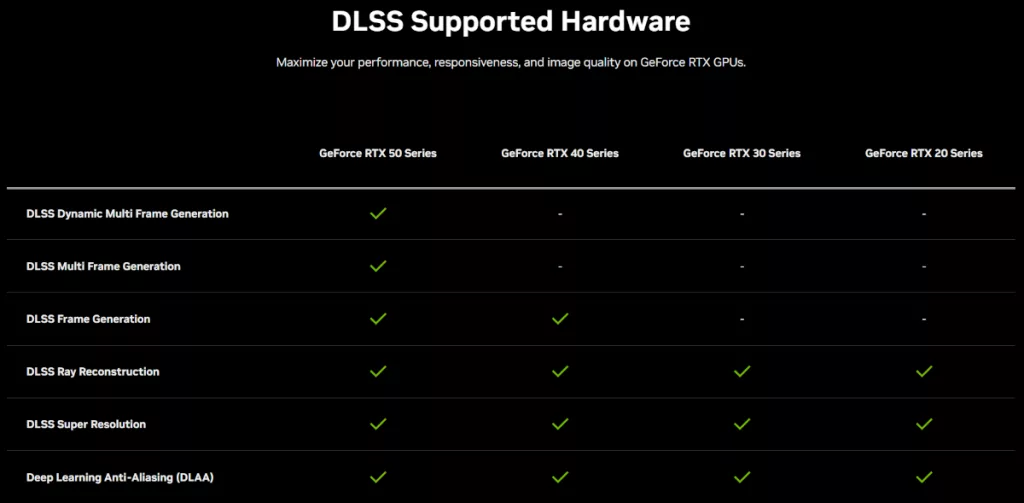
Presently, you will be able to utilize new Super Resolution Presets, while the Frame Generation modes will be released later this spring. Probably the most interesting point from the release was with the improvements, NVIDIA expects image quality using “Performance Mode” or “Ultraperformance Mode” to meet or exceed “Quality Mode” in the current DLSS 4 software, and that the technology will be available to all RTX video cards from RTX 2000 to RTX 5000 series. (Multiframe improvements are only applicable to RTX 5000 series). All of this is possible through the introduction of the new 2nd generation of the Transformer model in the upscaling technology.
By this writing, there has already been quite a bit said about this new release. In this article, we aim to look at a few of our games and see how they perform compared to the standard DLSS 4 in both raw FPS and image quality using a fairly broad spectrum of video cards.
How To Enable and Use DLSS 4.5
Initially, DLSS 4.5 was released in a beta form. This has now been finalized, and essentially all one needs to do is download the latest GeForce driver set 591.74 and install the graphics driver and the NVIDIA App. A simple update to the App will enable Version 11.0.6.379, which includes mode overrides for DLSS 4.5.
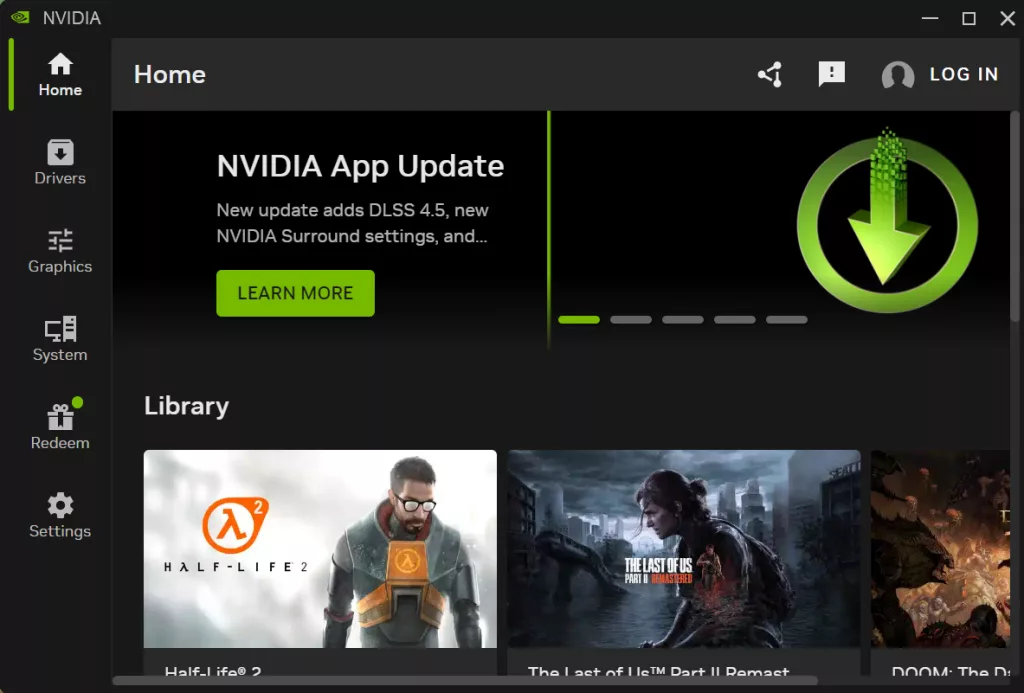
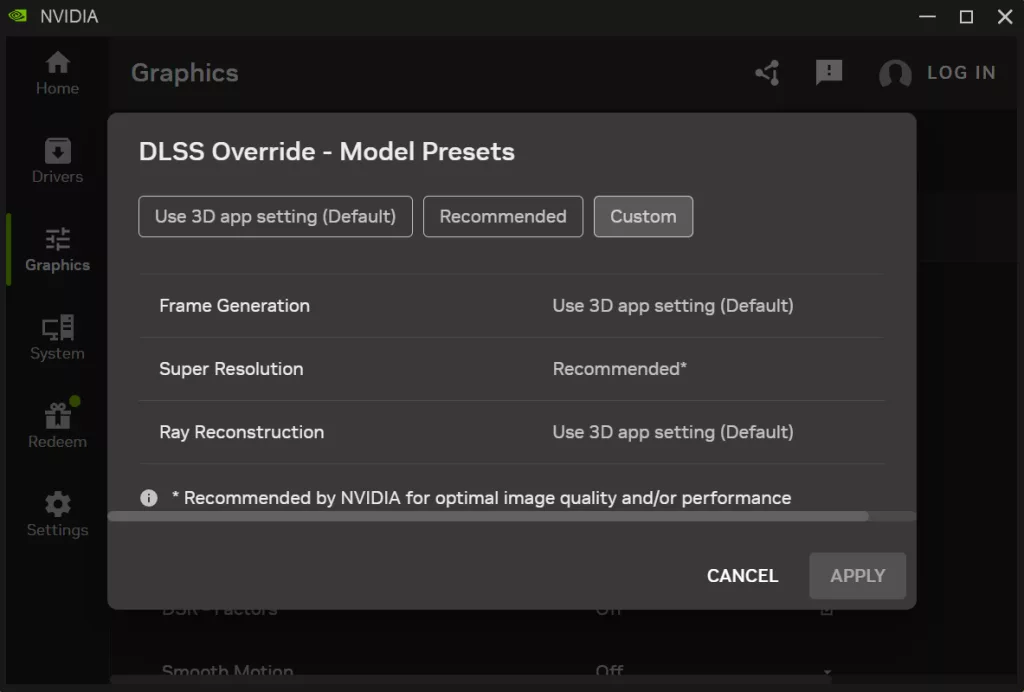
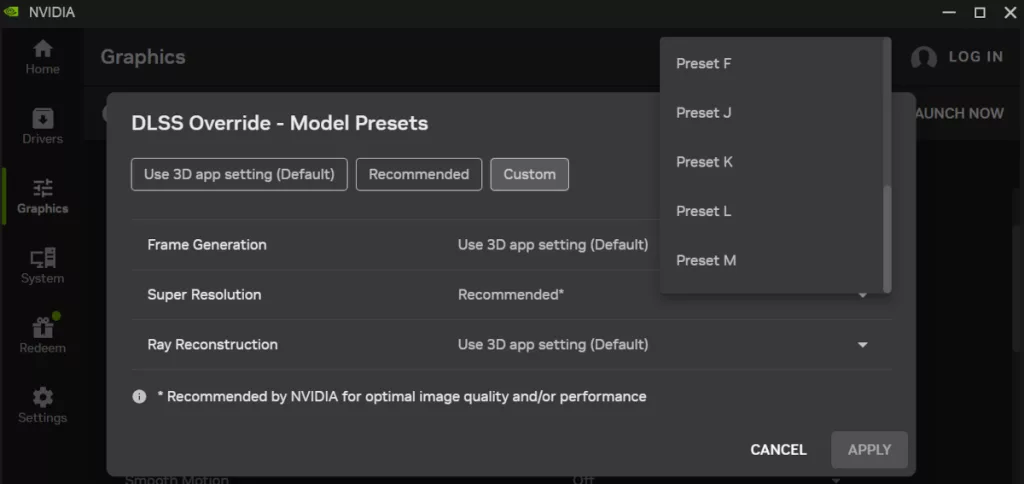
From within the app, click graphics > global. On the heading DLSS Override-Model Presets, you simply click “Recommended” under the heading “Super Resolution,” and you are all set. When you are in a supported game and enable DLSS, the Override will choose the Preset that applies to the mode you have chosen.
A little background, there are Model Presets for Quality, Performance, and UltraPerformance. Respectfully, these are labeled in the app dropdown menu as K, M, and L. You could manually choose a preset, but it is much easier to allow the app to do it for you. A couple of technical details: you should enable the App Overlay located in the “settings” menu.
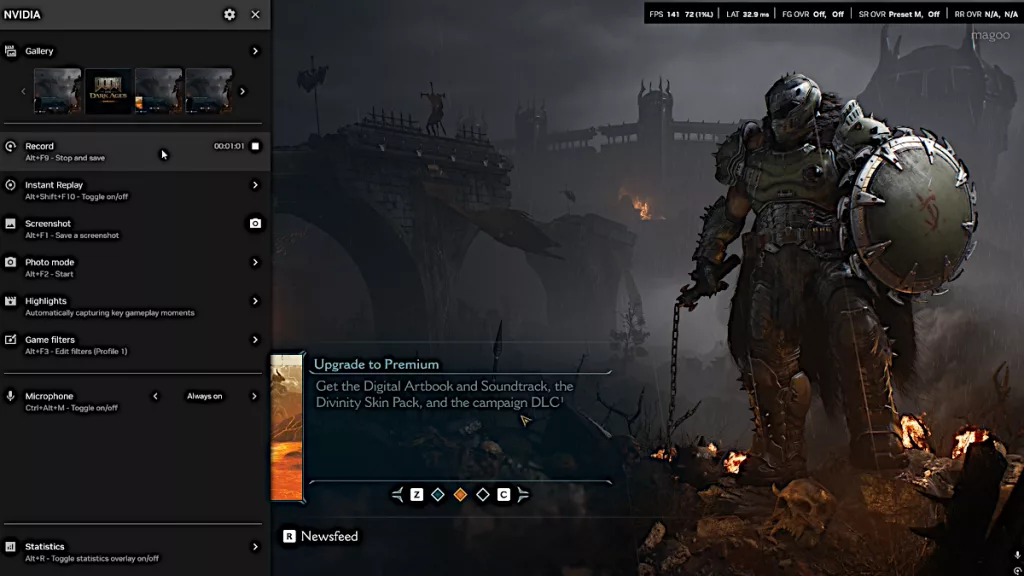
Secondly, following that, open the overlay, ALT-Z, and click on “Statistics” at the bottom. On the page that comes up, cycle through the choices to the right of “Statistics view” until you land on <DLSS>. At that point, you will have an overlay on the top of your monitor screen, which will tell you if your DLSS 4.5 Preset is working. For instance, if you choose DLSS > Performance in your game, the overlay should indicate “Preset M” in the “SR OVR” slot.
If you are using a series RTX 2000 or 3000 video card, it has been suggested that you select “Recommended” for Super Resolution. The App will select Preset K for all choices on those older video cards. This apparently is due to the way the older cards process the code.