
Introduction
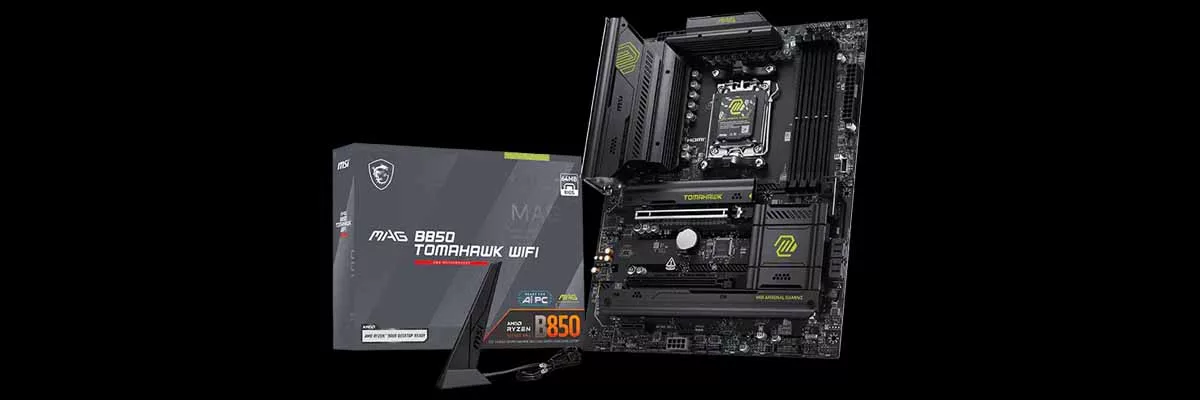
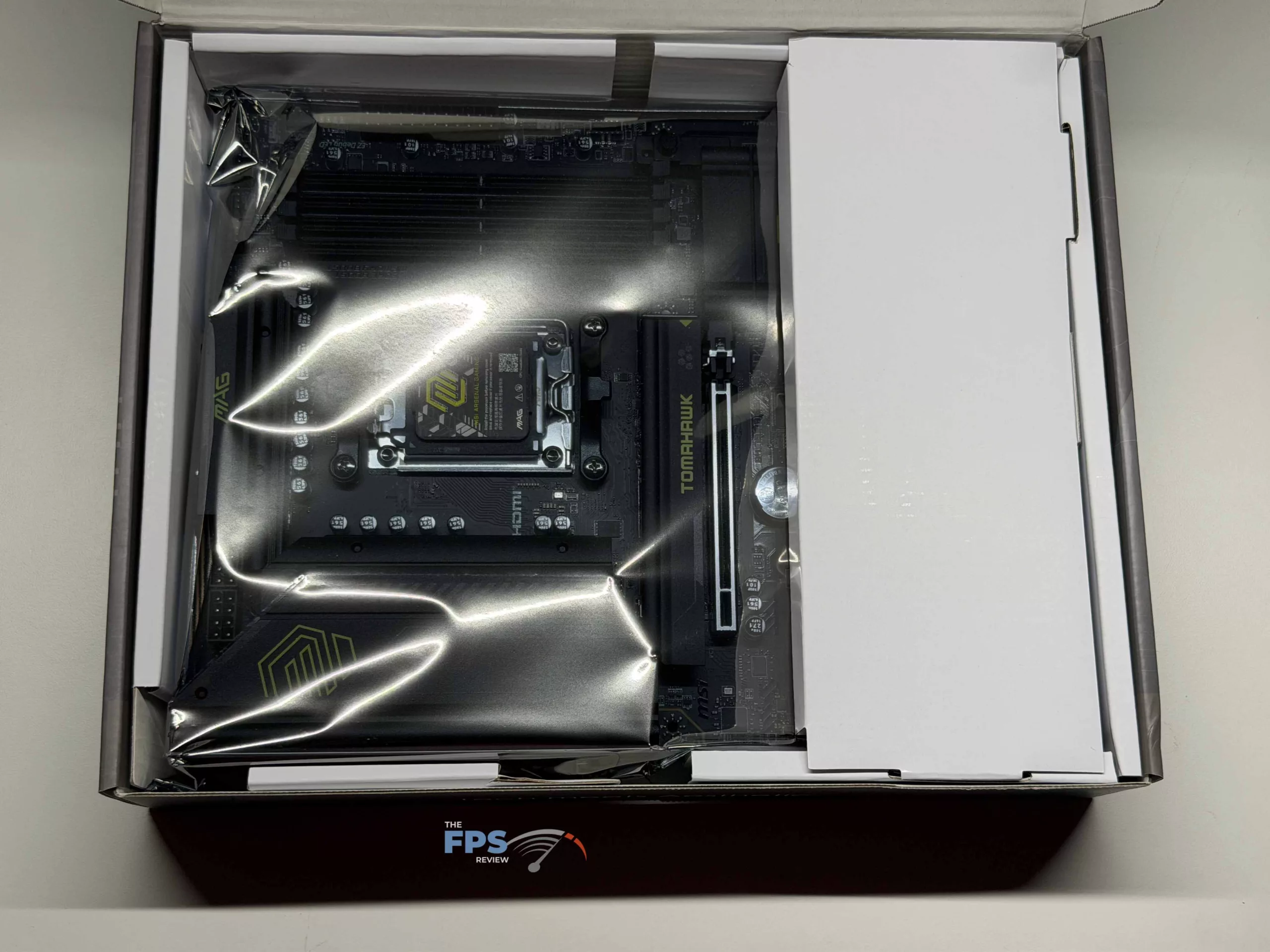
Today, we have the MSI MAG B850 TOMAHAWK WIFI in the office to take a look at. This motherboard is part of MSI’s MAG (MSI Arsenal Gaming) series, which sits as MSI’s offering for more budget-conscious offerings. Along with this, MSI has also released an X870E TOMAHAWK MAX WIFI to complement the B850 variant we have today, which we will look at in a future review.
With the B850 TOMAHAWK coming in at $229, it is definitely aimed at the more budget-conscious DIY’ers today. At this price point, MSI has three (3) total M.2 slots for NVME drives, all of which have M.2 Sheild FROZR ‘s, along with four (4) SATA ports for plenty of storage options. Even though this is on the lower end of MSI’s price range, it has the features to let it punch above its weight class.



Packaging and Contents
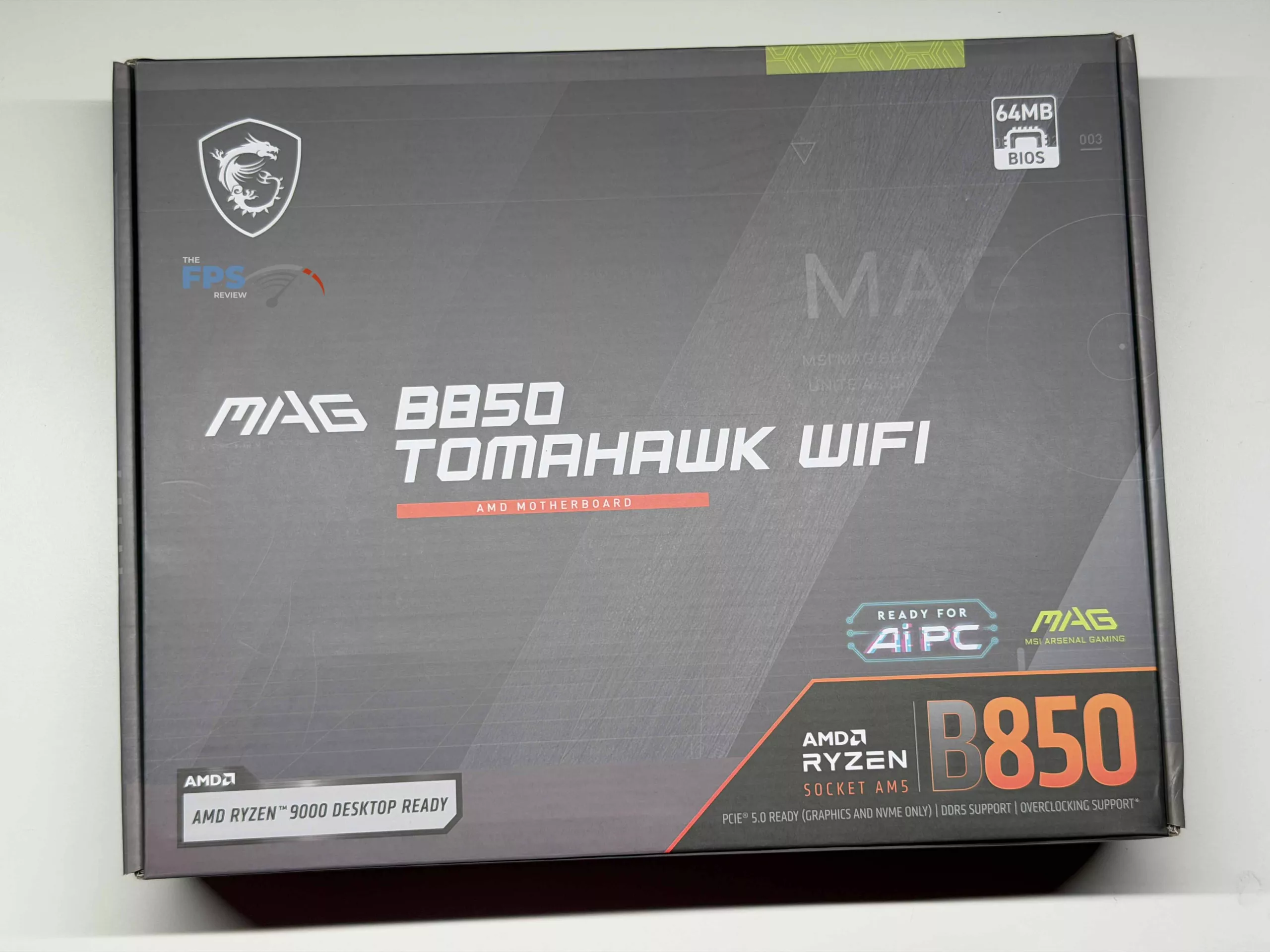
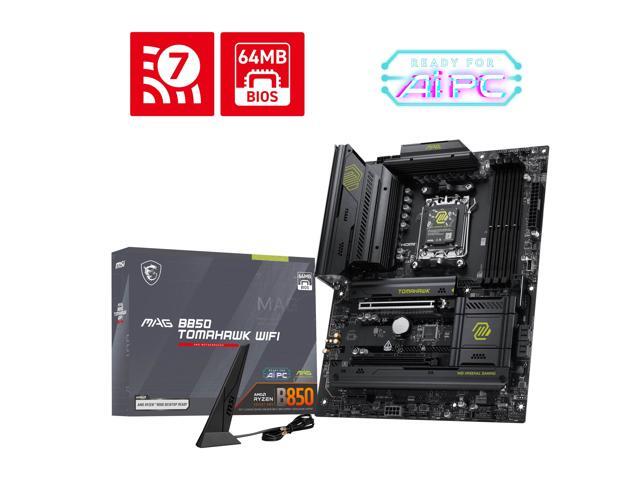
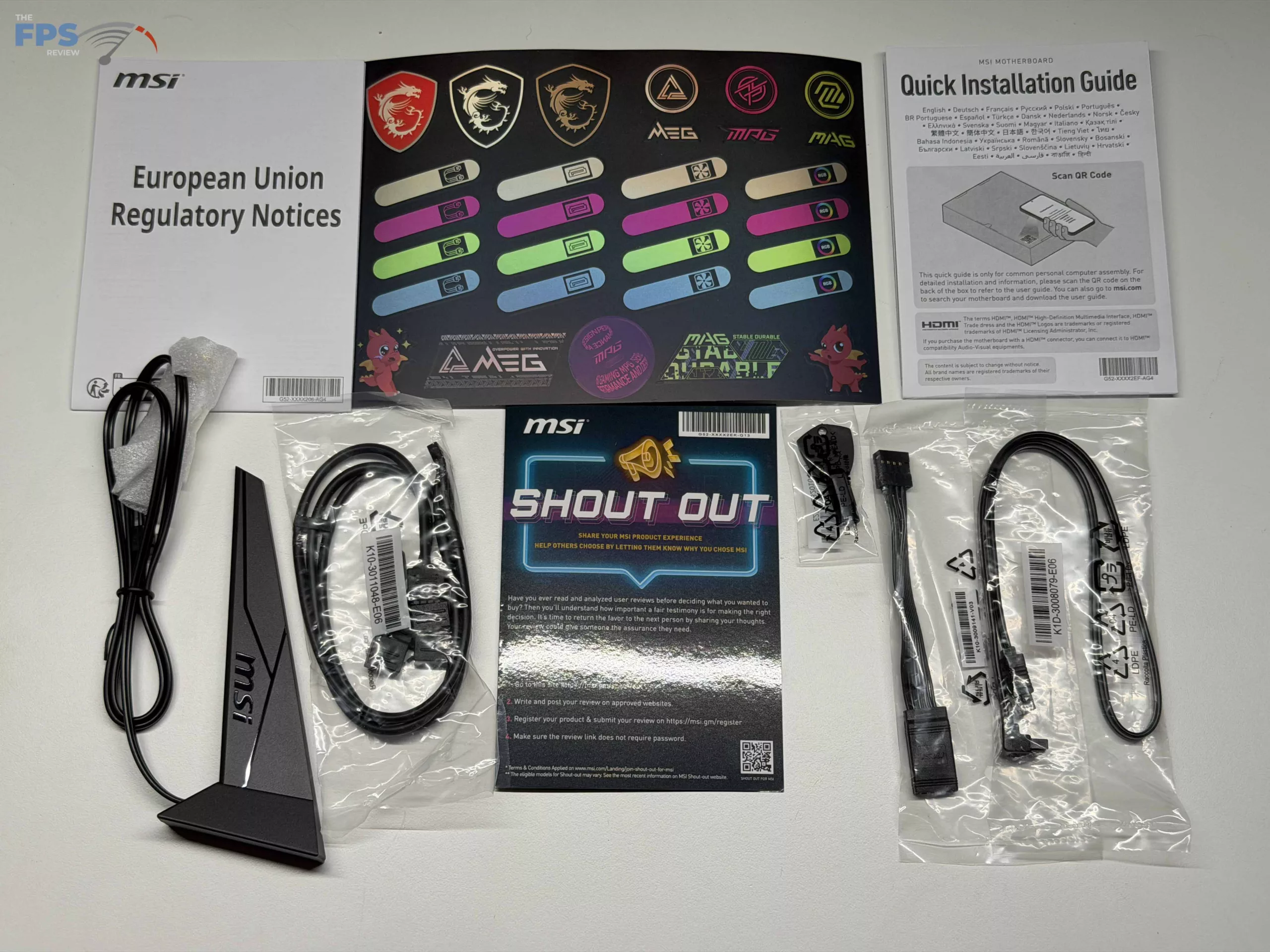
As can be expected with the MAG series, there is not a whole lot included in the box for extras. The items most likely to actually be used are the EZ WIFI Antenna (with no extended stand that we sometimes have included), an EZ Front Panel connector (For quick connection of front panel headers), a 1 to 3 EZ Conn-Cable for RGB lighting, a spare EZ M.2 Clip II, and an EZ M.2 Clip II Remover tool.
After this, there is the standard quick installation guide, European Union Regulatory Notice, as well as a page of cable stickers to assist with cable management or to fancy up your case. Finally, there is the “Shout Out” pamphlet to remind you to register your motherboard and to leave a review.
MSI MAG B850 TOMAHAWK WIFI Features
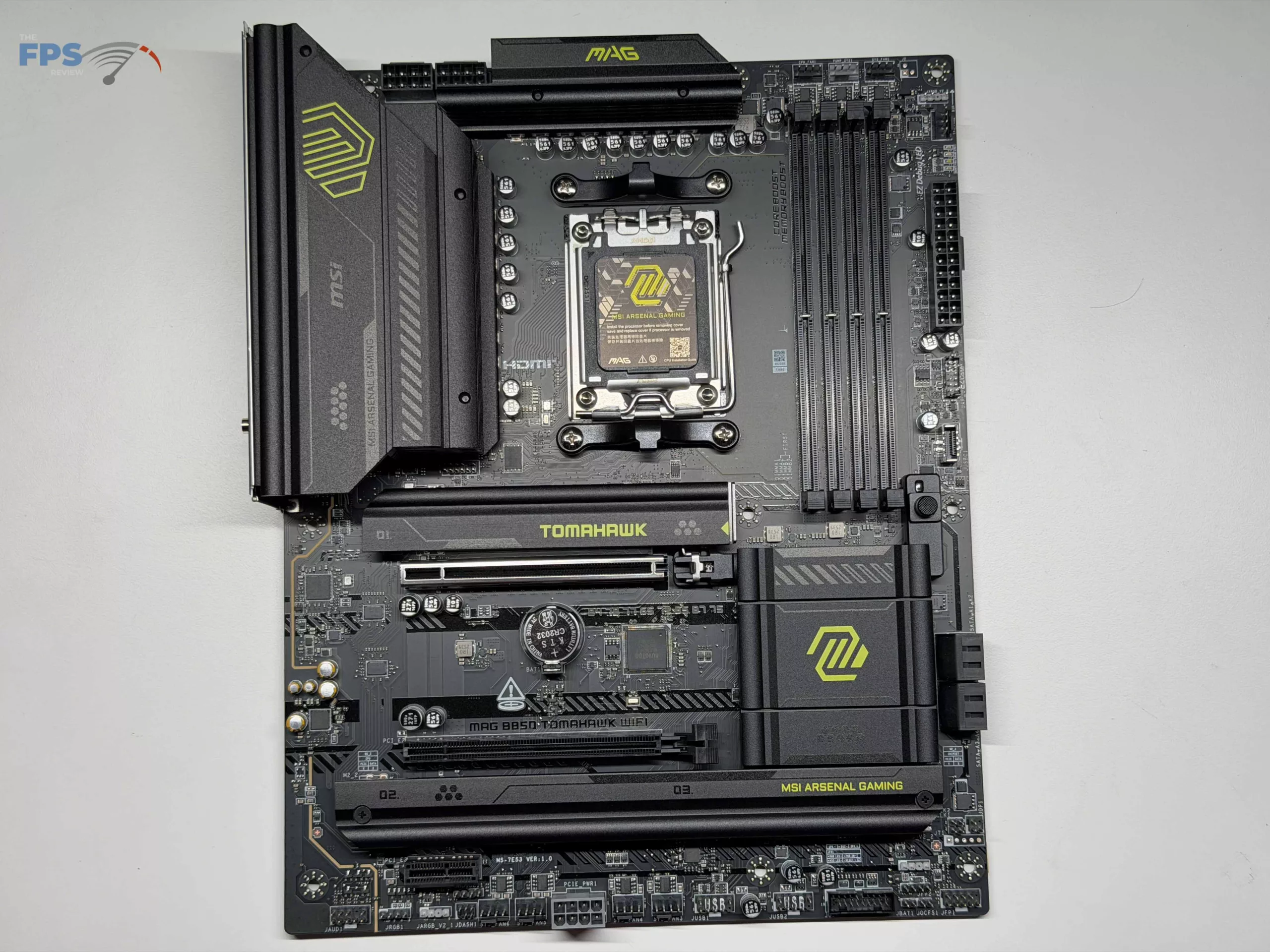
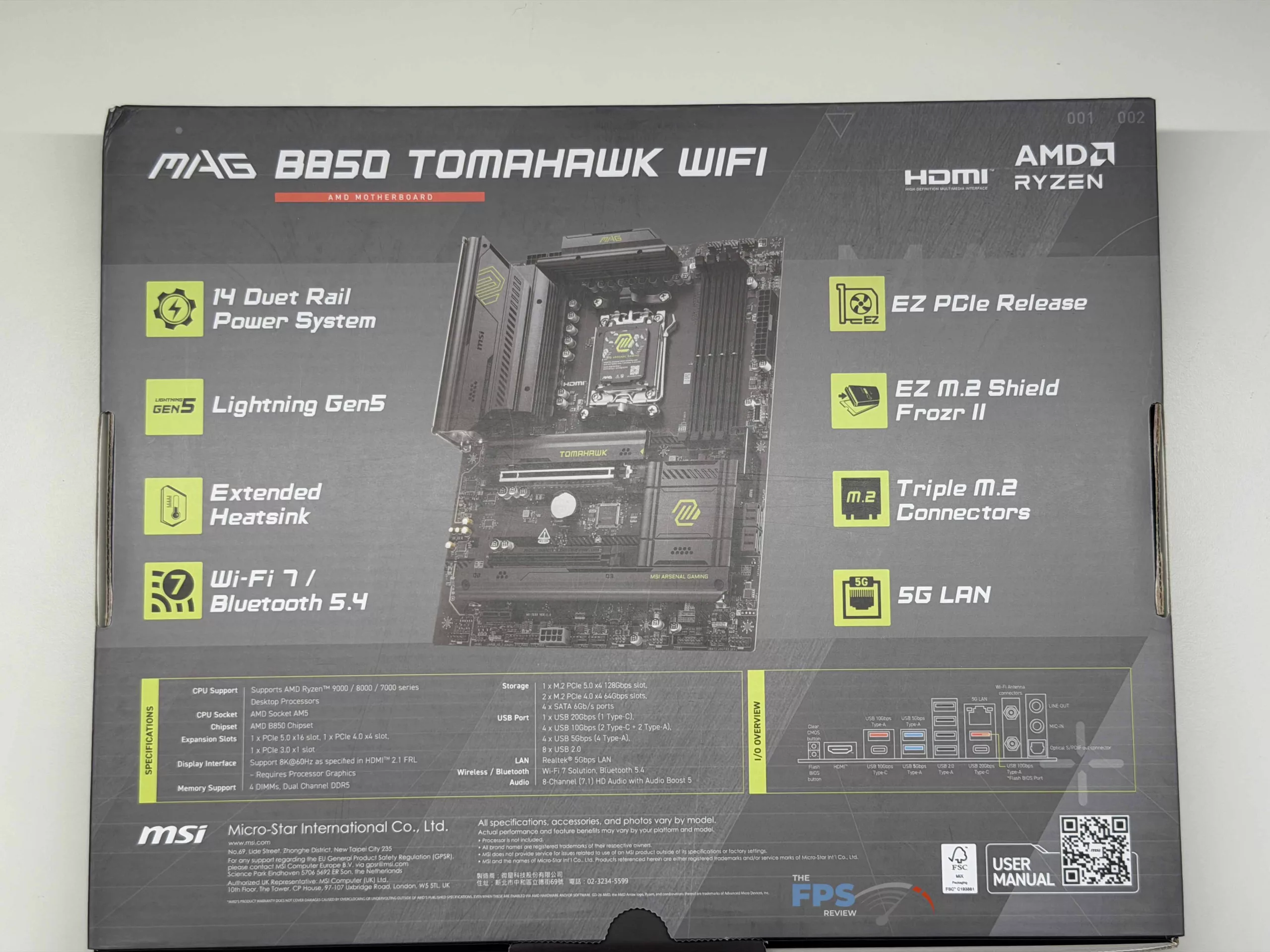
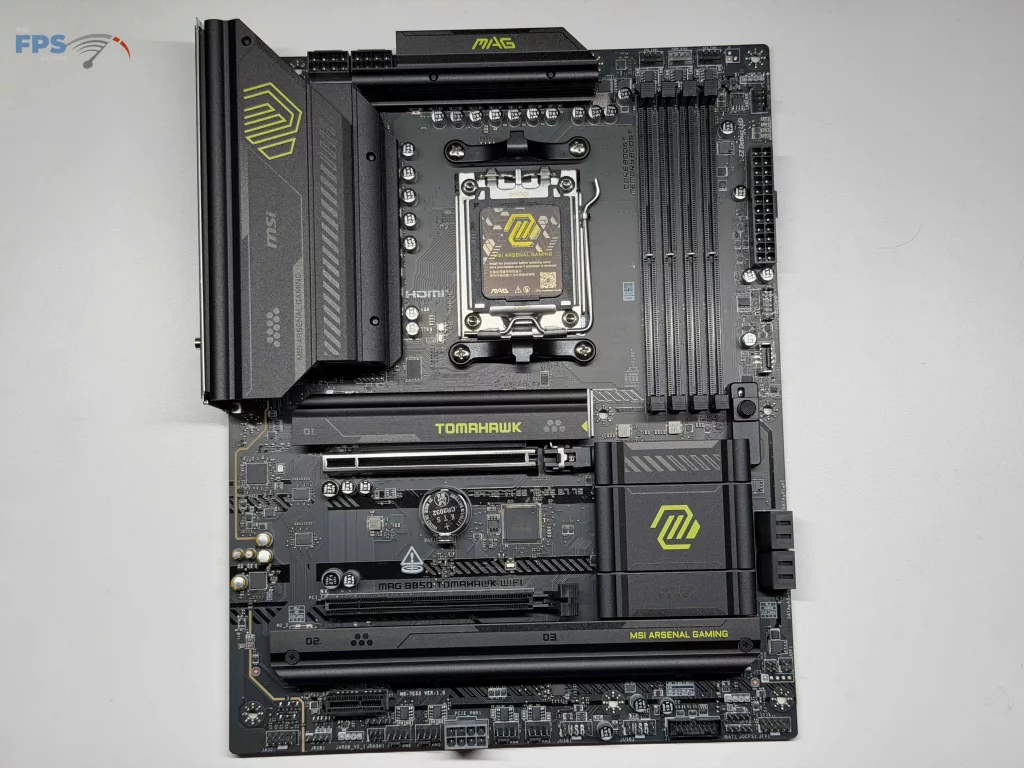
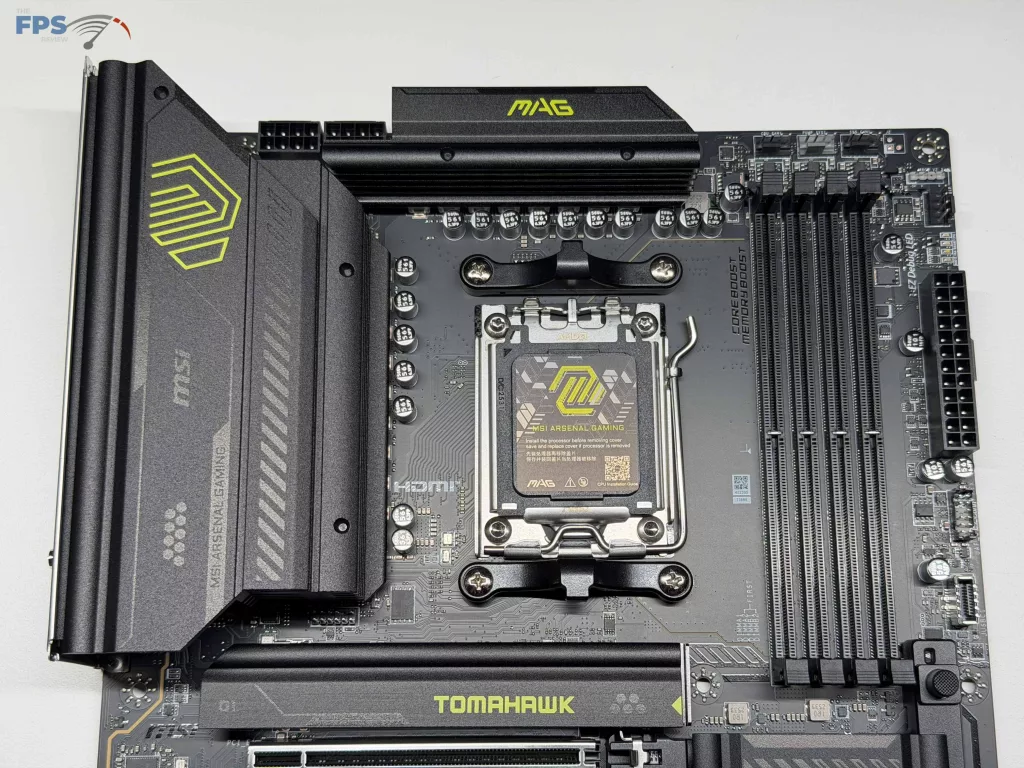
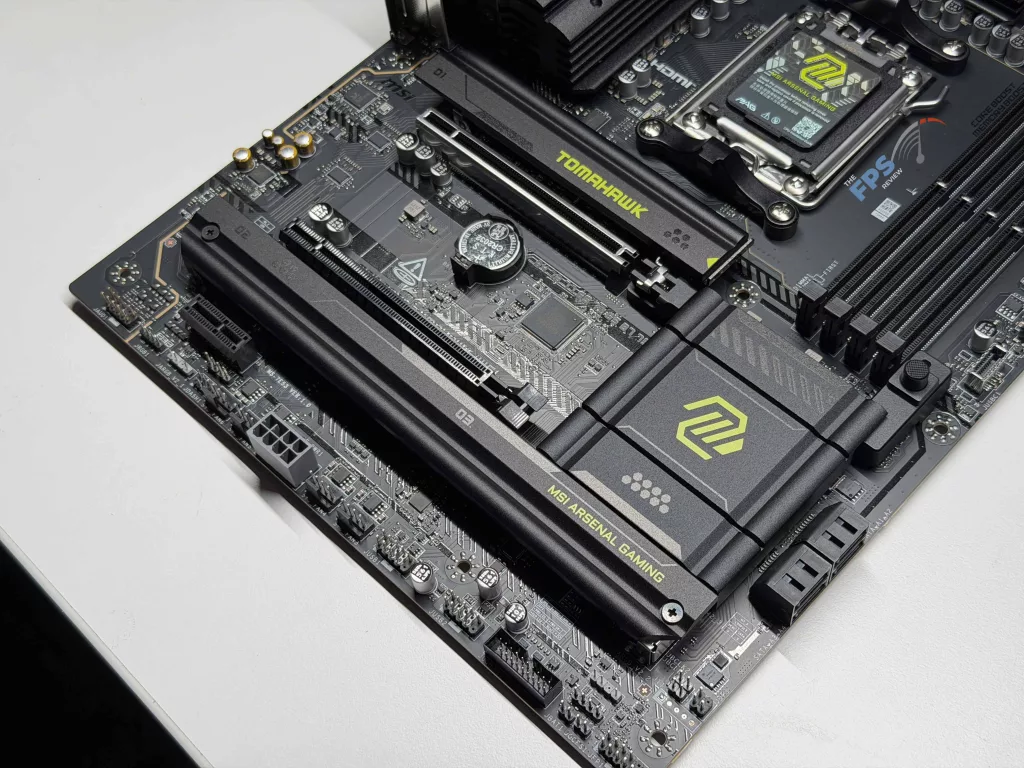
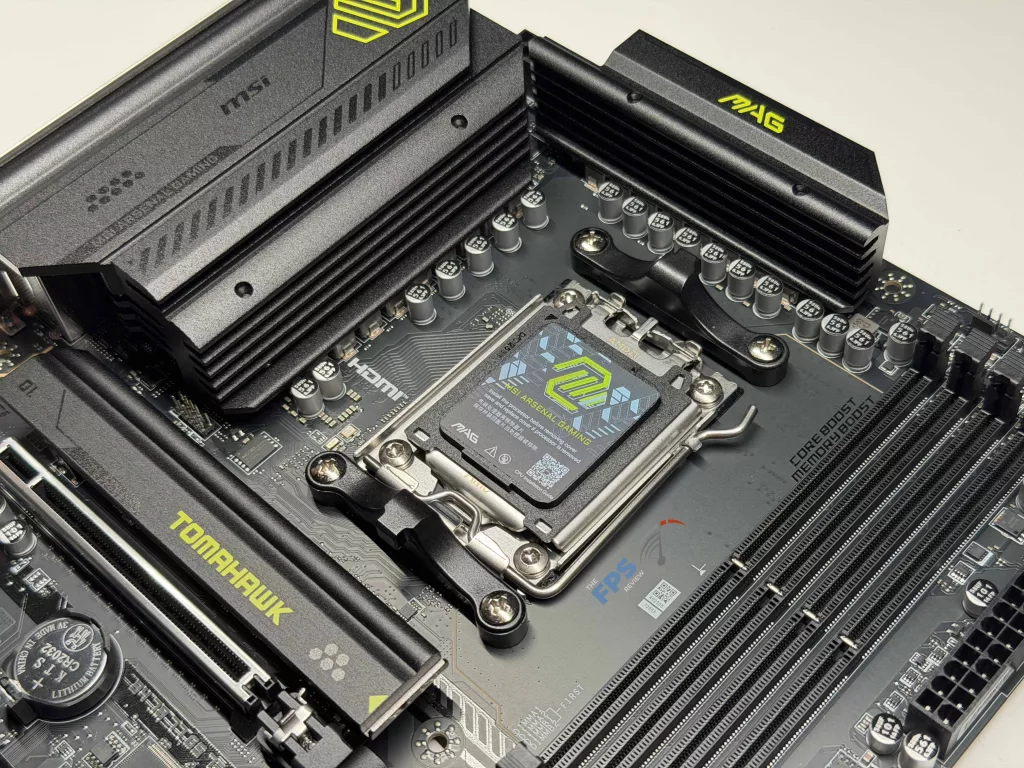
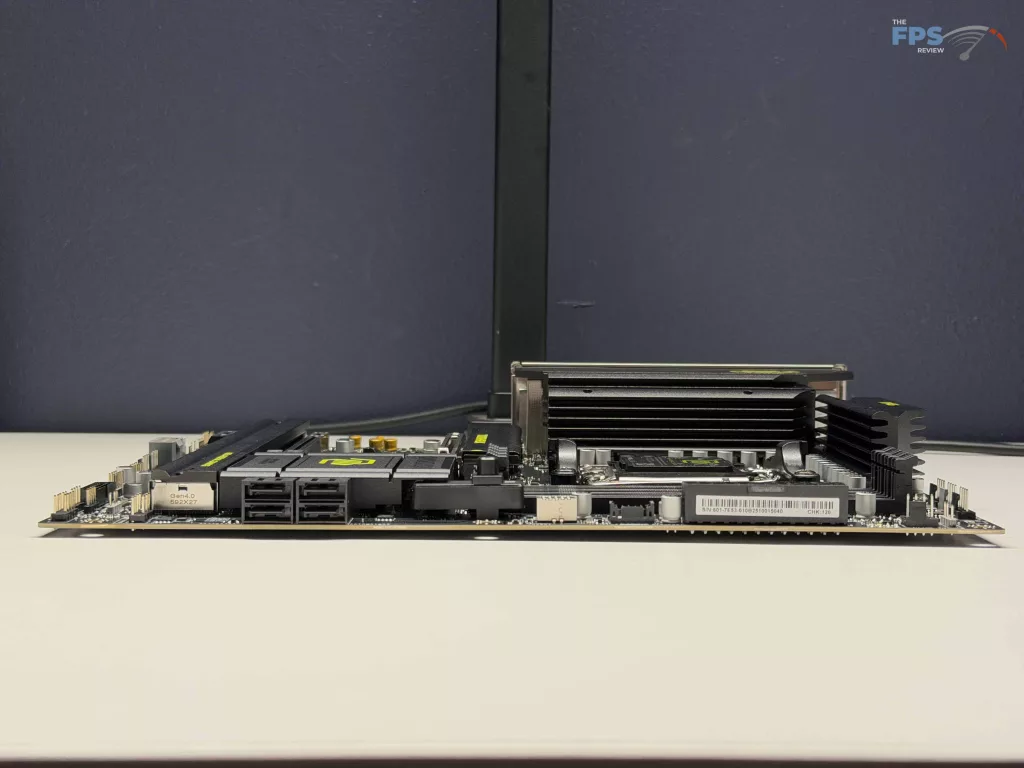
With the new generation of MAG TOMAHAWK offerings, MSI has modified the design from predominantly black with white accents to black with green for the accents, which matches the same refresh done when the Intel Z890 offerings were released. As we have come to expect with most full-size motherboards, there are the standard four (4) DDR5 memory slots, three (3) M.2 slots, and four (4) total SATA ports for storage and memory options. Beyond this, MSI has gone with a FROZR II style heat sink for the primary M.2 slot, and the remaining two (2) have a standard FROZR cooler.
Power Delivery
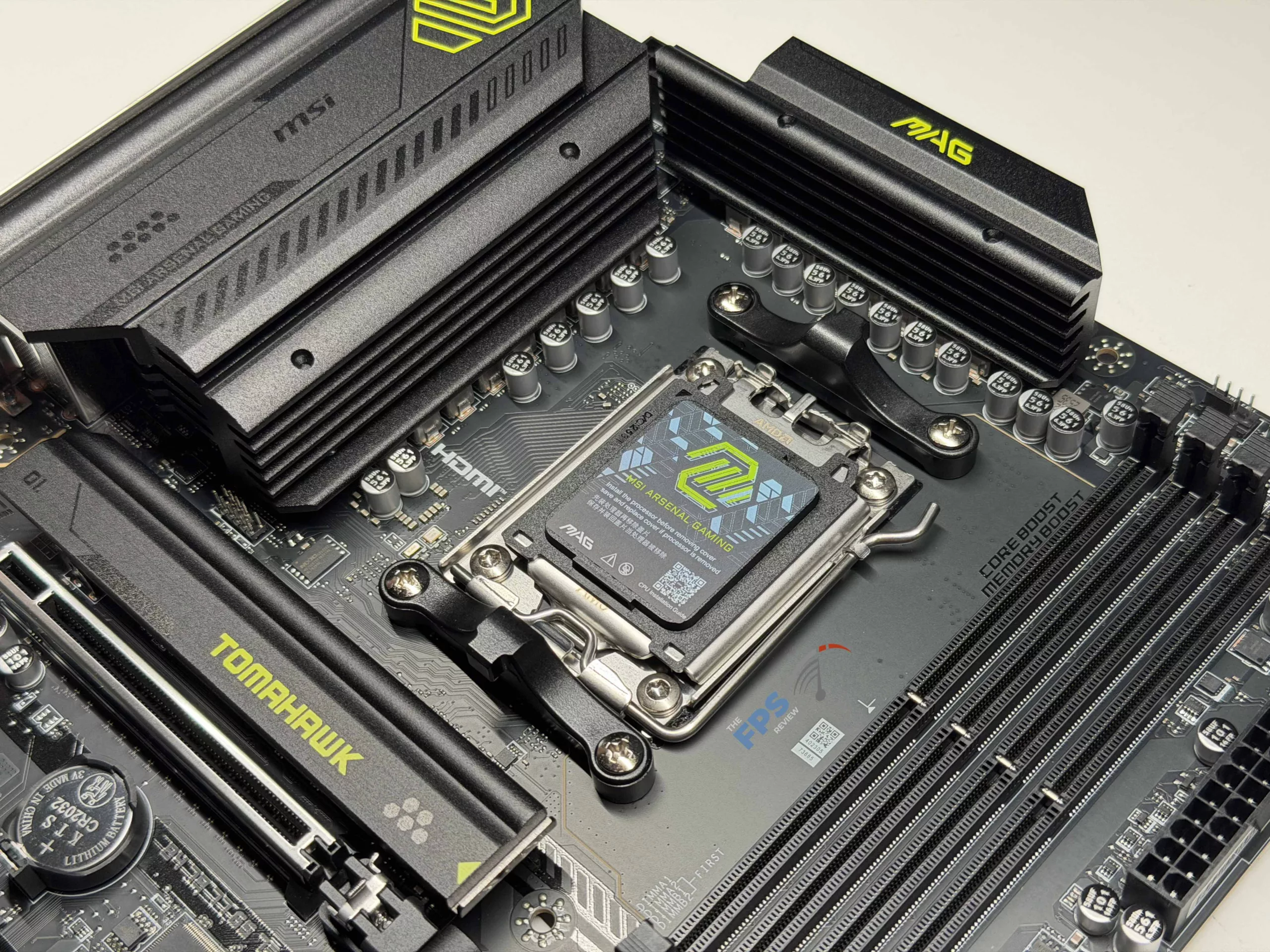
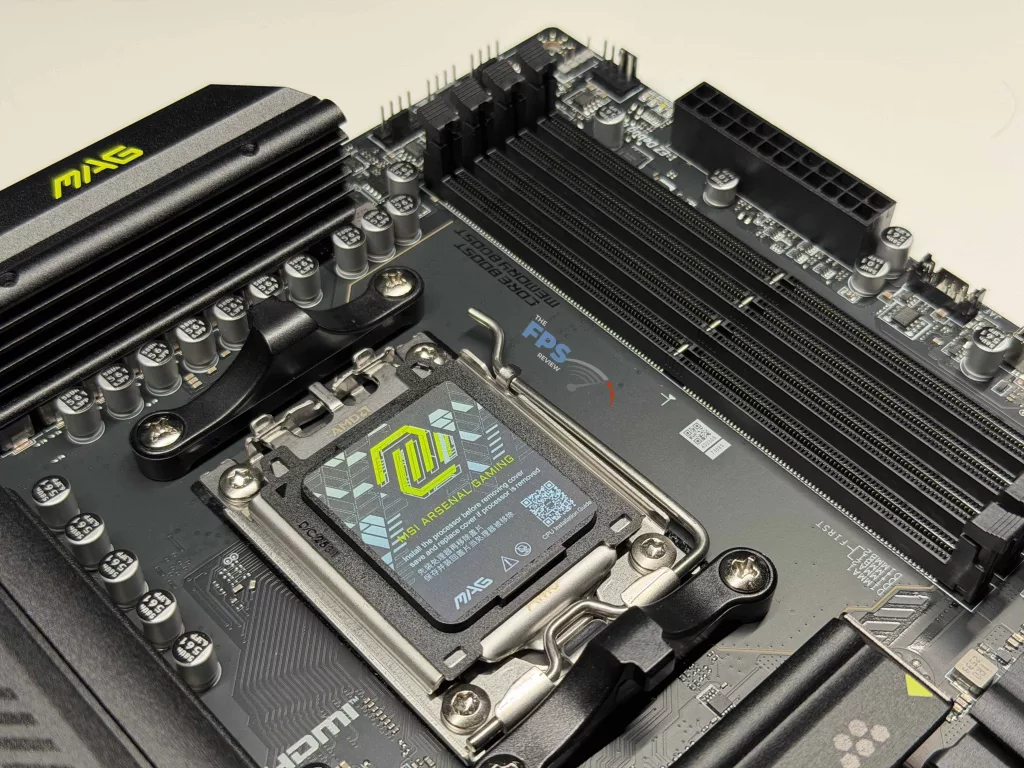
MSI has gone with a 14+2+1 VRM power design on the MSI MAG B850 TOMAHAWK WIFI. With this, there is an 80Amp Smart Power Stage, which should be able to keep up for standard operation with Performance Boost Overdrive (PBO) enabled. The FROZR cooling is not just on the M.2 drives; it is also incorporated in the VRM cooling with extended Heatsinks on all the power elements, as well as an oversized heatsink on the B850 chipset. All of this allowed for full PBO operation for us during testing, however we are not certain this power system will hold up to higher-end overclocking, even with the OC Engine MSI has included onboard.
Memory and Storage
Similar to all B850 motherboards we have had in the office to date, the MSI MAG B850 TOMAHAWK WIFI can only utilize Non-ECC, Un-buffered, DDR5 memory, with a maximum capacity of 64 GB per slot (with a total of 256 GB). Assuming your memory is up for the task, you will be able to push speeds of up to 8,200 MT/s, or higher, when using a single memory slot/stick, which is some of the highest speeds we have seen on the B850 platform. Unfortunately, we are unable to fully test the speed as our Patriot kit is only capable of up to 6,200 MT/s, which had no issues being met with both the A2 and B2 slots occupied.
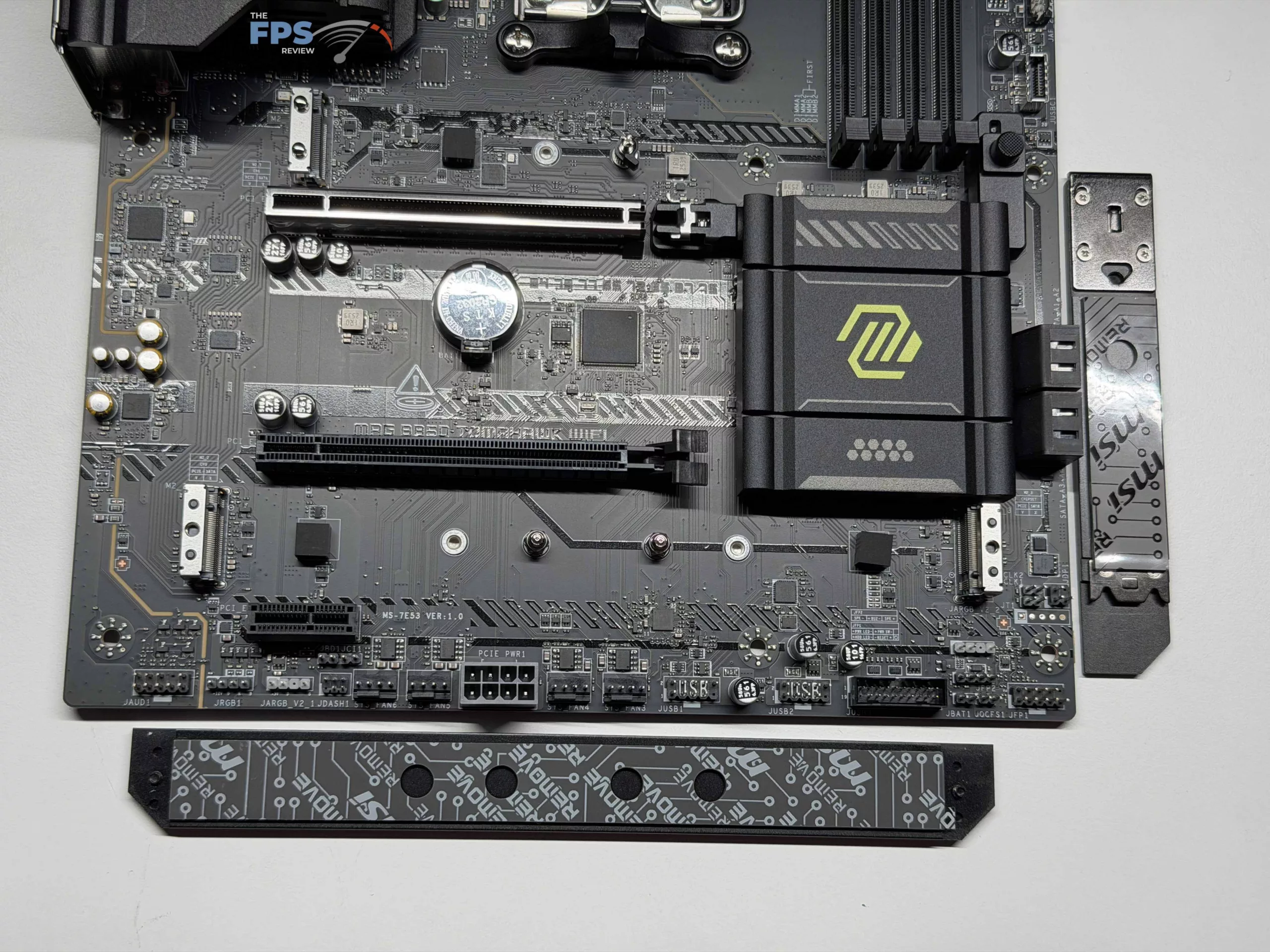
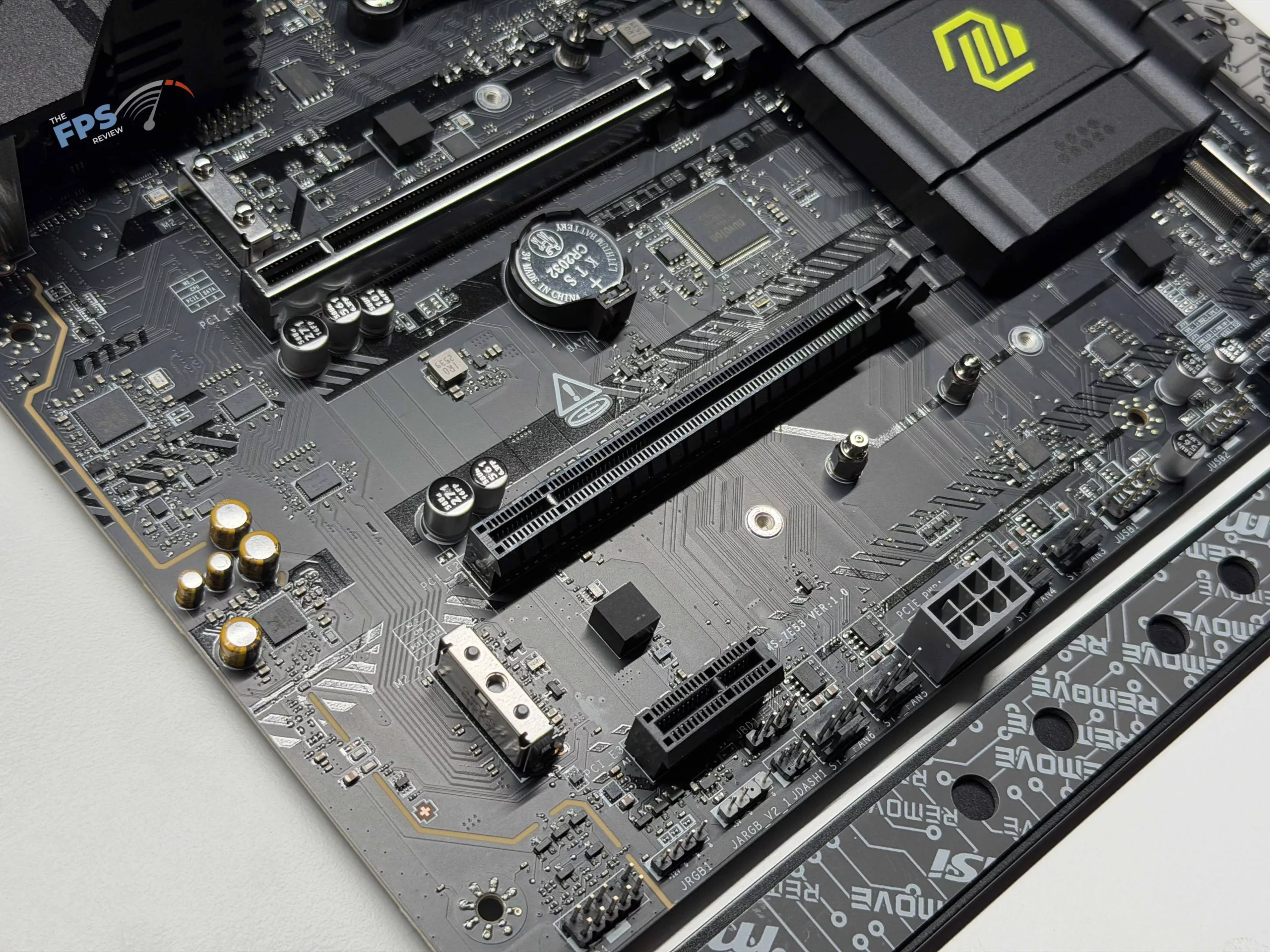
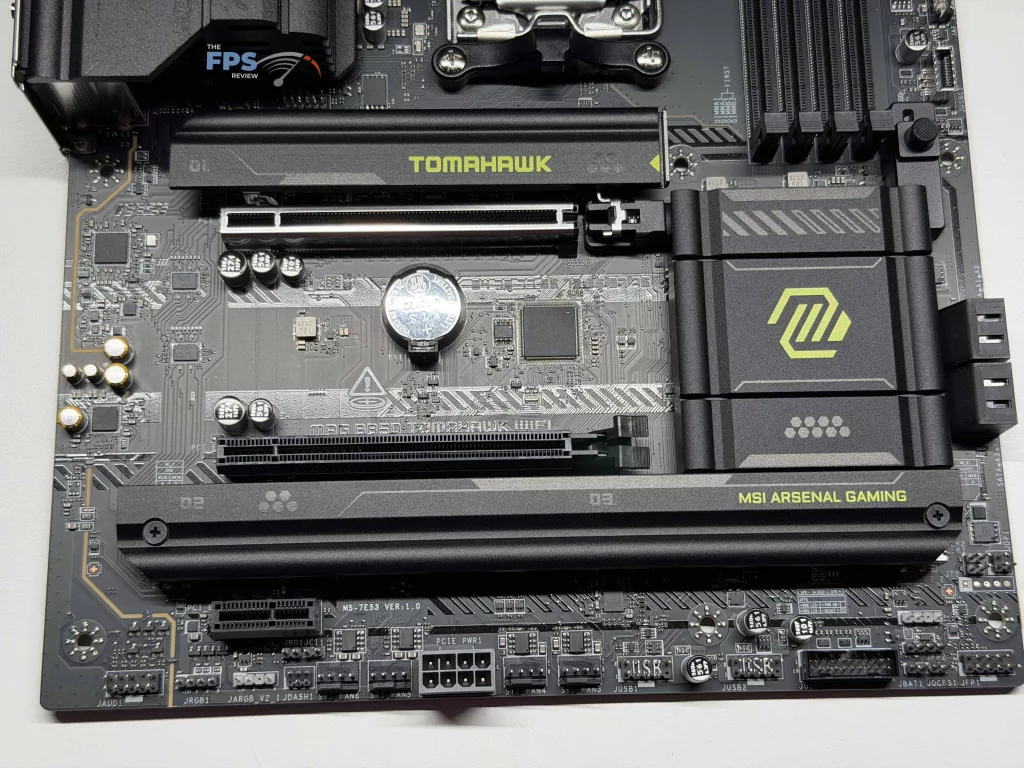
There are a total of three (3) M.2 slots on the MSI MAG B850 TOMAHAWK WIFI, with only the M.2_1 being Gen5 speeds from the CPU, which is standard for a motherboard in this tier. The remaining two (2) slots are Gen 4 speeds, with only the M.2_3 slot being provided from the chipset. While there are only three (3) total slots, the upside is that no matter the combination of M.2 drives, USB ports used, or PCIe slots used, they will run at their respective speed generation.
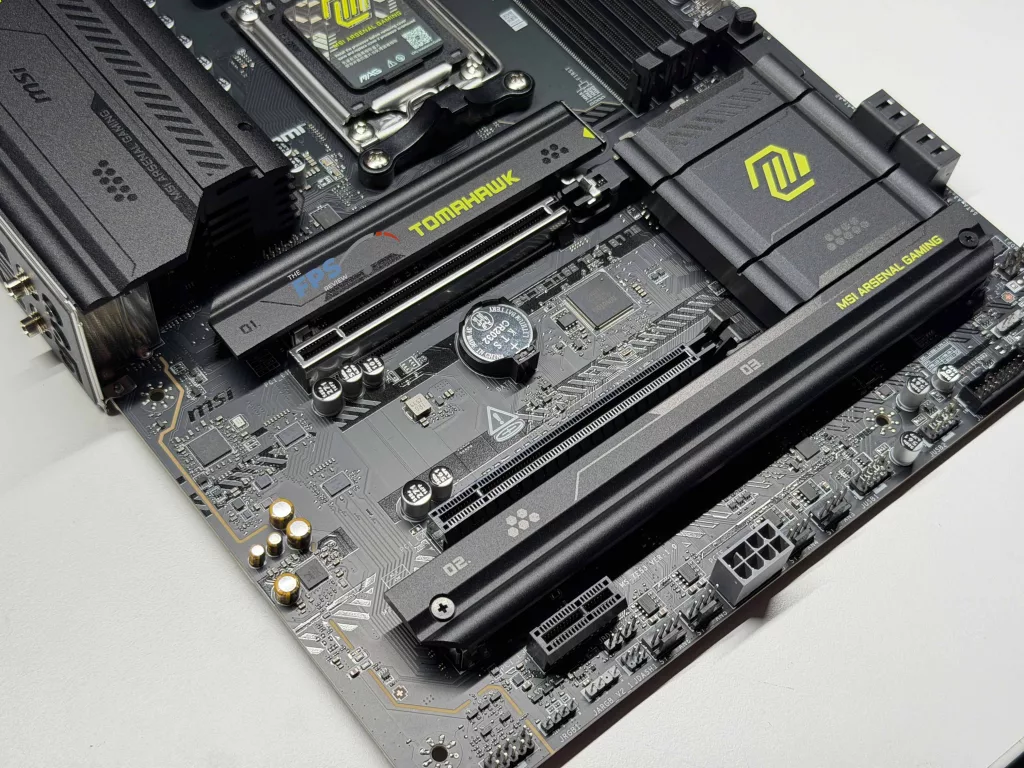
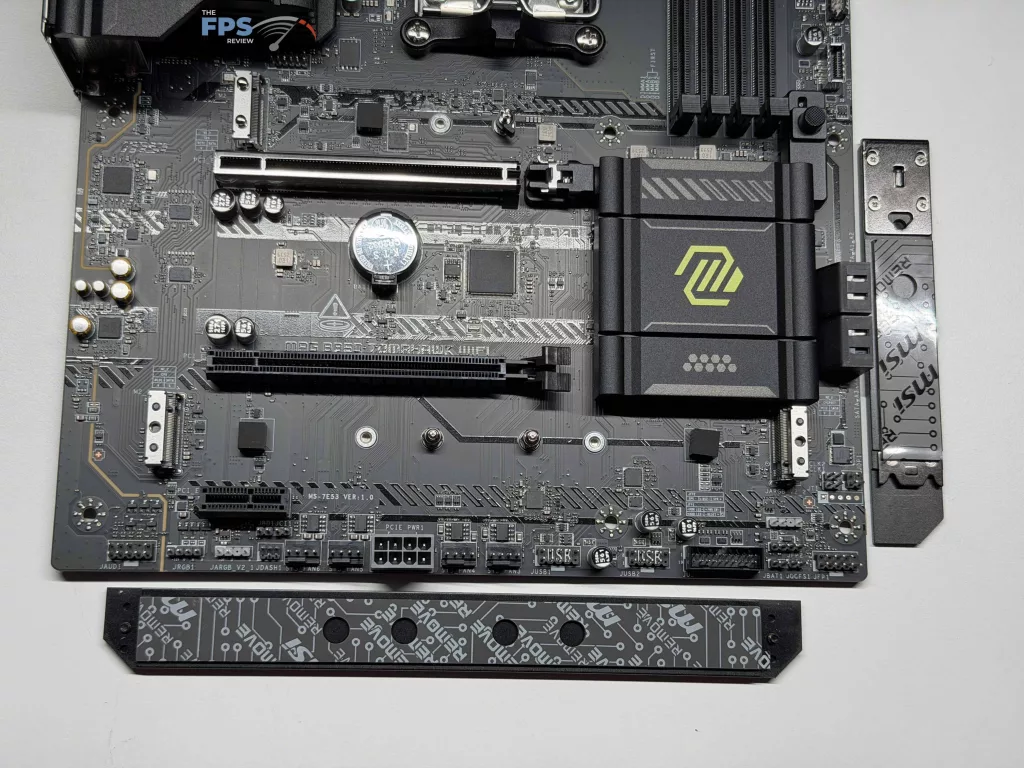
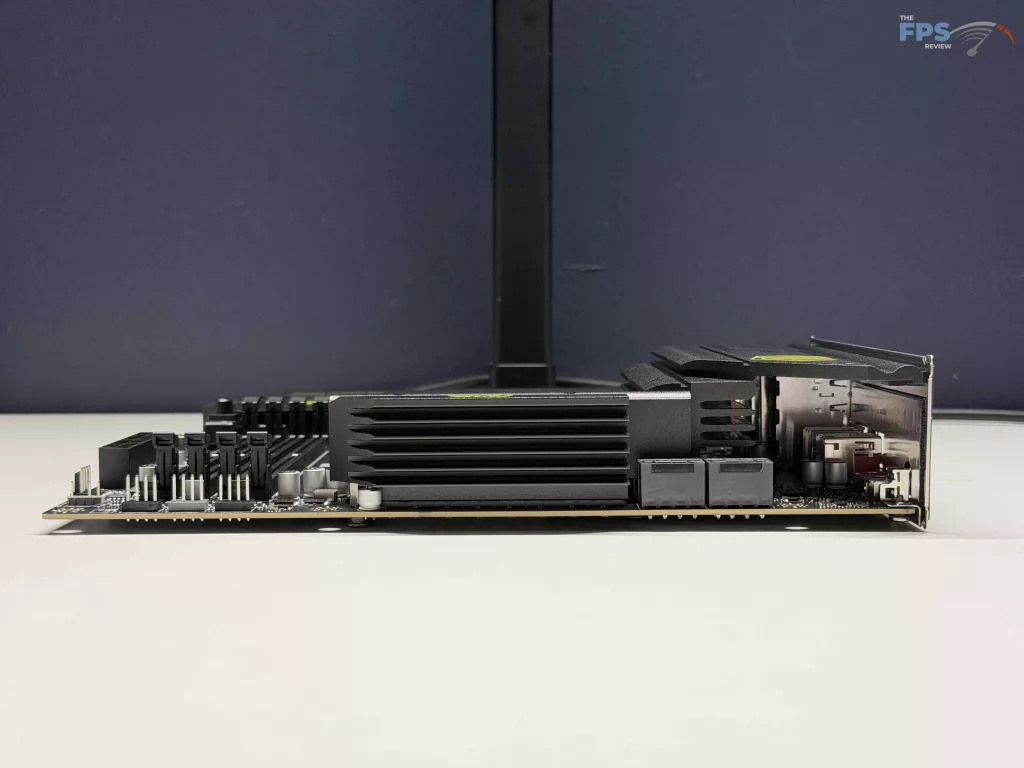
As we touched on earlier, MSI has provided cooling for all three of these slots, with the M.2_1 having the EZ M.2 Shield Frozr II tool-less solution, and M.2_2 & M.2_3 sharing the more standard M.2 Shield Frozr, which requires removal of two small screws to access the slots. Overall, the cooling is adequate on the two Gen4 slots, and should not have any issues assuming your M.2 drives are single-sided. The Gen5 slot, M.2_1, is not as robust as we have seen in other motherboards from MSI, however it should still be able to work for most drives that do not have integrated heat sinks from the manufacturer. Beyond the M.2 slots, there are a total of four (4) SATA 6 GB/s ports that can be found in the usual location beside the chipset.
Expansion
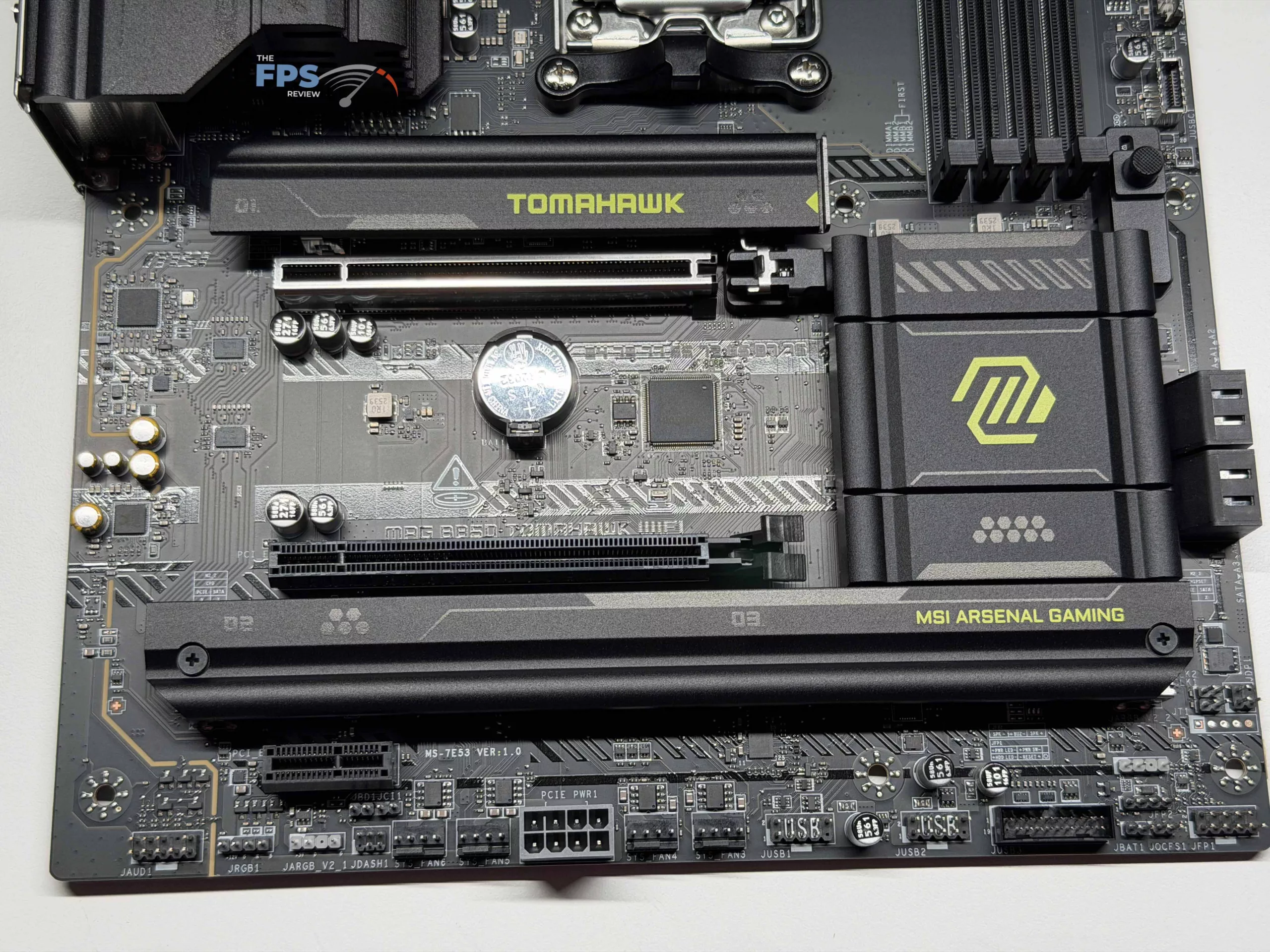
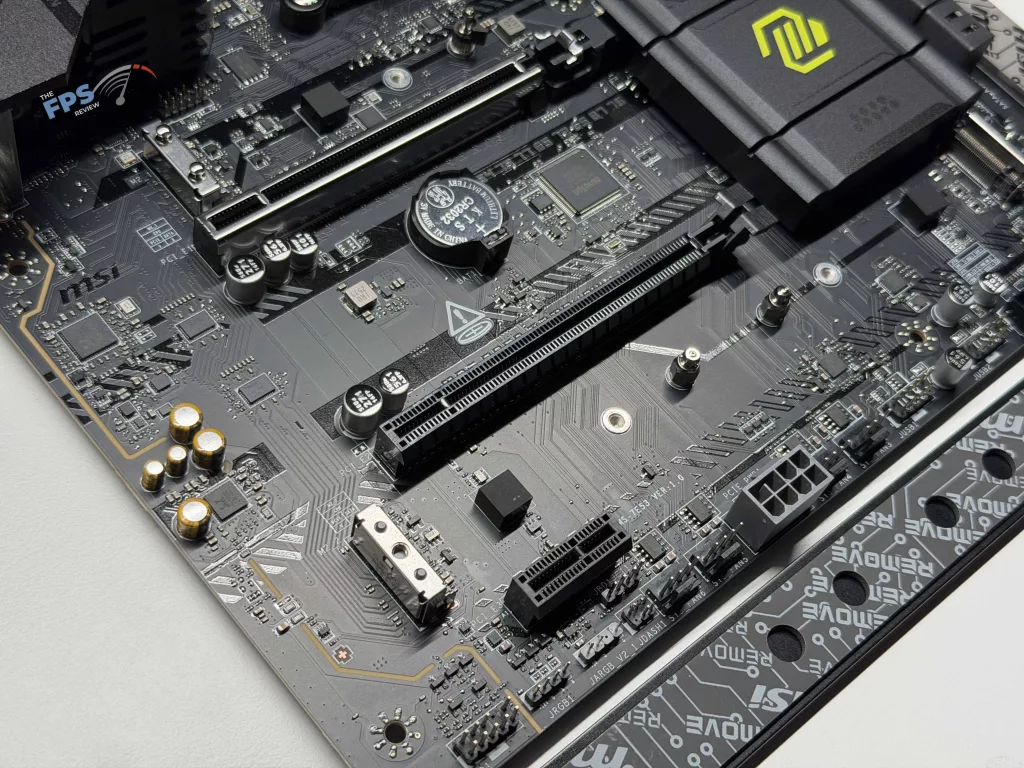
The MSI MAG B850 TOMAHAWK WIFI has three (3) total PCIe slots, with the primary being the lone Gen5 x16 slot from the CPU, while the middle slot is capable of Gen4 x4 operation, and the bottom-most slot is a Gen 3 x1 slot. Even with this being a more budget focused motherboard, MSI has added a few features to the expansion slots that are greatly appreciated, with the Steel Armor II system on the top most slot for added strength with more modern GPU’s, as well as their EZ PCIe Release system for making removal as simple as pressing a button located on the bottom right of the DDR5 slots.
These are both features we often see on mid-to-higher range offerings, which is much appreciated on this motherboard. The last item we want to draw attention to with the expansion is the PCIE_PWR1 plug, which you can see at the bottom of the motherboard. This is an 8-pin power connector intended solely for adding supplemental power to all three (3) of the PCIe slots, and to add stability to any higher power GPUs, or NPU’s, that a user might install.
I/O
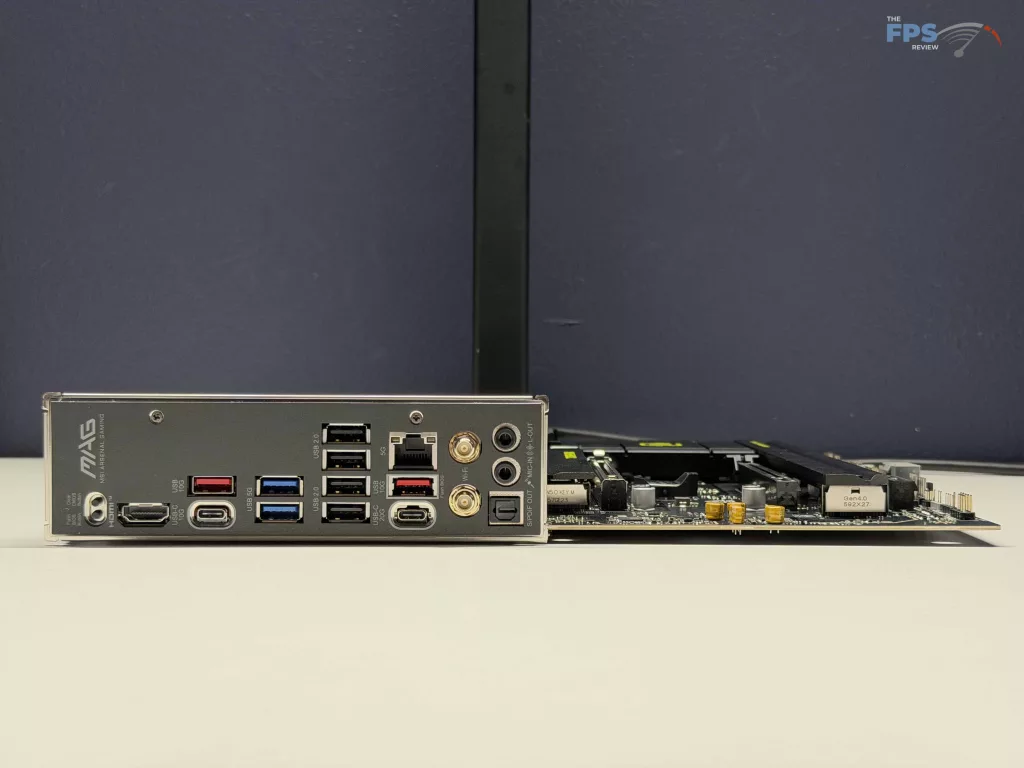
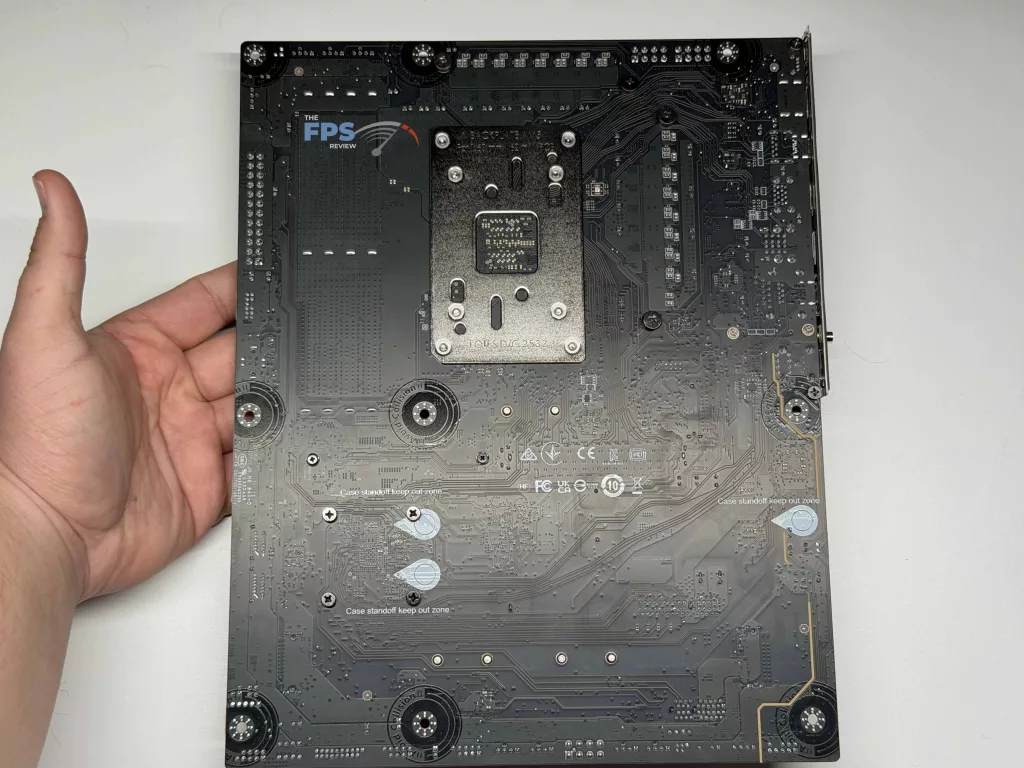
I/O on the MSI MAG B850 TOMAHAWK WIFI is a mixed bag, with a total of 17 USB ports available, 10 of which can be found on the rear I/O panel. Of these, there are two (2) Type-C connectors, a 10Gbps and a 20 Gbps, four (4) Type-A ports split evenly between 5Gbps and 10Gbps, and finally four (4) USB 2.0 slots. This means the remaining seven (7) USB ports consist of one (1) Type-C 10Gbps port, two (2) Type-A 5Gbps, and four (4) USB 2.0 ports.
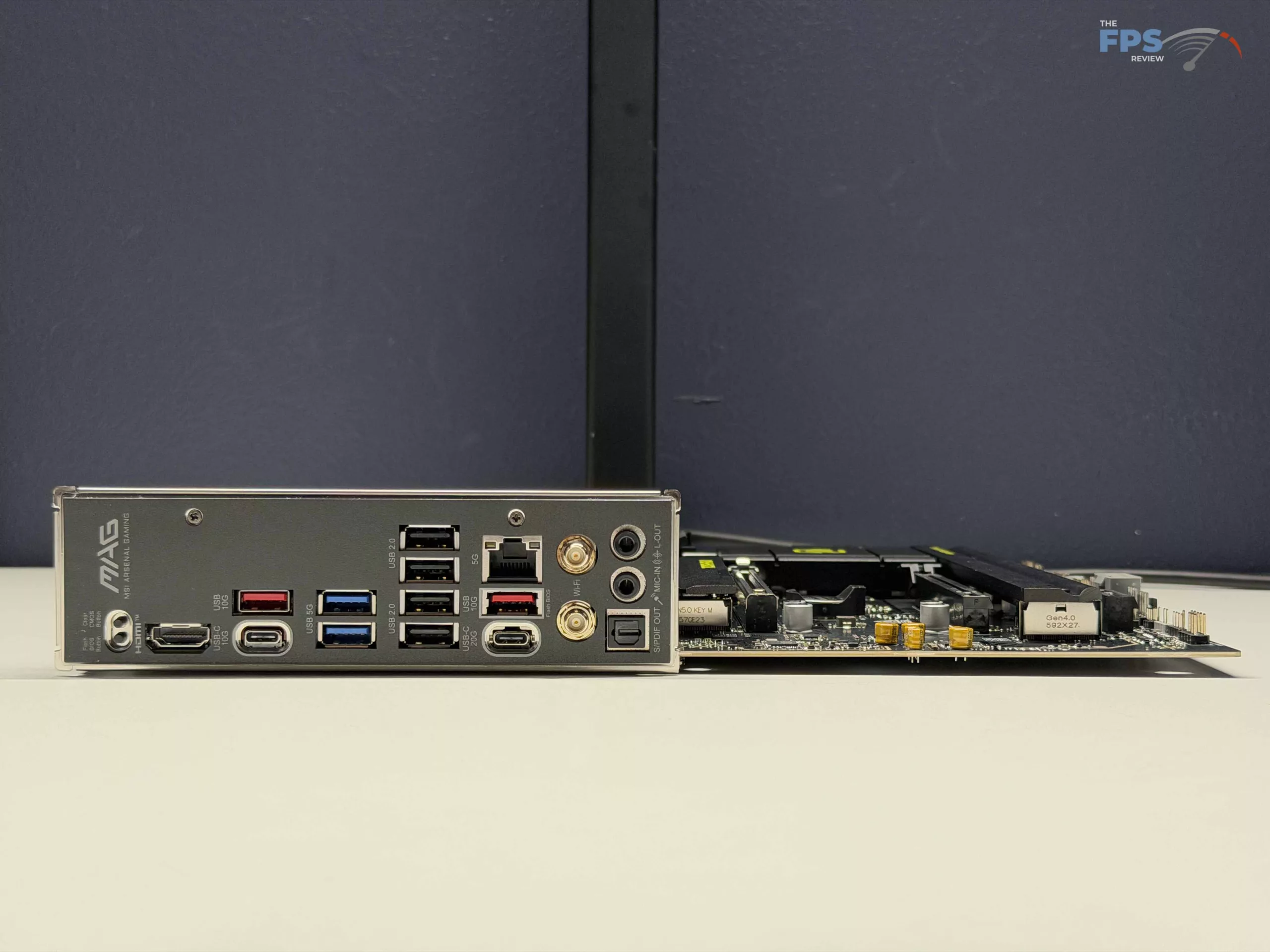
Beyond the USB ports, the rear I/O panel has an HDMI port for video out, a 5G LAN Port from a Realtek 8126VG chip, WIFI ports for WIFI 7 and Bluetooth 5.4, a Flash CMOS Button as well as a Clear CMOS button, and finally, there is an S/PDIF Out plug alongside the MIC-IN and Line Out plugs. This audio supports up to 7.1 Channel surround sound from the Realtek ALC4080 Codec.
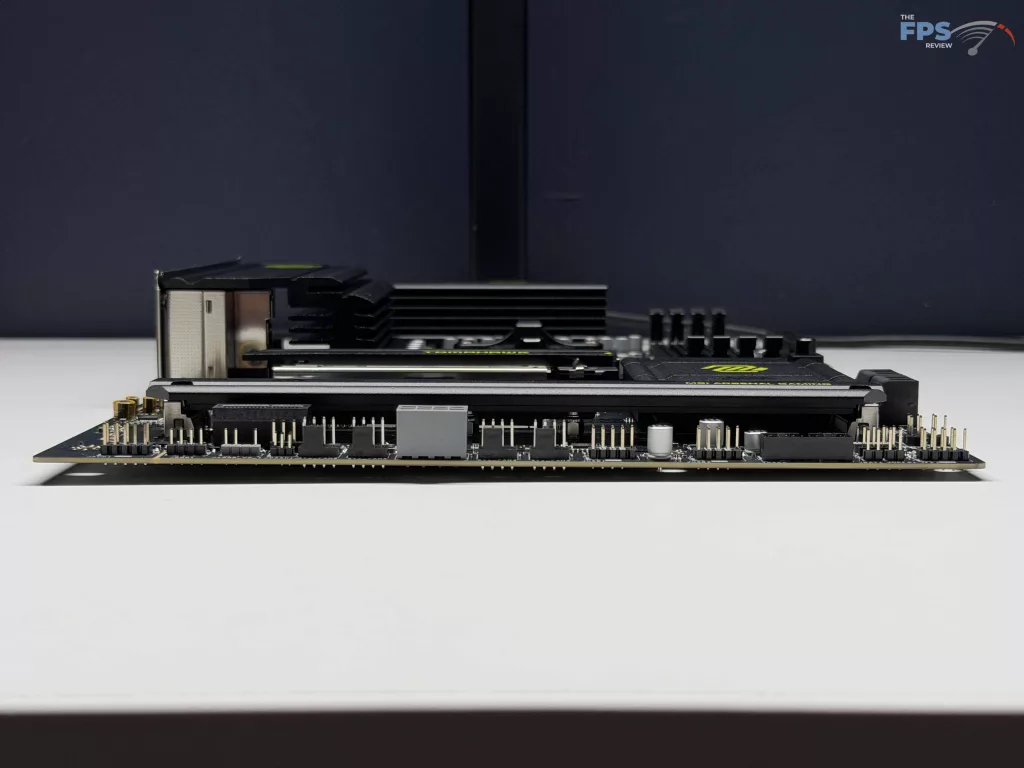
For cooling connection, there are a total of eight (8) 4-pin fan connectors with four (4) in the upper right corner of the motherboard, and four (4) in the bottom center. Of these, there is one (1) port intended for the CPU cooler fan, one (1) capable of up to 3 Amp power delivery for pump power, and the remaining six (6) are intended for system fan operation.
After this, there is the MSI exclusive “EZ CONN. – JAF_2” connector, which is a proprietary connector MSI has included for quick connection of MSI liquid coolers and fans, allowing for a single connection to work for the power and RGB control. When it comes to RGB control, the JAF_2 connector is not the only option, as there are three (3) total Addressable V2 connectors (JARGB_V2), along with a single RGB LED connector (JRGB). All of these can be controlled with MSI’s Mystic Light software in their Hub, which will also allow use of Ambient Link to tie in other RGB’s located in your space.
UEFI
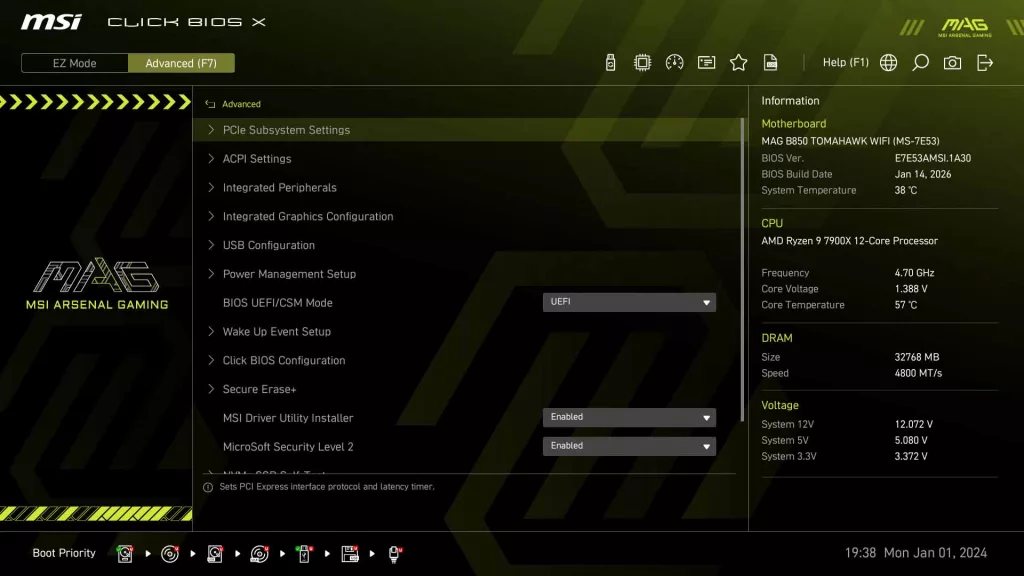
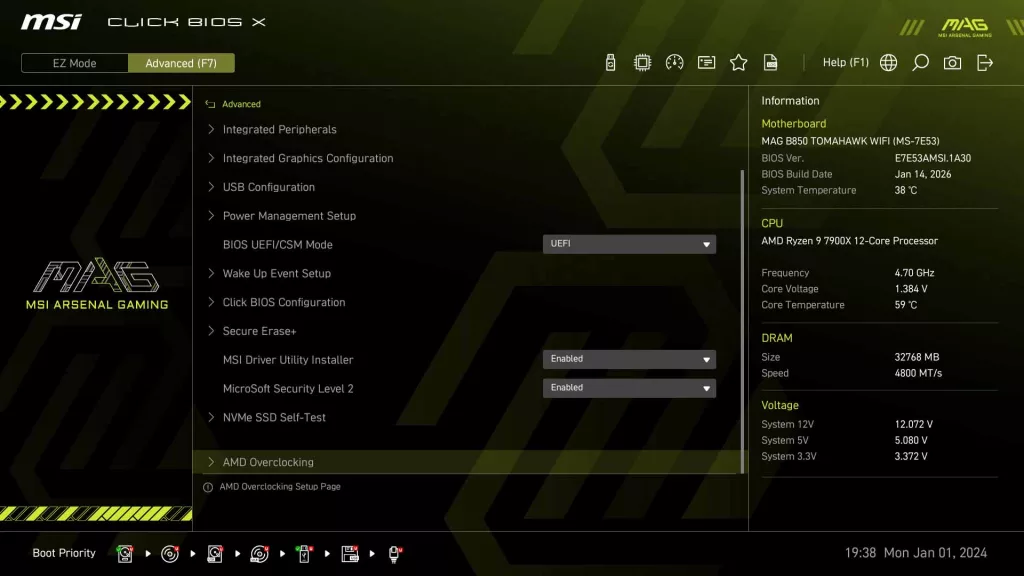
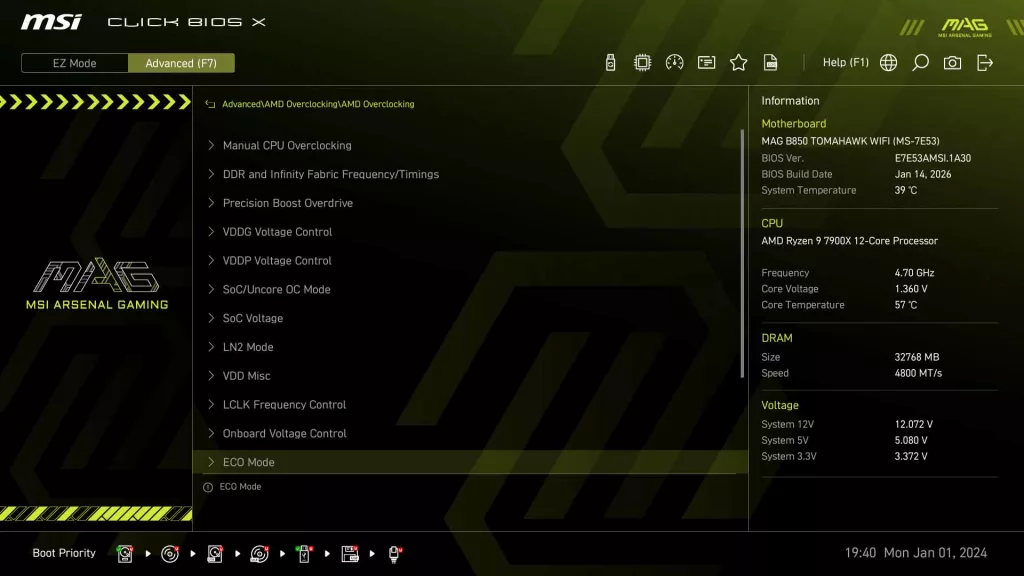
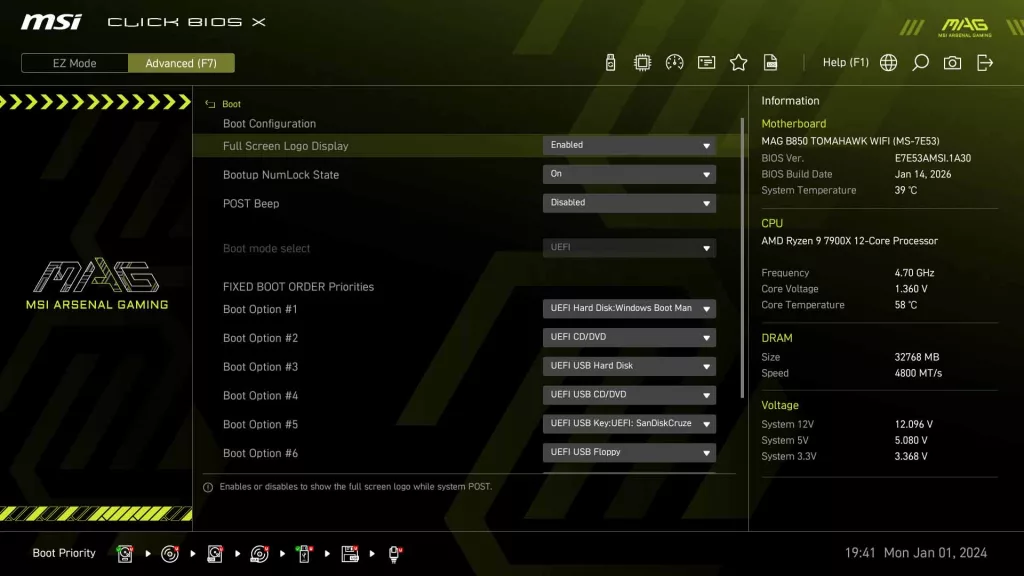
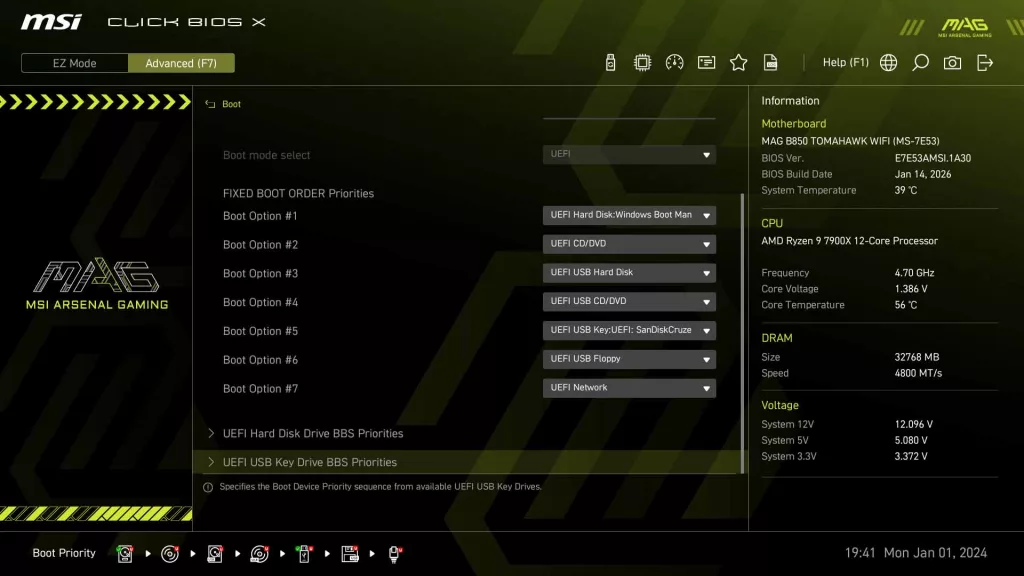
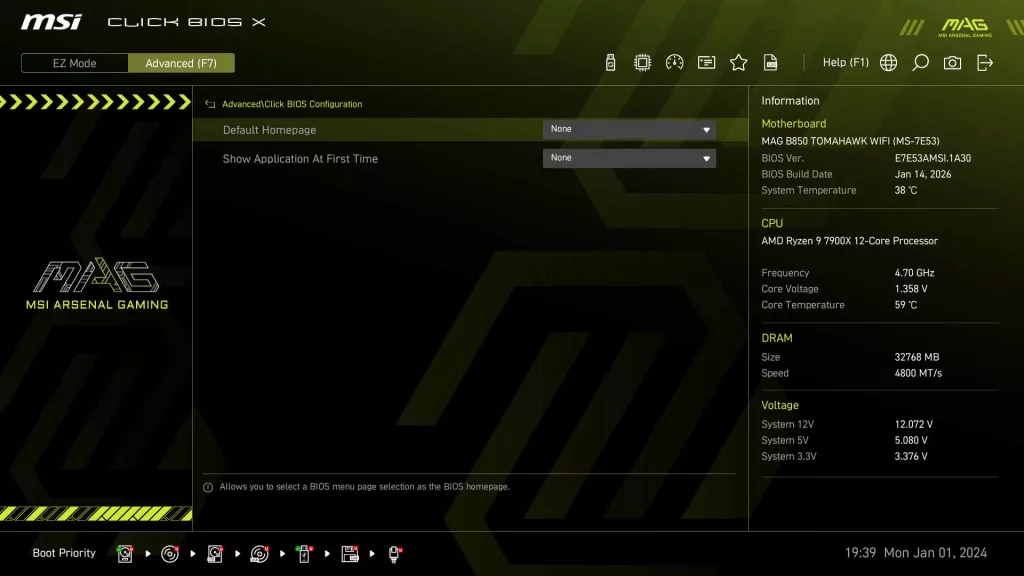
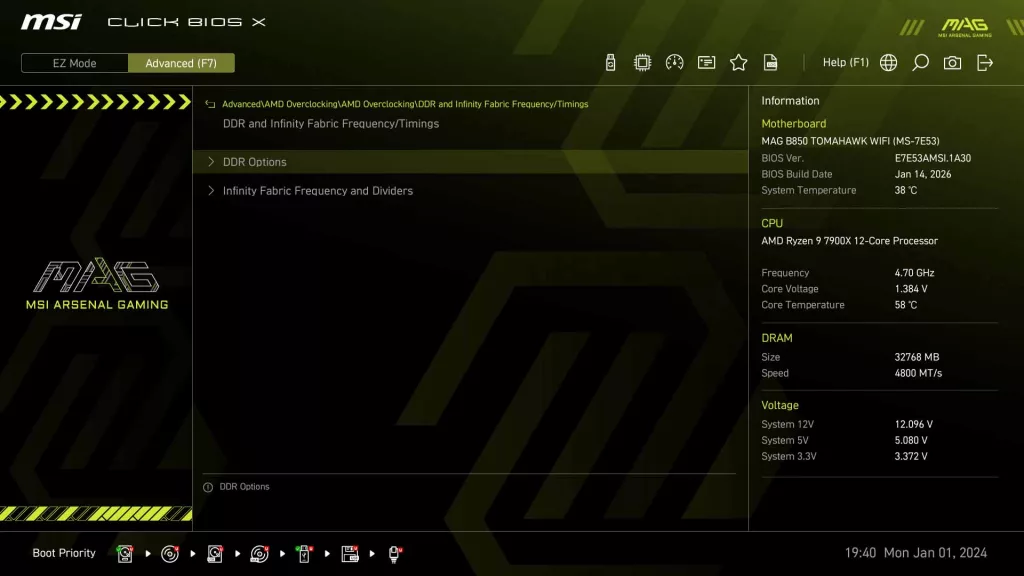
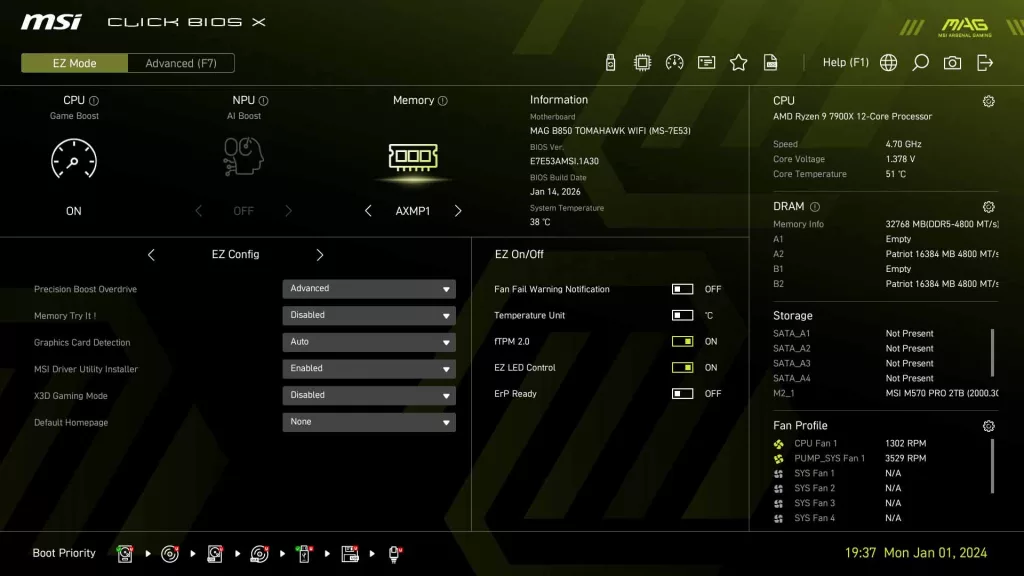
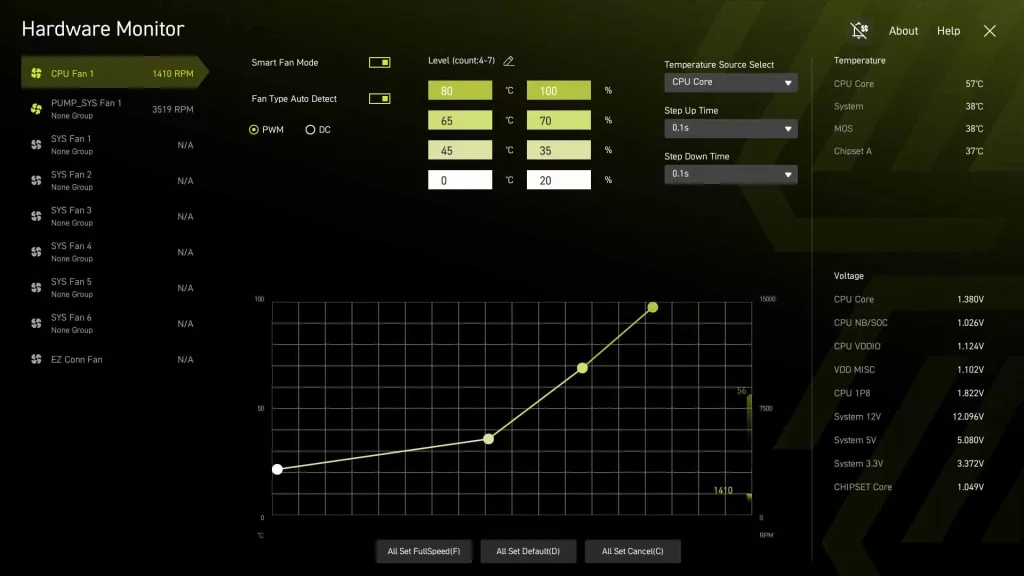
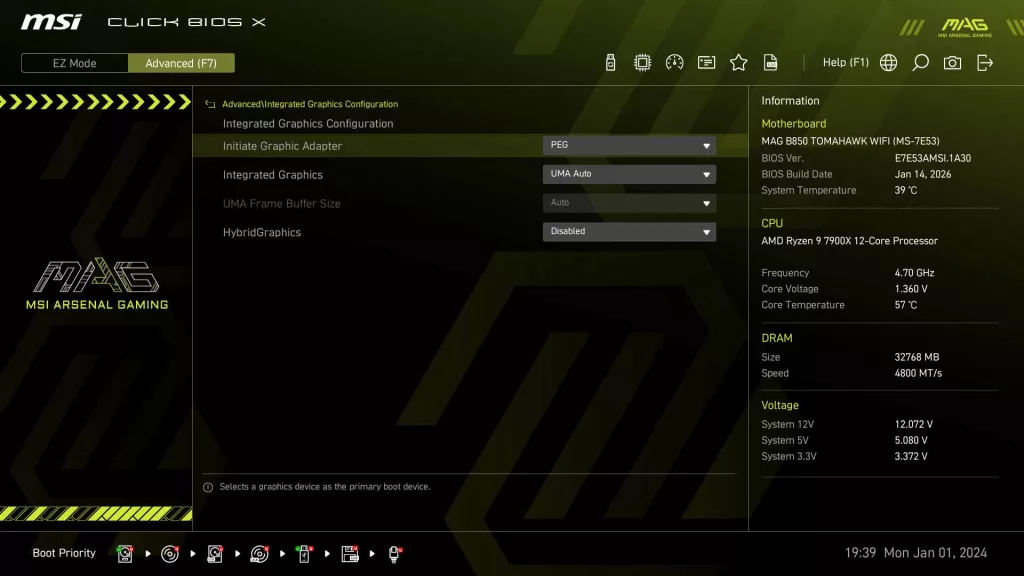
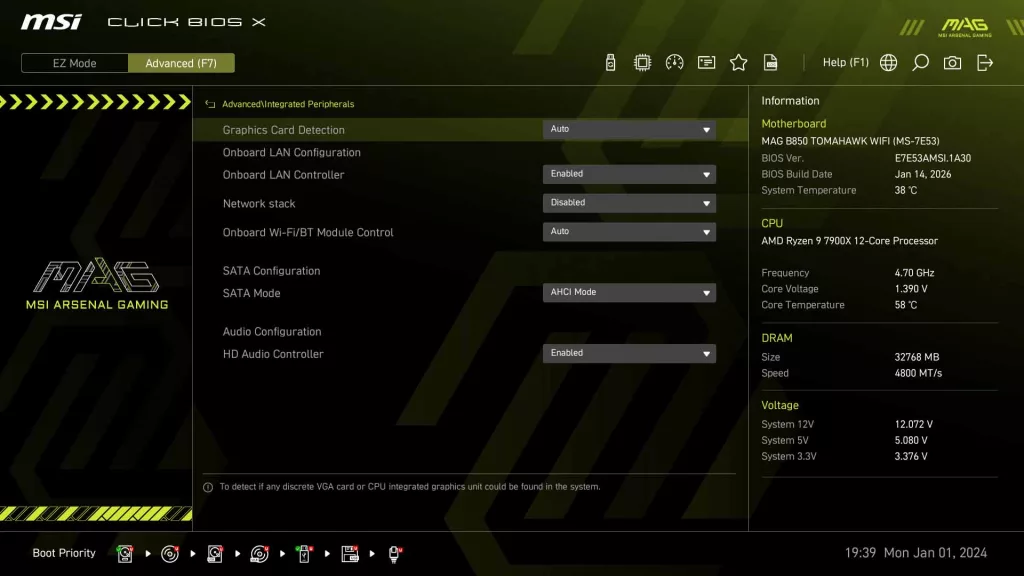
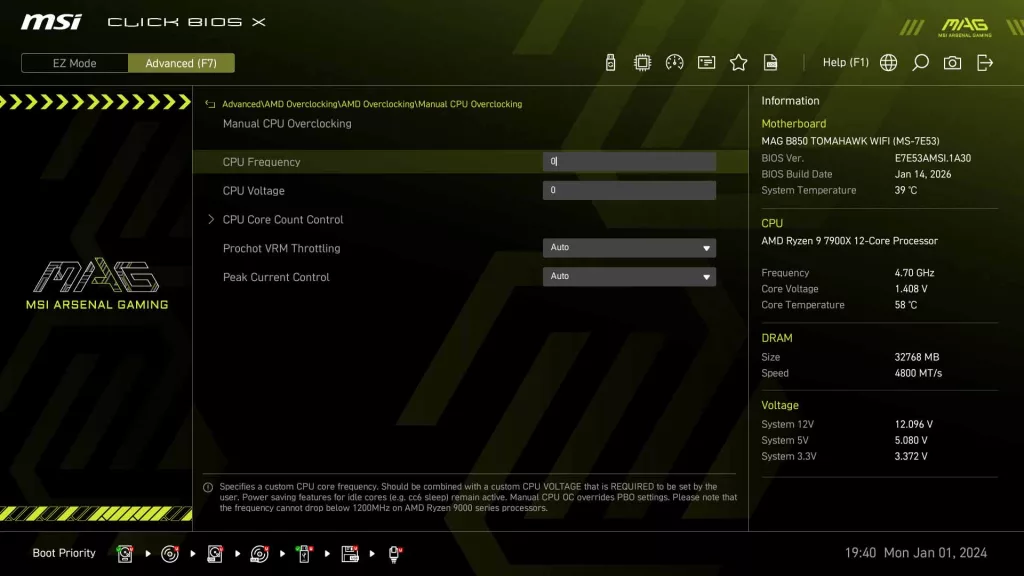
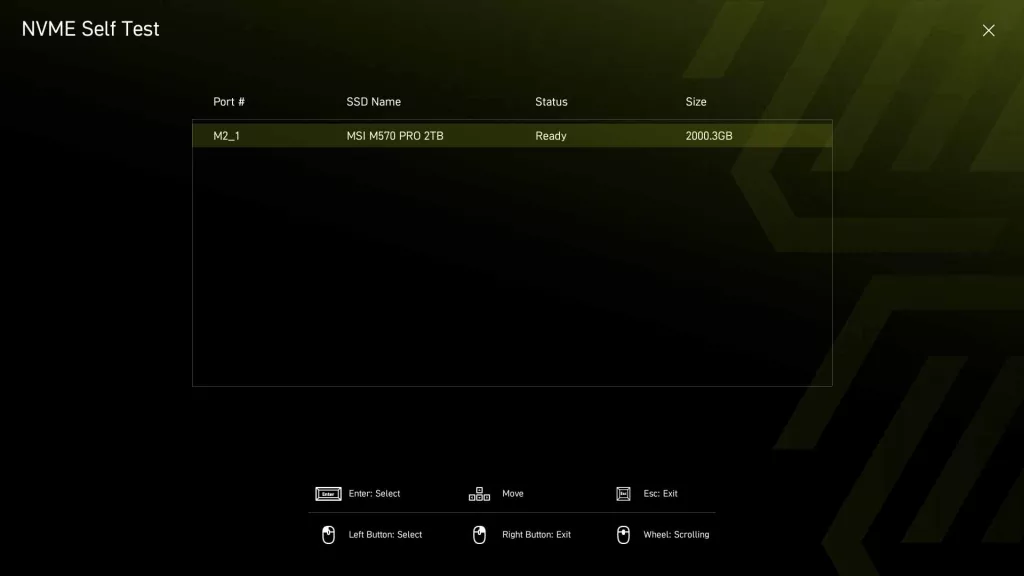
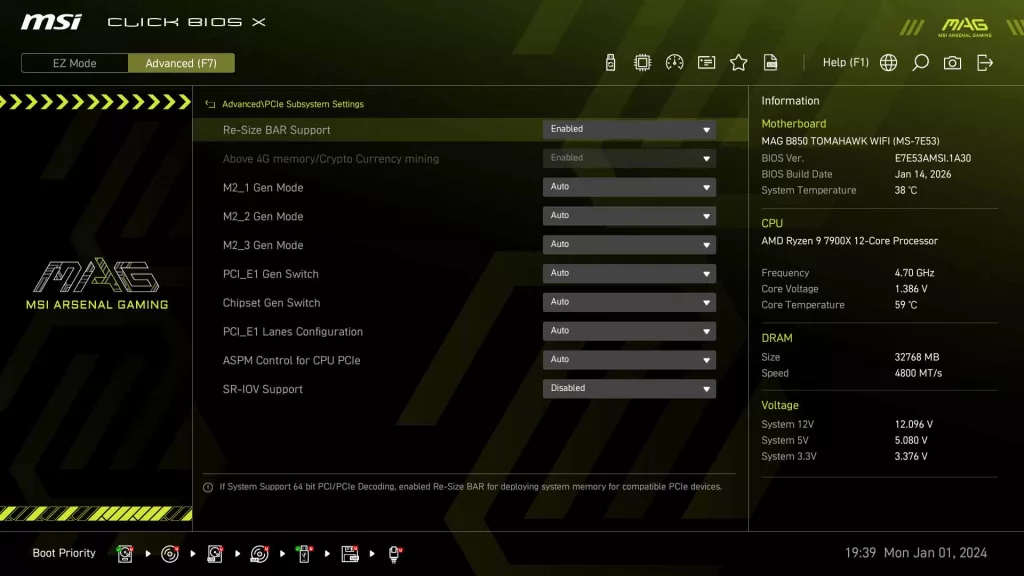
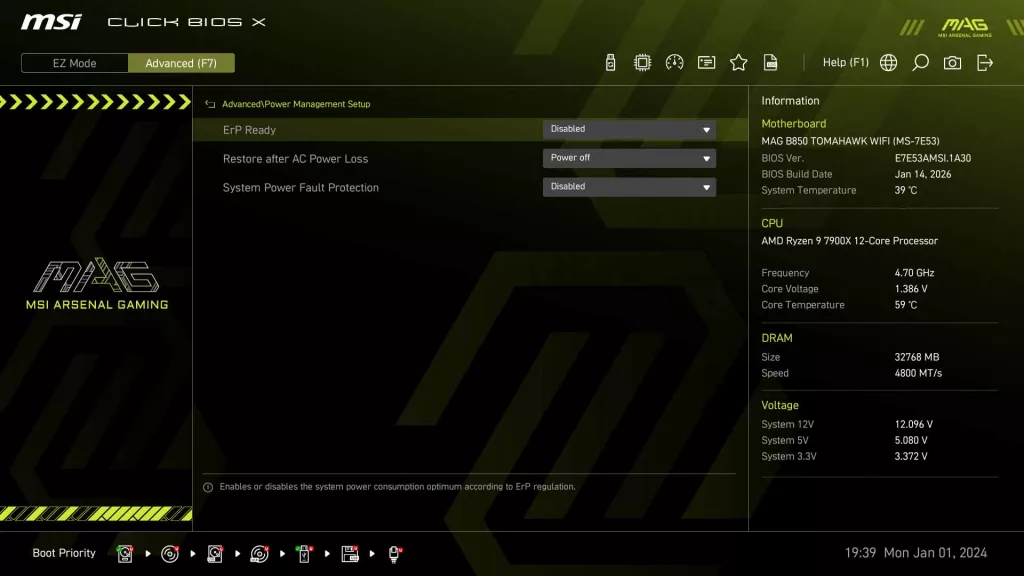
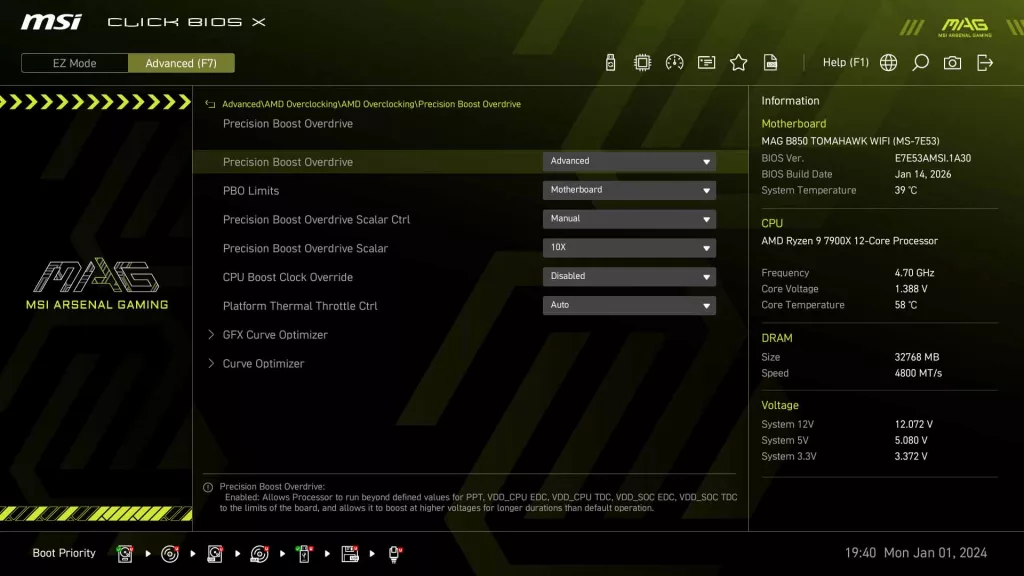
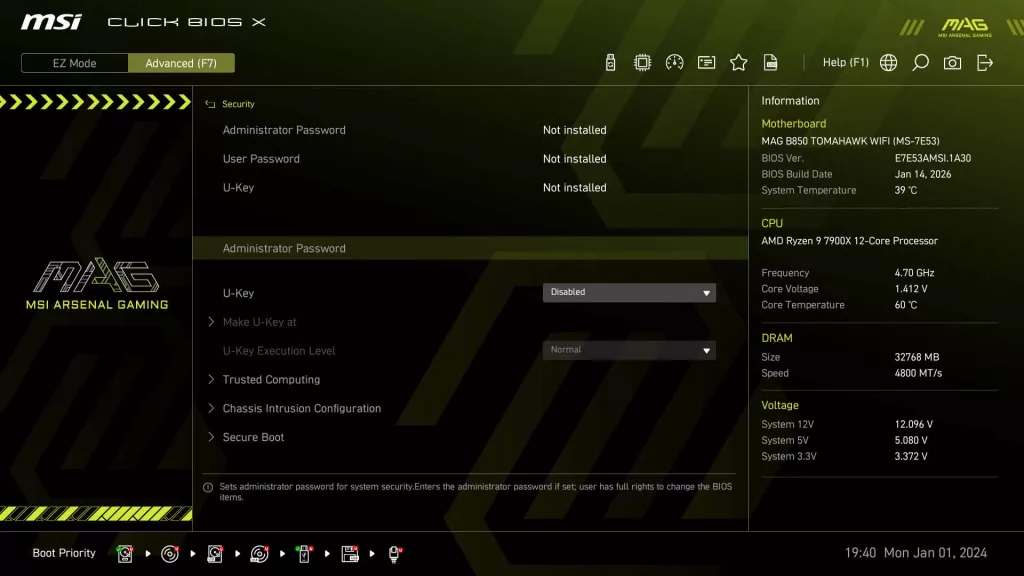
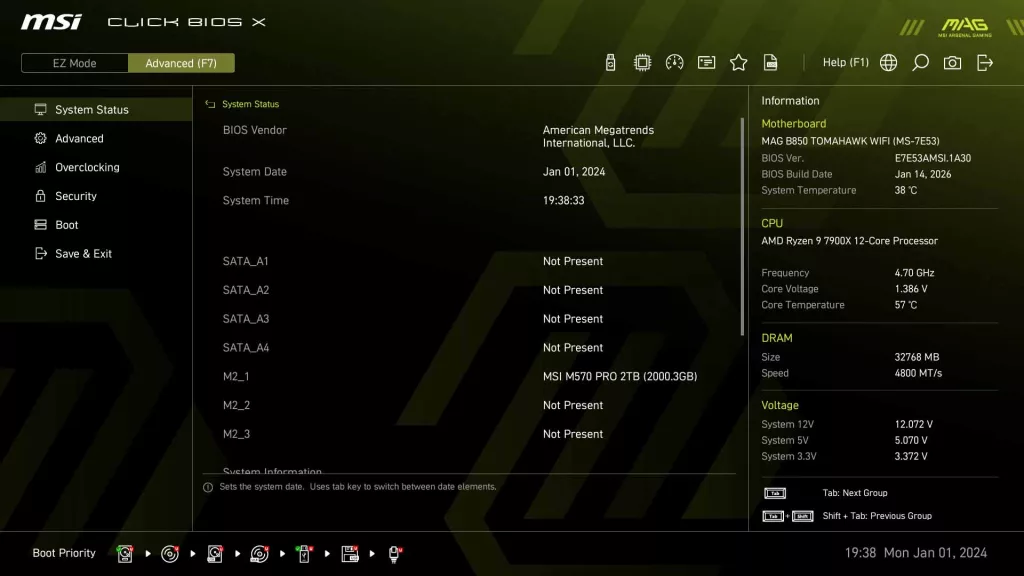
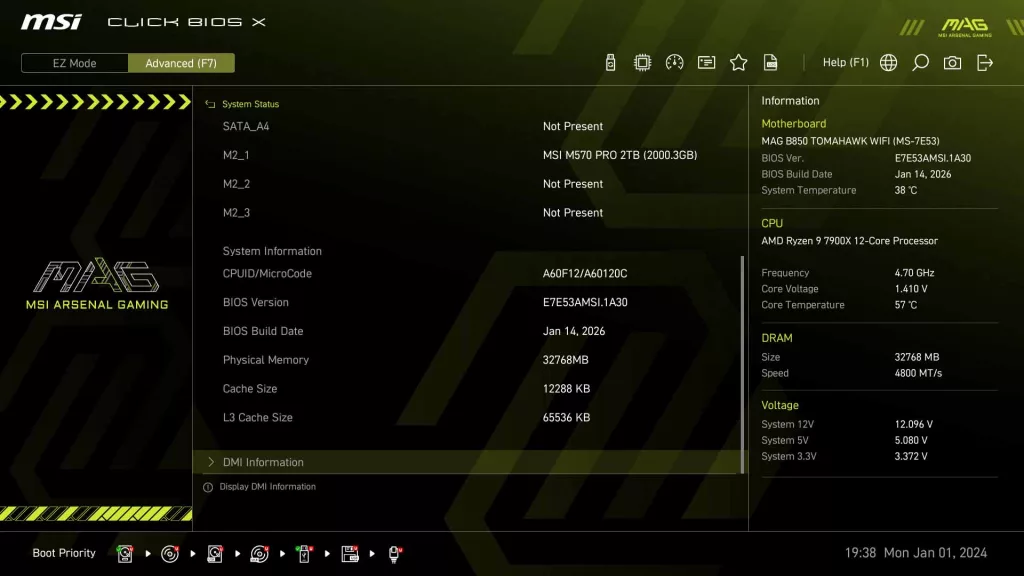
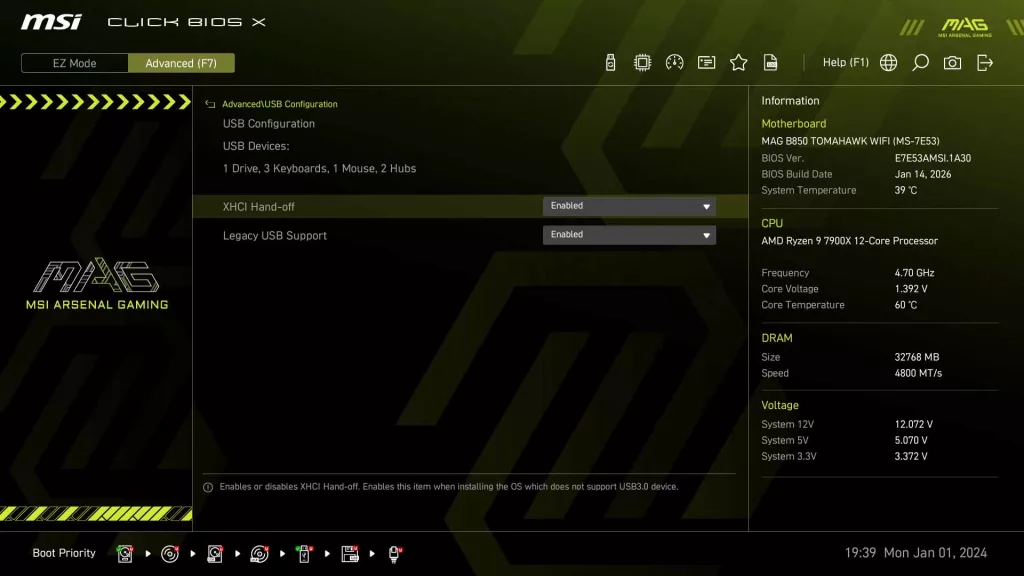
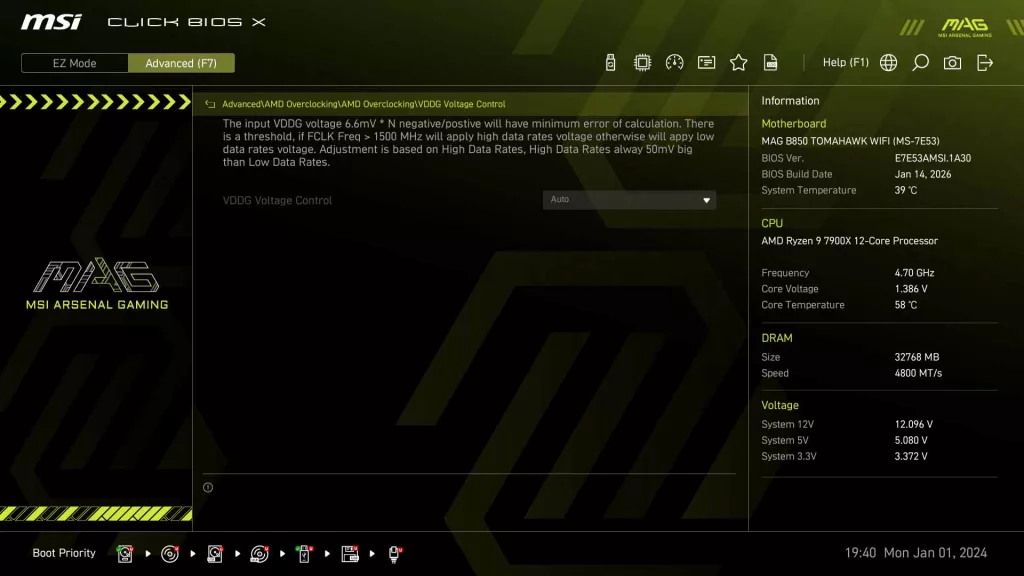
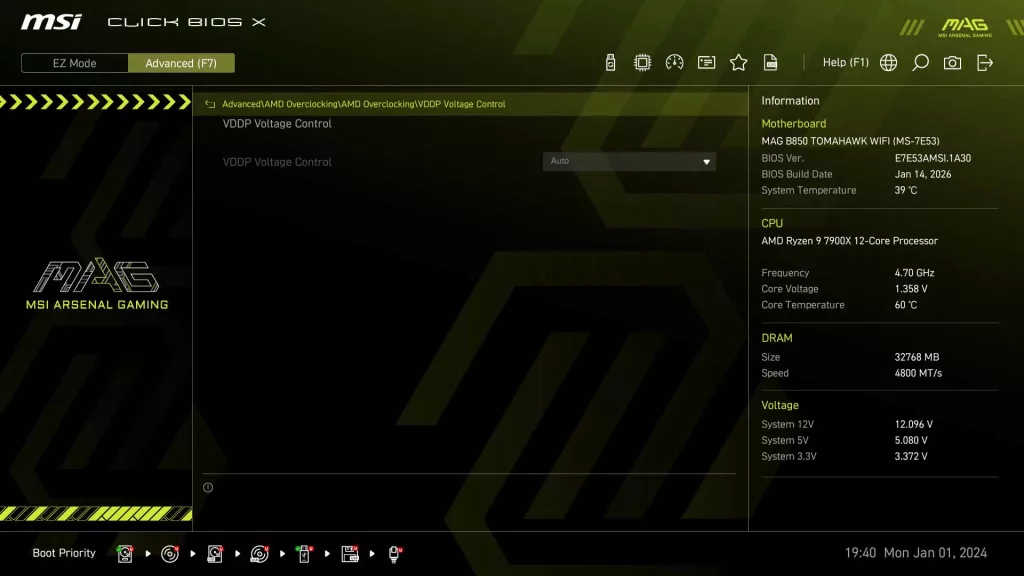
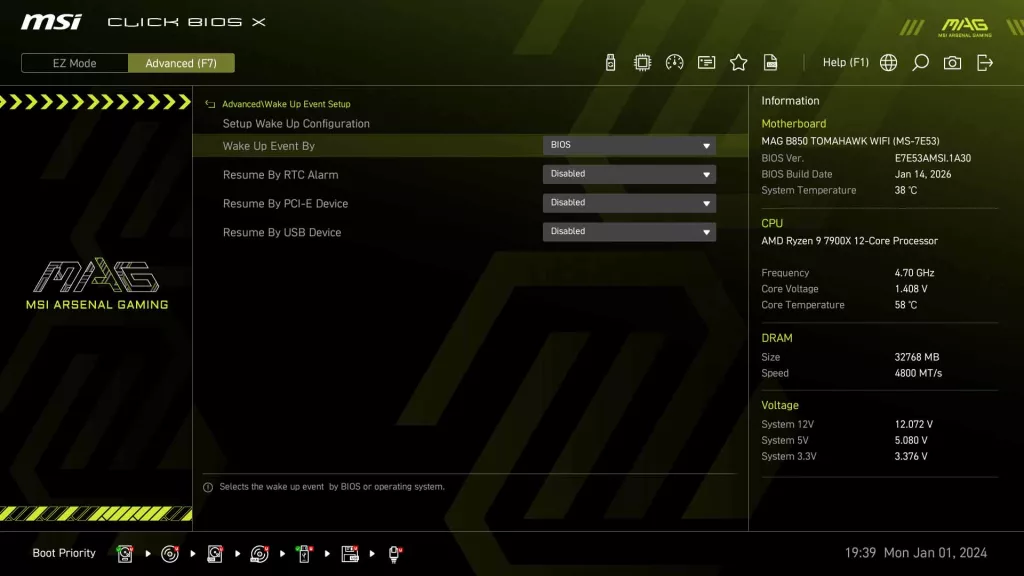
As we have seen with all current generation UEFI BIOS’s from MSI, the MSI MAG B850 TOMAHAWK WIFI utilizes the “Click BIOS X”, one of the more favored implementations we have seen. Since we have already gone through the Click BIOS X in detail in multiple reviews previously, we are going to highlight a few features and invite you to dig into the gallery below.
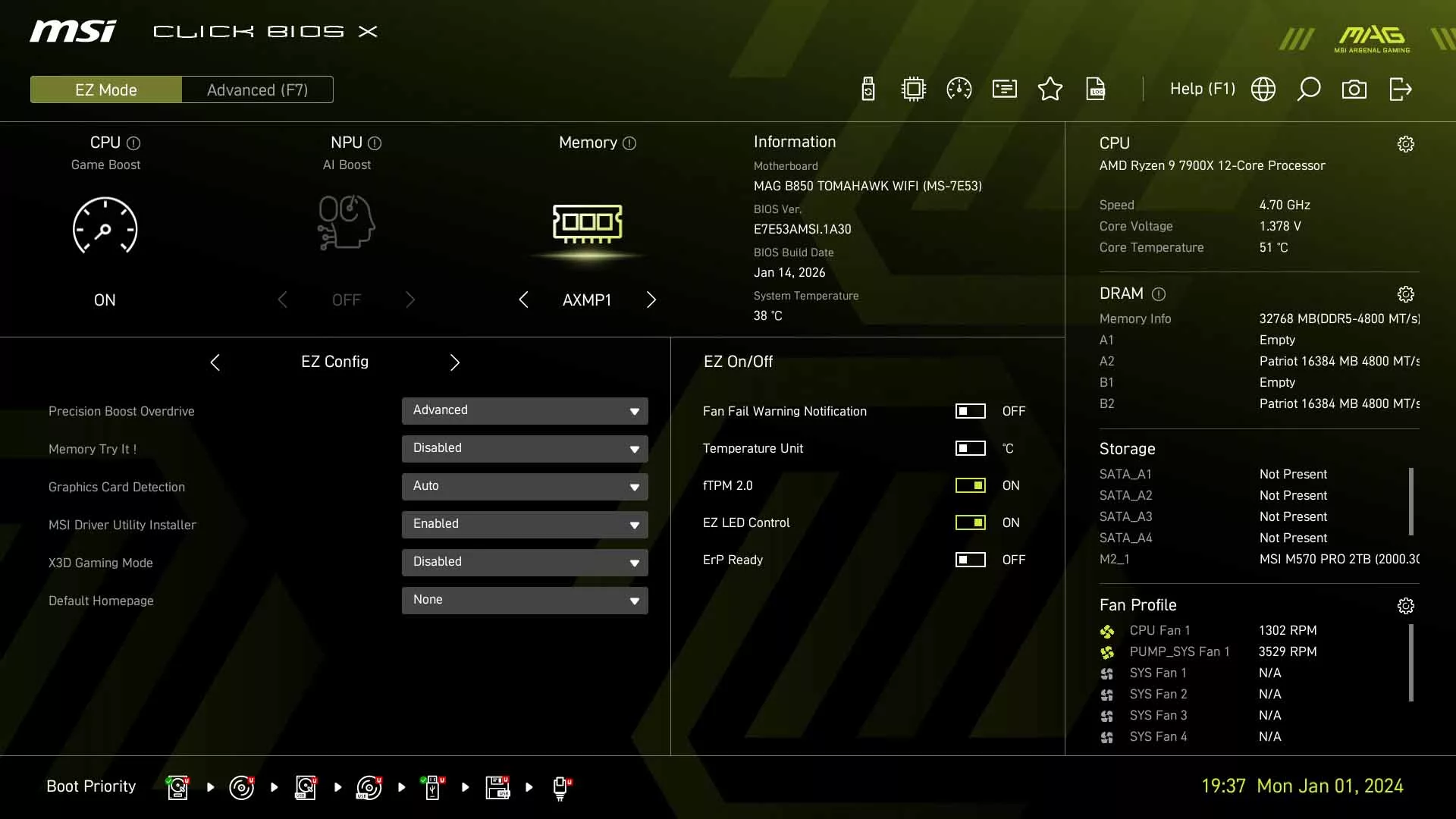
When you enter the UEFI for the first time, you are prompted to select a Precision Boost Override (PBO) setting of either “Auto” or “Enabled”, which seems like it’s the same option, however it is not. Choose “
“Enabled” if you want to guarantee it is enabled, if you want the BIOS / System to decide when to turn it on, then “Auto” is the choice for you.
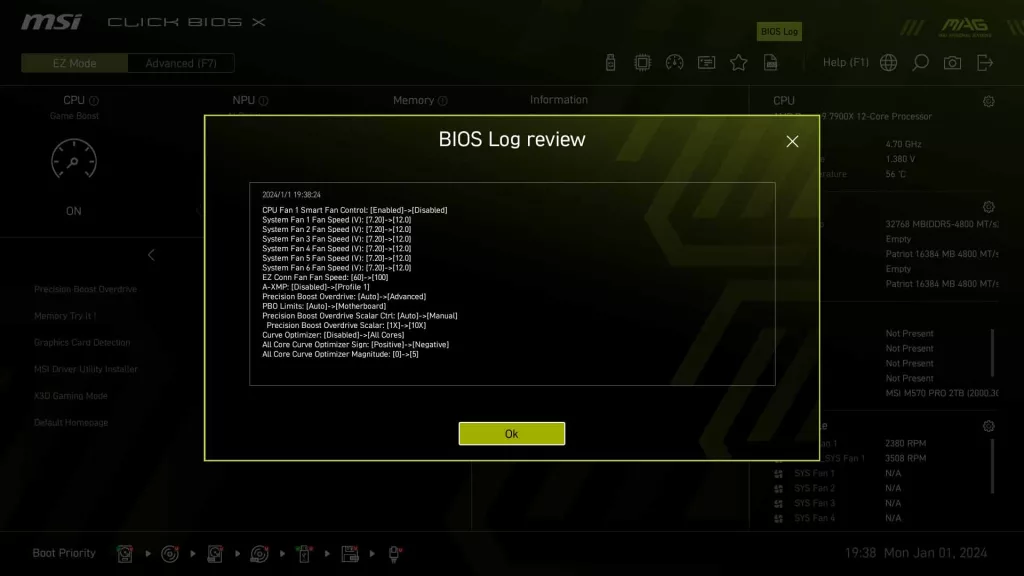
Once you have decided, you are greeted with the standard “EZ Mode” screen, giving you quick access to adjust XMP memory speed settings, a quick overview of system statuses, and quick access to either M-Flash for BIOS upgrades or the Hardware Monitor for adjusting fan/pump speeds. You are also able to take a look at the BIOS Log up top to see what changes have been made in the session; this will also show up before you save changes and exit the UEFI as well.
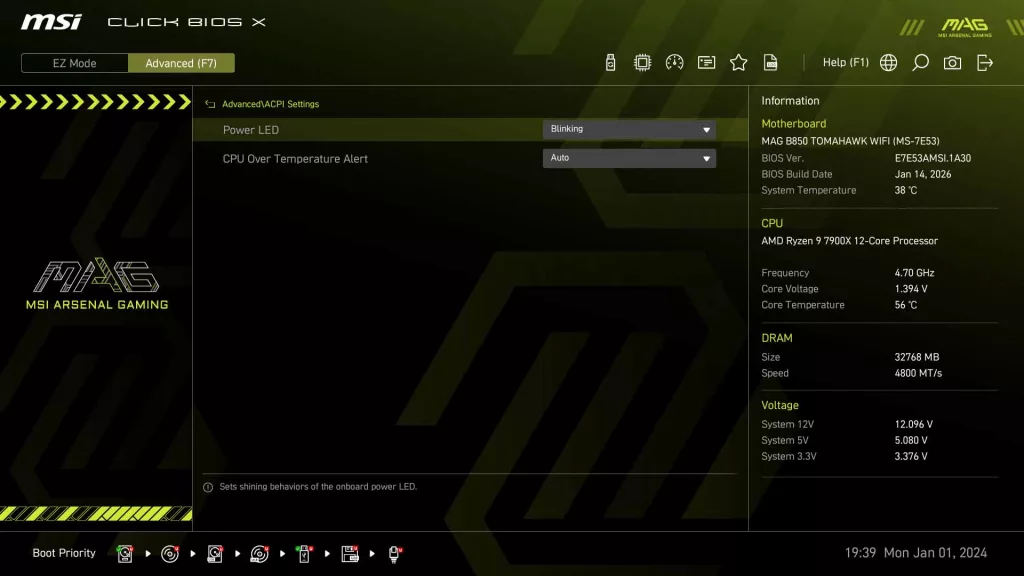
When in the Advanced tab up top, accessed with the “F7” key or simply by clicking it, you will have access to all the deeper system settings and status information. The first tab gives the user information on the storage devices connected, as well as the BIOS version and build date.
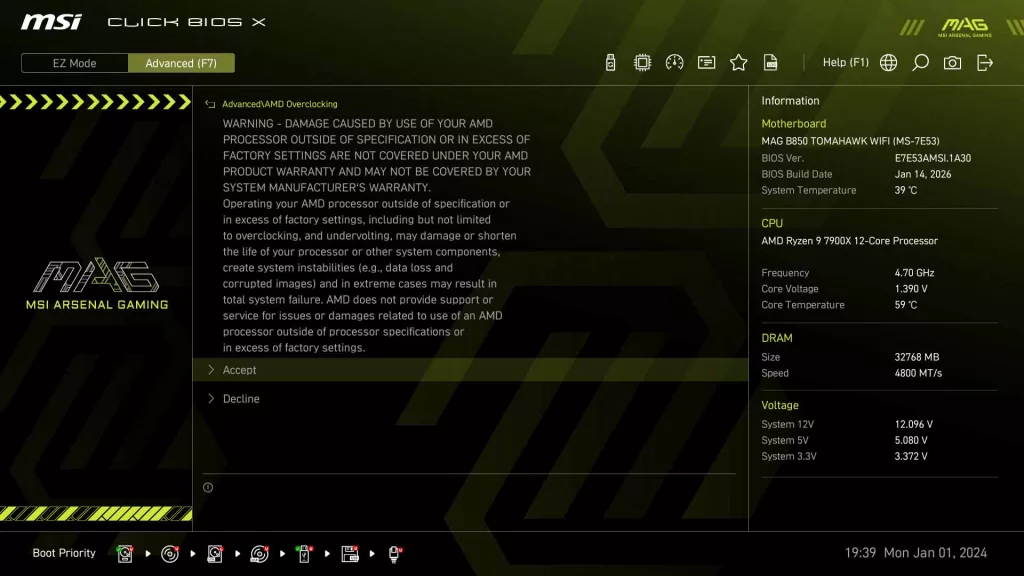
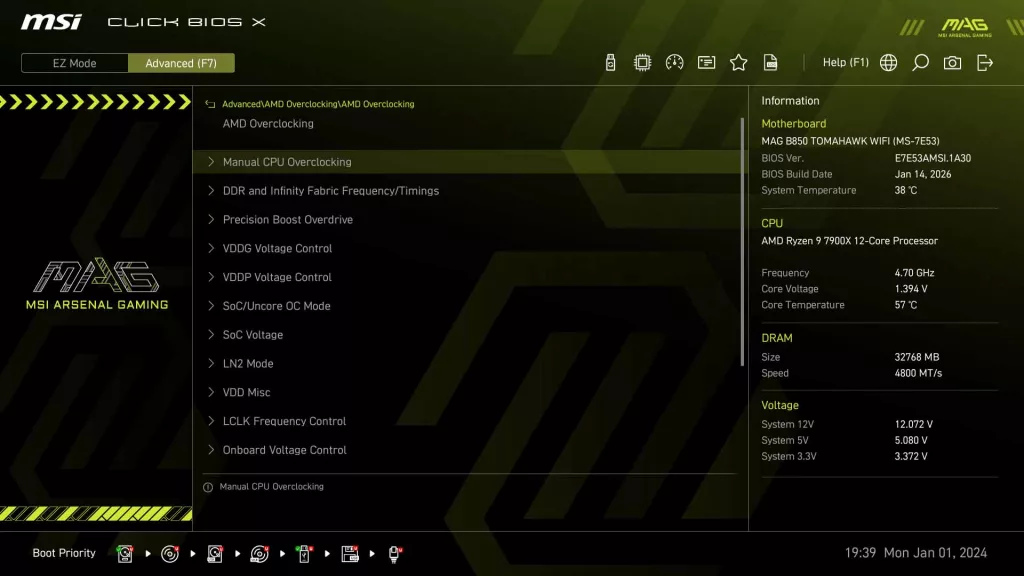
When diving into the Advanced tab, there are options for everything from the PCIe Subsystem Settings to Integrated GPU, to USB and wake-up event settings, to even the first location of AMD Overclocking options. Overclocking can either be accessed here for more of the “nitty gritty” settings, or simply navigating to the Overclocking tab will give quick access to the most adjusted settings (note that this will not have every setting here). For more information on what settings can be adjusted, take a look at the gallery below.
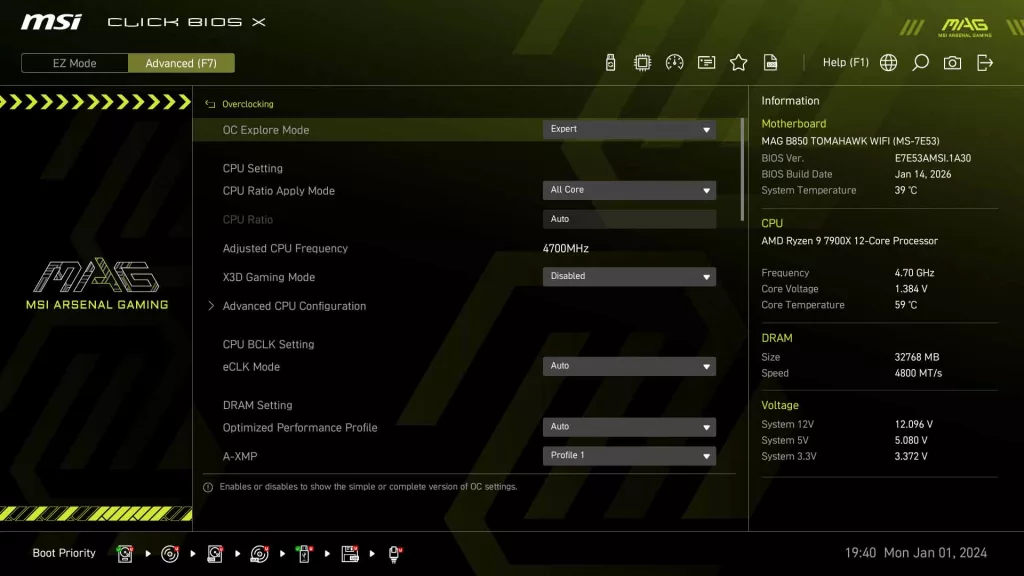
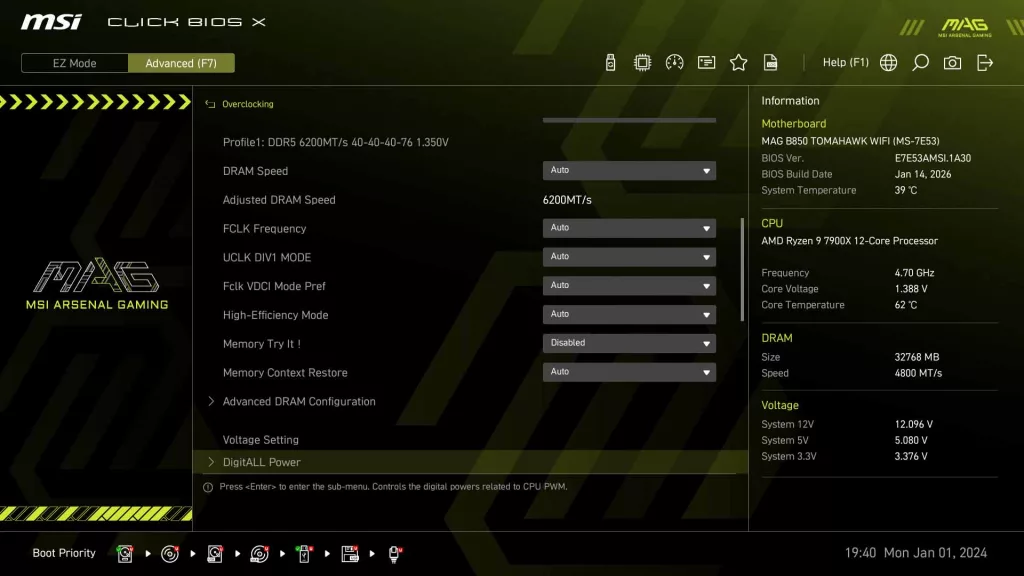
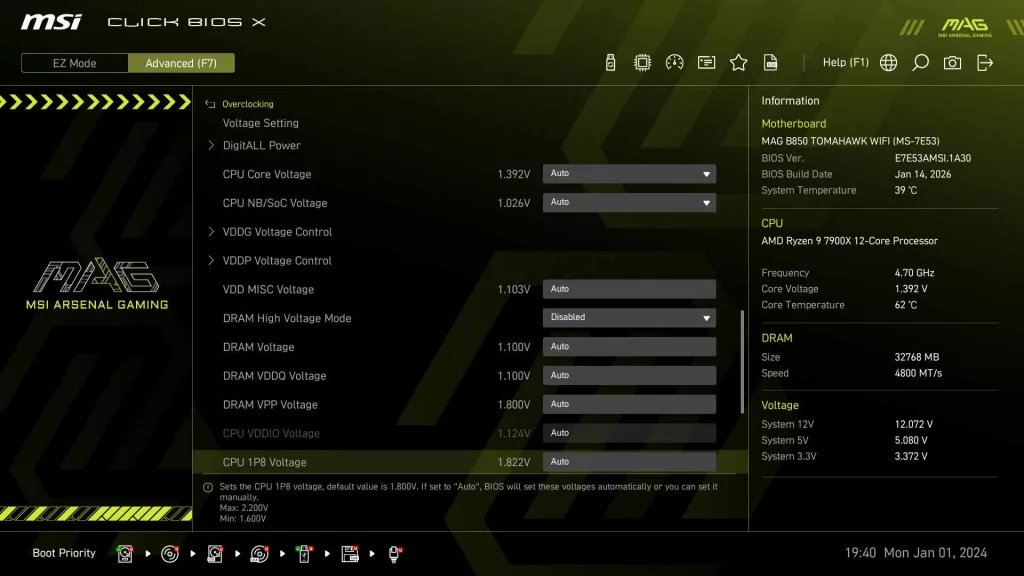
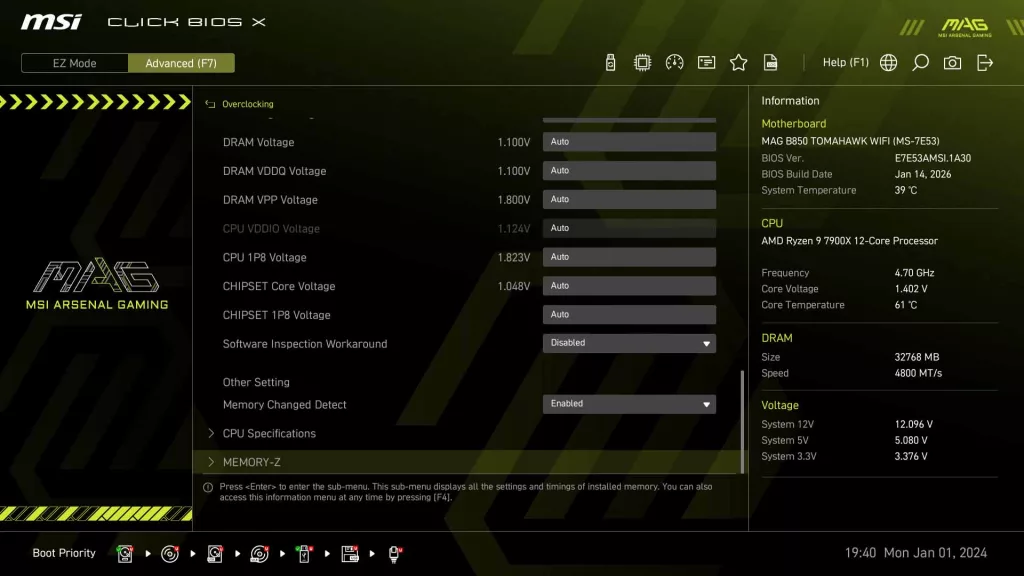
Motherboard Performance
As with all of our recent 2025 reviews, we will be using our new performance section. You will find images of all of our testing results in the gallery, while the following paragraphs summarize what we experienced. As with our 2025 AMD reviews, in 2026, we will be using our Ryzen 9 7900X CPU for all of our performance benchmarks.
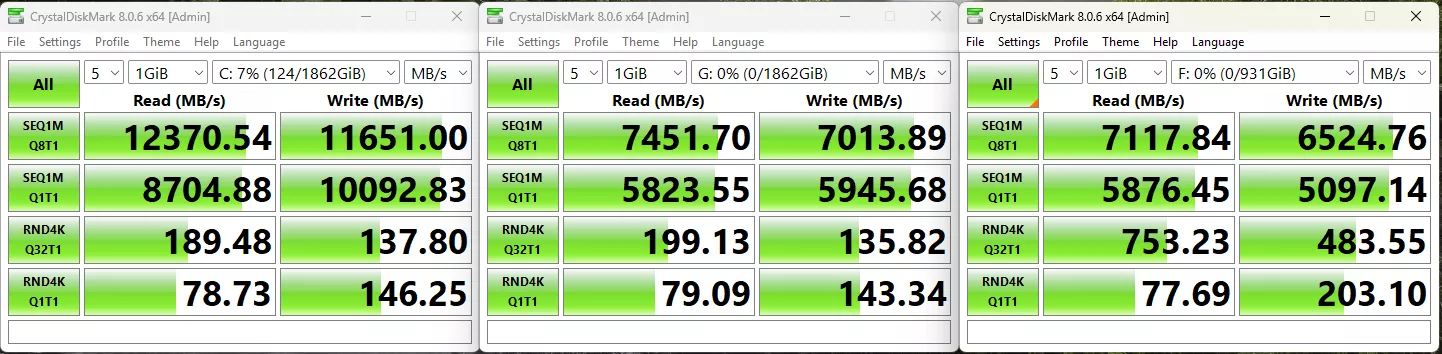
Our first test is the storage test, and as we mentioned above, with this review, we have done something slightly different from what we typically do. We still are using our MSI SPATIUM M570 PRO FROZR (originally reviewed at the end of 2023) as our primary drive, and our ADATA LEGEND 970 2TB NVME SSE in the second Gen5 slot, and for this review we have added an additional drive, a SK Hynix Platinum P41 1TB drive, with the goal of pushing the CPU and chipset as far as we can.
During testing, the M570 came in at 12,370 MB/s read and 11,651 MB/s write, the LEGEND 970 came in at 7,452 MB/s read and 7,014 MB/s write. The P41 1TB drive clocks in at 7,118 MB/s read and 6,525 MB/s write, just slightly behind the faster Gen5 drive in the other Gen4 slot. All of these speeds are about what we would expect.
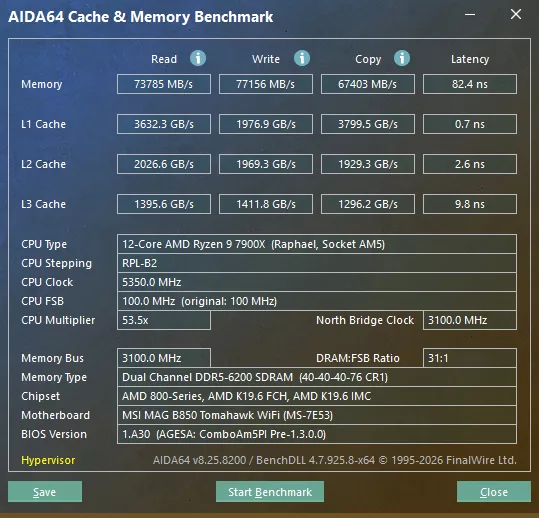
The next test is our memory testing using AIDA64’s Cache & Memory Benchmark. The MSI MAG B850 TOMAHAWK WIFI was able to achieve a read speed of 73,785 MB/s, a write speed of 77,156MB/s, and a copy speed of 67,403 MB/s. These speeds are all around where we expect them on the B850, with the write speed beating some of the X870E motherboards we have had in the office.
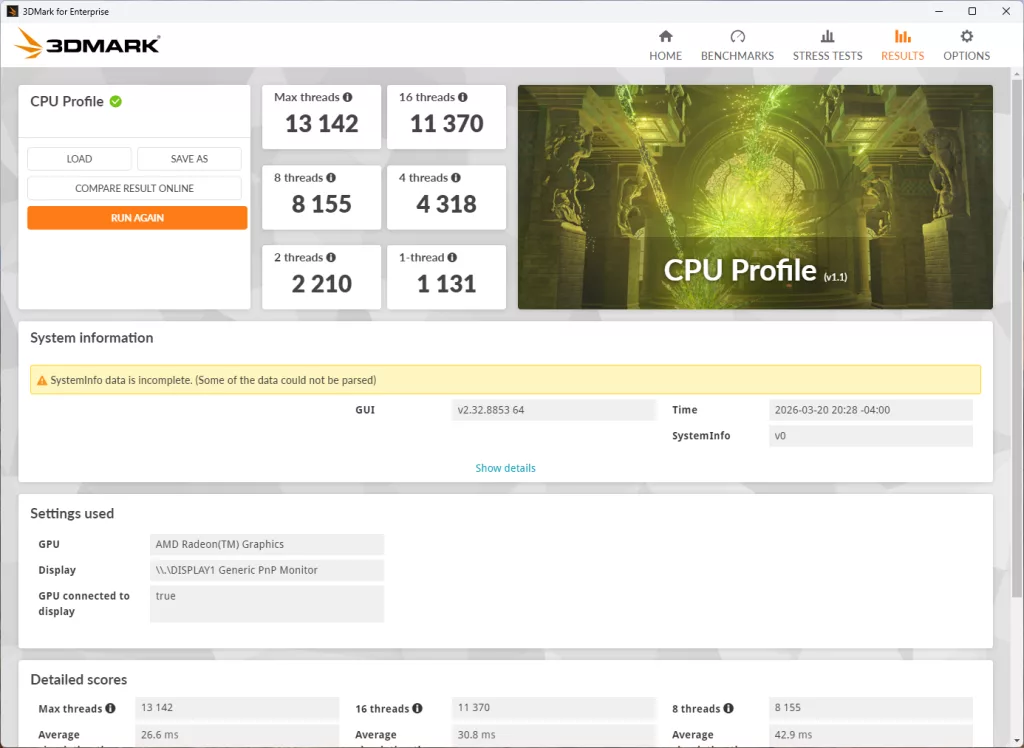
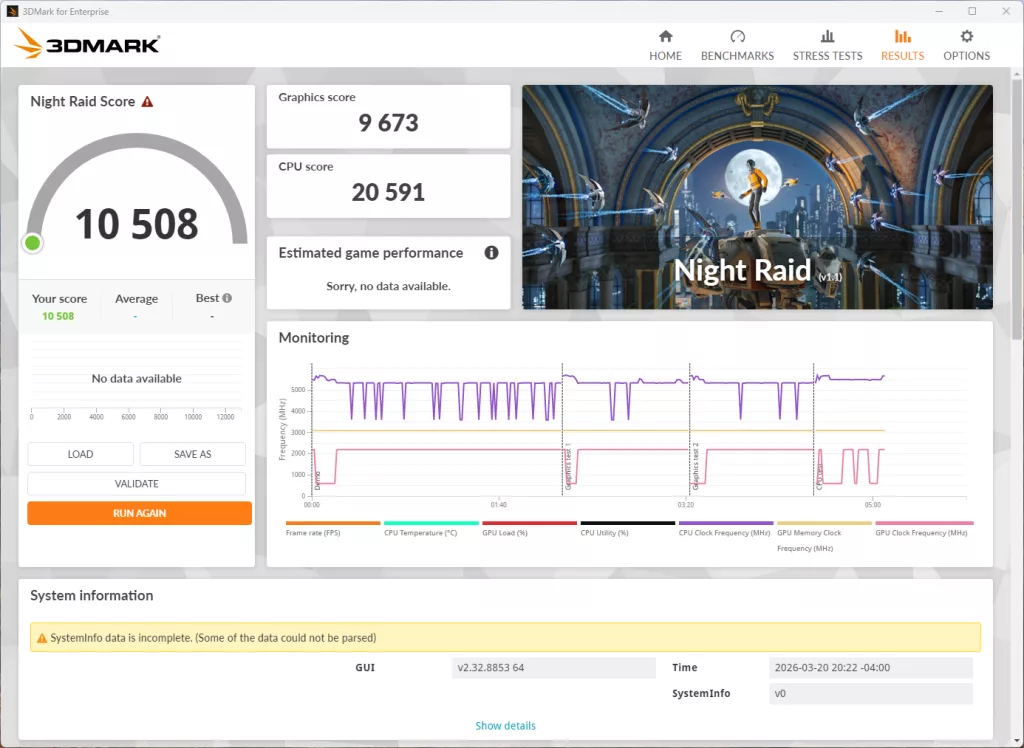
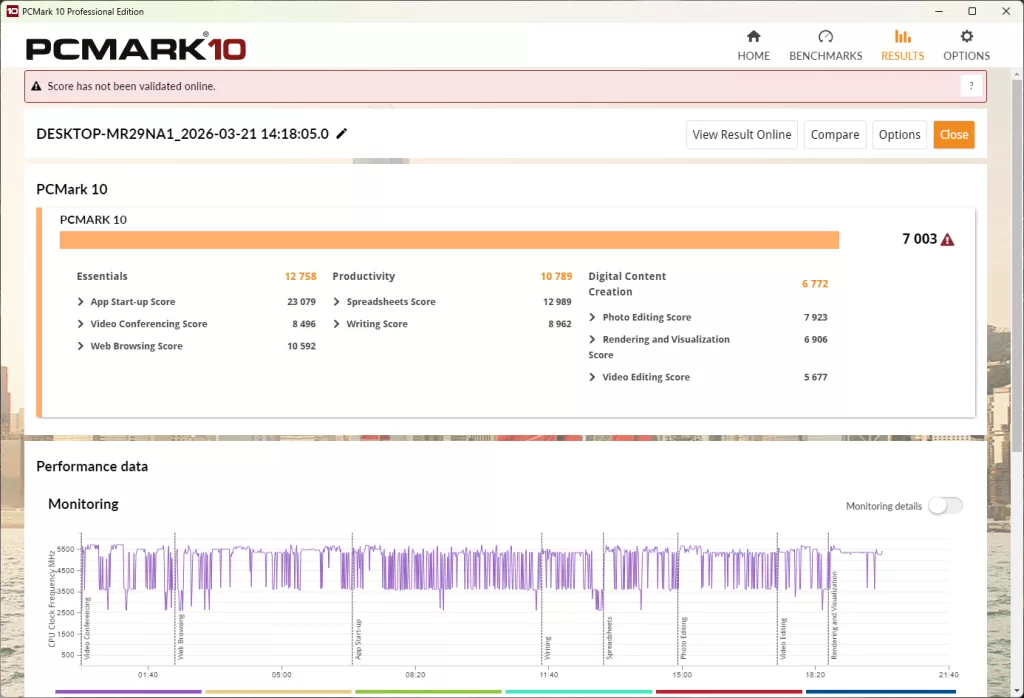
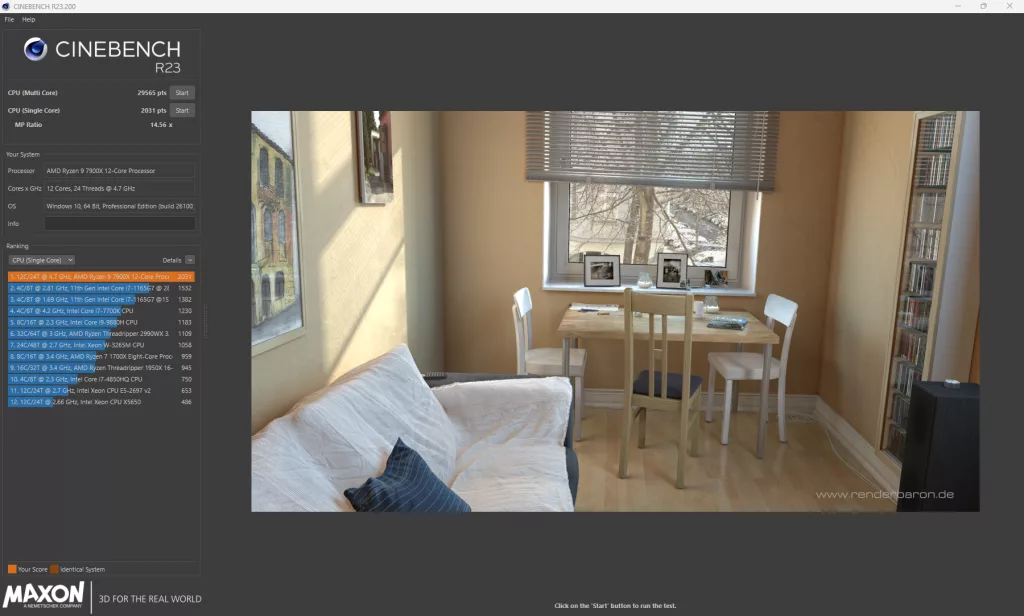
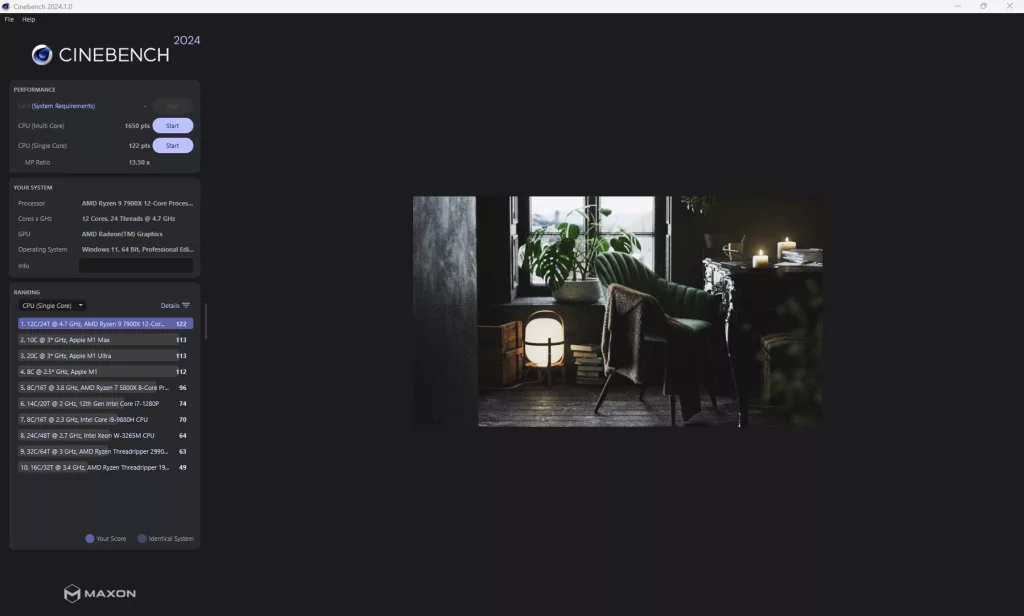
Our synthetic benchmark tests are up next, with 3DMark, PCMark, Cinebench (R23 and 2024), V-Ray, Blender, and finally GeekBench6. 3DMark comes in with a score of 13,142 for maximum threads in the CPU Profile test, and a CPU score of 20,591 for Night Raid, with a total score of 10,508 (Includes full system). PCMark comes in with a total score of 7,003, which continues the trend we saw with the MSI MEG X870E ACE of a lower score than anticipated with this CPU. After this, Cinebench R23 clocks in at 29,565 points on the Multi-Core, and 2,031 points on the Single-Core test, and 2024 comes in with 1,650 points and 122 points respectively, both Cinebench results bring us back to where we expect to be with our testing, and actually exceed the recently reviewed MEG X870E ACE from MSI.
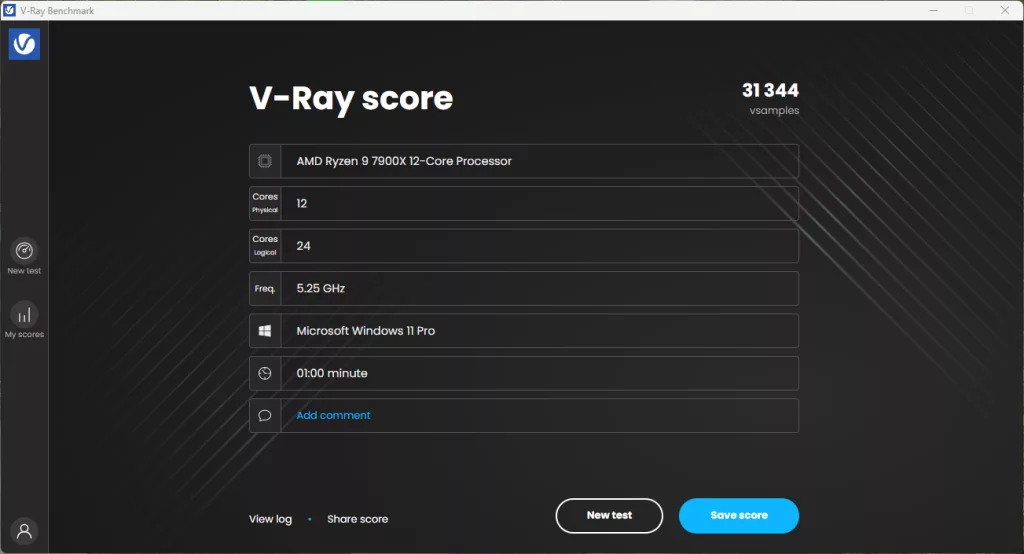
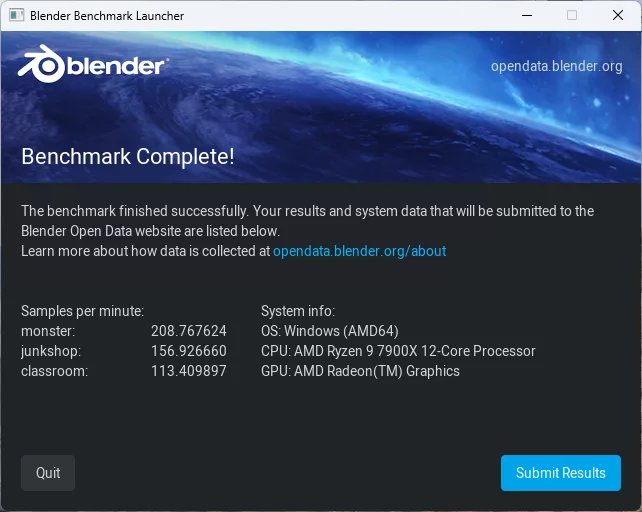
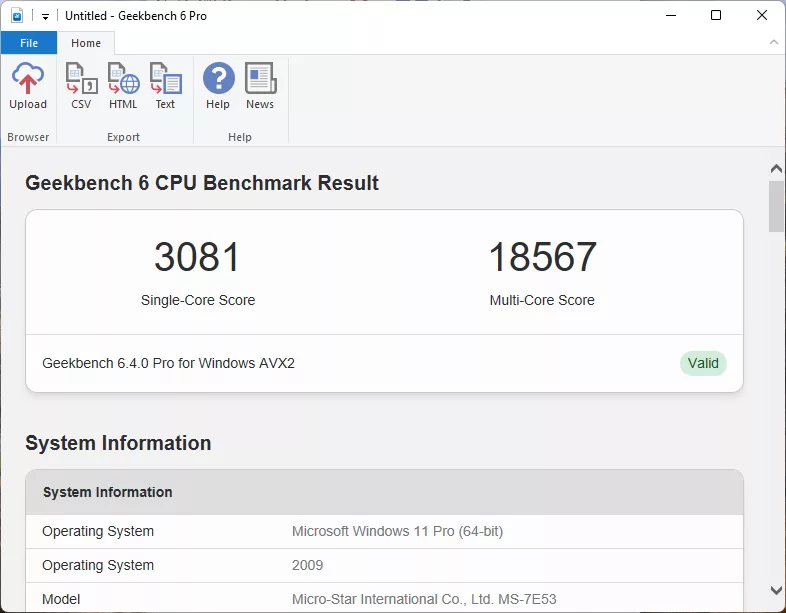
With V-Ray, we had a final score of 31,344, which is right at what we expect with this setup. Blender comes in at 209 for the Monster test, 157 for junkshop, and 113 for classroom, again right in line with expectations. Our final synthetic benchmark is Geekbench, where we hit a Multi-Core score of 18,567 and a Single-Core score of 3,081, which is inline with what we expect, if not slightly ahead.
VRM Temperature
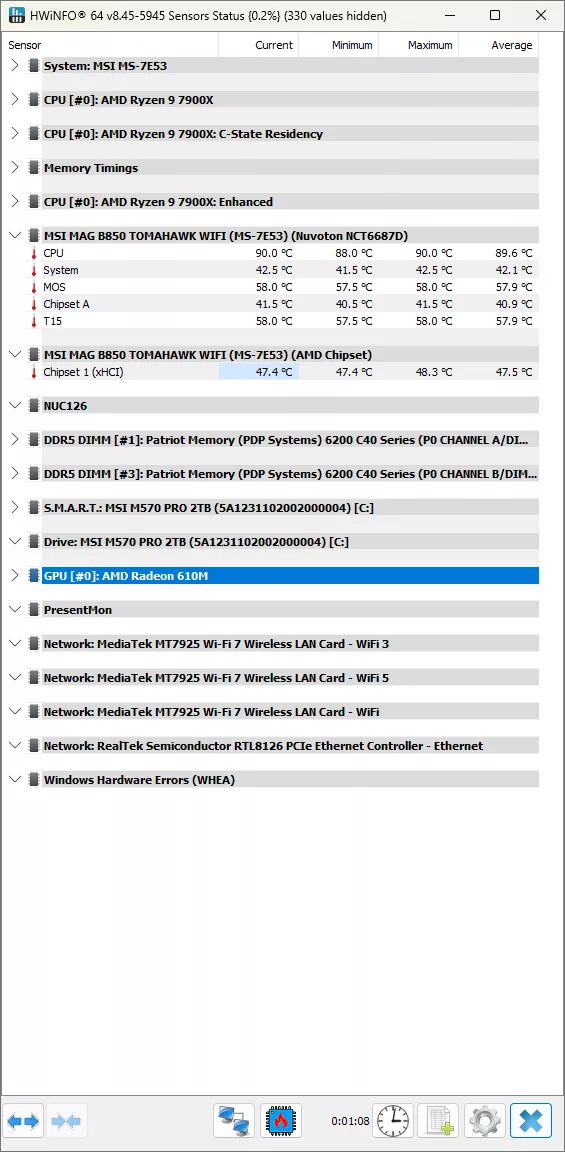
The last testing we completed on the MSI MAG B850 TOMAHAWK WIFI is the VRM temperature test. For this test, we run the Cinebench 2023 Multi-Core test for a minimum of 15 minutes to fully stress the system. At the 15-minute mark, we take a screenshot and record the temperatures as reported by the most current version of HWiNFO 64, as well as a manual temperature reading with a Handheld Infrared thermometer. All testing occurs at an ambient temperature of approximately 75°F (24°C).
Cooling for the MSI MAG B850 TOMAHAWK WIFI is beefed up compared to some of the B850 motherboards we have seen. Our handheld thermometer read a high temperature of 44.7°C, while HWiNFO gave us a maximum MOSFET temperature of 58.0°F, and a chipset temperature of 47.4°C.
Conclusion
The MSI MAG B850 TOMAHAWK WIFI may be on the lower end of MSI’s range of enthusiast motherboards; however, its performance comes in on the higher end. It is able to compete with motherboards in the MEG and MPG range, and at an attractive price. Cooling was more than adequate, as was the 14+2+1 power delivery, at least at “stock” PBO settings.
Installation and Use
Both the physical and software installations for the MSI MAG B850 TOMAHAWK WIFI were about as smooth as could be, with no real hiccups. If we had any complaints with it, we might note that the primary M.2 slot is close to the primary PCIe slot, which could cause issues if your GPU has a back plate and your primary M.2 device has a larger-sized cooler, but that is nitpicking on a $229 motherboard. There were no problems with Windows installation or driver updates; everything went as smoothly as we have had on any other motherboard.
Final Points
The MSI MAG B850 TOMAHAWK WIFI turned out to be a mighty motherboard. It has all of the essential features, from three (3) M.2 slots to a metal reinforced primary PCIe slot; there are no features that the average user must have missing from this motherboard. Sure, it doesn’t have all the RGB LEDs on the motherboard or excessive M.2 slots, but it does have performance. And for $229, we do not see a single thing wrong with this motherboard.
Discussion (3 replies)
Join Discussion →What's the difference between MAG, MEG and MPG? I suppose MEG is the most expensive one?
Mag is lower tier.. mpg is mid tier and meg is top tier i believe.
And then 'Pro' is bottom tier, same as on ASUS