
Introduction
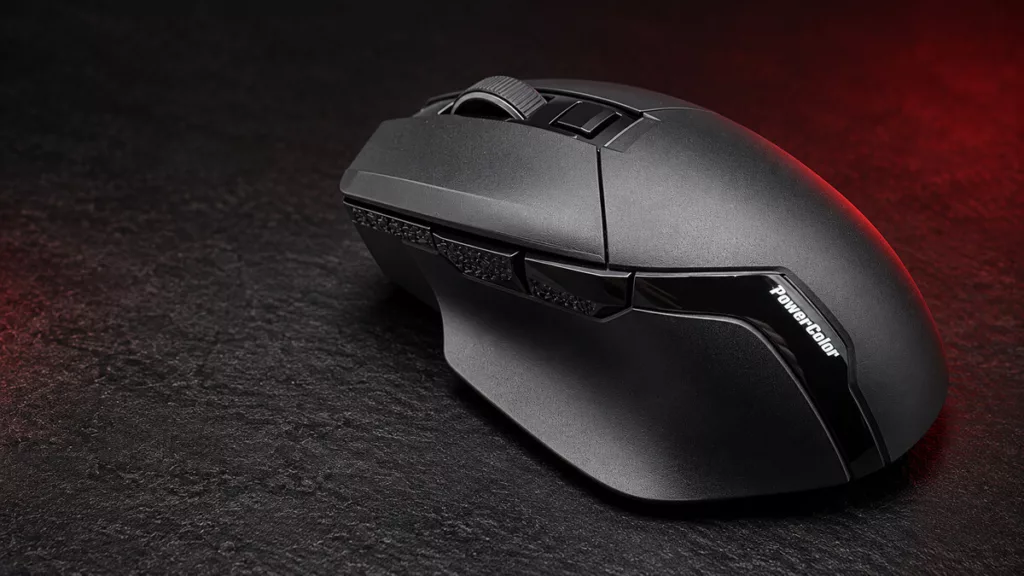
PowerColor spent the better part of three decades as an AMD board partner before deciding it wanted a piece of the peripheral market, and the ALPHYN line is what came of that. The ALPHYN AM10 wireless gaming mouse turned up in February 2025 alongside the ALPHYN AH10 wireless headset, carrying a $99.99 MSRP that put a first-generation mouse from a graphics card company directly against Logitech and Razer at their strongest. That did not go especially well, and to PowerColor’s credit, the company is blunt about it in the current press materials rather than pretending the launch coverage never happened.
What brings the AM10 back onto the bench is not new hardware, but rather a new price. PowerColor has repositioned the mouse to a permanent $49.99 MSRP, down from $99.99, and states that this is not a promotion and carries no end date. Same PixArt PAW3395 sensor, same Omron optical switches, same 95g shell, same 8,000Hz wired polling ceiling. Regional pricing is set by local distributors, so readers outside the US should expect a different figure.
The ALPHYN AM10 is available in black and white. Our sample is the black version, and it has been my daily driver for the past week across a mix of work and gaming.


PowerColor’s core claim for the repositioning is that, to its knowledge, no mouse at $49.99 pairs an 8,000Hz wired mode with wireless connectivity in a full-size, right-handed ergonomic shape. The company is careful to say what it is not claiming: not the only ergonomic wireless mouse under $50, and not competitive-grade wireless performance. Wireless tops out at 1,000Hz and PowerColor positions it for convenience rather than for ranked play, which is an honest thing to put in a press kit.
Razer’s Basilisk V3 X HyperSpeed carries a $69.99 MSRP, but its Amazon street price has spent most of the past year bouncing between roughly $38 and $49, so the AM10 is not undercutting it so much as matching it. What the AM10 brings to that fight is a flagship-tier sensor, optical switches, and the 8,000Hz wired mode, against the Basilisk’s brand recognition, mature software, and an AA-battery runtime the AM10 cannot touch on paper.
The Package
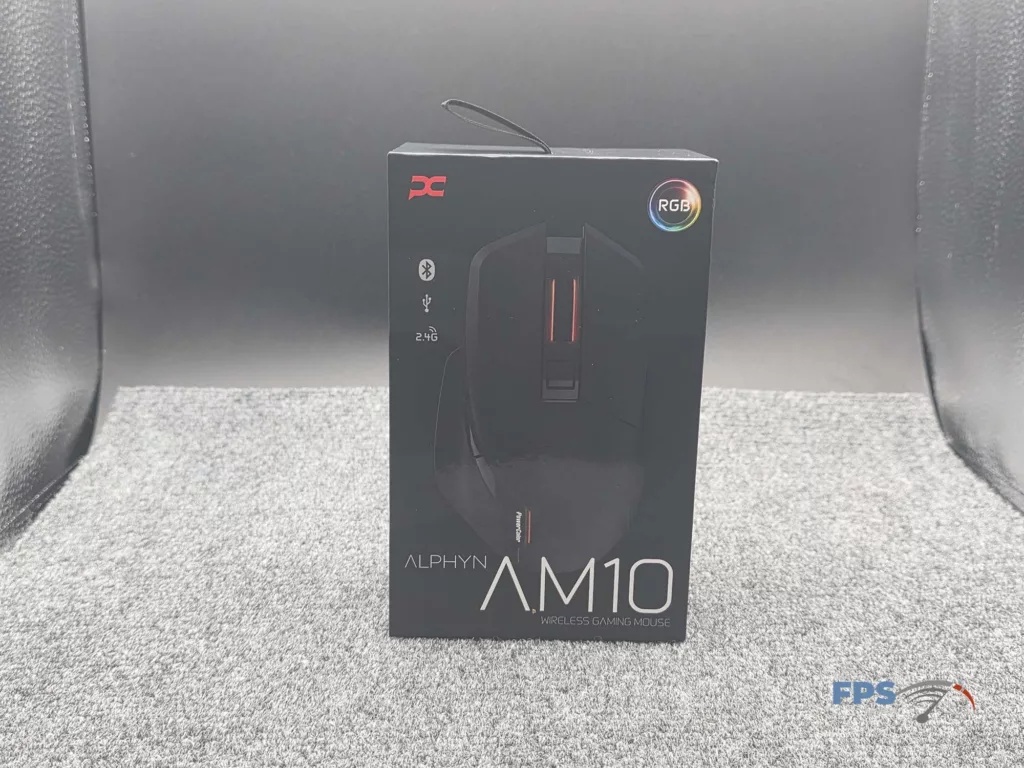
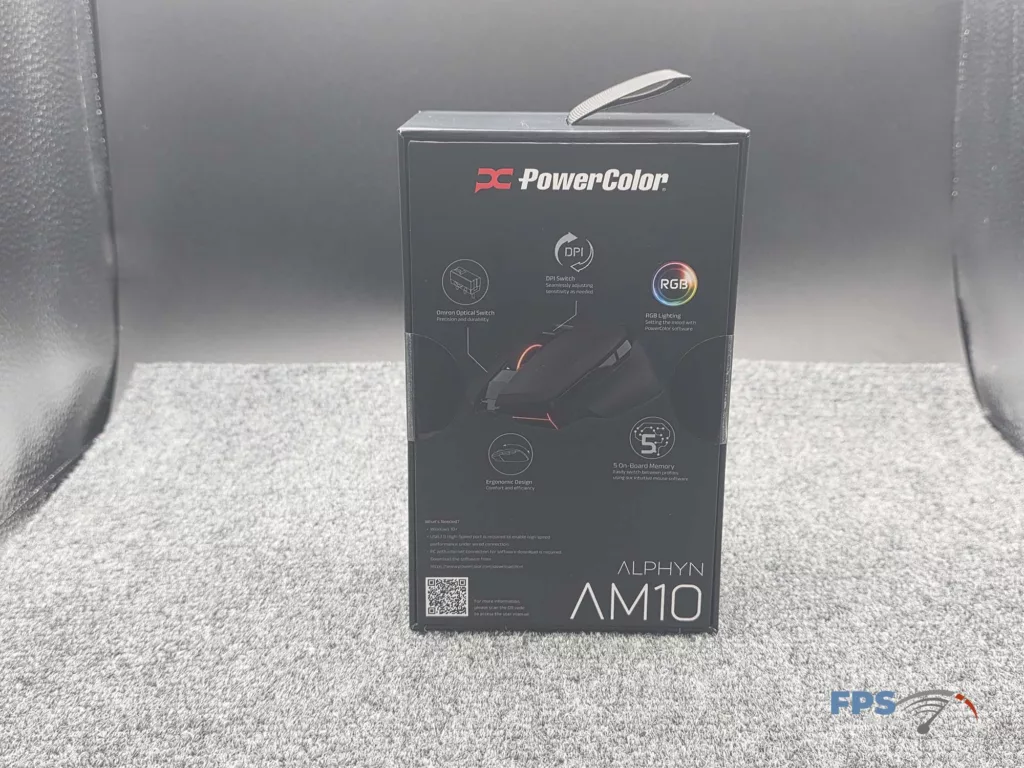
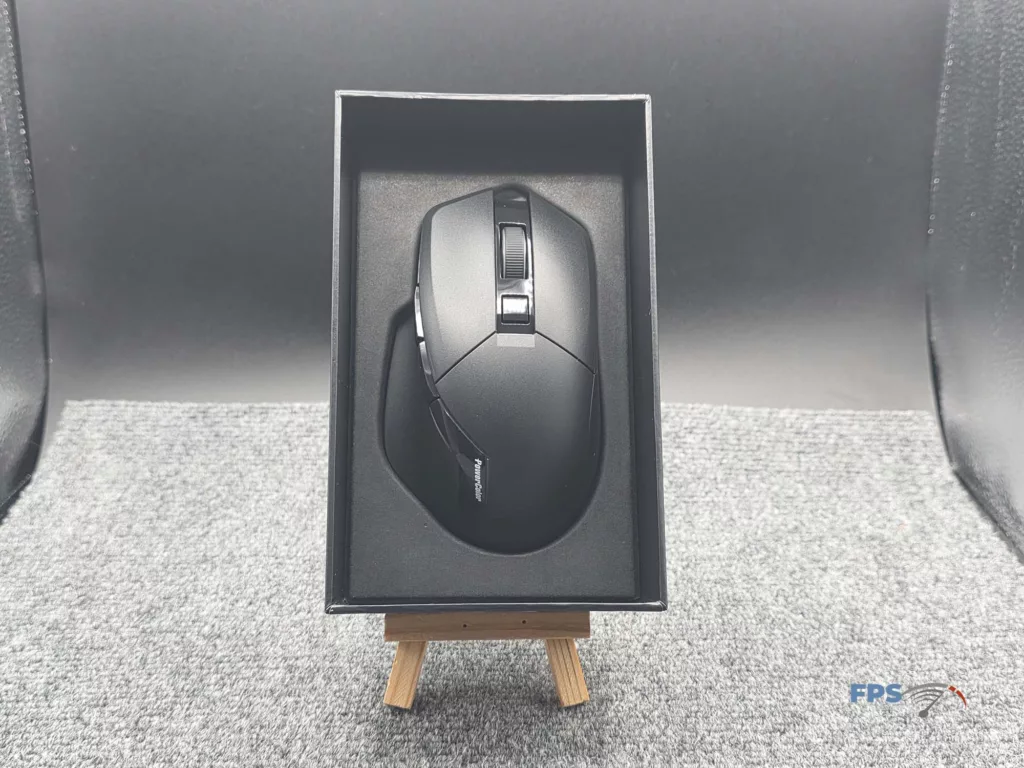
The retail box holds the mouse, the cable, and the 2.4GHz dongle. That is the lot. No grip tape, no spare feet, no dongle sled or extension adapter.
PowerColor flags in its own review guide that the 2.4GHz dongle performs best when it is not seated next to a USB 3.x port, and says a USB extender ships in the press kit specifically to avoid that interference. Ours did not include one. It turned out not to matter, since the front-panel USB ports on our test system put the dongle well clear of the rear I/O and did the same job, but it is worth knowing that the advice reaches the retail buyer without the part attached.
The cable is a 2.1m detachable paracord, USB-A on the host end and USB-C into the nose of the mouse. It doubles as the charge cable.
The Build
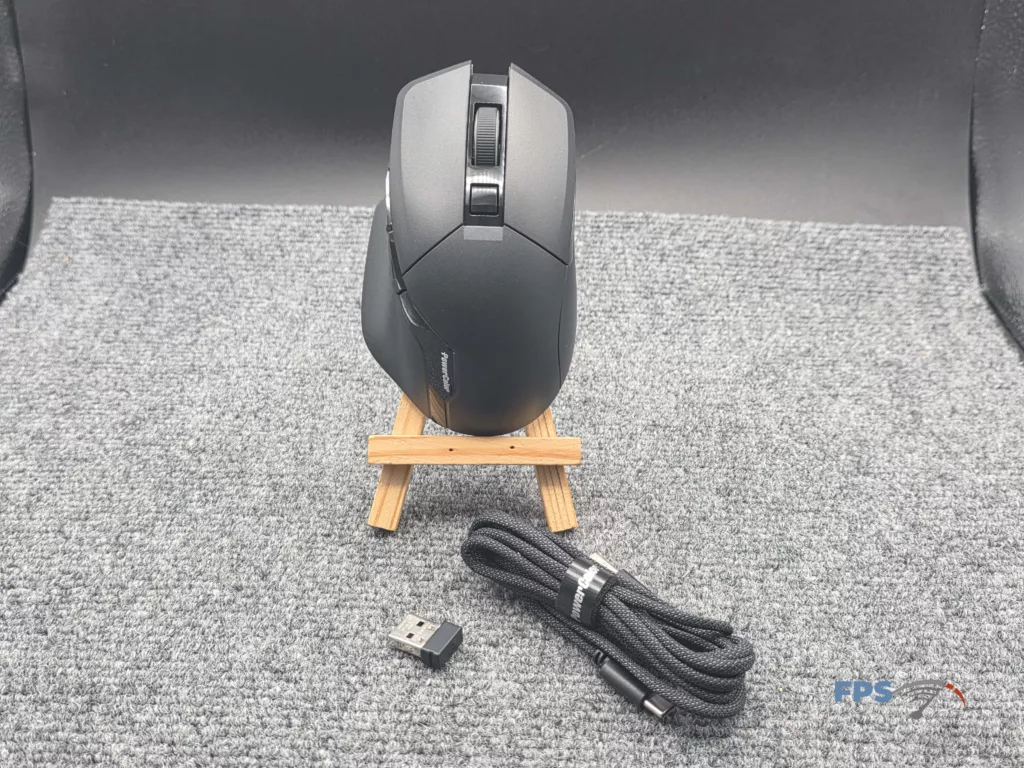
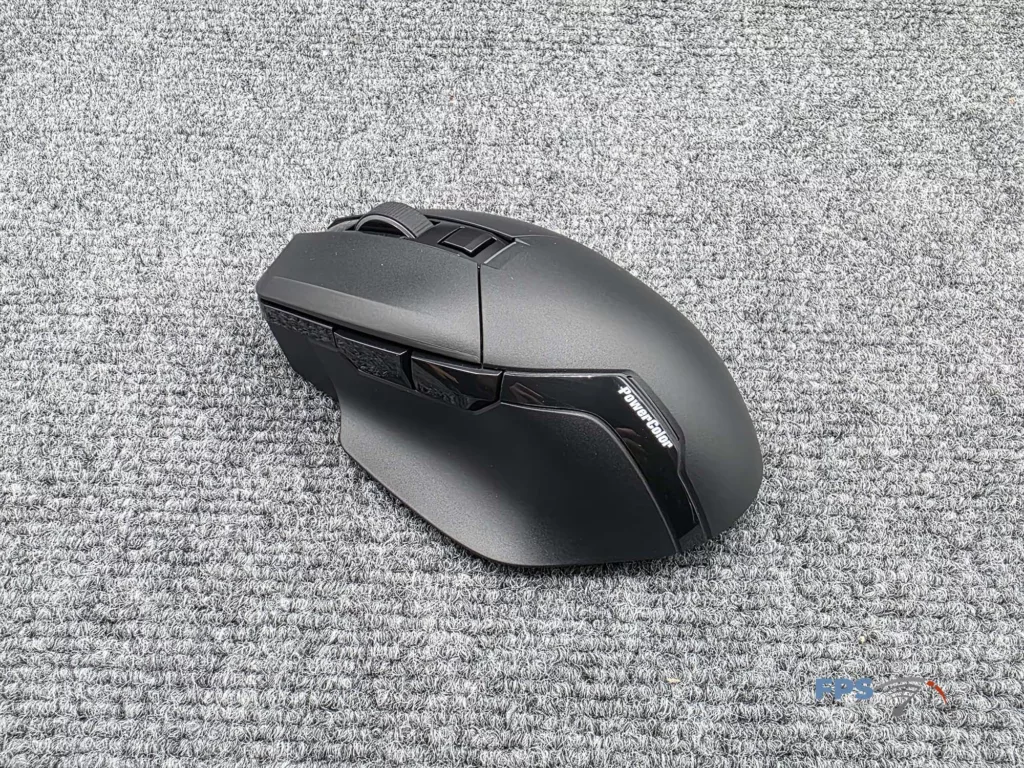
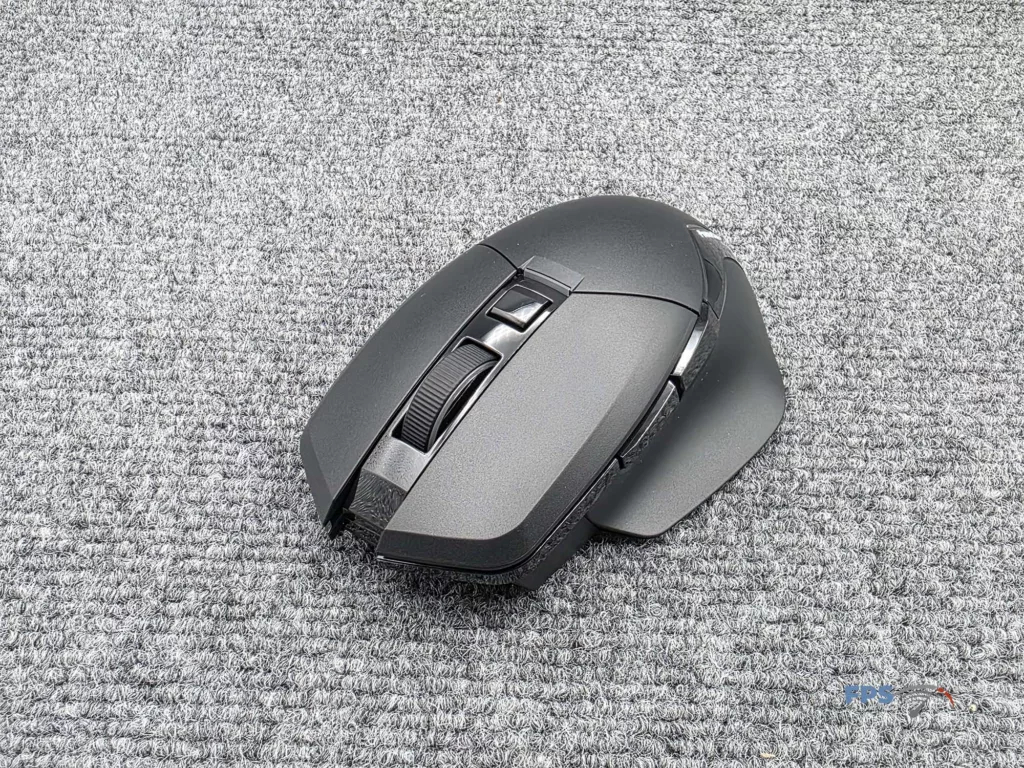
The AM10 is a full-size, right-handed ergonomic shell with a sculpted thumb rest and six programmable buttons, and PowerColor rates it at 95g. That is not ultralight territory, but it is light for a shape this size, which is most of the pitch: the footprint is closer to a G502 than to the honeycomb featherweights that dominate the sub-$50 wireless bracket.
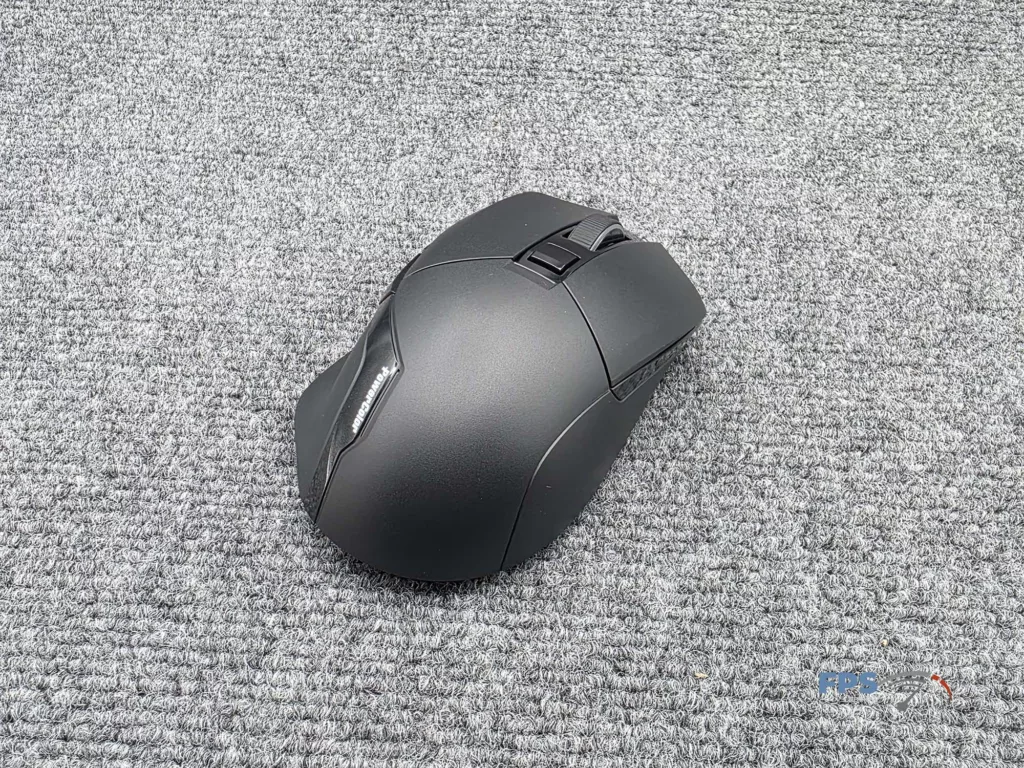
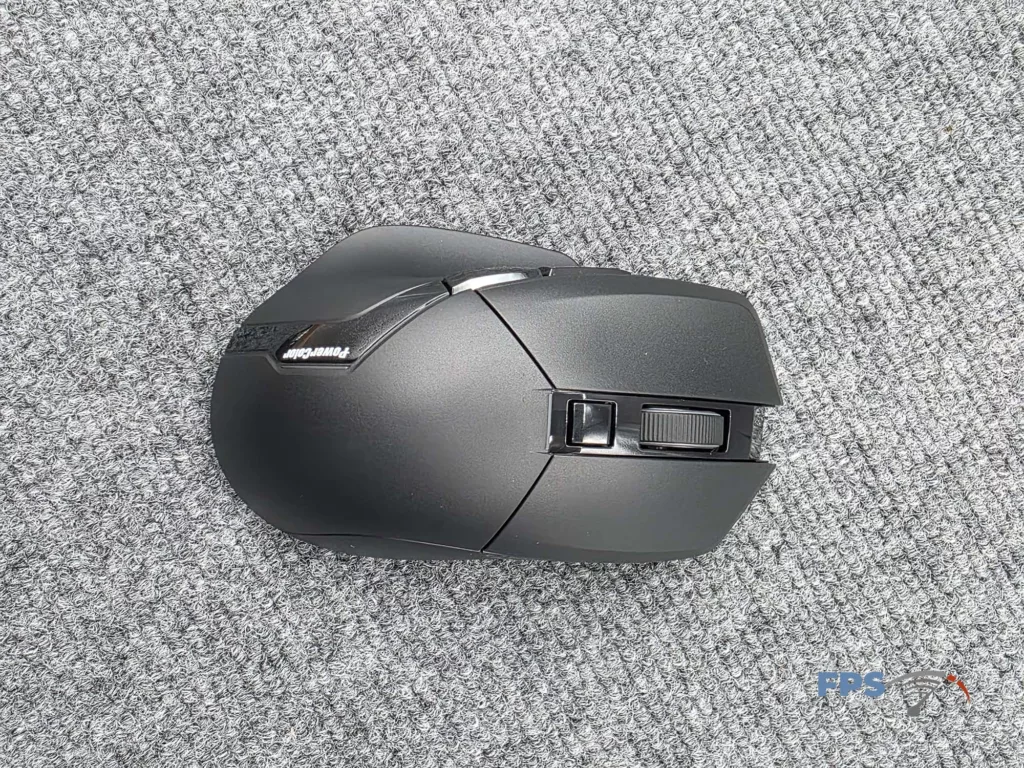
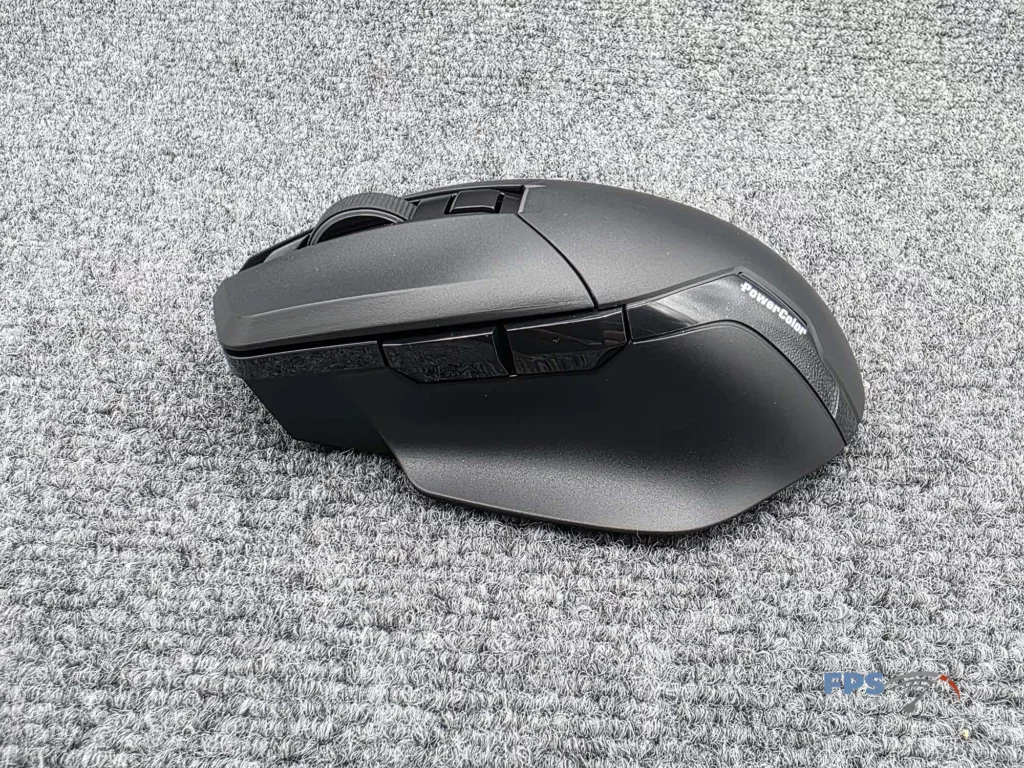
PowerColor does not publish the shell material or the coating. In hand, it is a matte finish, and after a week of continuous skin contact, it still looked like it did out of the box, with no polishing or shine developing at the thumb rest or the click surfaces. The shell does not flex or creak under a firm squeeze. Whatever else PowerColor got wrong at launch, the physical construction was not it.
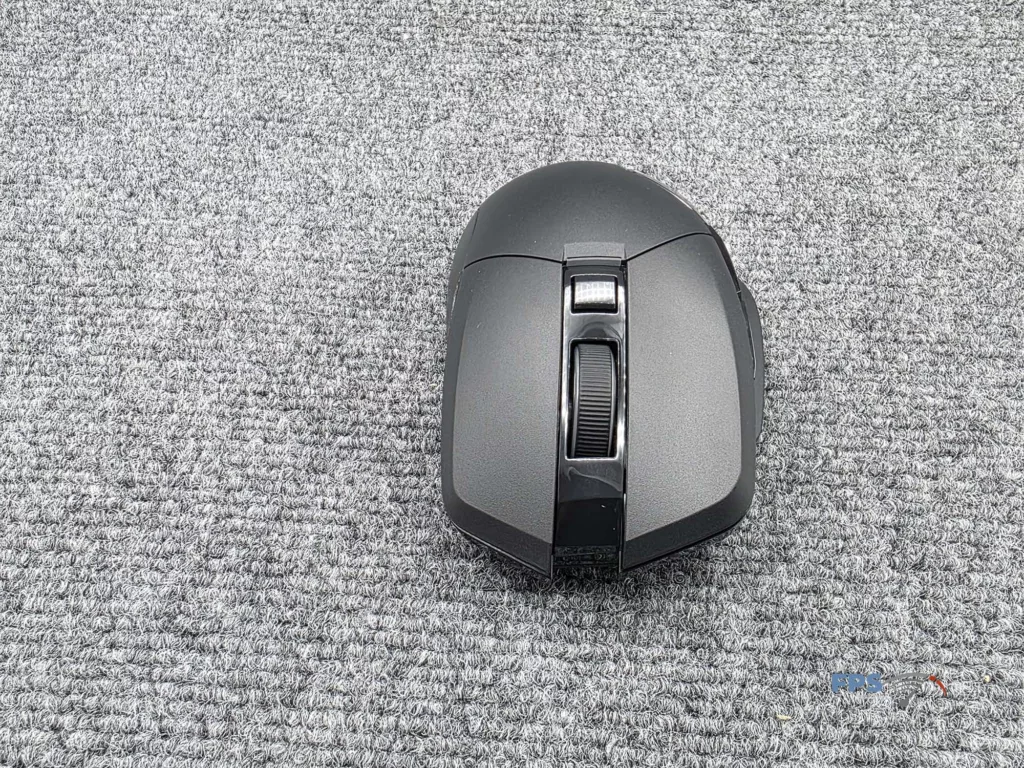
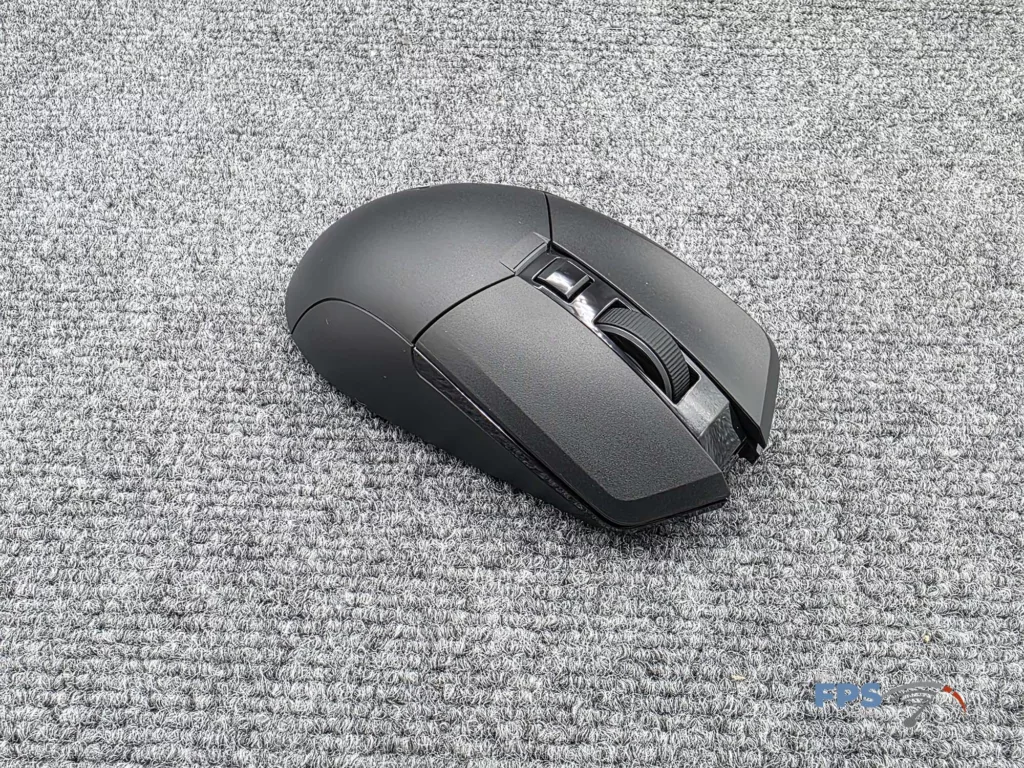
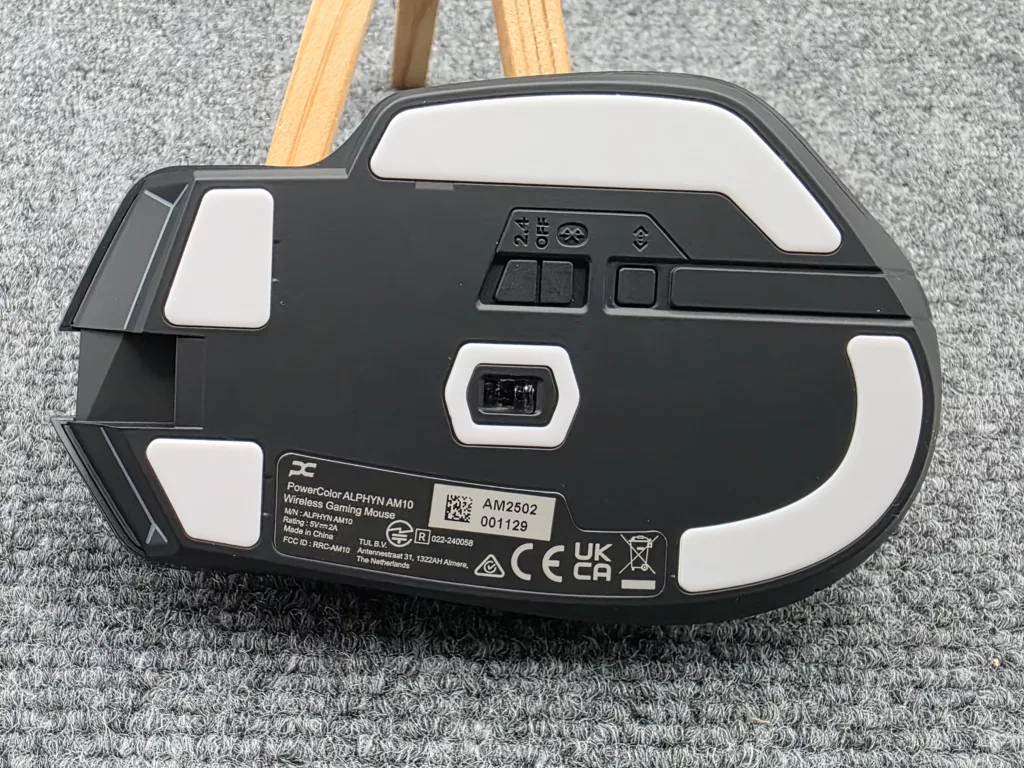
Underneath there are five separate PTFE feet of varying sizes rather than the usual two large skates, and a three-position slider covering wired (off), 2.4GHz, and Bluetooth, with a pairing button alongside. The slider is firm enough to stay where you put it, which sounds like faint praise until you have owned a mouse that switches itself off at an inconvenient time.
The side buttons sit on the left flank only, behind the thumb rest, so left-handed use is off the table.
The Sensor and Battery
The sensor is PixArt’s PAW3395, running 100 to 26,000 DPI with a rated 650 IPS maximum tracking speed and 50g of maximum acceleration. This is the part of the AM10 that always looked out of place on a $99.99 mouse and looks conspicuous on a $49.99 one: the 3395 is the sensor a lot of $130 mice were built around. Out of the box, the mouse ships with five DPI stages at 400, 800, 1600, 3200, and 4800.
Power comes from a 500mAh rechargeable Li-ion cell. PowerColor rates it at up to 50 hours with lighting off and up to 35 hours with RGB at half brightness, quotes approximately 1.5 hours for a full charge, and states that a 10-minute top-up returns up to 6 hours of use with lighting off. Those figures are for 2.4GHz operation, and one thing to note is that a higher polling rate eats battery. A 50-hour rating assumes you are not running the mouse at its ceiling.
The manual notes one useful behavior: below 20% charge, the scroll wheel LED blinks red, and the lighting effects switch off on their own.
The Switches
The main buttons use Omron optical switches rated for 70 million clicks. Optical actuation is the real argument here rather than the click count, since it sidesteps debounce delay and is not subject to the double-click failure that eventually kills mechanical switches. PowerColor does not publish an actuation force in gF, and does not identify the scroll wheel or side button switches at all, which are almost always different parts from the mains.
In use, the mains have moderate travel. There is no mushiness and no obvious slop, but this is not one of the near-zero-travel designs that competitive shooters have been drifting toward, and if you are coming off something with a very short throw, you will notice the difference in the first hour. From a sound perspective, the buttons make a muted, clicky sound.
The scroll wheel is good. Well-defined, no accidental double-steps, no complaints across a week of work. The one thing it lacks is a free-wheel mode, and that is the single feature I missed most moving over from my daily driver, the ancient Logitech G700s. Whether that matters depends entirely on how much of your day is spent scrolling through long documents.
On latency, PowerColor states an average measured wireless figure of approximately 1.73ms and a wired figure as low as 0.4ms, with button click latency around 1.7ms measured with LDAT. Those are the company’s numbers under the company’s conditions.
Size and Weight
Dimensions were measured at 5″x3″x2″ and 95g, against PowerColor’s up to 95g rating. PowerColor does not publish physical dimensions for the mouse, which is a genuine gap on a product whose entire selling point is a shape, so the figures above are our own from a measuring tape we found in a drawer in the office.
PowerColor positions the shape for palm and claw grips on medium to large hands, and states explicitly that it is not intended for fingertip grip or for very small hands. I’m in the large hand category and tend to roll with the palm-style grip, as I am, in fact, not Dr. Claw.
We do want to remind readers that the size, shape, and weight of peripherals are intensely personal. Tastes vary, so our goal is to inform readers who are looking for a peripheral in the class of the peripheral under review as to whether said peripheral is a good representation of the class.
Specifications
| Specification | Details |
|---|---|
| Height | 5″ |
| Width | 3″ |
| Depth | 2″ |
| Weight | 95g (PowerColor rated: 95g) |
| Cable Length | 2.1 m detachable paracord, USB-A to USB-C |
| Interface | USB 2.0 High-Speed (wired), 2.4 GHz via dongle, Bluetooth 5.2 |
| USB Polling Rate | 8000 / 4000 / 2000 / 1000 / 500 / 250 / 125 Hz |
| Wireless Polling Rate | 2.4 GHz: 1000 / 500 / 250 / 125 Hz. Bluetooth: 125 Hz |
| Mouse Feet Material | PTFE, five pads |
| Sensor | PixArt PAW3395 |
| Resolution (Sensitivity) | 100 to 26,000 DPI |
| Configurable Sensitivity Presets | 5 stages (400 / 800 / 1600 / 3200 / 4800 by default) |
| Max. Acceleration | 50 g |
| Max. Speed | 650 IPS |
| Buttons | 6 programmable |
| Battery | 500 mAh rechargeable Li-ion |
| Onboard Memory | 5 profiles |
| Lighting | 1-zone configurable ARGB, 12 LEDs, plus DPI status indicator |
| Warranty | 1 year limited |
PowerColor KeyStone
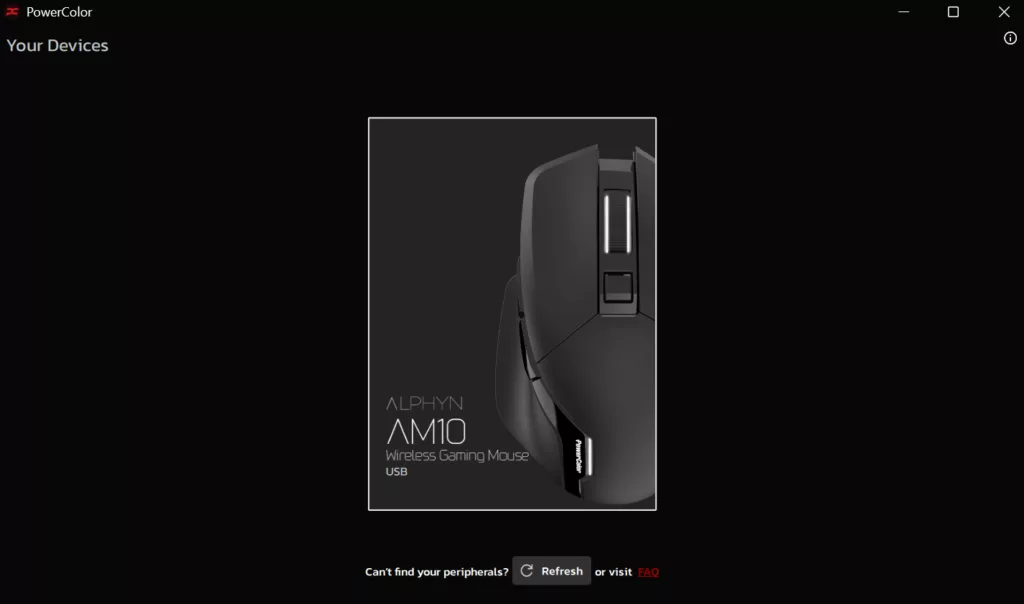
Like most peripheral vendors, PowerColor runs one application across its range. KeyStone handles the AM10, and PowerColor states it also covers the ALPHYN AH10 headset and Red Devil graphics cards, so a PowerColor-heavy build gets a single utility instead of three. The app opens on a Your Devices page, which in our case held a single tile for the AM10, and the header carries the current connection mode and battery percentage on every screen, which is the sort of small thing you appreciate on a wireless mouse.
Settings live under three tabs: Customization, Performance, and Color, with a profile selector alongside them.
Button assignment
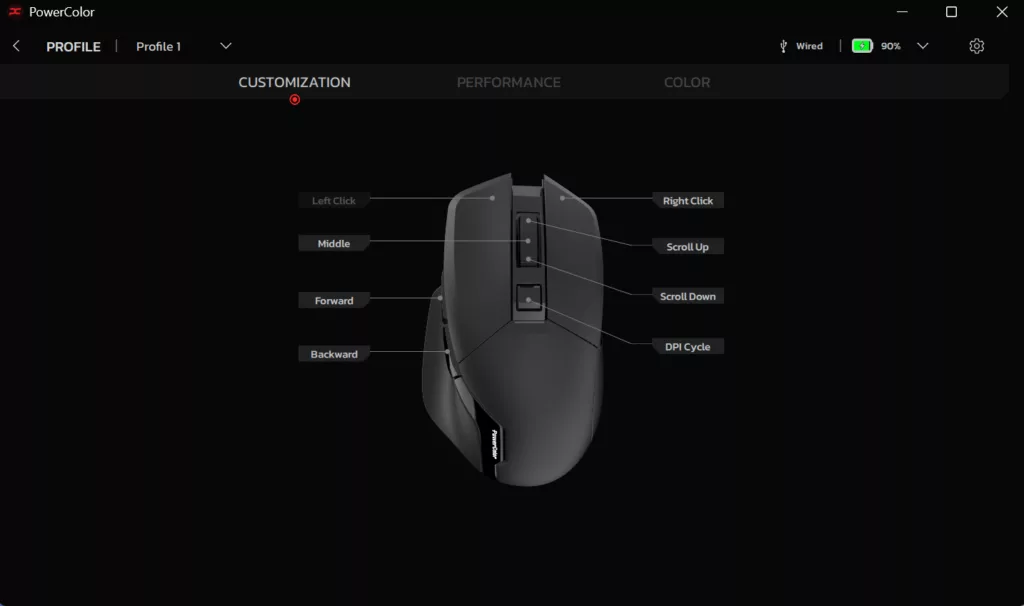
Customization presents an overhead render of the mouse with each input called out on a leader line: left click, right click, middle, forward, backward, DPI cycle, and, separately, scroll up and scroll down. The two scroll directions being independently assignable is more granular than the “six programmable buttons” line on the spec sheet suggests, and it matters for anyone who wants to map wheel travel to something other than scrolling.
DPI and sensitivity
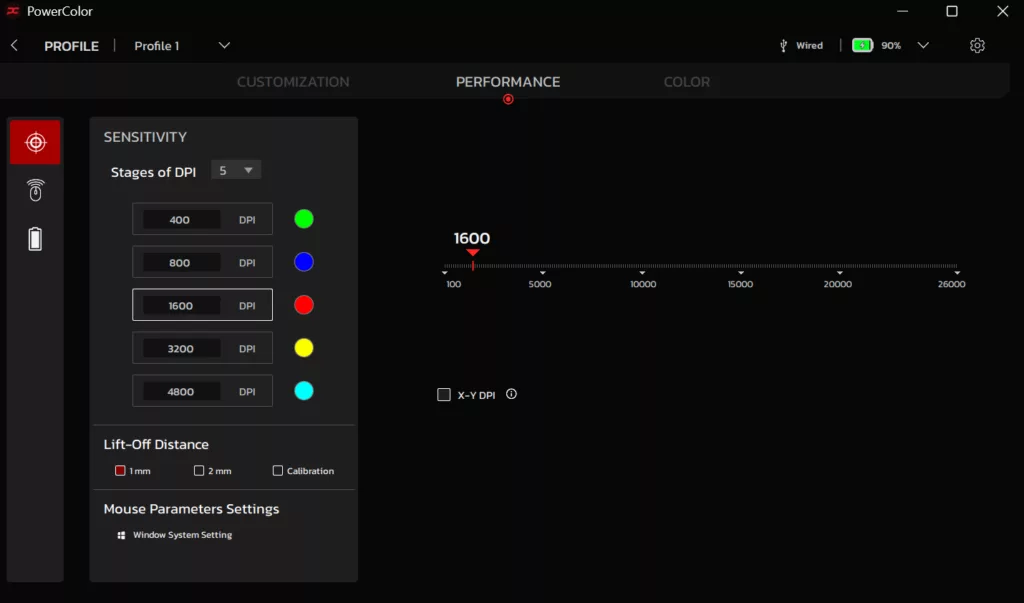
The Sensitivity page under Performance is the densest screen in the app. A Stages of DPI dropdown sets how many steps sit in the cycle, five in our configuration, and each step gets its own DPI value plus an indicator color, so the DPI LED tells you which stage you are on without opening anything. The slider runs the full 100 to 26,000 range, and any stage accepts a typed figure, so the stock 400 / 800 / 1600 / 3200 / 4800 ladder is a starting point rather than a constraint. An X-Y DPI checkbox splits horizontal and vertical sensitivity for anyone who wants it.
Lift-off distance is exposed as a straight choice between 1mm and 2mm, with a separate calibration option for tuning to a specific surface. Below that, a shortcut drops you into the Windows pointer settings, which is a small courtesy that saves a trip through Settings.
Polling rate
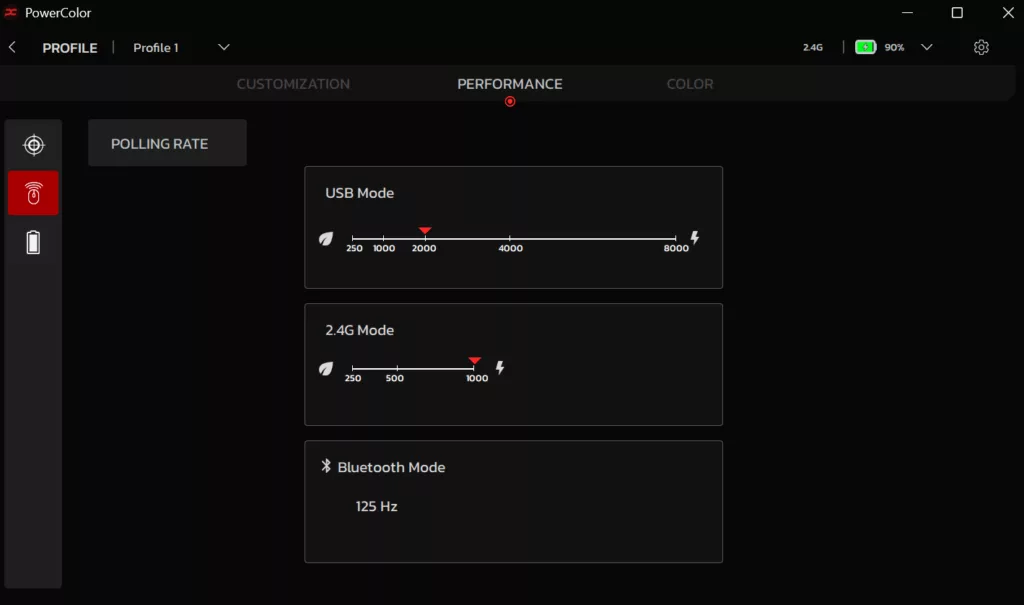
The Polling Rate page splits into three independent panels, one per connection mode. USB runs on a slider marked at 250, 1000, 2000, 4000, and 8000, with a leaf icon at the low end and a lightning bolt at the high end in case the trade-off was not obvious. The 2.4GHz slider tops out at 1,000. Bluetooth is displayed as a flat 125 Hz with nothing to adjust.
Setting these per mode rather than globally is the right design. You can leave wired at 8,000Hz and let 2.4GHz sit wherever the battery math works, without either choice contaminating the other.
Power management
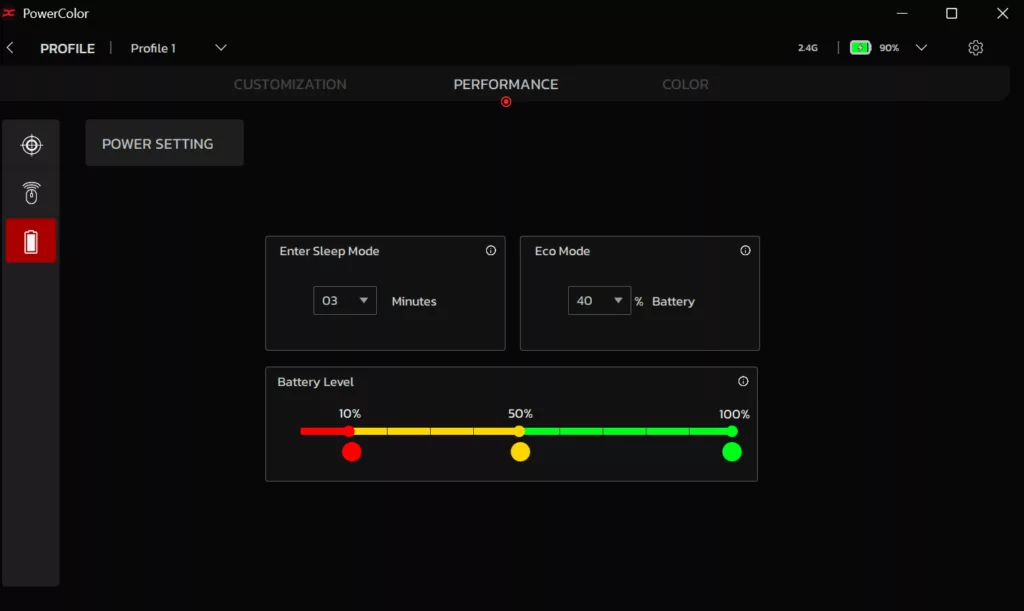
The Power Setting page carries a sleep timer dropdown, set to three minutes on our unit, and an Eco Mode threshold that kicks in at a configurable battery percentage, 40% as shipped. A Battery Level widget lets you set where the indicator turns from green to yellow to red, at 10%, 50%, and 100% in our configuration. None of this is exotic, but between the sleep timer, Eco Mode, and the ability to kill the RGB entirely, there are three separate levers on runtime.
Lighting
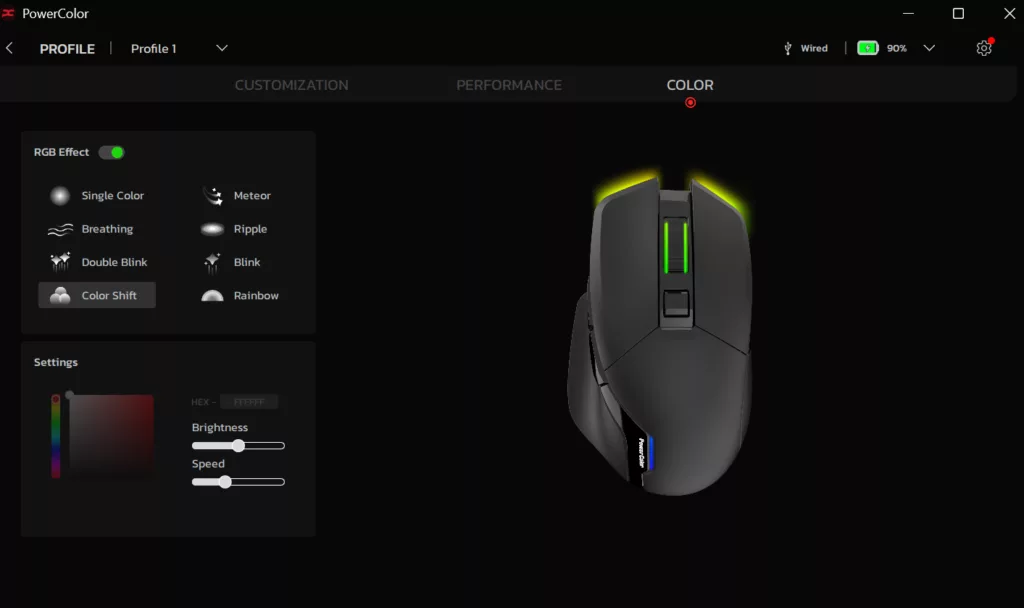
The Color tab starts with a master RGB toggle and then eight effects: Single Color, Breathing, Double Blink, Color Shift, Meteor, Ripple, Blink, and Rainbow. A picker with a HEX field handles color, with Brightness and Speed sliders under it, and a live render of the mouse previews the result. For a single zone with 12 LEDs, eight effects is generous.
Firmware and onboard profiles
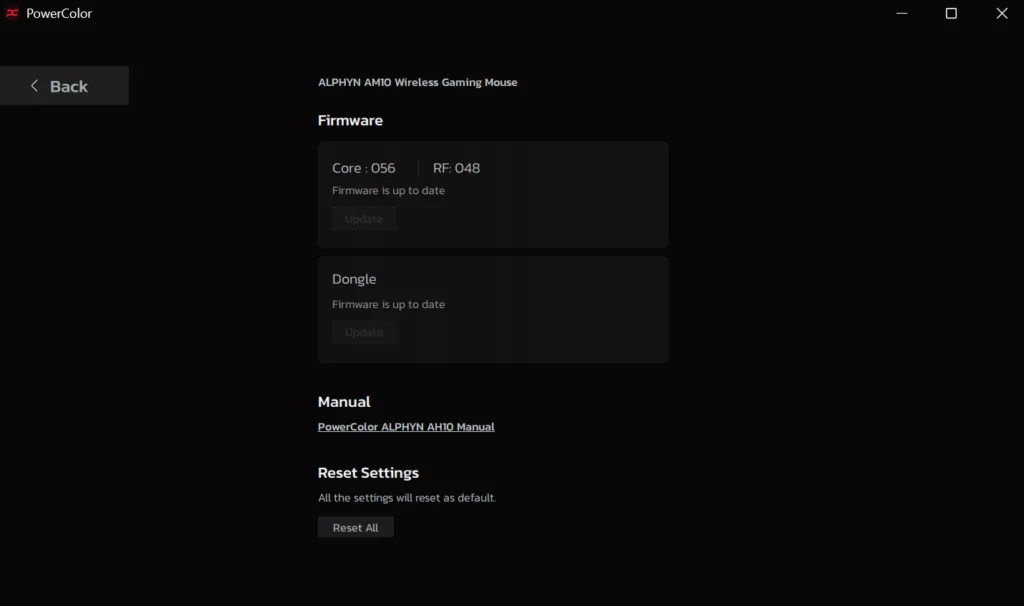
The gear icon opens a firmware page that treats the mouse and the dongle as separate devices. The mouse reports a Core revision and an RF revision independently, 056 and 048 on our sample, each with its own update button, and the dongle carries its own entry. Both reported up to date. A Reset All button sits below that.
PowerColor lists five onboard memory profiles, and KeyStone’s profile selector reflects that. Onboard storage is how this mouse rolls, so moving it to another system keeps the settings where you left them.
Conclusion
The AM10 has been my daily driver for the past week, running a mix of work and gaming across both wired and 2.4GHz wireless, at $49.99 as of the repositioning. The short version is that it is a light, well-built mouse that does what its spec sheet says it does, and that at half its launch price the argument for it changes completely.
FPS Gaming
Gaming performance is where the PAW3395 justifies its presence on a budget-tier mouse. I dusted off my Fortnite Battle Pass and did a daily session to put it through its paces. Tracking was clean and responsive throughout, with nothing to fault in the sensor’s behavior, and I never caught it doing anything strange.
I settled in the 1,600 to 2,000 DPI range, which is where I live on any mouse. The stock settings put 1,600 right in the cycle, and KeyStone will take a typed figure if you want 2,000 exactly. Pushing past 3,000 was simply too fast for my taste, though I will freely admit that says as much about a grumpy old gamer’s wrist as it does about the hardware. Anyone who runs high sensitivity has 26,000 DPI of headroom to play with and will find the sensor entirely willing.
General Use
A week of work on the AM10 was uneventful in the way you want a work mouse to be. Six buttons and a wheel cover the desktop grind without complaint; the shape is comfortable enough to disappear across a full day, and nothing about it required thinking about. The requisite coversheets were applied to the appropriate TPS reports with ease.
The one thing I kept reaching for and not finding was a free-wheel scroll mode. On a mouse that will spend its life scrolling through documents, spreadsheets, and long web pages as much as it will spend it in a firefight, the ratcheted-only wheel is the daily-use compromise. It is not a flaw so much as a feature that lives one price tier up, and readers coming from a mouse that has it should know it is not here.
Bluetooth went untested. With a dongle in a front-panel port and a cable in the box, there was never a reason to reach for it, which is roughly the position PowerColor puts it in anyway.
Wireless Use & Battery Life
Wired and 2.4GHz felt identical in use. I could not tell them apart in play or at the desktop. It means the wireless mode is not a compromise you tolerate for the cable-free desk, and it means the 8,000Hz wired ceiling is a specification you can enjoy on paper without feeling penalized when you unplug.
The dongle did not drop, stutter, or need re-pairing at any point. As noted above, our press kit arrived without the USB extender PowerColor recommends, so the dongle went into a front-panel port instead, which achieves the same separation from rear-panel USB 3.x that the extender is there to provide. Anyone with only rear I/O available should take PowerColor’s warning seriously, or at least after their shiny new mouse isn’t behaving as expected.
Roughly 25 hours of use across the week left the mouse reporting 50% charge, which puts a full charge in the neighborhood of the 50 hours PowerColor quotes. That is a week of ordinary work and gaming without thinking about it, and with a 1.5-hour full charge and a 10-minute top-up rated for another six hours, running it flat is not much of an event either way.
Final Points
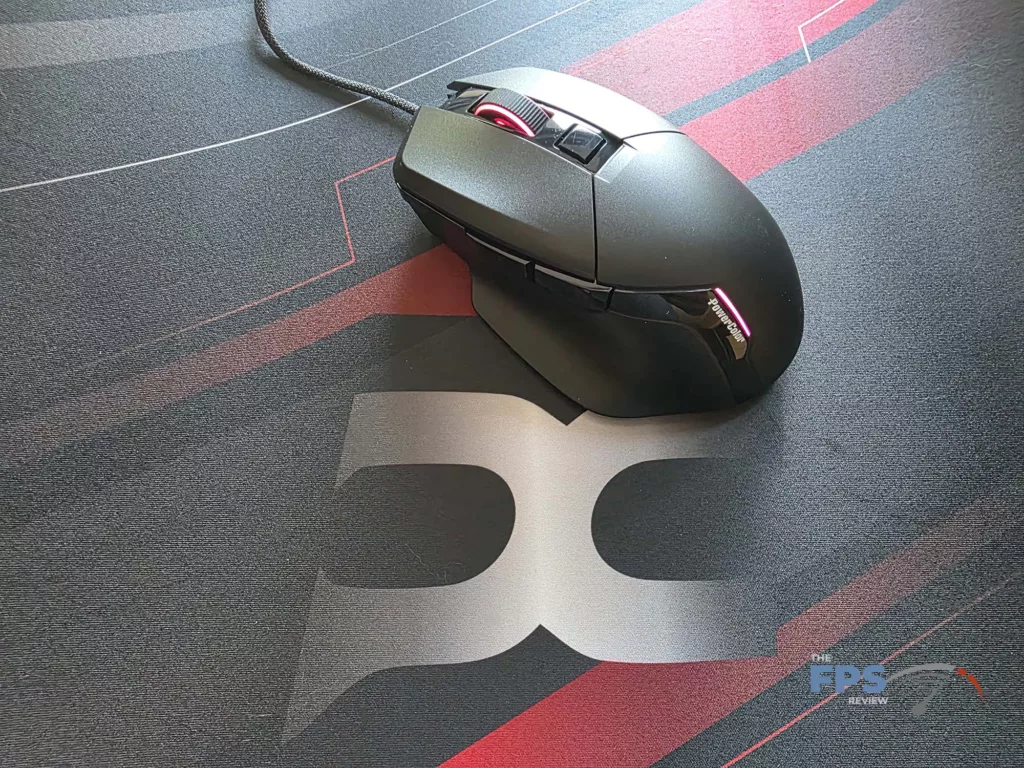
The AM10 was a hard mouse to recommend at $99.99, and the launch coverage reflected that. At $49.99, the calculation is different, because what you are buying is a flagship sensor, optical switches, and a genuinely well-built matte shell that does not flex or creak, in a full-size ergonomic shape that the sub-$50 wireless market has mostly abandoned in favor of ultralight symmetrical designs. If that shape is what your hand wants, the field of wireless options at this price is thin, and PowerColor is right that this is the interesting part of the story.
The mains have moderate travel rather than the short throw competitive players increasingly expect. The retail box is sparse, with no extender for a dongle that PowerColor itself says wants distance from USB 3.x ports. And the 8,000Hz wired mode, while a legitimate spec-sheet differentiator, is not the reason to buy this mouse. The sensor, the shape, and the build are. Of course, I’ll grovel again about the lack of a free-wheel scrolling mode, even though that’s a higher price tier feature.
Against a Razer Basilisk V3 X HyperSpeed sitting at $38 to $49 on the street, the AM10 does not win on price (well, sometimes it ties on price), it wins on hardware. Better sensor, optical rather than mechanical switches, and a wired polling ceiling the Basilisk does not offer, against Razer’s more mature software and longer runtime on a AA cell.
If you want a comfortable, well-built full-size ergonomic wireless mouse for around fifty dollars and you are not chasing the last millisecond, the ALPHYN AM10 belongs on your short list.
Discussion (9 replies)
Join Discussion →Nice-looking mouse.
That looks like a solid mouse. I have a logitech mx master series mouse that is solid for work that I love more than my corsair mouse.. Just dont want to mix brands and have multiple software management platforms running on my home system
I've got one of the original mx master series from around a decade ago. Cost me something like $80 back in the day at the local office depot but built like a tank, left click is getting a bit finicky but otherwise still awesome (played too many Kings Bounty games with it). I got some of the newer versions for staff a year or so ago and still great but new logitech can be iffy, already seen some keyboards fail long before they should've but maybe their mice will be alright.
Tale as old as Logitech mice...
Says the person who continuously runs every game digital storefront launcher ... just in case.
...I resemble that!
There is a difference one let's me launch games one is another thing injecting itself into my I/O stack and polling my USB controllers.
Pretty sure you can launch games from a lot of hardware stuff too, you know, just in case you wanted to cover your bases with something like Razer Cortex or nVidia App.
I have the nvidia app but don't use it for anything other than driver updates. and I have no razr whatever... sure I have icue.. but it works fine for me.