
UEFI
SAPPHIRE’s BIOS interface (UEFI) is called SAPPHIRE CORE BIOS UI, which uses intuitive navigation and configuration options, aimed to allow beginners to use it well up to advanced users. It supports real-time monitoring of system health and optimizing performance in real-time. The SAPPHIRE NITRO+ B850A WIFI 7 offers a one-click BIOS flashback option to update the BIOS without needing to boot into the OS.
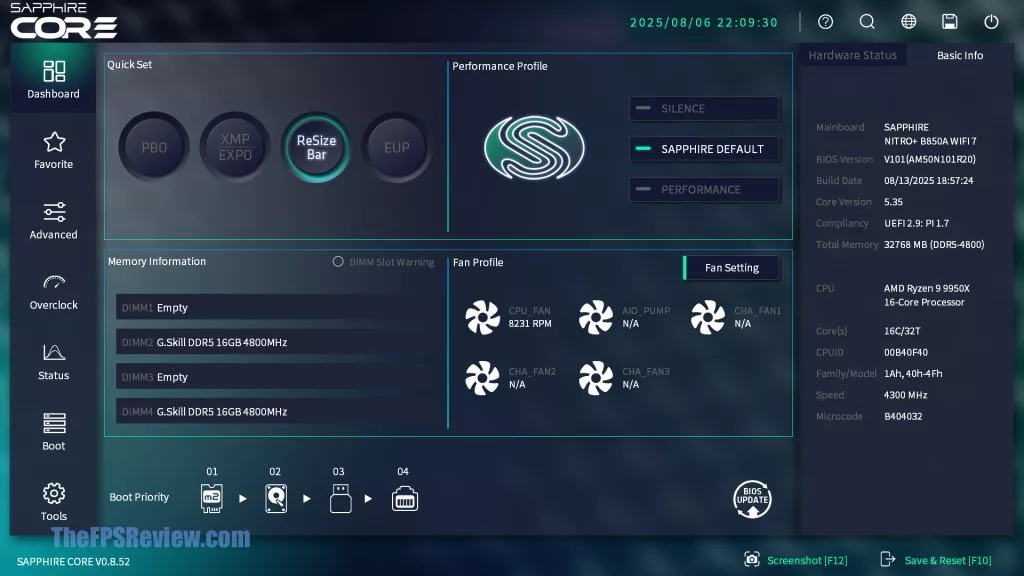
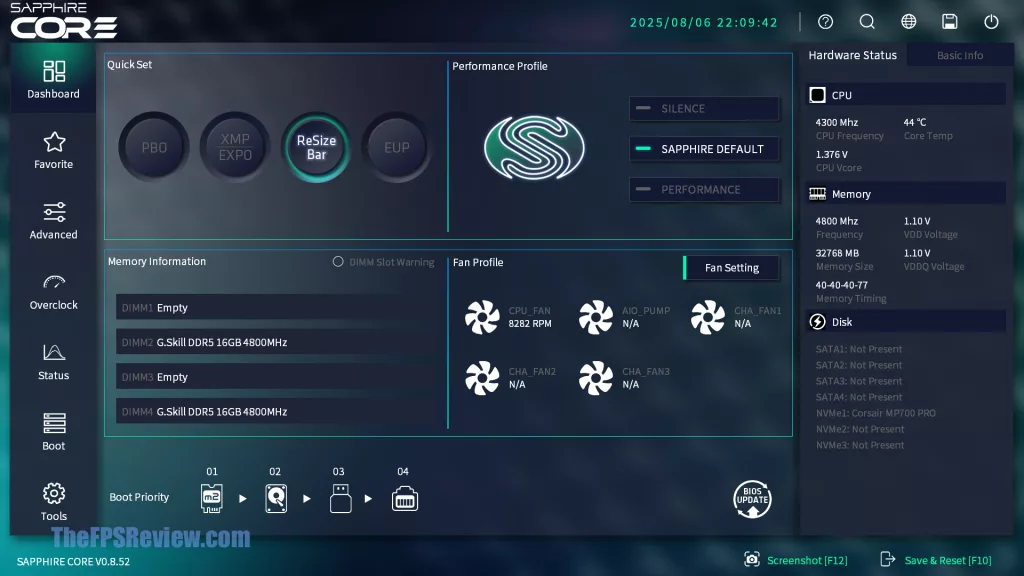
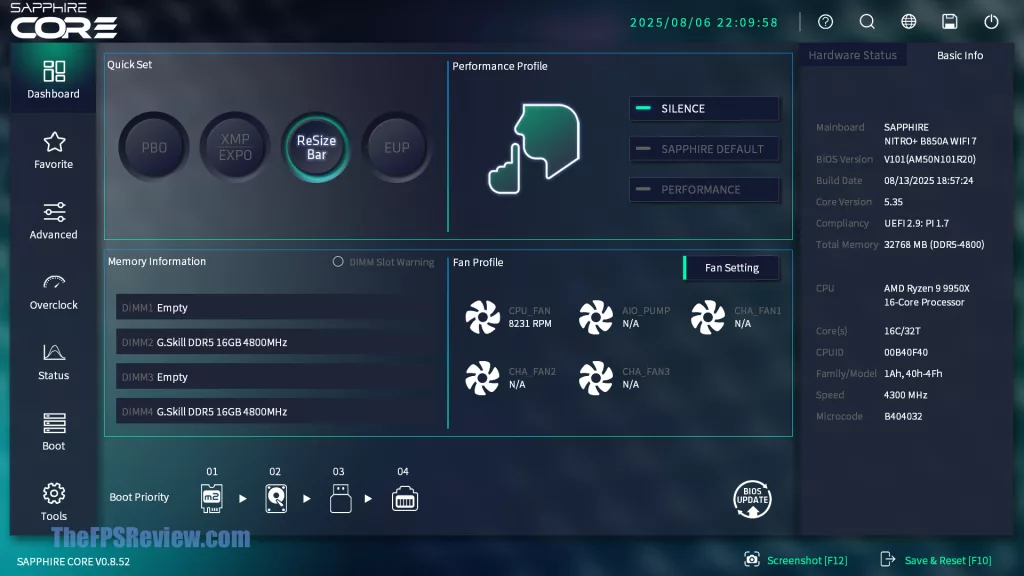
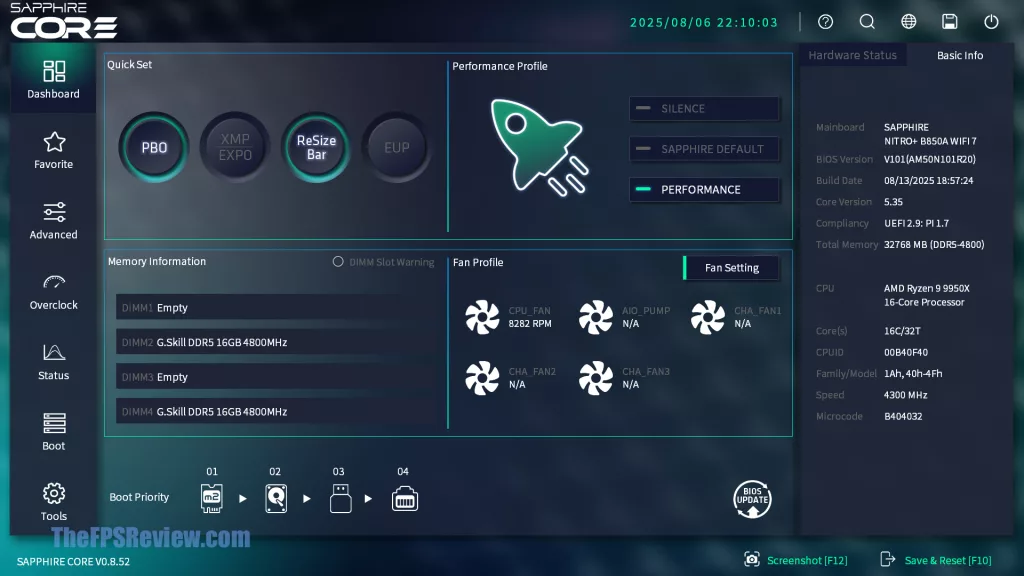
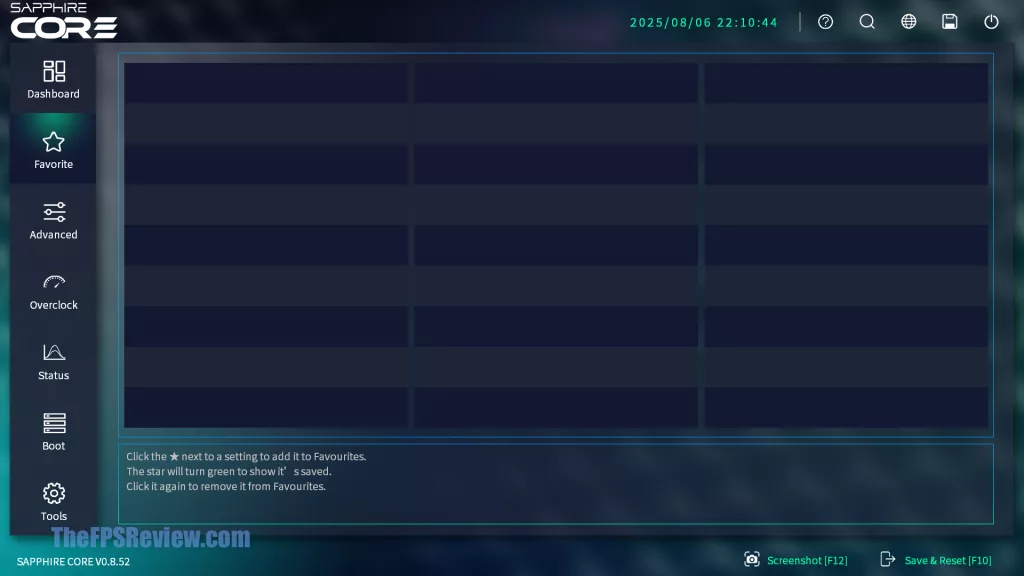
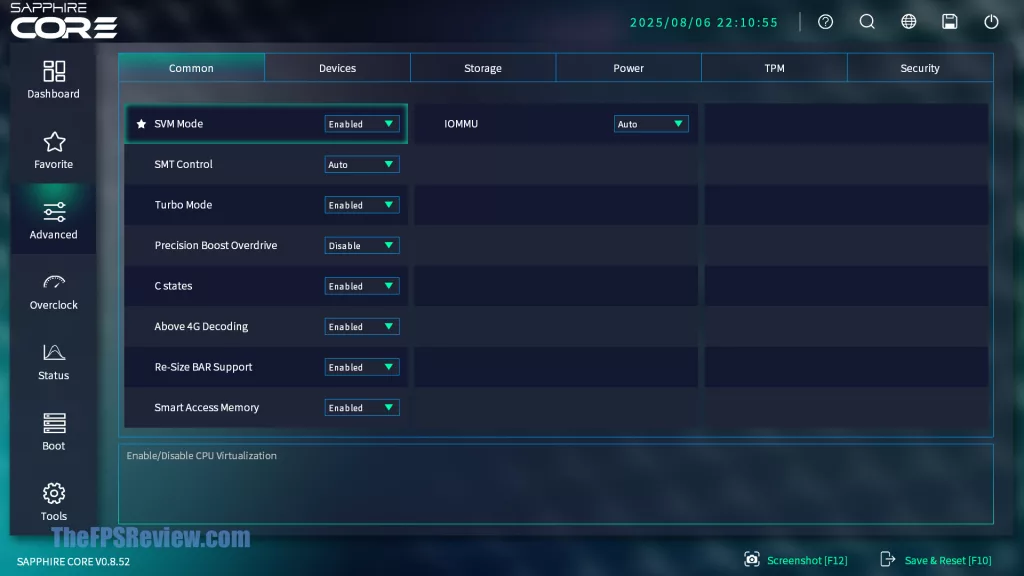
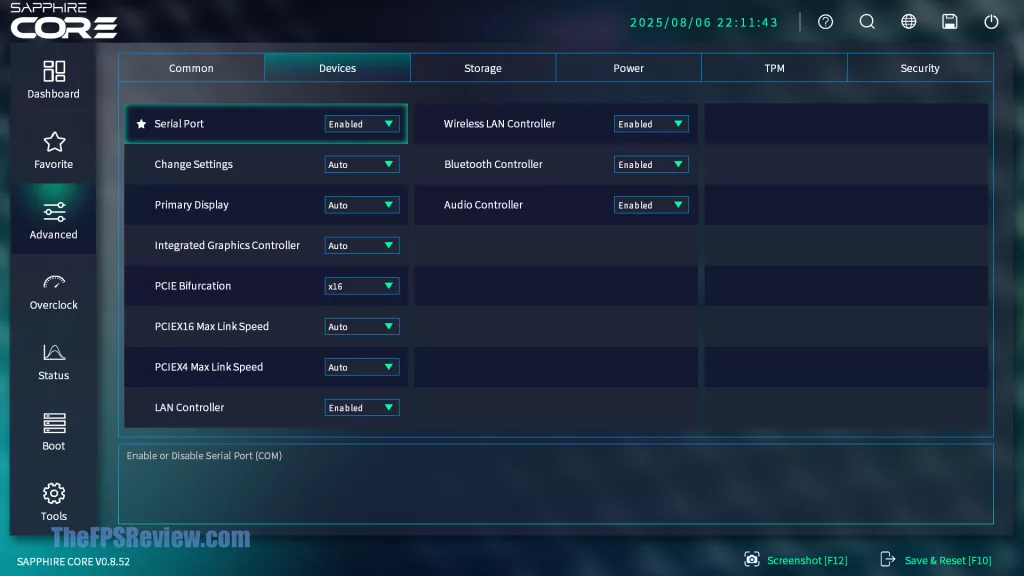
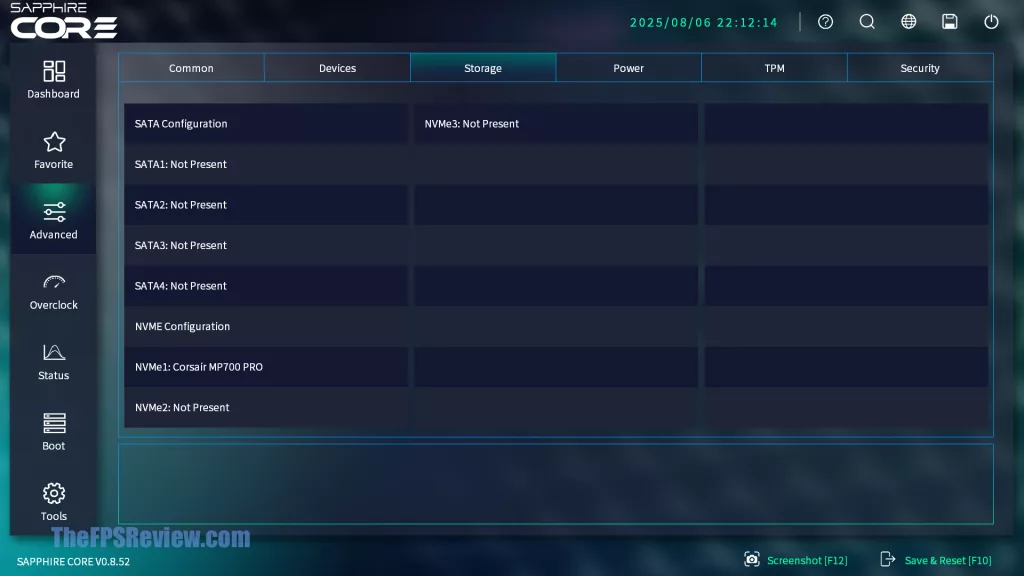
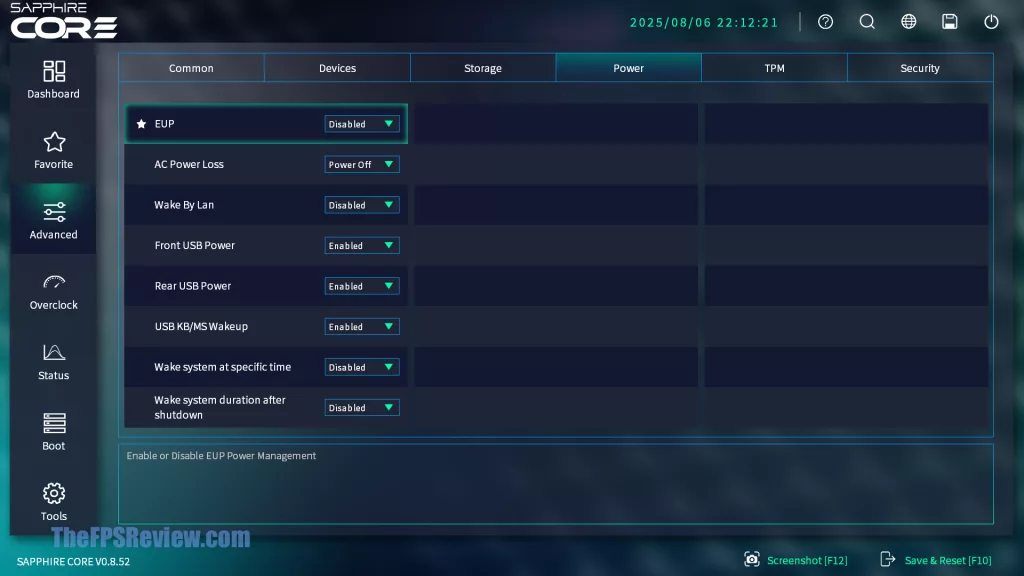
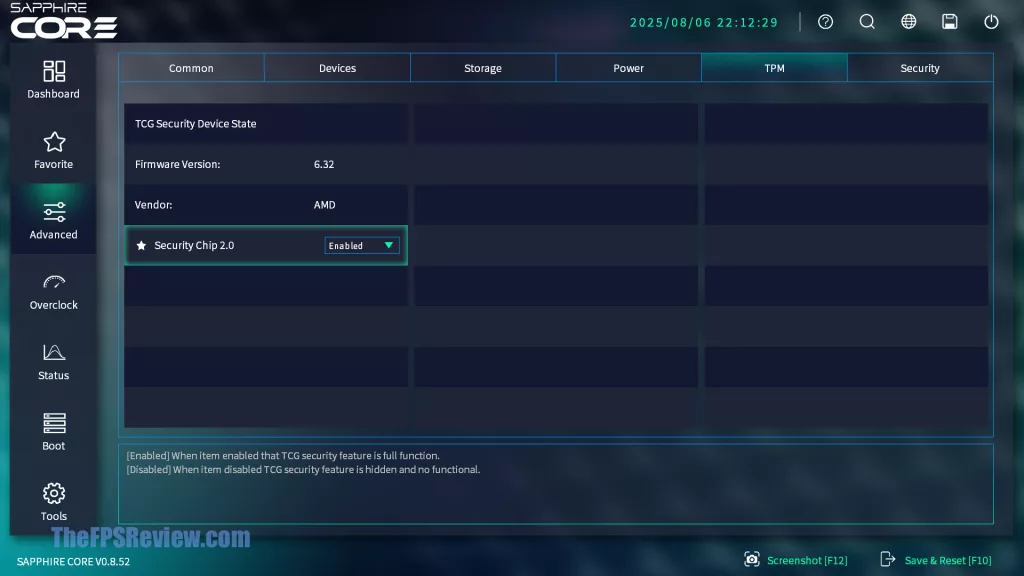
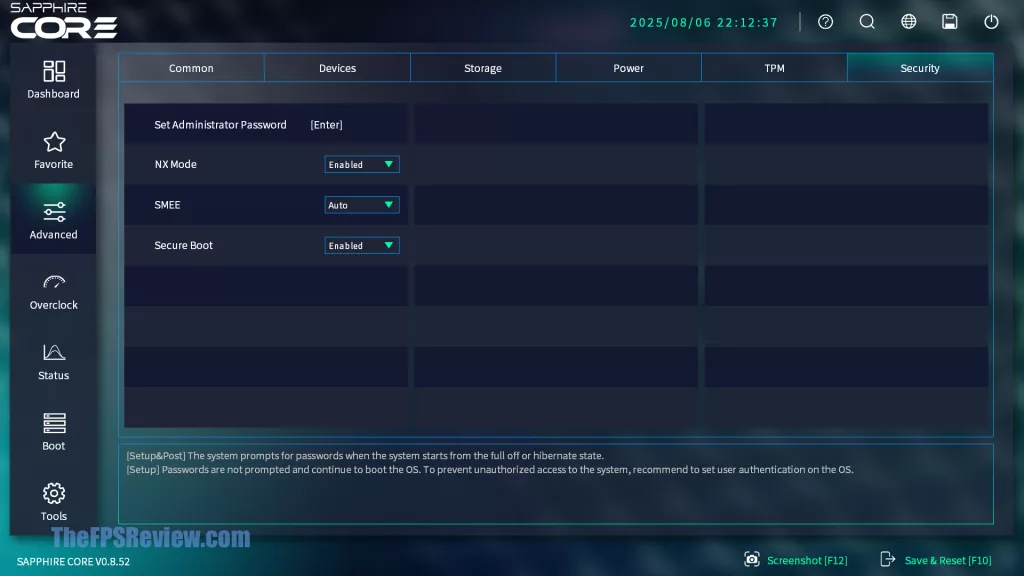
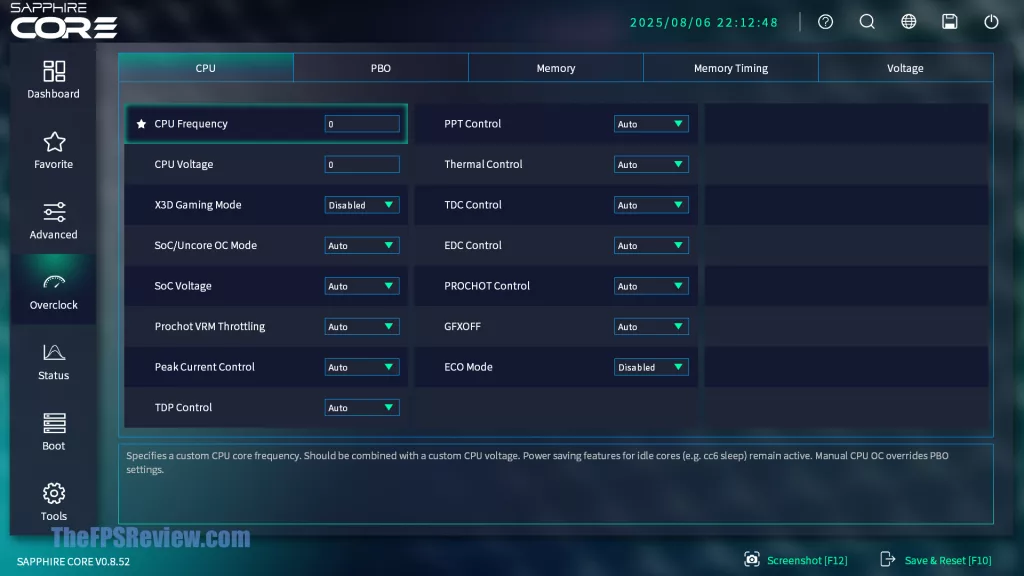
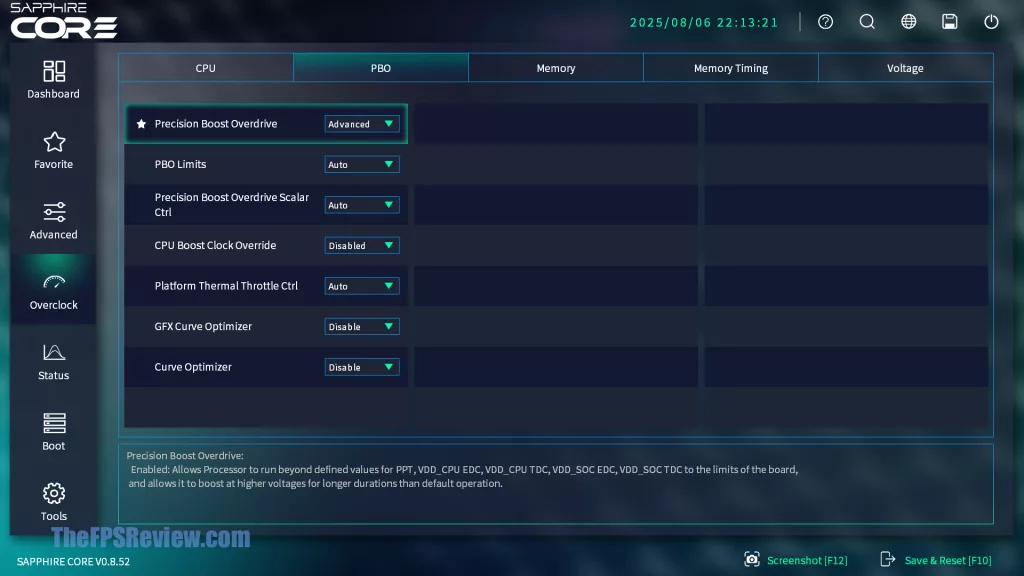
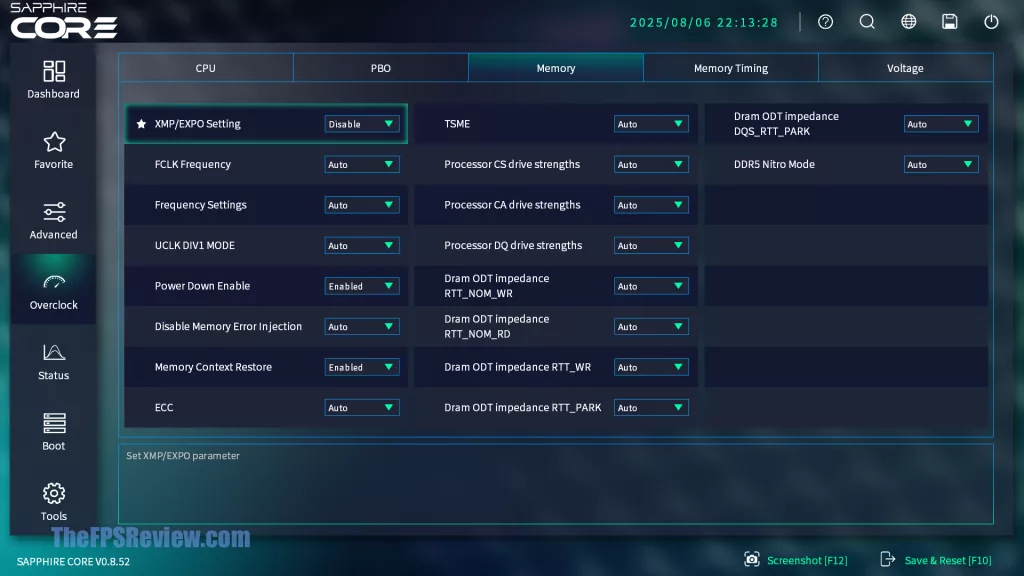
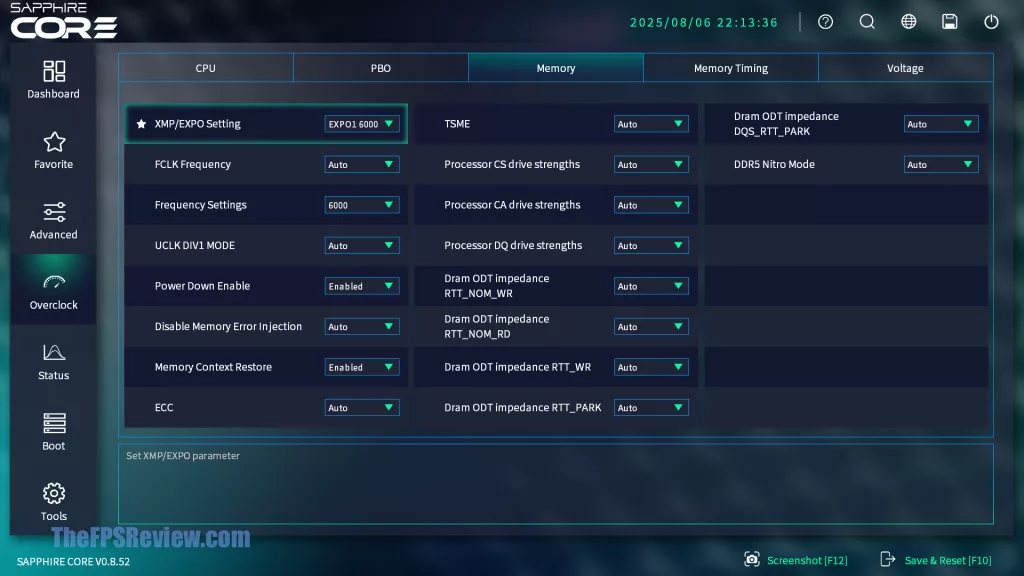
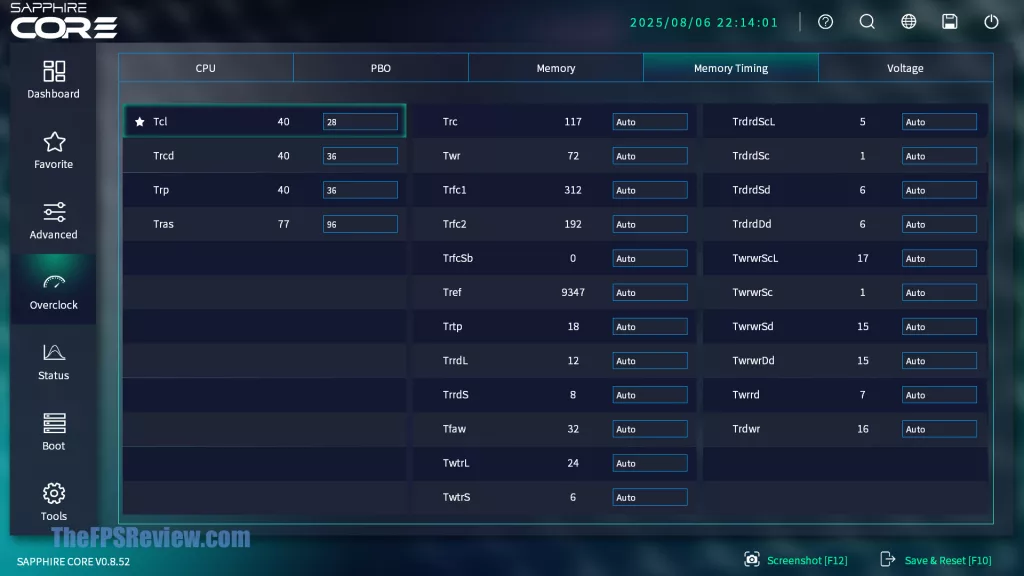
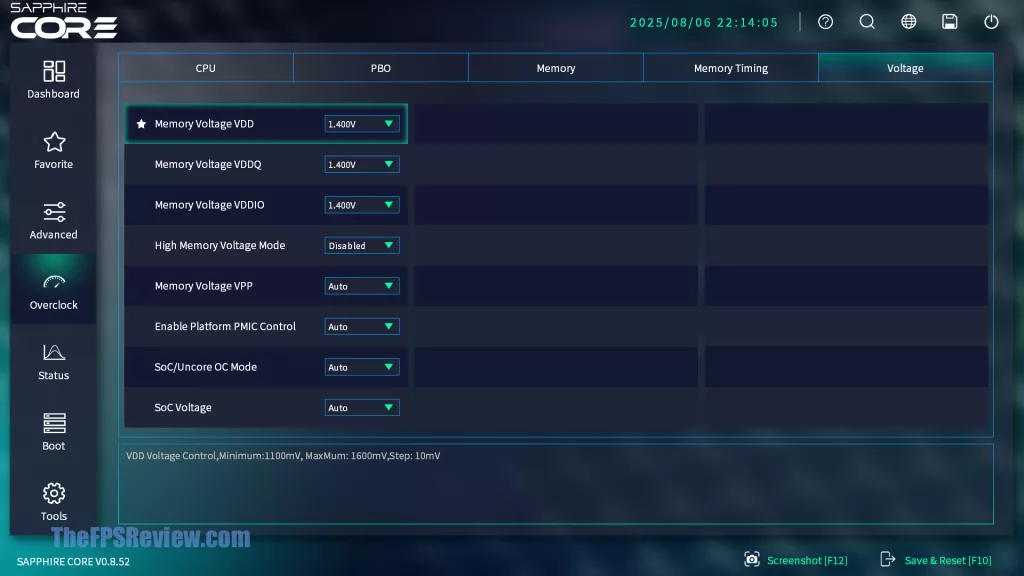
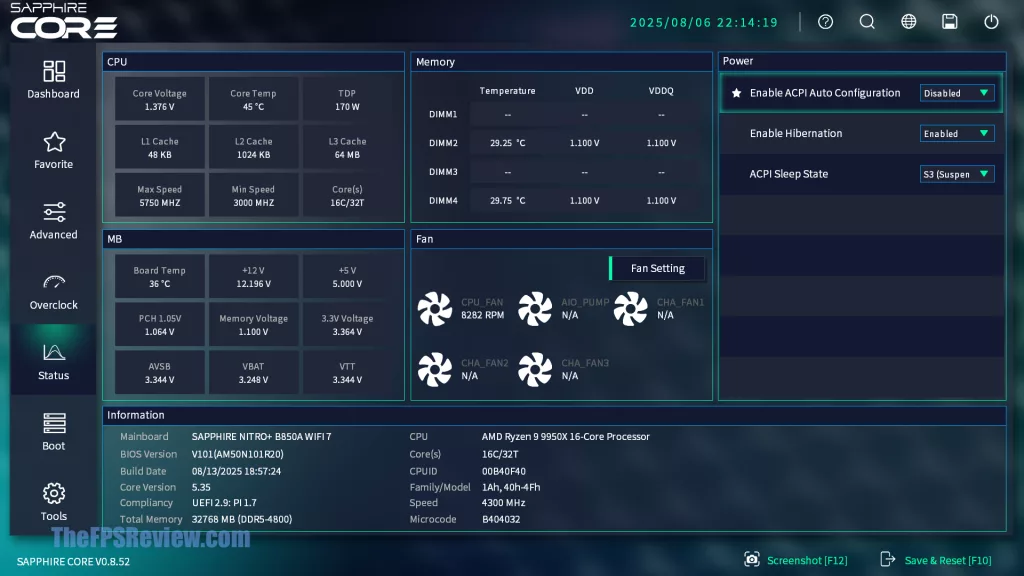
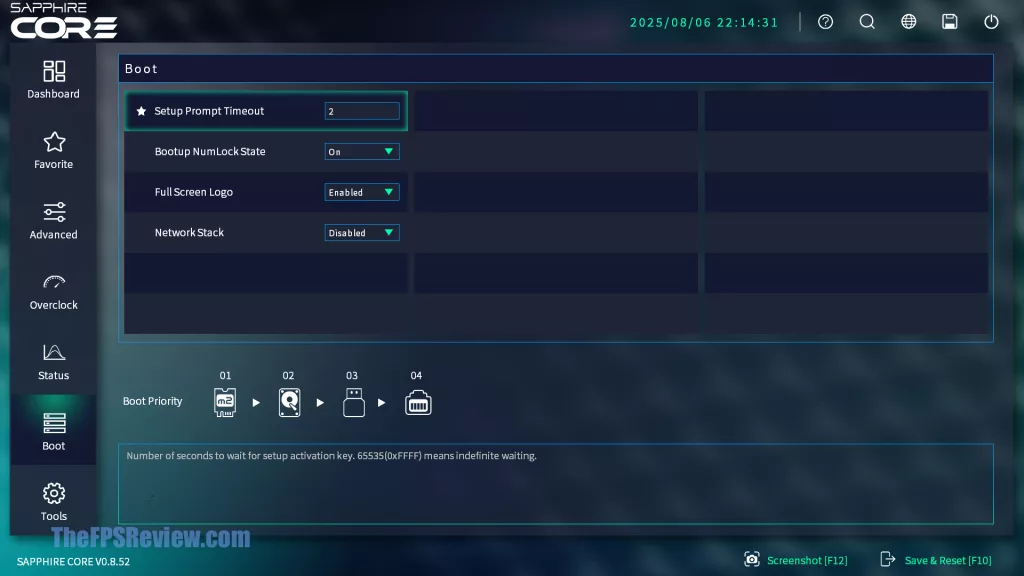
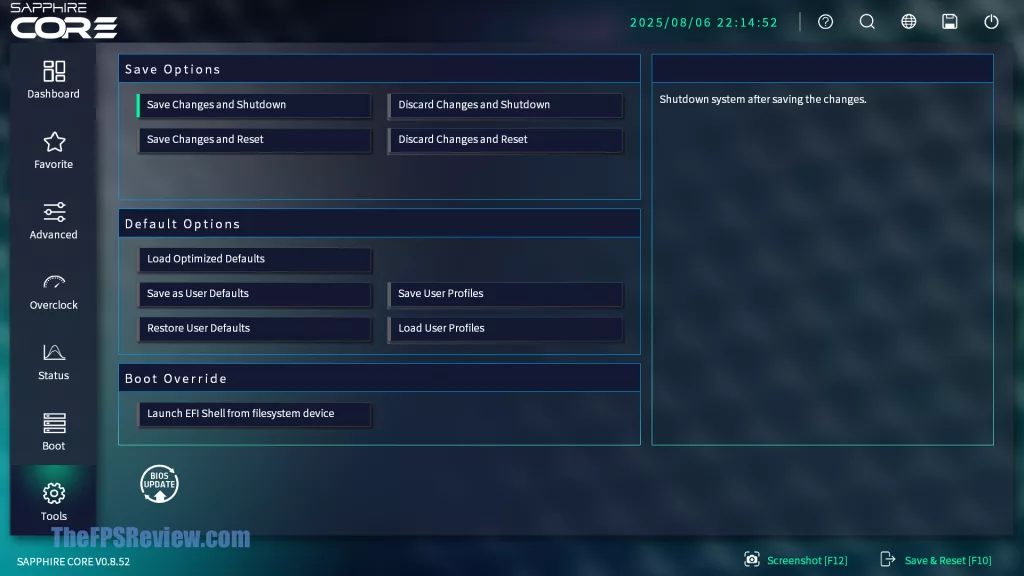
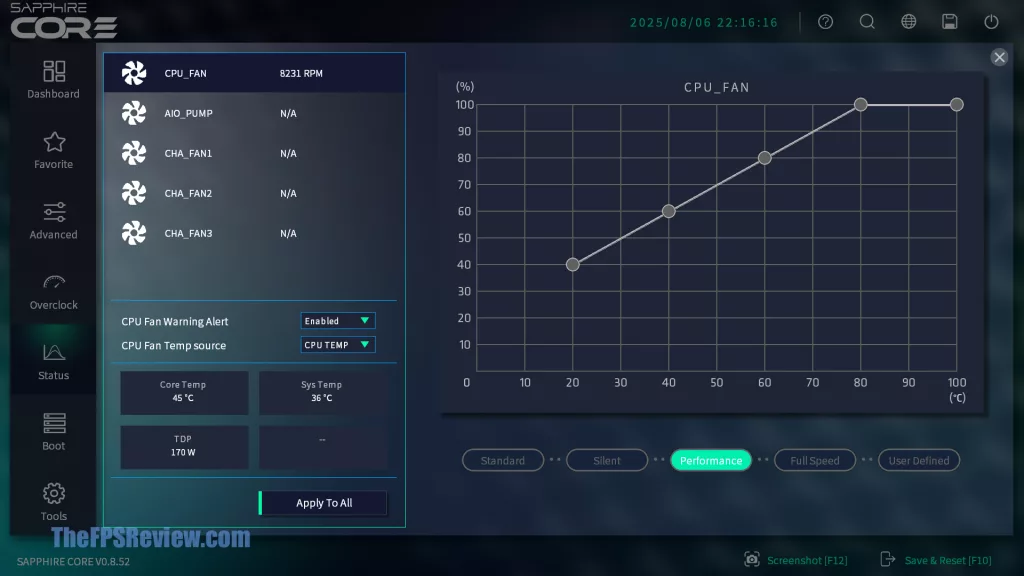
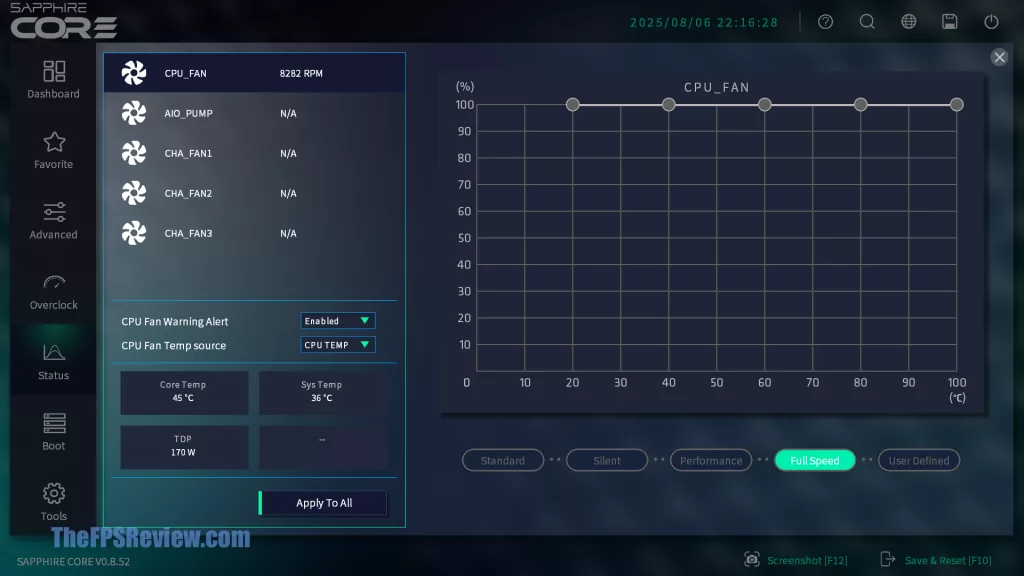
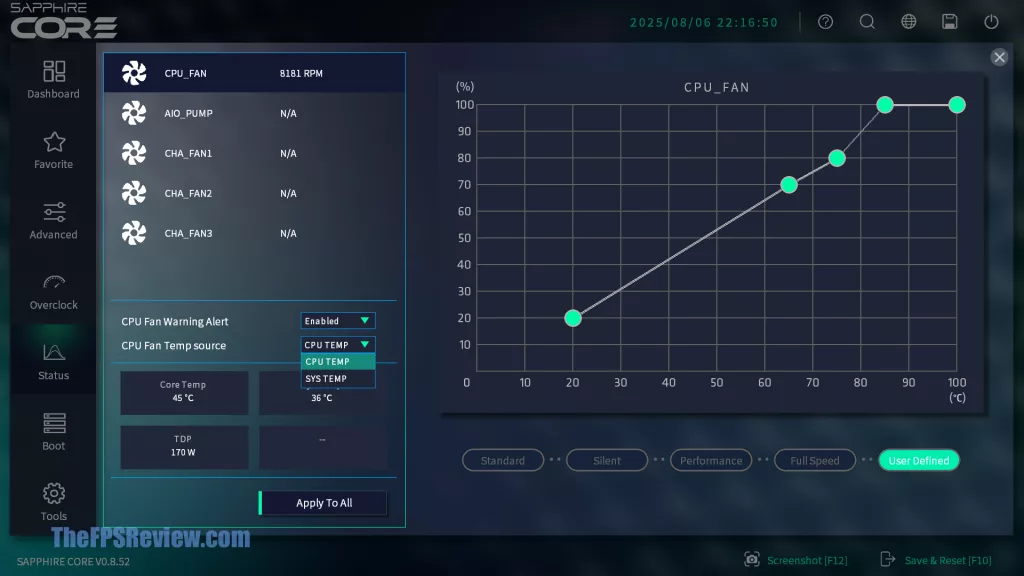
SAPPHIRE’s CORE BIOS UI is one of the cleanest, easiest to read, understand, and navigate UEFIs we’ve seen. The UEFI is laid out in a way that just makes sense, to both novice and advanced users, and allows drop-down menu options to select the options. The main “Dashboard” tab allows a few QuickSet buttons to one-click enable XMP/EXPO, or PBO, ReSize Bar, and EUP. If they are lit up, they are active; if not, they are disabled. If you so choose, you can one-click the Performance Profile, which defaults to SAPPHIRE DEFAULT, which enables a pre-set configuration here.
The Dashboard also shows the current memory installed, and each of your fans, CPU_FAN, AIO_PUMP, and the three chassis fans, and from here you can click Fan Setting to navigate the profile settings. On the right side, some basic info and hardware status are available, showing CPU speeds, feed, and memory. At the bottom, you can customize the order of boot devices in an icon form, and there is a quick BIOS update button as well.
As you navigate on the left side, the Favorite option lets you pin favorite settings here for quick tweaking. Under the Advanced menu, you’ll find all of the options available underneath with top tabs to navigate through with Common, Devices, Storage, Power, TMP, and Security. Under the Common settings, you’ll find the Precision Boost Overdrive option, the Re-Size BAR settings, and even a Smart Access Memory setting.
The Devices tab lets you enable or disable the motherboard devices. You can control PCIe Bifurcation here, and we also really like that you can independently turn off the Wireless LAN Controller and or Bluetooth Controller separately; they aren’t combined into just one device or module. Secure Boot settings are located under the Security tab.
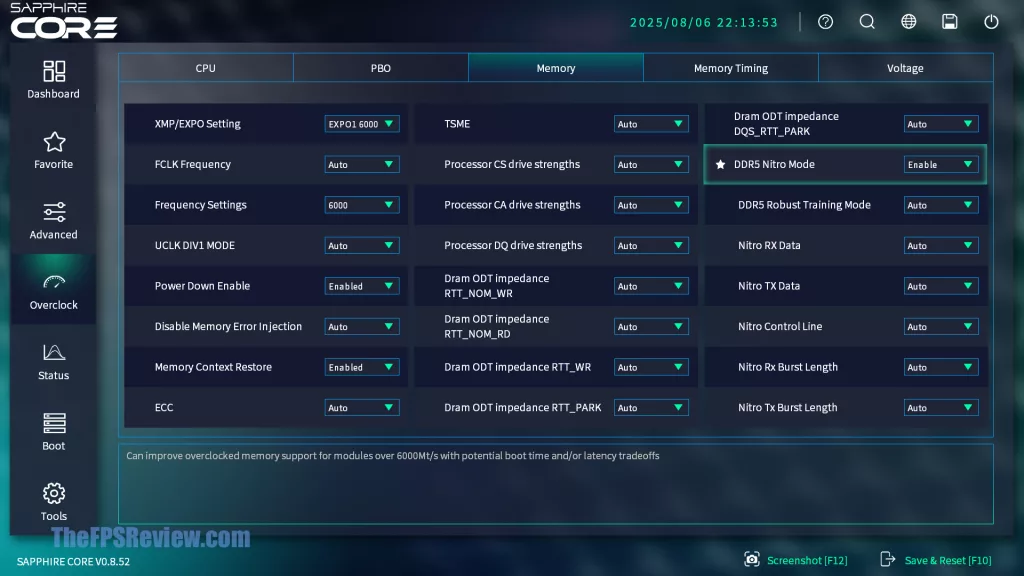
The Overclocking tab is where enthusiasts will have fun, and similar to Advanced, you’ll find the top tabs to navigate the options, with CPU, PBO, Memory, Memory Timing, and Voltage. Under CPU, you can enable X3D Gaming Mode, ECO Mode, and CPU frequency and Voltage. The PBO tab lets you fine-tune the AMD PBO settings for automatic overclocking. Under the Memory tab is where you will configure the XMP/EXPO speeds supported on your RAM, and tweak any further options, including a DDR5 Nitro Mode.
With DDR5 Nitro Mode enabled, more options are revealed to really fine-tune memory overclocking for advanced enthusiasts and memory modules. The Memory Timing and Voltage tabs also allow fine-grain tuning of memory, so you can really go nuts with this motherboard and overclocking RAM.
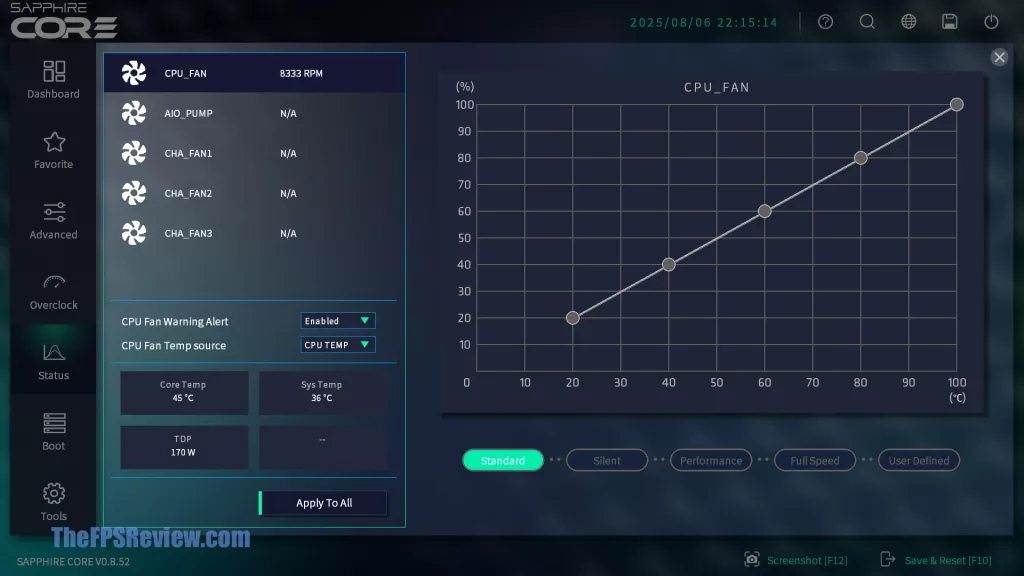
The “Status” menu is a really powerful real-time monitor menu that shows CPU Voltages, temperatures, Power limits, Motherboard temperatures, Voltages, and even Memory temperatures and Voltages, as well as Fan speeds. You can tell how well your computer is running before even booting into the OS. You also have the ability to save and load user profiles.
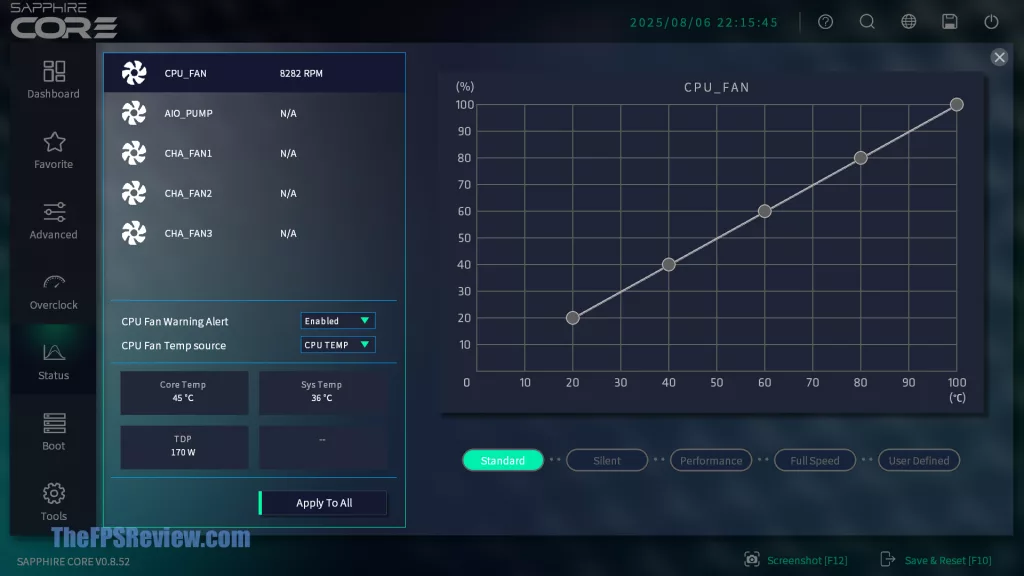
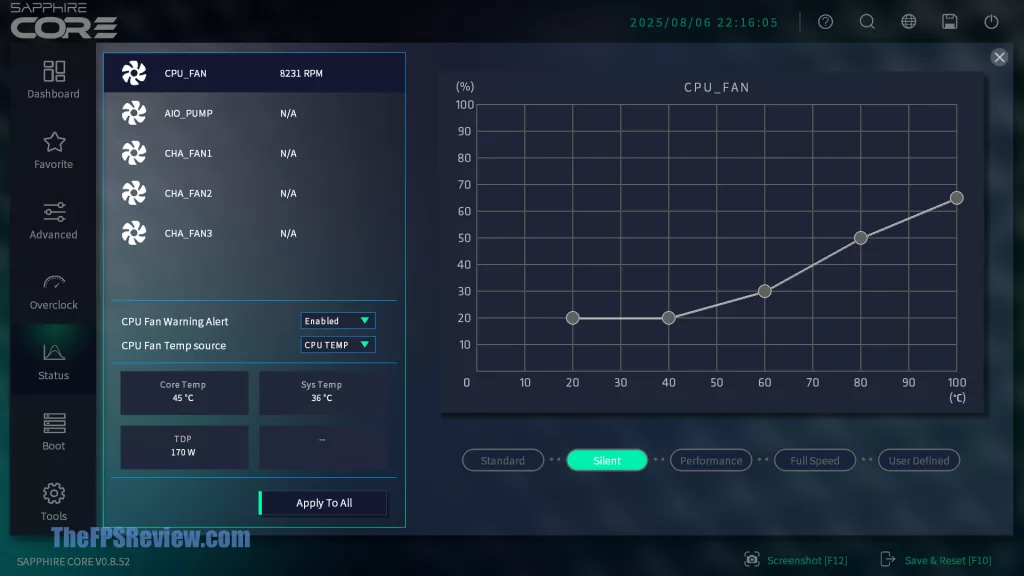
Under the Fan Setting, you will find the fan speed profiles that are customizable for each fan header, it supports the CPU_FAN, AIO_PUMP, and all three chassis fans. By default, the profile is set to “Standard” with the fan speed curve shown above. You can allow the fan speed to be set by the CPU TEMP or SYS TEMP. There are built-in profiles for Silent, Performance, Full Speed, and User Defined to customize your own.
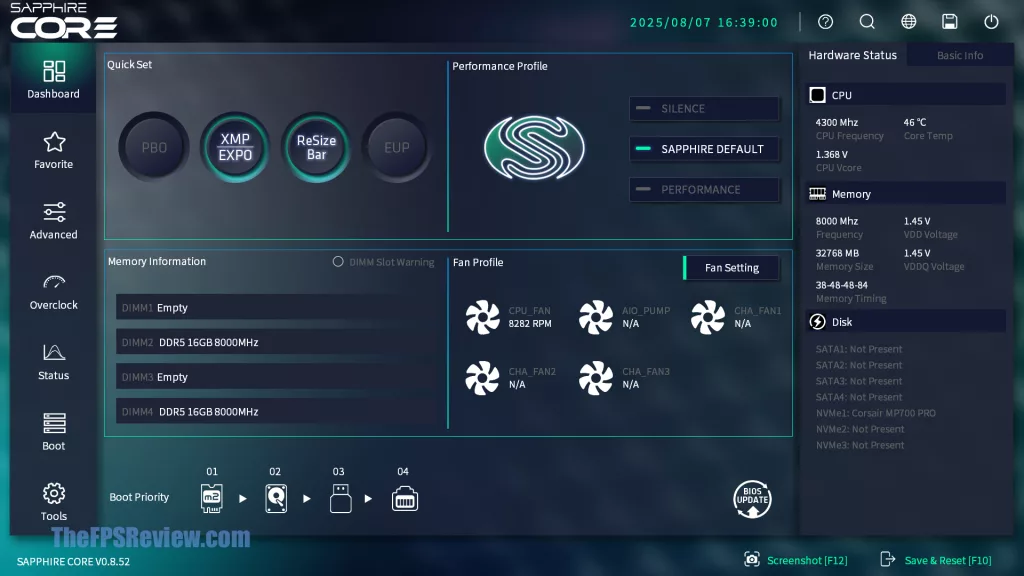
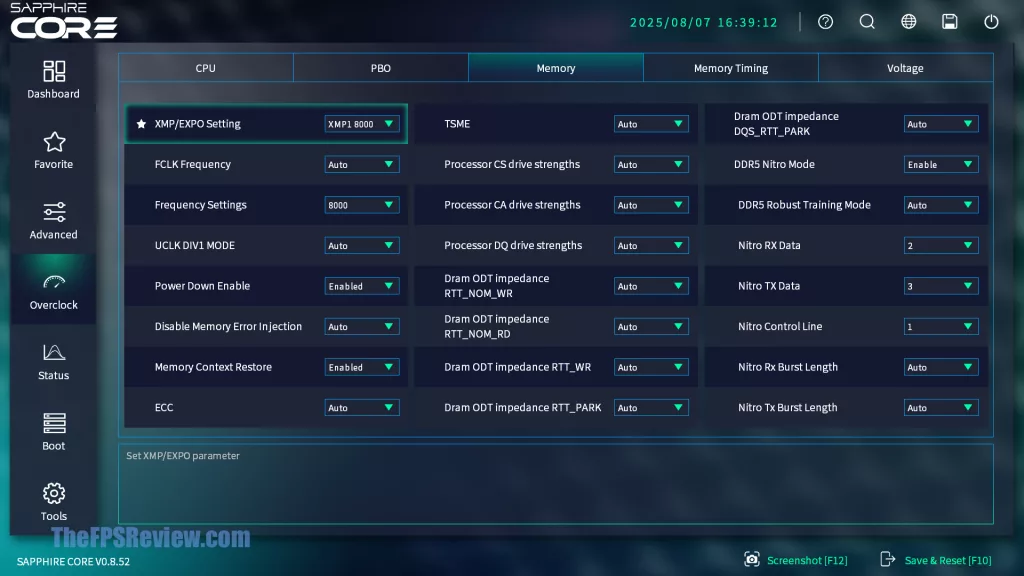
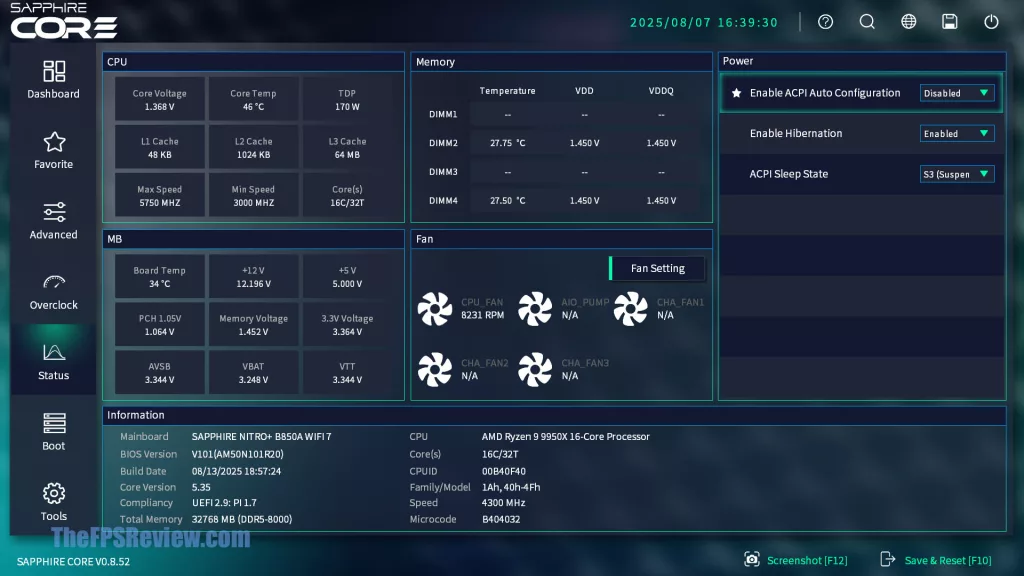
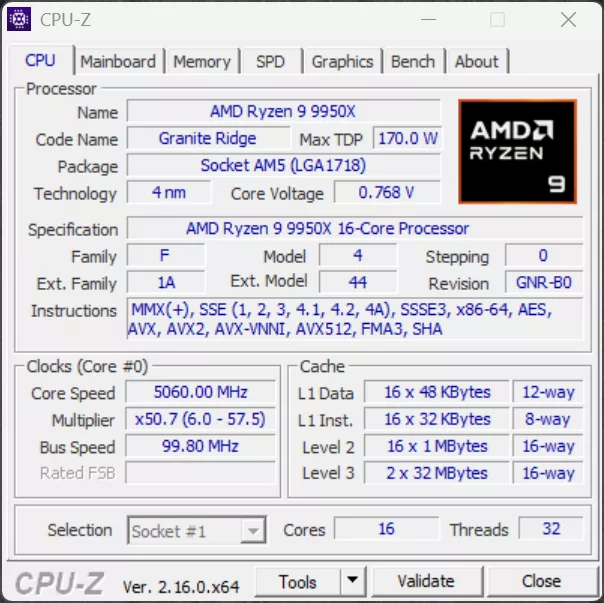
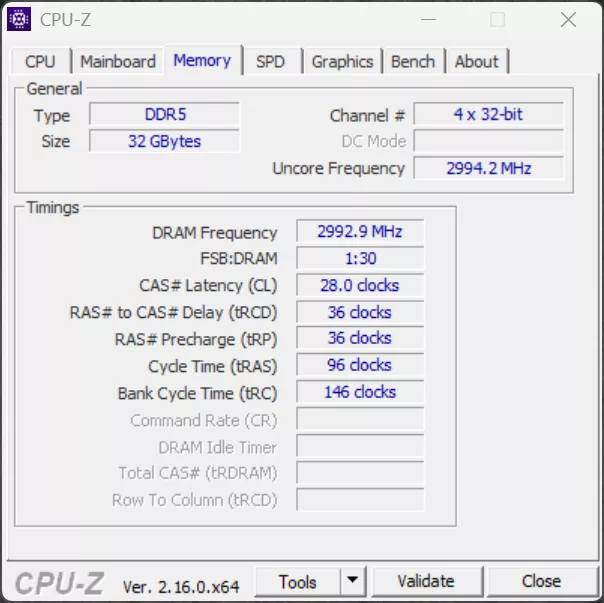
In our testing, we also tested compatibility with DDR5 8000MT/s RAM, and in the SAPPHIRE CORE BIOS UI above, you can see that configuring the RAM at 8000MT/s was very easy with the drop-down menu setting it to XMP, and it worked well and was very stable.
Discussion (7 replies)
Join Discussion →Seems.to me your nvme speed tests were 2 gig a second off from 14... is that the new par for tne course just accept that because Intel can't hit 14 gig a second that nobody else should be expected to?
The max spec of the Corsair MP700 PRO is: up to 12,400MB/sec sequential read and 11,800MB/sec sequential write
Ah ok... then I would suggest using a drive capable of the full fat 14gb per second throughput. Otherwise you might miss under performing slots and just call them good. See Intel Core Ultra chips not able to hit 14gb on full fat NVME PCIE 5x4 drives.
I was eyeing MSI for the next build, but this board is going to get my money instead. They need the money more than MSI does. I have zero use for gen 5 SSDs anyways. I'll pair it with my Pulse 7900XTX.
It is odd having the NITRO+branding on it, but meh. A new TOXIC board would be sick. see what I did there
I am going to have to pass. Looks like bios support is terrible.
In what way? I'm curious what you mean exactly.
Quote from another forum -