
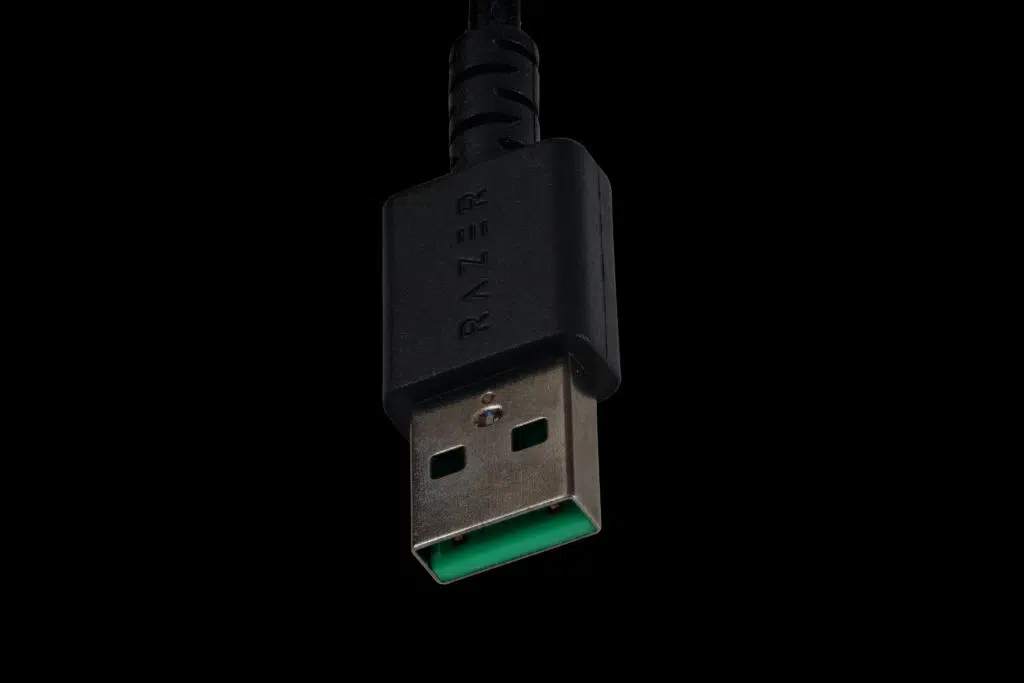
If you have ever plugged in an external SSD and watched it crawl at 40 MB/s, then blamed the cable, the port, the drive, and eventually Windows, there is a fourth suspect you probably never considered: your hand. Insert a USB 3.0 Type-A plug slowly enough and the connection can silently negotiate itself down to USB 2.0 speeds, with nothing in the interface telling you it happened.
Japanese PC retail chain Applied flagged the behavior to its own customers, and Guru3D picked it up with the technical explanation. The cause is baked into the connector. When the USB Implementers Forum designed the USB 3.0 Type-A plug, it had to add SuperSpeed data pins without changing the external shape of a connector the whole world already used. The solution was a second, deeper row of contacts sitting behind the original USB 2.0 contacts.
Those shallow USB 2.0 contacts make electrical connection first. The moment they touch, the device powers up and the host begins enumeration, while the USB 3.0 controller separately tries to start SuperSpeed link training on the deeper pins. Per USB-IF’s own documentation, the host allows a window of roughly 100 to 200 milliseconds for that high-speed handshake. Ease the plug in gently enough and the USB 2.0 handshake completes before the SuperSpeed pins are even making contact. As far as the host is concerned it just successfully connected a USB 2.0 device, so it locks the link into USB 2.0 mode. The deeper pins arriving a fraction of a second later change nothing.
Nothing is damaged, your cable is fine, and unplugging and reinserting normally restores SuperSpeed operation. The reason this matters is that the failure is completely silent. You do not get an error, you get a working drive that happens to be running at 480 Mbps instead of 5 Gbps or better. On an external NVMe enclosure, a capture device, or a 2.5 GbE adapter, that gap is the difference between usable and infuriating.
In Device Manager, expand Universal Serial Bus controllers, find your device or the relevant USB Root Hub, open Properties, and look for SuperSpeed versus High-Speed in the details. High-Speed means you are on the USB 2.0 path. For a cleaner read, USBTreeView will show the negotiated link speed per device directly. If you want the practical version: seat USB 3.x Type-A plugs with one confident motion rather than feeling your way in, and if a drive ever benchmarks suspiciously slow, reseat it before you start swapping cables.
This is a fifteen-year-old design compromise, still costing people bandwidth in 2026, and the industry’s answer arrives in the form of PCIe 8.0 draft specifications promising 1 TB/s while the connector on the front of your case can still be defeated by a gentle hand. USB-C sidesteps the problem entirely by not having two staggered contact rows, which is one more argument for finally moving your fast external storage off Type-A.
Discussion (5 replies)
Join Discussion →That sounds like a crappy driver that never renegotiats the connection.
Tah- dah! Windows!
what did I just read !!!!!
Ive never gotten promised mayor speeds from usb 3 devices...to the point ive called it scam.... Perhaps i have been sticking it in too slowly.
When read out of context...