
Introduction
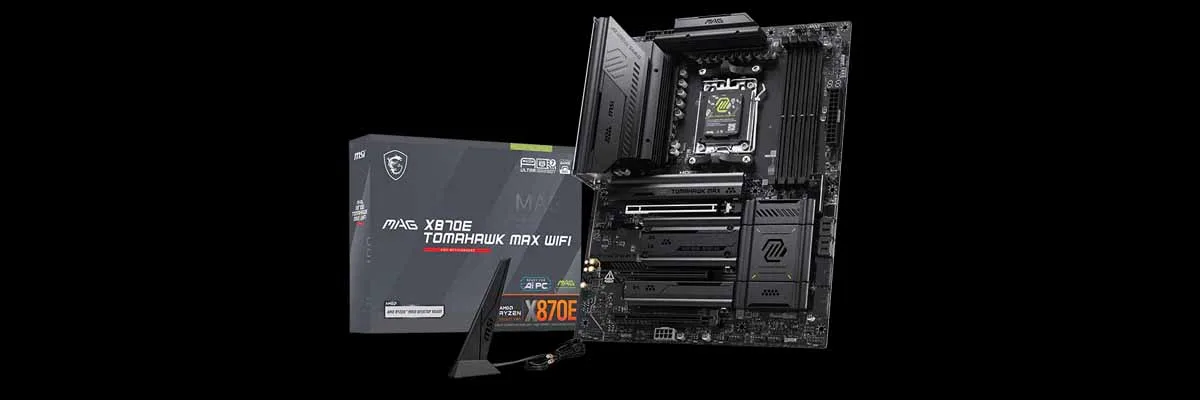
In the office today, we have the MSI MAG X870E TOMAHAWK MAX WIFI to take a closer look at. As we have discussed previously, the MAG (MSI Arsenal Gaming) is targeted at the more budget-conscious PC builders. This motherboard is the complement to the MSI MAG B850 TOMAHAWK WIFI that we reviewed back in April, and we liked it very much.
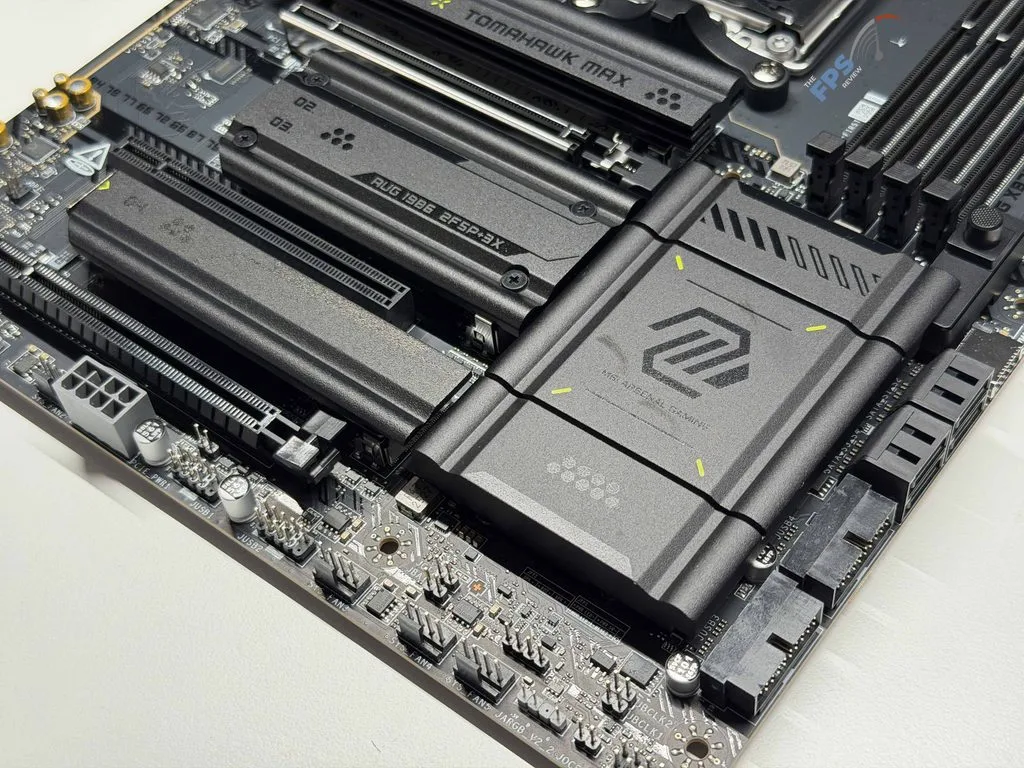
Currently, the X870E TOMAHAWK is priced at $339, so it’s not quite a budget motherboard, more of a mid-range when it comes to price. What does $339 get you with this motherboard? Well, you will have a total of four (4) M.2 slots for NVME drives, and similar to the B850 version, all have FROZR cooling, along with four (4) SATA Ports for storage. Off the cuff, this is a small bump up in storage options compared to its little brother.



Packaging and Contents
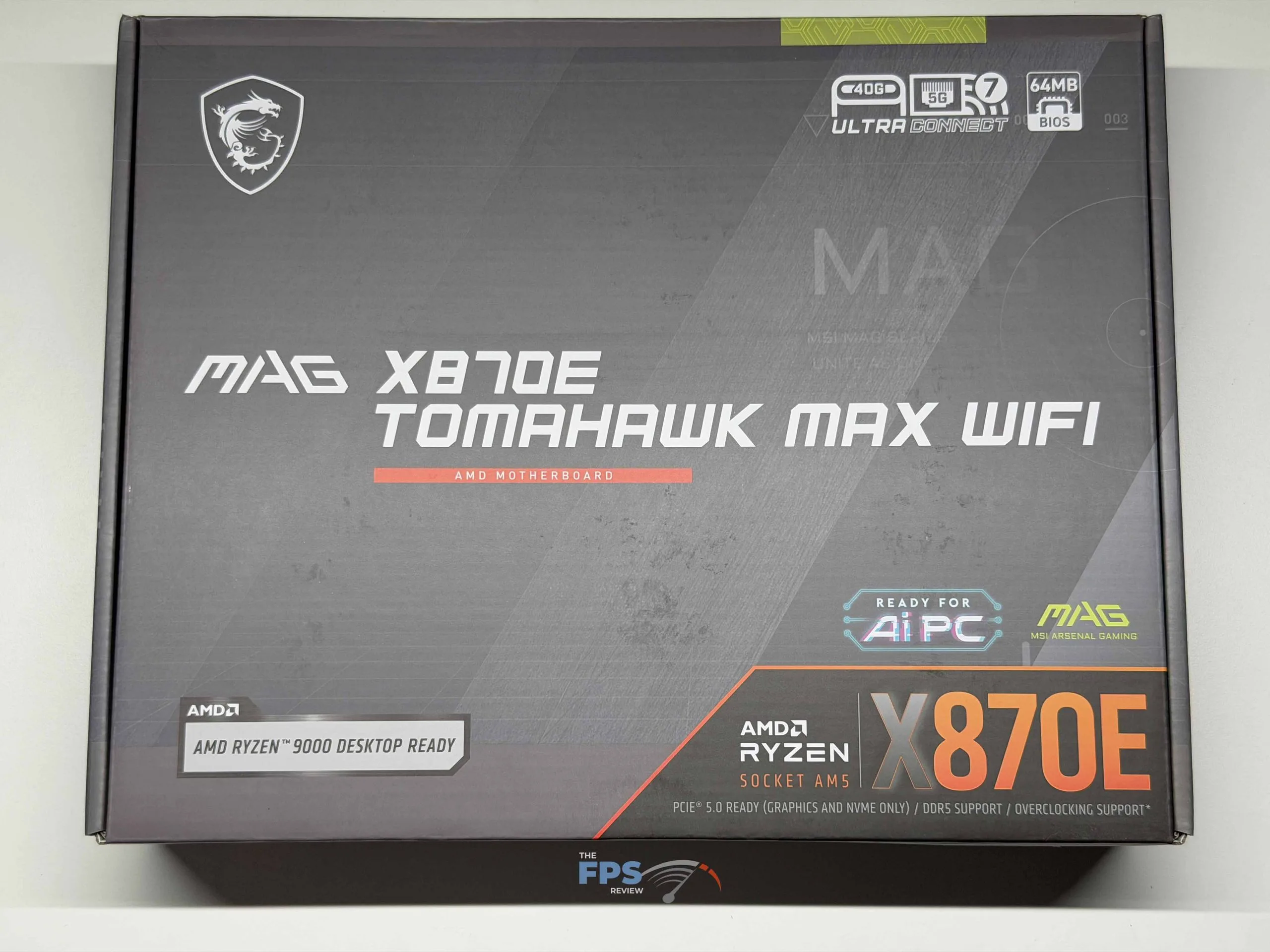
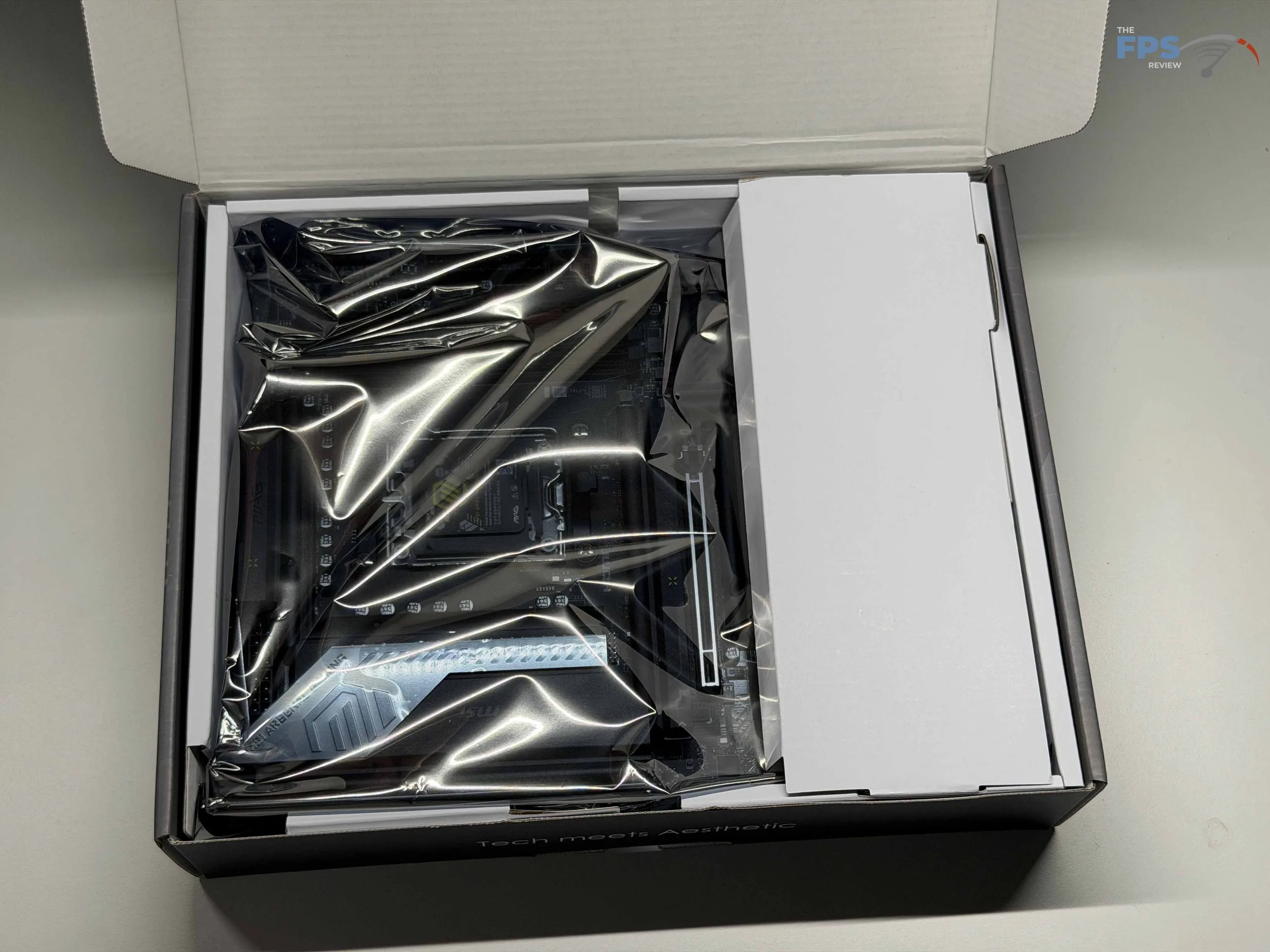
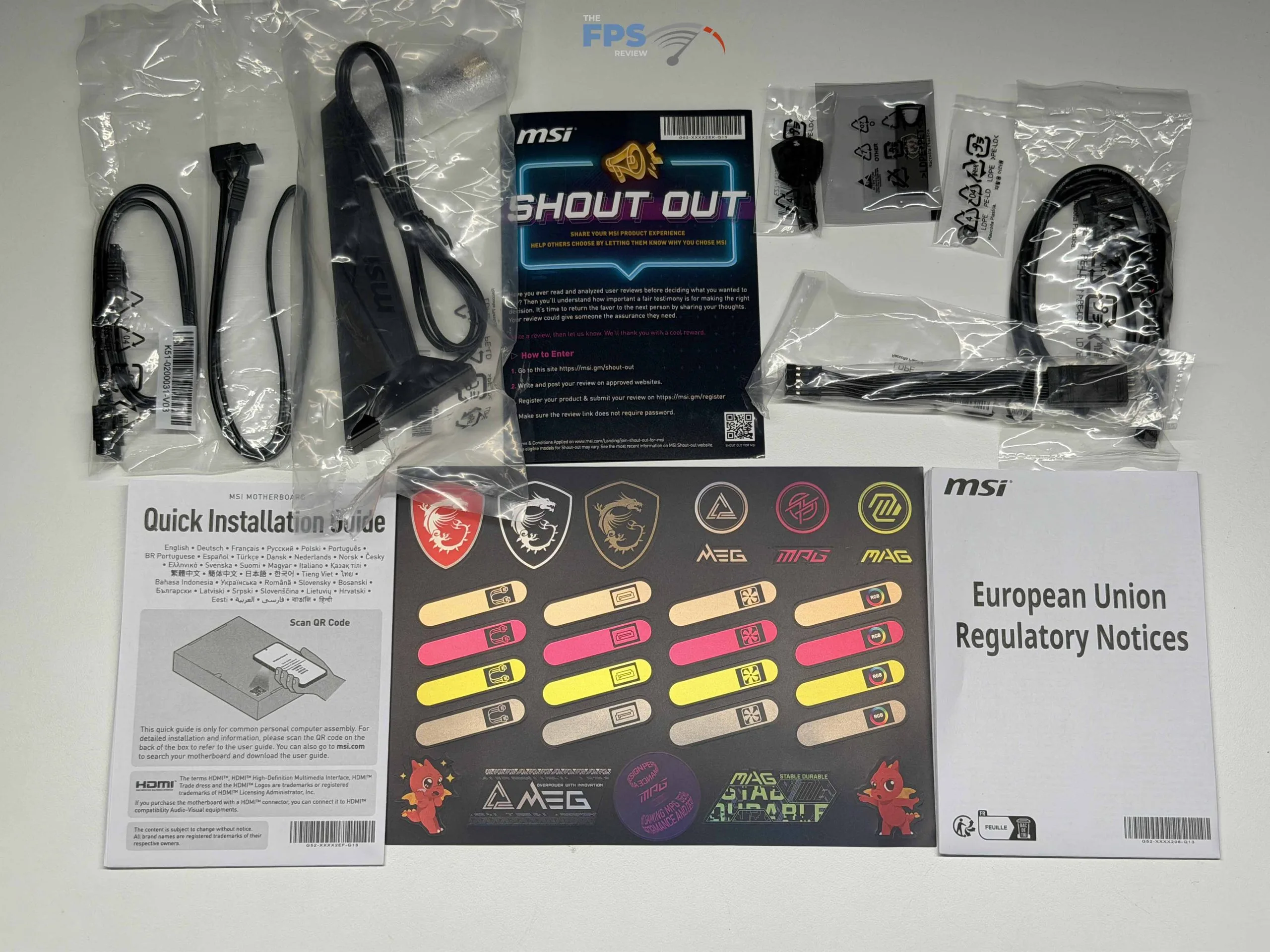
Since this is a MAG series motherboard, we would not typically expect tons of extras in the box, and that is what we got. Outside of a sticker sheet, a quick installation guide, and the typical European Union Regulatory Notice and MSI Shout Out pamphlet reminding you to register, there are a few actual usable items.
The top of this list is the EZ Wi-Fi Antenna; though it might appear to not have a stand, there is a thickened base that is magnetic for quick attachment to your case, two (2) SATA cables, an EZ Front Panel Cable (For quick connection to your case’s front panel headers), a 1 to 3 EZ Conn-Cable (V2) for RGB lighting, and an EZ M.2 Clip II remover. Interestingly, there is a standard M.2 Plate Screw, and not an EZ M.2 Clip like was provided with the B850 model. Finally, there is also a USB drive provided with the motherboard that is preloaded with drivers to help get you going if you have issues with Windows installation; however, that’s about where its utility ends.
MSI MAG X870E TOMAHAWK MAX WIFI Features
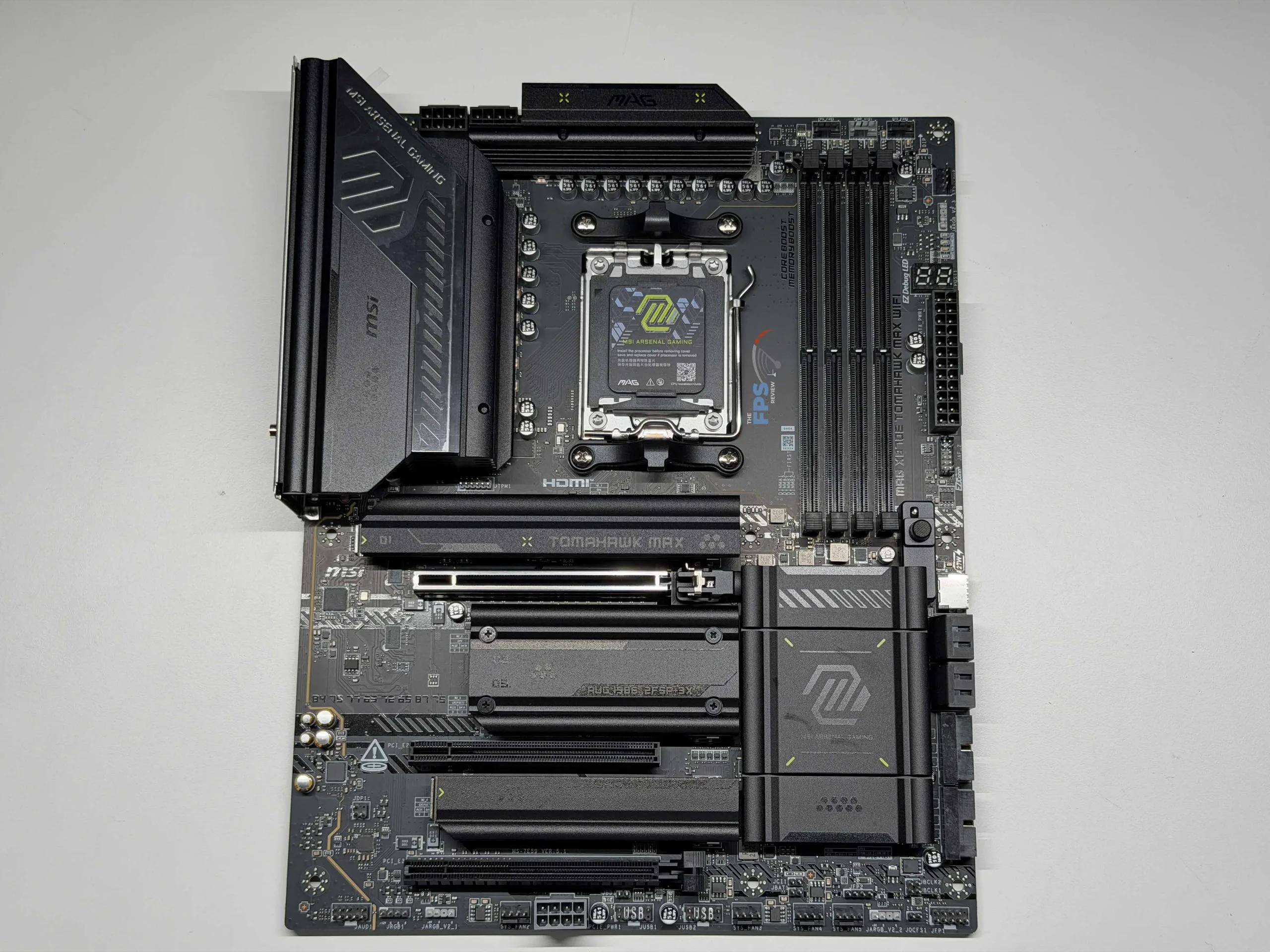
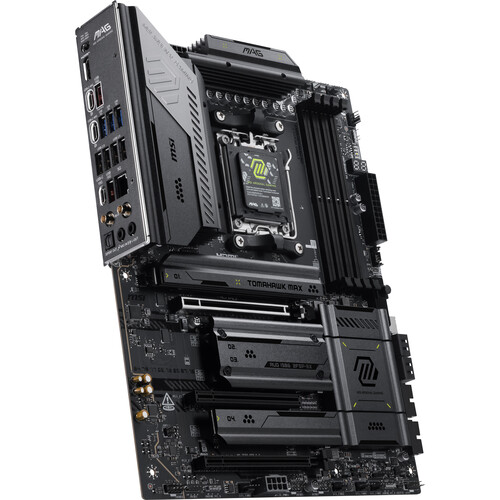
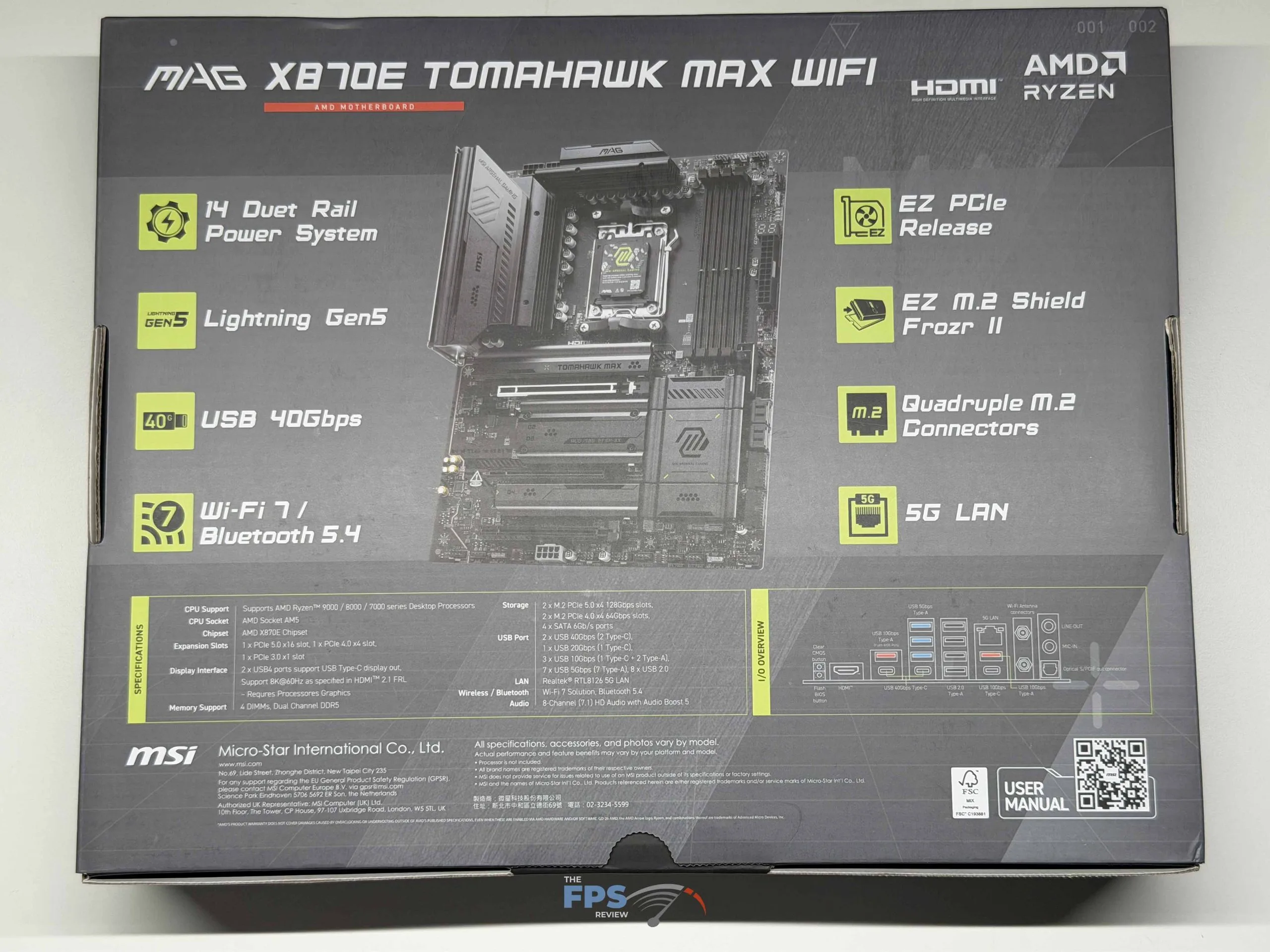
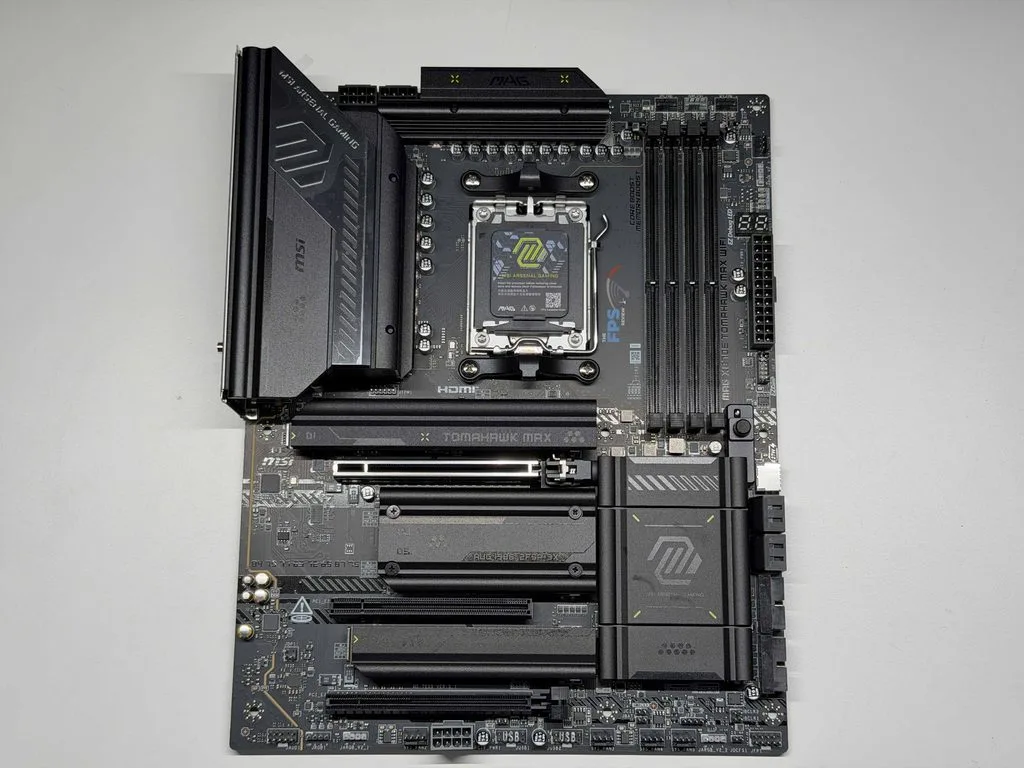
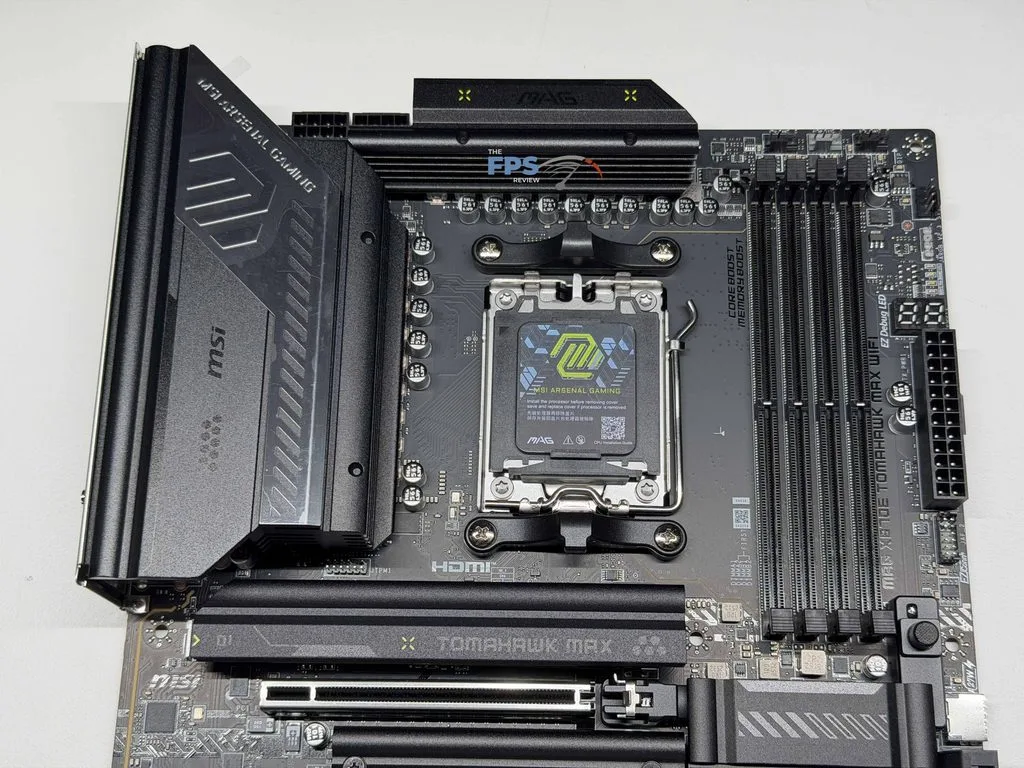
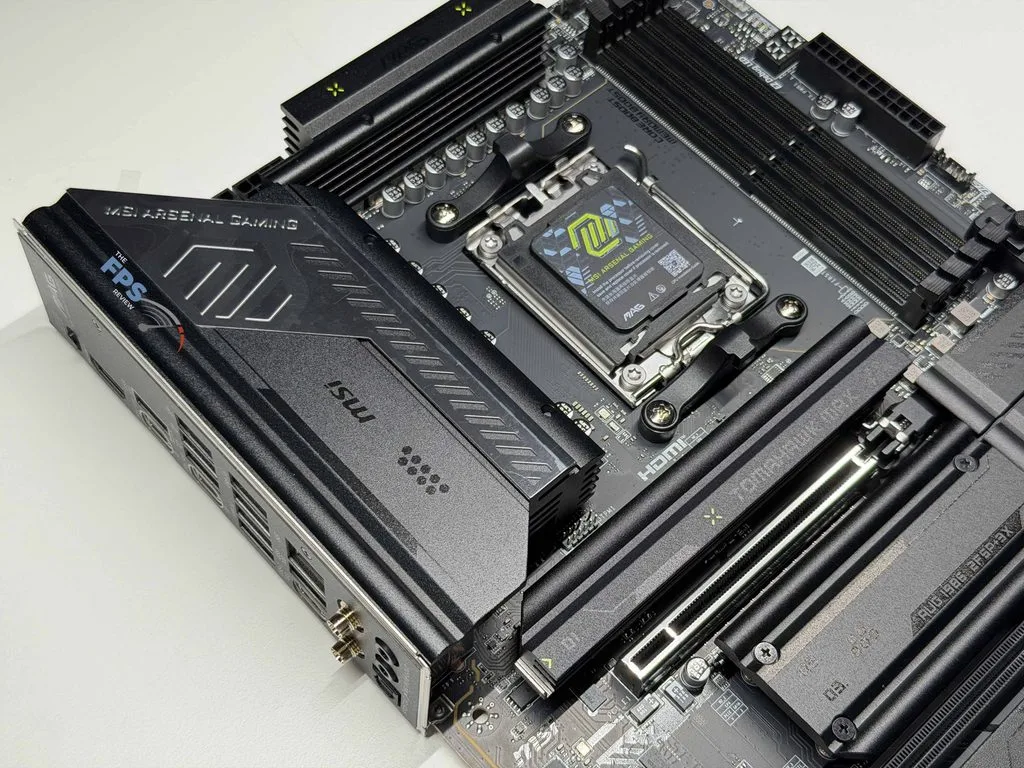
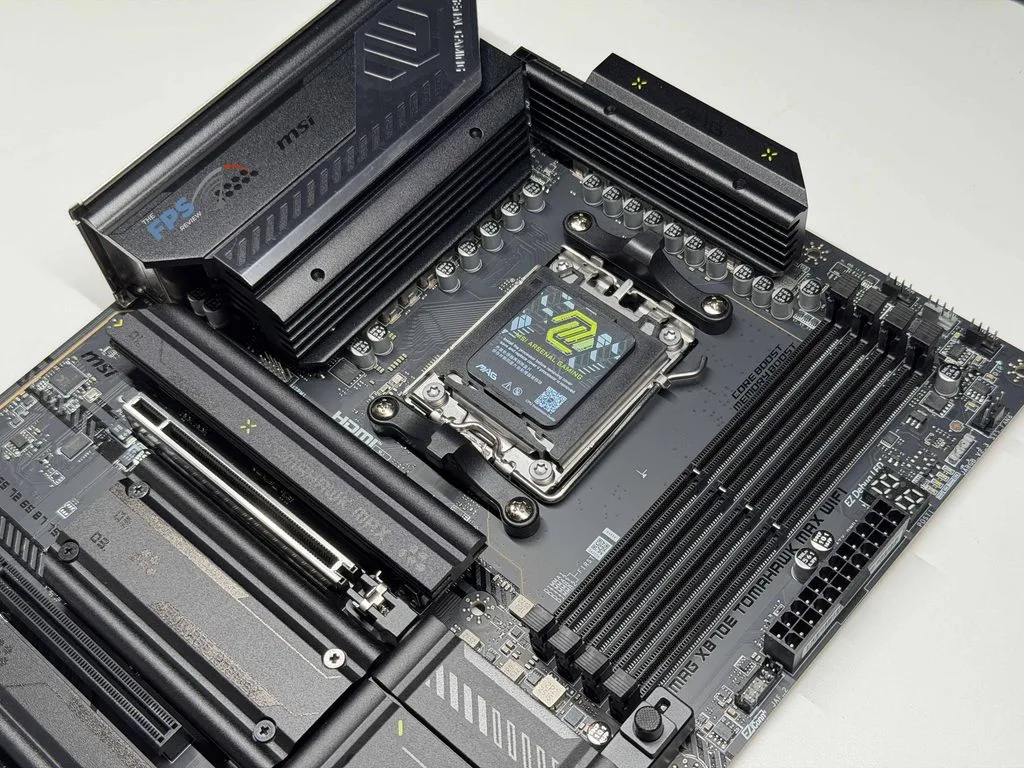
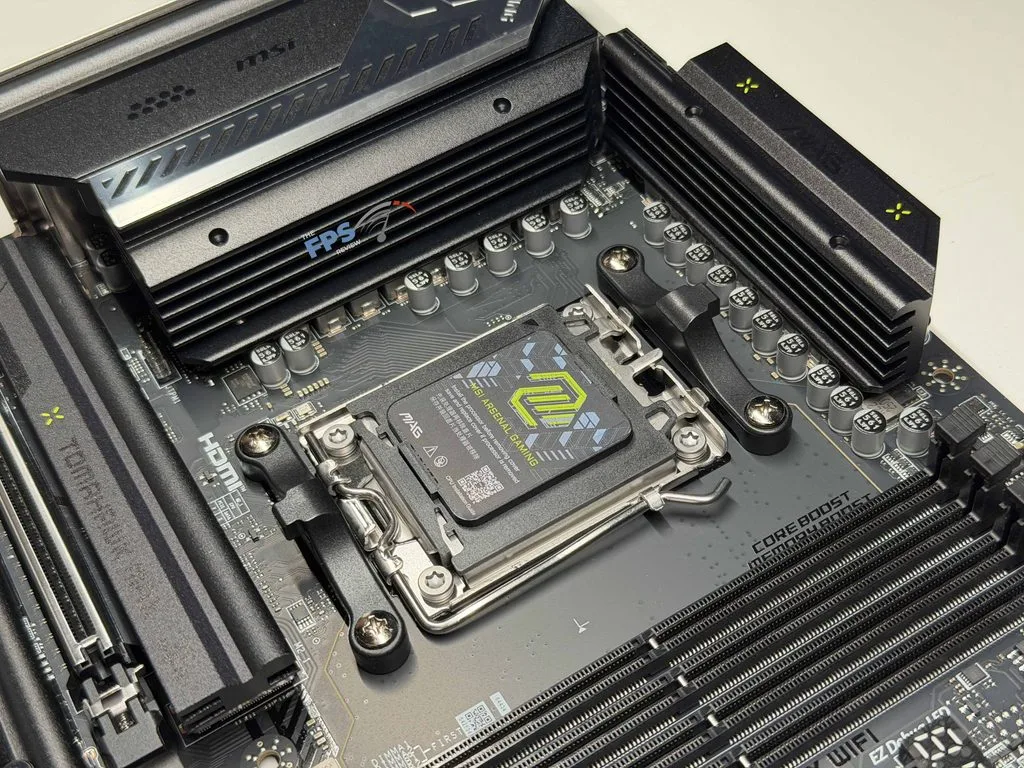
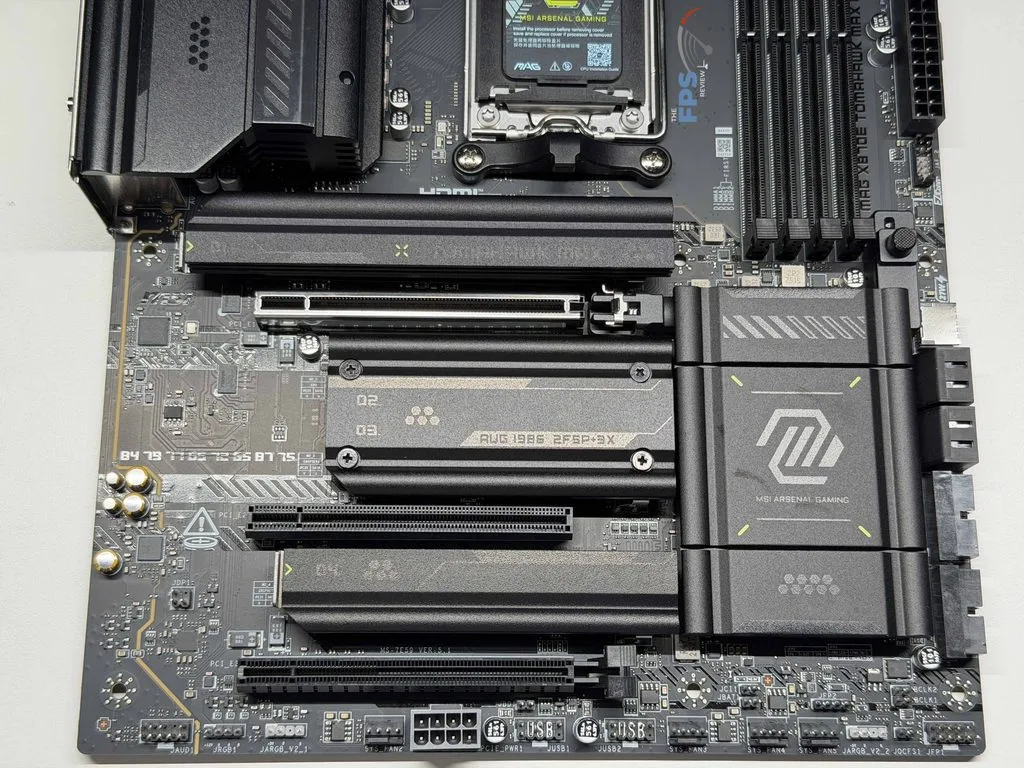
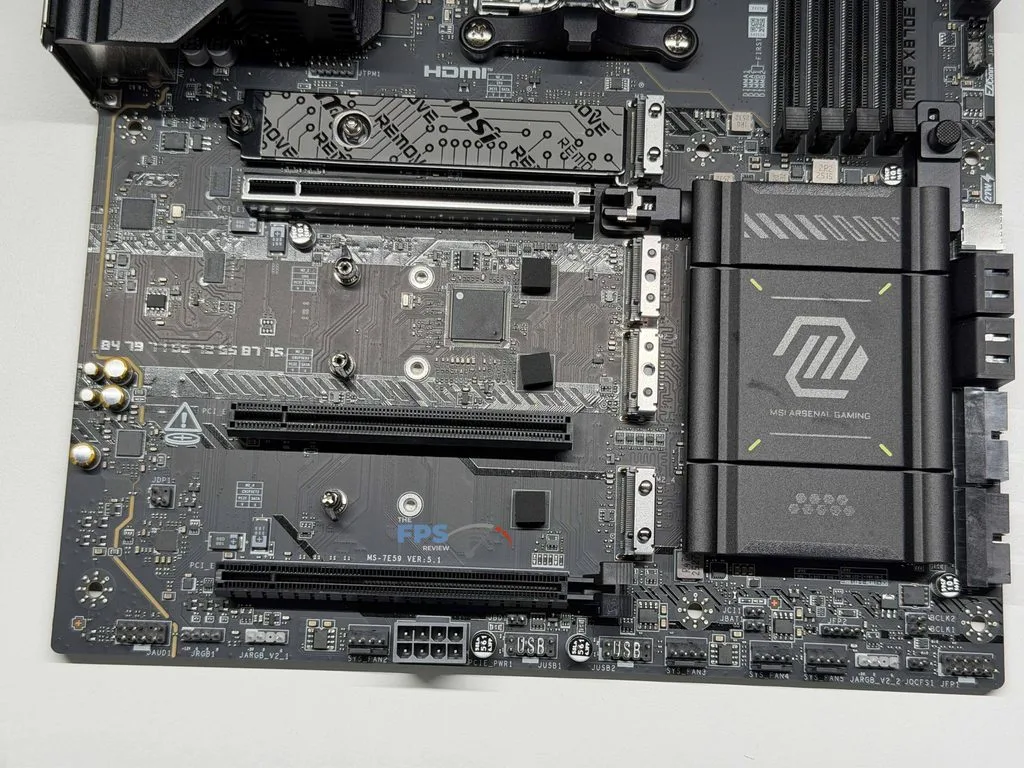
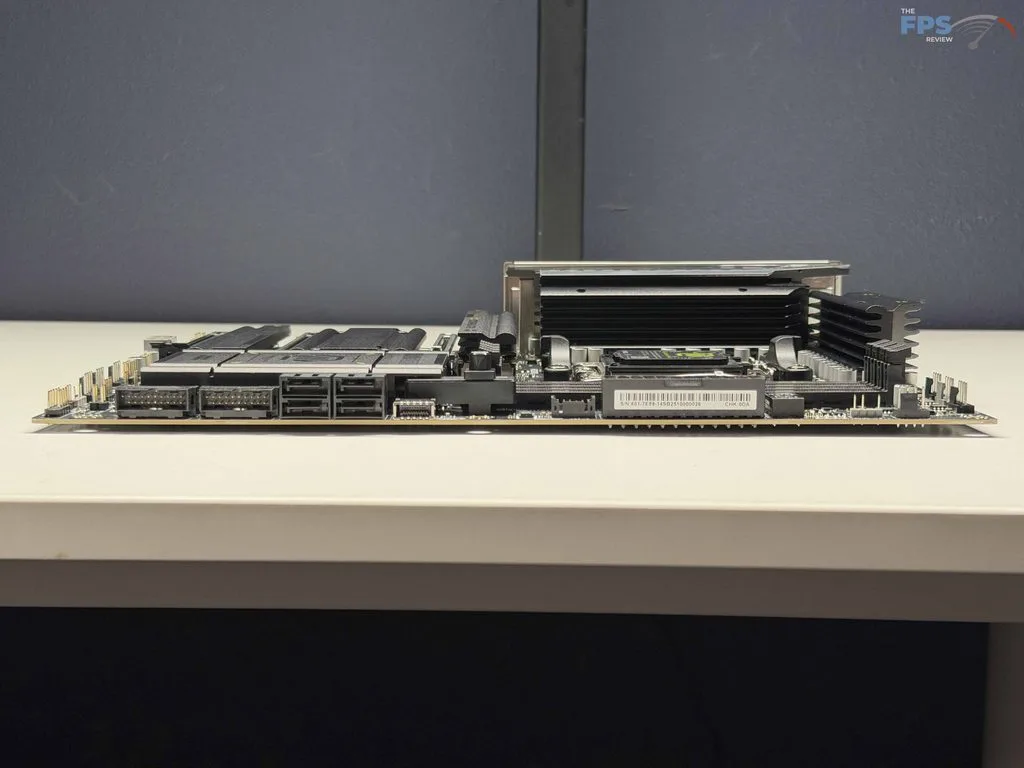
Similar to the B850 TOMAHAWK, MSI has kept the predominantly black design, with small green accents on this generation of motherboards. And as with all of the most recent full-size ATX motherboards we have seen, there are the standard four (4) DDR5 memory slots, four (4) M.2 slots, and four (4) total SATA ports for your storage and memory. MSI has added a FROZR II style tool-less heat sink on the primary and bottom-most M.2 slots, and a more standard FROZR cooler on the remaining two (2) slots. Finally, MSI has also provided an EZ Debug LED on the MSI MAG X870E TOMAHAWK MAX WIFI, which is always appreciated to help with any troubleshooting.
Power Delivery
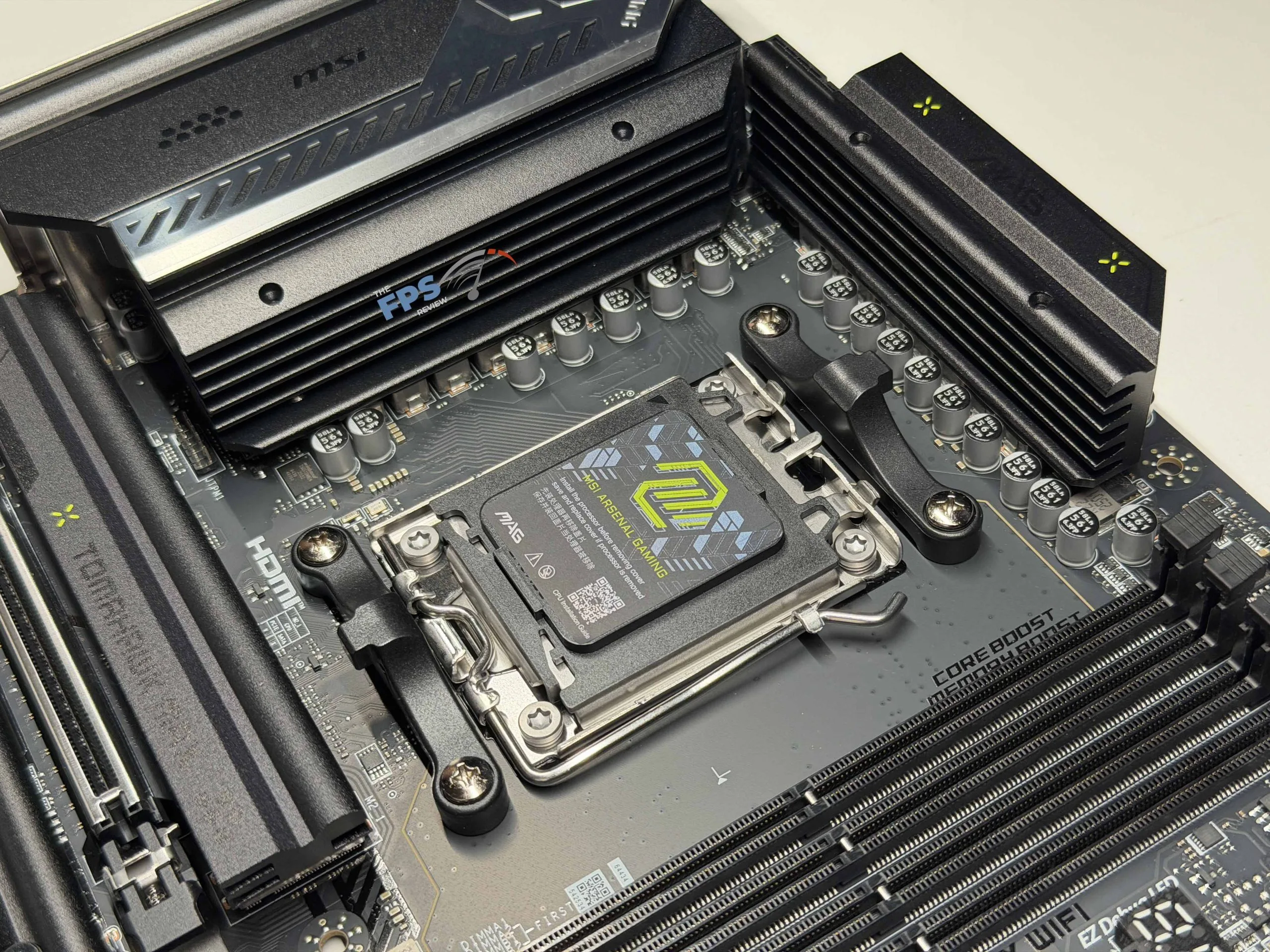
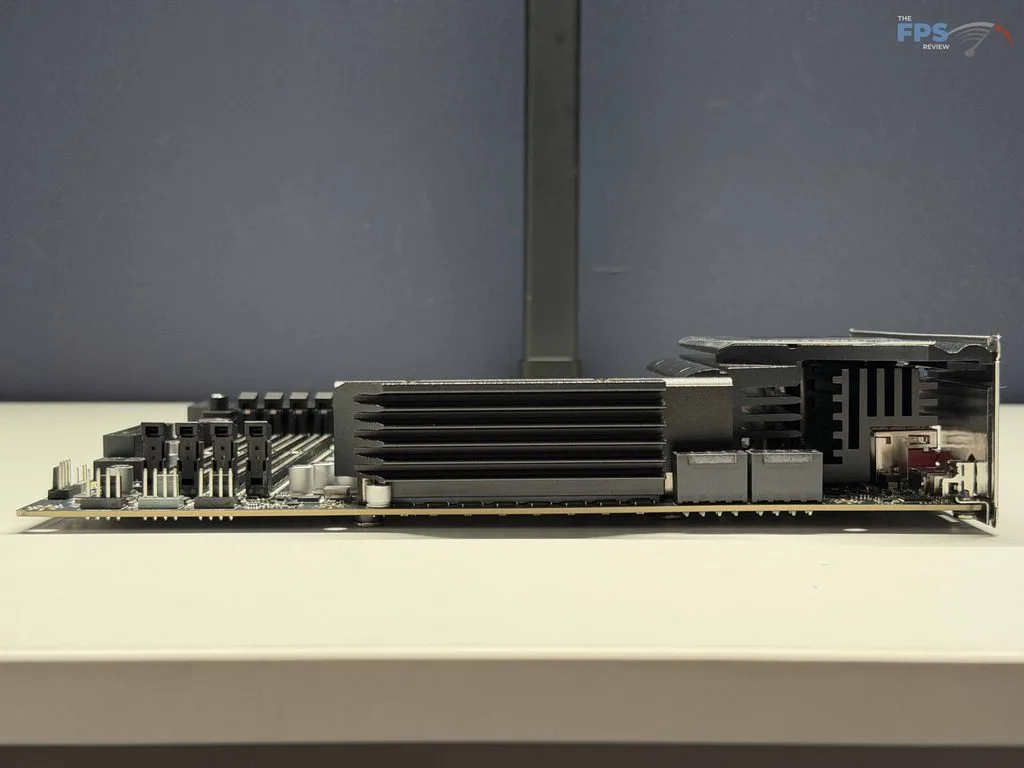
MSI has kept the same 14+2+1 VRM power design for the MSI MAG X870E TOMAHAWK MAX WIFI that we saw on the MSI MAG B850 TOMAHAWK WIFI. It has an 80 Amp Smart Power Stage (SPS) that will be able to keep up with most users when they have Performance Boost Overdrive (PBO) enabled. Where the X870E differs from its little brother is in a more robust FROZR heat sink on all the power components, including a heavy-plated VRM Heat Sink, and an extended heat sink over all the other remaining portions.
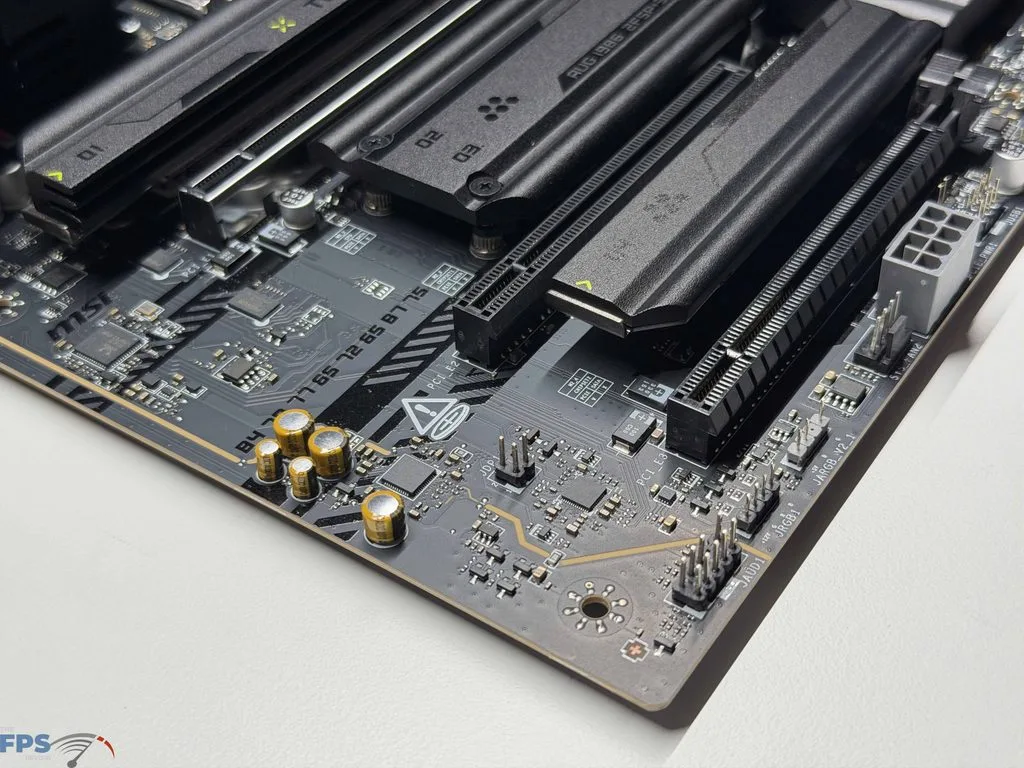
With all of this we had full PBO operation operating during our testing, with what we felt was additional headroom for additional overclocking. Finally, there is an additional 8-pin PCIe supplemental power connector located on the bottom of the motherboard; this is there to provide additional PCIe power to the primary slot to maintain stability when using higher-end graphics cards.
Memory and Storage
As with all X870E motherboards we have run across to date, the MSI MAG X870E TOMAHAWK MAX WIFI is capable of using only Non-ECC, Unbuffered DDR5 memory, at a maximum of 64 GB per slot (Total of 256 GB). In the right configurations, in other words, high-end memory in a single channel/rank, MSI lists this motherboard as capable of 8,400+ MT/s as the advertised maximum speed.
Since our testing Patriot kit is only capable of up to 6,200 MT/s, we are not able to test this claim; however, we had no issues meeting our max speeds with AMD EXPO settings with our memory installed in the A2/B2 slots. One last thing we want to draw attention to is that all RAM slots have double-sided DIMM latches, which may seem small, but with plenty of motherboards only providing it on one side, this is a nice feature for when building your computer.
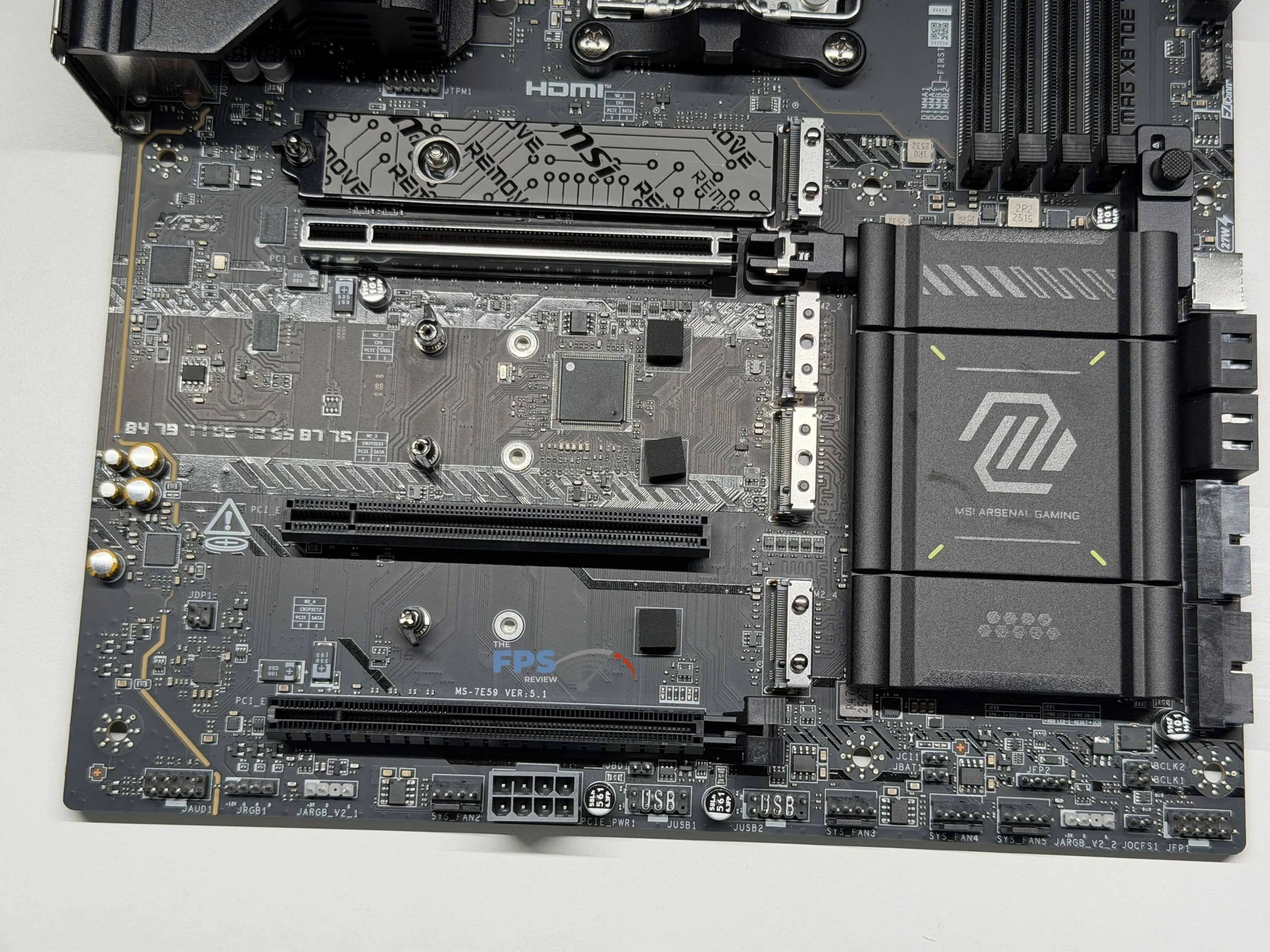
For storage, there are a total of four (4) M.2 slots on the MSI MAG X870E TOMAHAWK MAX WIFI, with two (2) being Gen5 speeds fed from the CPU, which is thankfully starting to be more standard on motherboards in this price tier. The remaining two (2) slots are Gen4 speeds, with both being provided by the X870E chipsets. With the Gen5 drives, only the primary slot (M2_1) will always run at full speeds. This is due to the second slot (M2_2) dropping to x2 speeds when the two (2) USB4 ports on the rear I/O panel are active, as they share lanes with each other. Users are able to override this in the BIOS if they so choose to regain the full x4 lanes.
As mentioned earlier, there is cooling provided for all four (4) M.2 slots. M2_1 and M2_4 (The topmost and bottommost) drives are tool-less and implement a variation of the EZ M.2 Shield FROZR II system to provide cooling. The middle two drives, M2_2 and M2_3, have a more standard FROZR setup that requires removal of four screws to install drives. Overall cooling on all slots was more than adequate during our testing, and we did not notice any thermal throttling on the drives. Beyond these M.2 slots, MSI has provided a total of four (4) SATA 6 GB/s ports for use on large storage devices.
Expansion
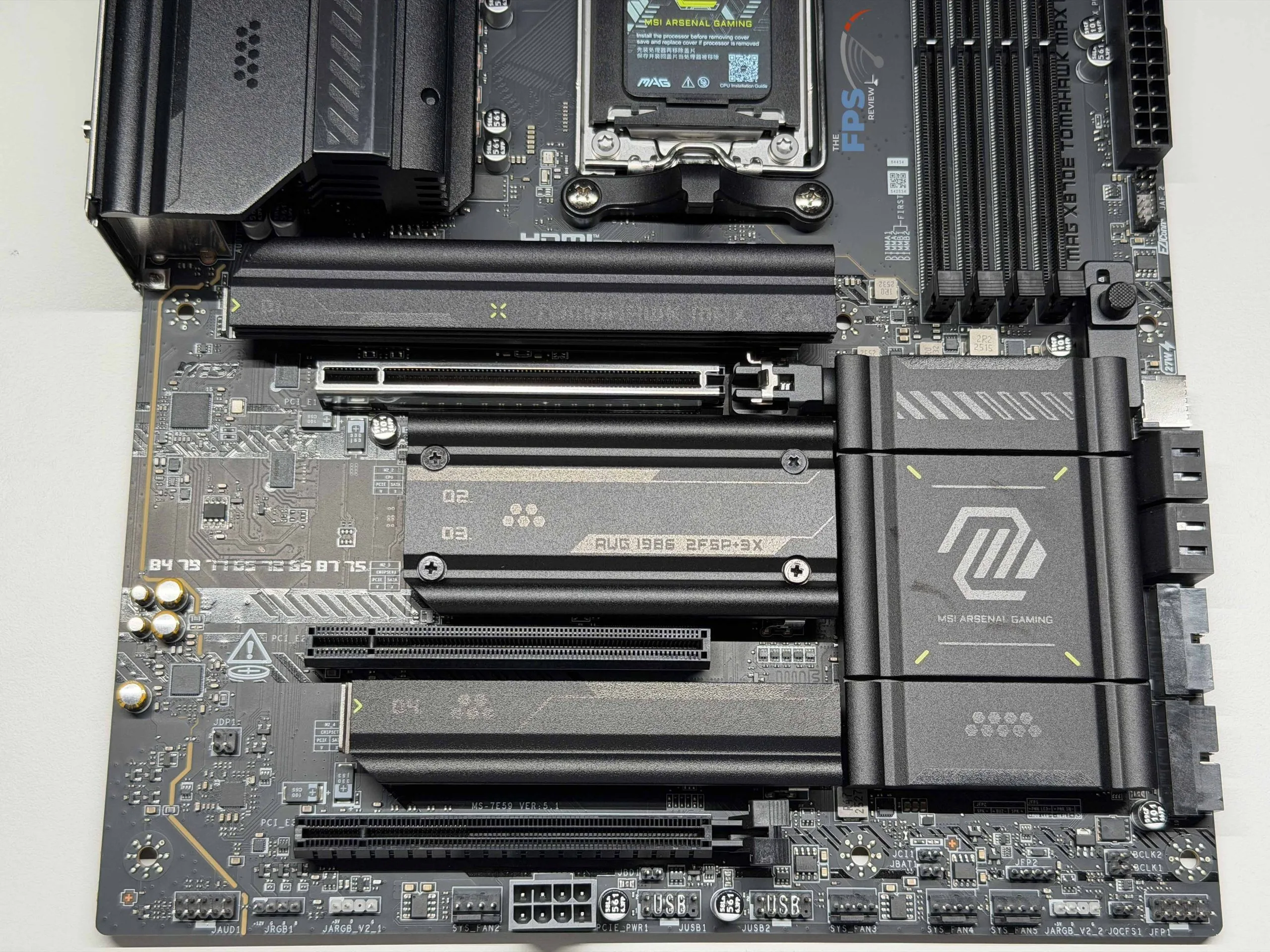
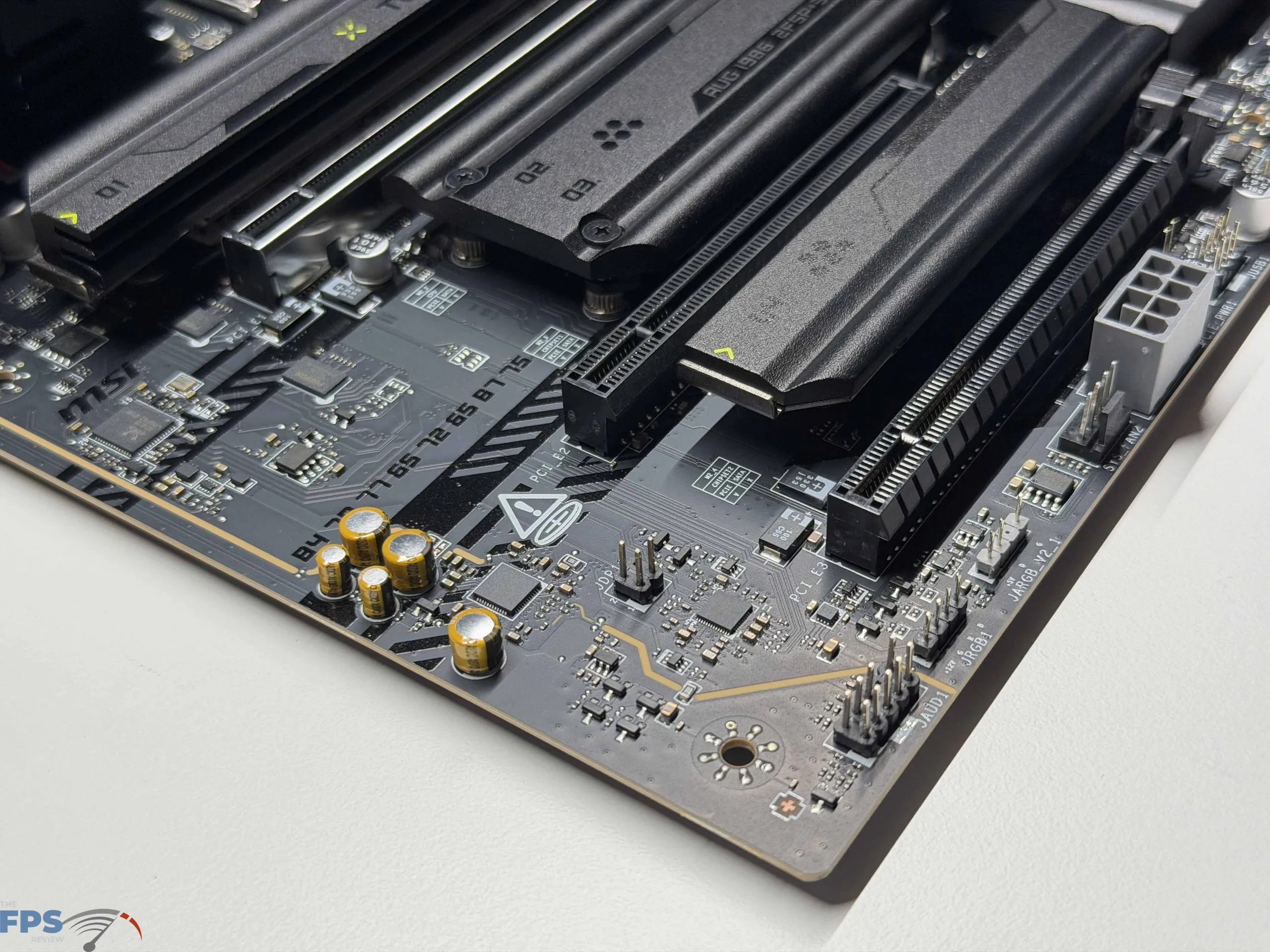
There are a total of three (3) PCIe slots on the MSI MAG X870E TOMAHAWK MAX WIFI, with the primary (uppermost) slot being the lone Gen5 x16 slot from the CPU, which will not be slowed down if either Gen5 M.2 slot is occupied, while the middle Gen3 x1 and lower Gen4 x4 slot are from the Chipset. This matches the B850 TOMAHAWK we previously reviewed.
Like its B850 counterpart, we see the Steel Armor II system for the Gen5 slot, providing metal reinforcement to the slot for handling the weight of modern high-end graphics cards. With these heavy graphics cards, usually that means they are oversized, so the inclusion of the EZ PCIe Release system (something we are very happy to see be nearly standard these days) is also much appreciated for easy removal of the uppermost PCIe slot.
The lowest slot has a slightly oversized release tab, which should be adequate for most users as the slot is only capable of Gen4 x4 operation, think something like an NPU or other expansion card, though you need to be careful what is installed here as it will most likely block the additional PCIe power connector. The middle slot has no fancy features, not even a release tab, which confuses us as to why MSI even provided a full x16 form slot here.
I/O
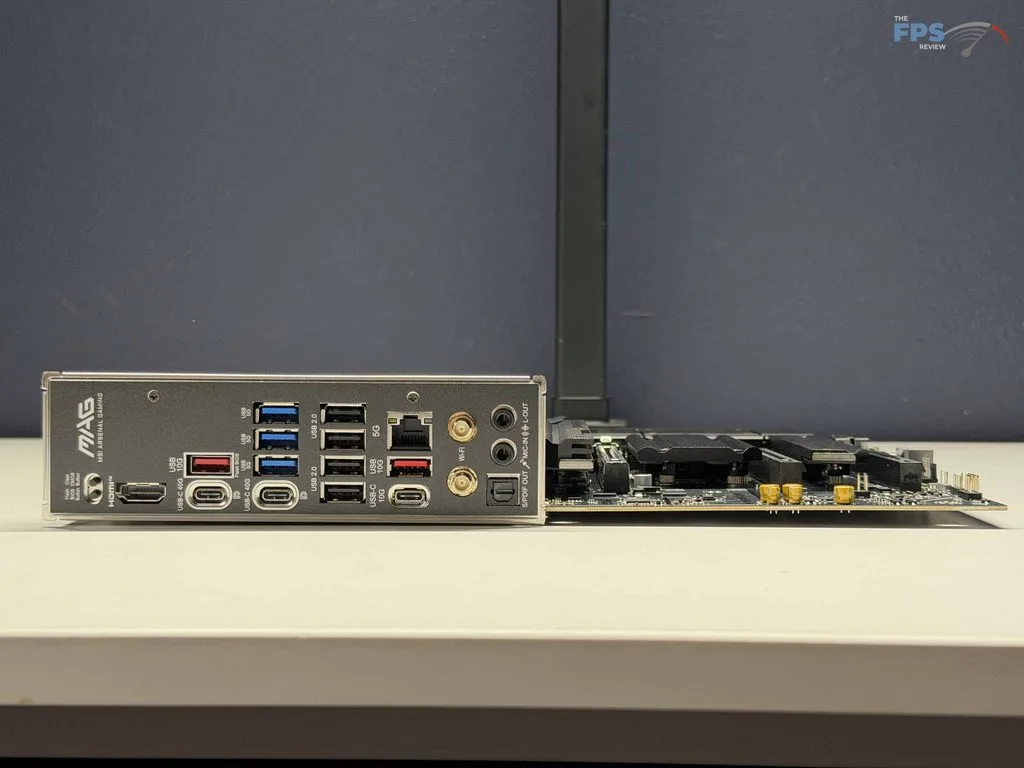
I/O for the MSI MAG X870E TOMAHAWK MAX WIFI is decent, but not spectacular. There are a total of 21 USB ports available to the user, with 12 of them on the rear I/O panel. Of these 12 rear USB ports, there are nine (9) Type-A ports, four (4) of them being USB 2.0 ports, three (3) 5Gbps ports, and the remaining two (2) 10Gbps ports. Outside of this there are three (3) total Type-C ports, one 10Gbps one, and then two (2) USB4 ports capable of up to 40Gbps, however be aware these are the ones you would disable for full x4 speed on M2_2.
An interesting thing to note on the two USB4 ports is that they can each be used as a DisplayPort 1.4 port, allowing for multi-monitor setups from just the integrated graphics on your CPU. Following this, the internal USB headers allow for a single Type-C 20Gbps port, four (4) 5Gbps Type-A ports, and an additional four (4) USB 2.0 ports.
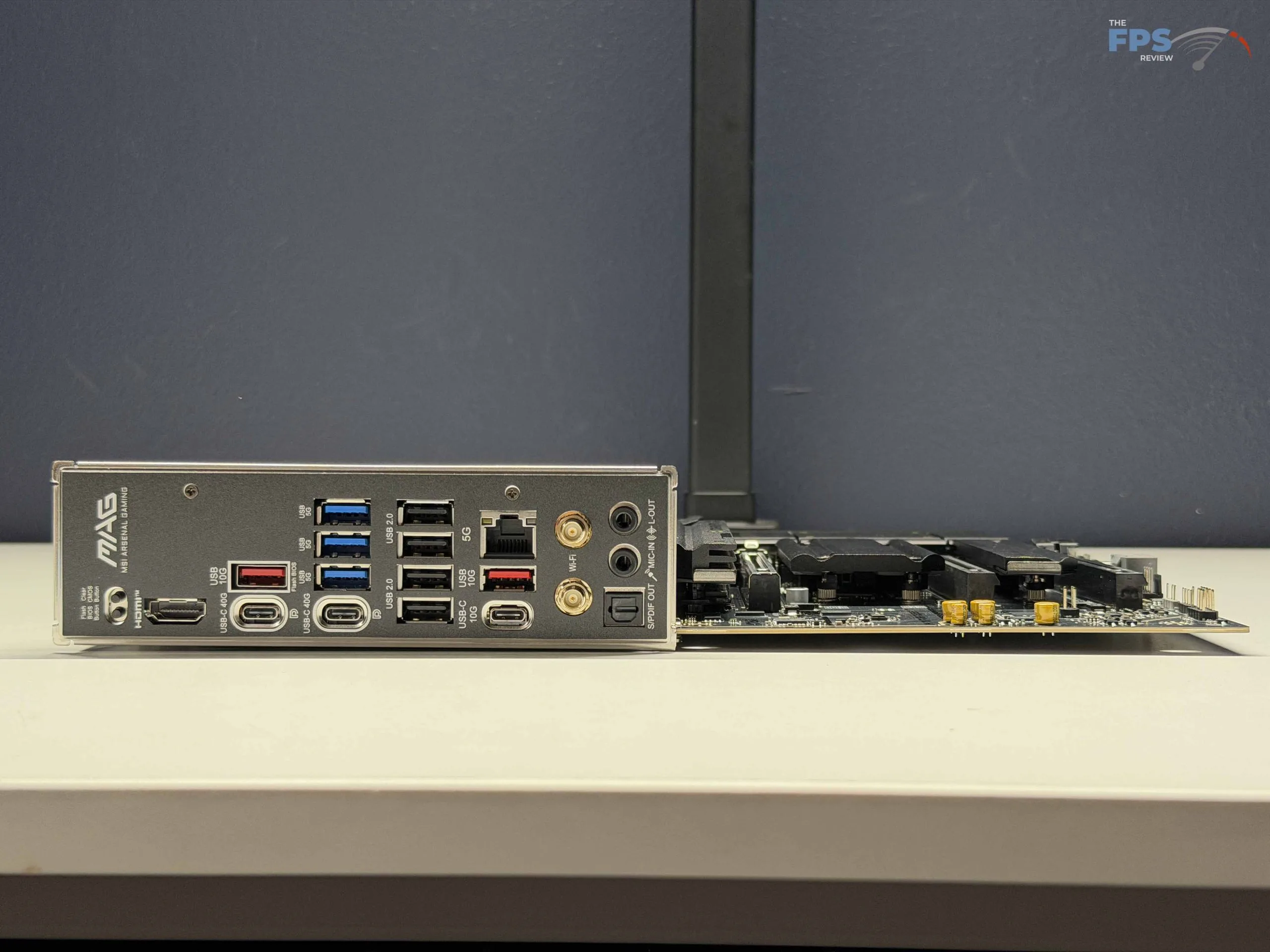
Outside of the USB Ports on the rear I/O, there is an HDMI 2.1 port supporting up to 8K resolution at 60Hz, a 5GbE Ethernet port from a Realtek RTL8216 controller, WIFI connectors for Wi-Fi 7 and Bluetooth 5.4 from a MediaTek MT7925 (pre-installed in the M.2 Key-E slot), and two buttons for flashing or clearing the CMOSE/BIOS. Last, but not least, are the audio connections, where we have the standard SPDIF out, MIC-IN, and Line-Out, all from a Realtek ALC4080 audio codec, which allows 7.1-channel output.
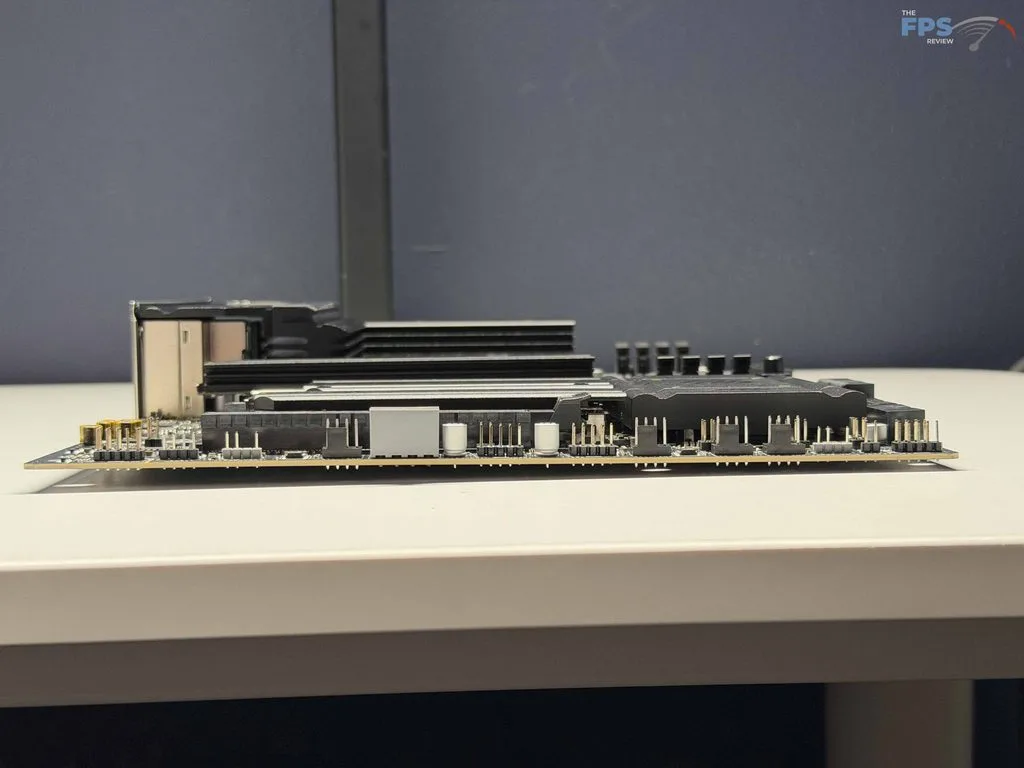
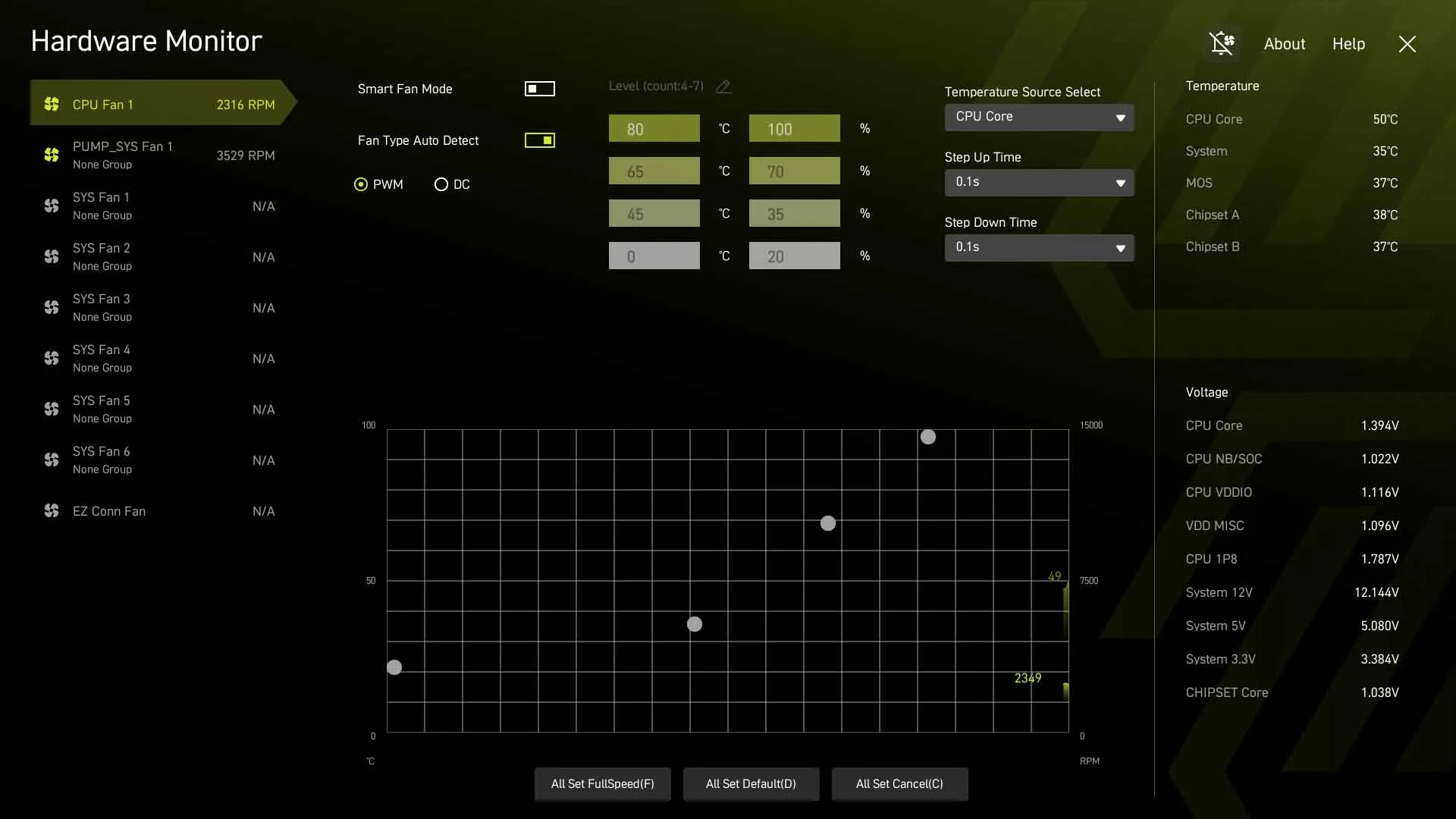
Internal connectors on the motherboard are about where you would typically find them. There is a fan header for a CPU fan, with a power limit of 24W, another for a pump (or another fan) that allows up to 36W, and an additional six (6) fan headers spread through the motherboard allowing 12W each. All of these fans support automatic PWM/DC detection on the fan-specific headers, while the pump one defaults to PWM. All of these performance curves can be configured within the BIOS/UEFI.
After cooling, there are plenty of options to plug in your RGB lighting, whether they are fans, lighting strips, or something else; you have three (3) 5V 3-pin connectors and an additional 12V 4-pin conventional connection. Then you have MSI’s “EZ CONN. Cable V2” for the JAF-2 connection, to simplify connecting compatible cooling and lighting devices. The only other items we want to bring attention to are that there is the standard Clear CMOS jumper, a safe boot jumper, and front-panel audio connectors.
UEFI
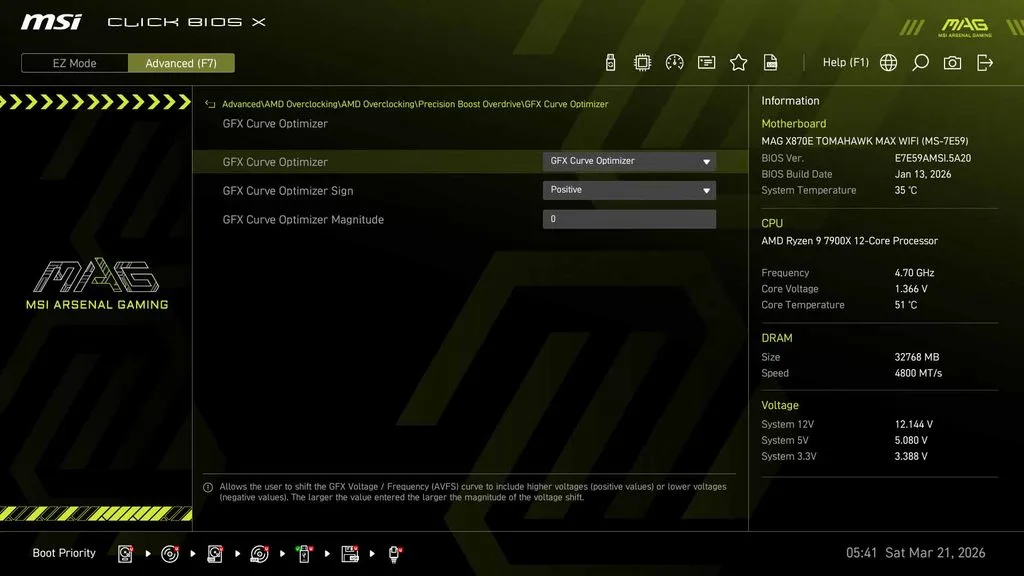
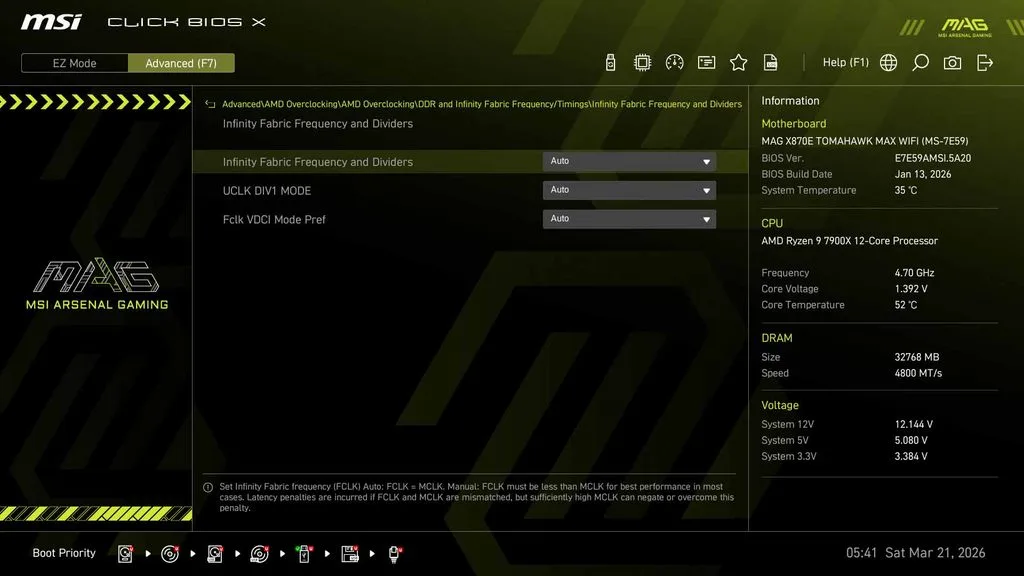
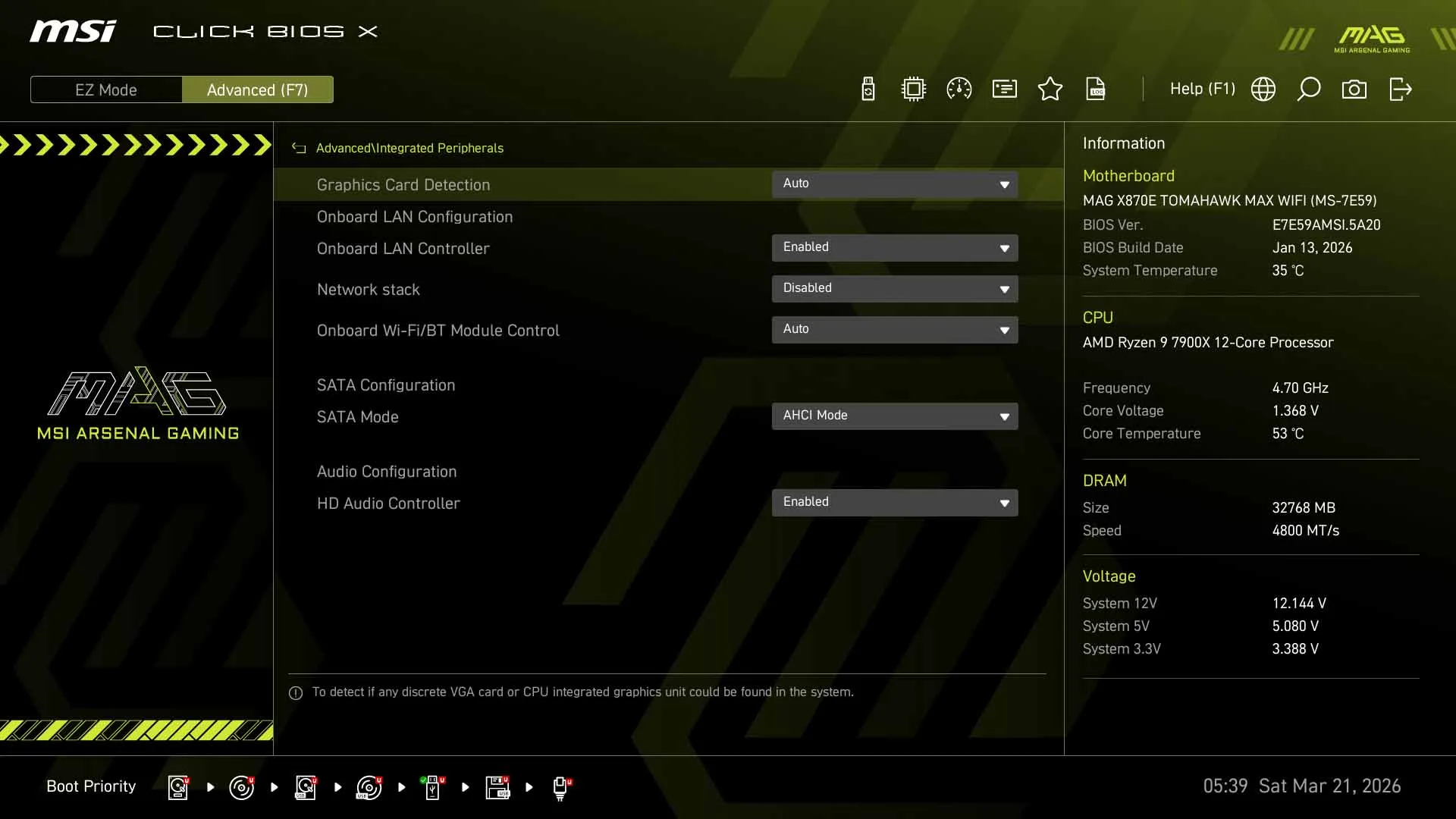
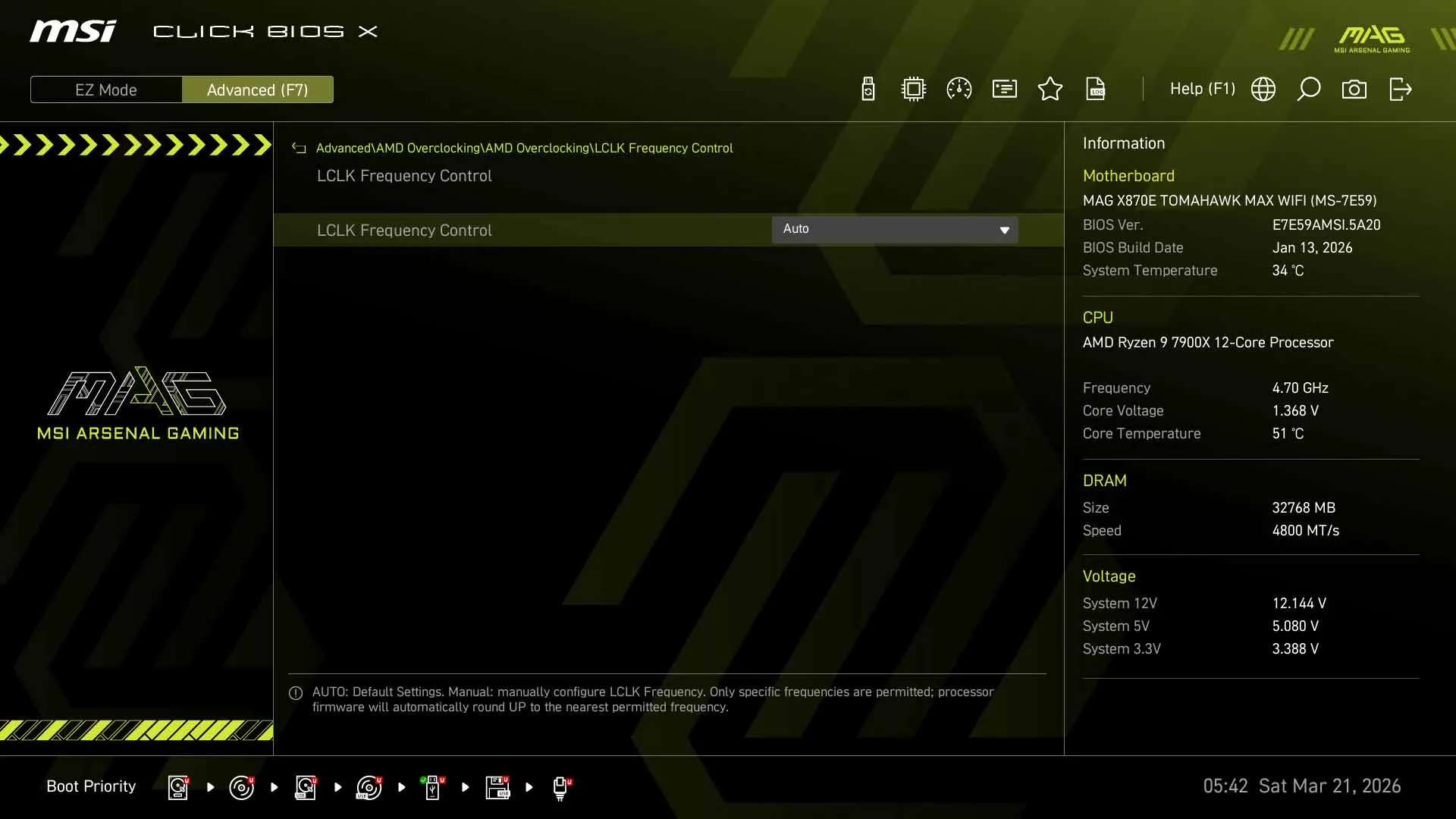
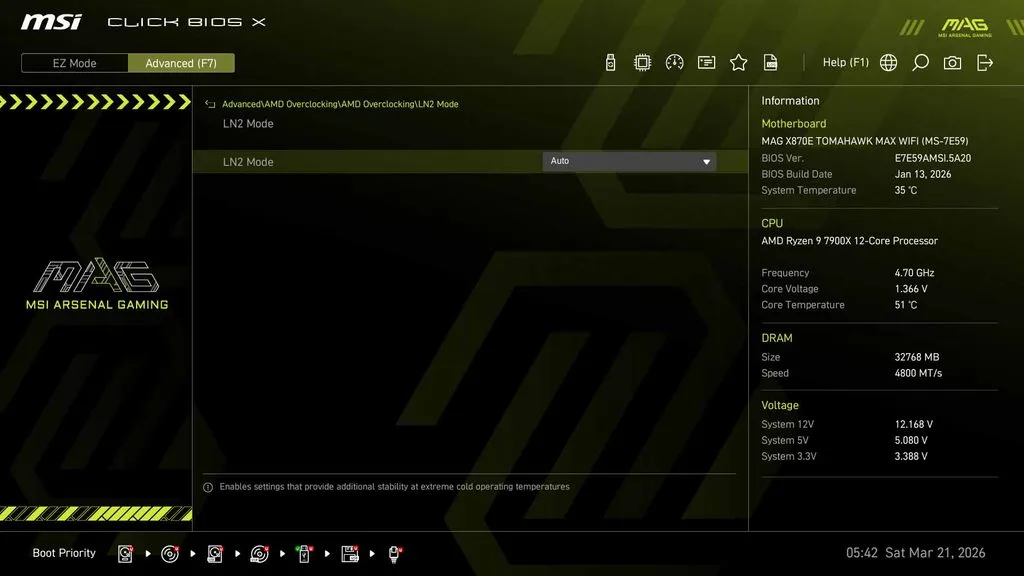
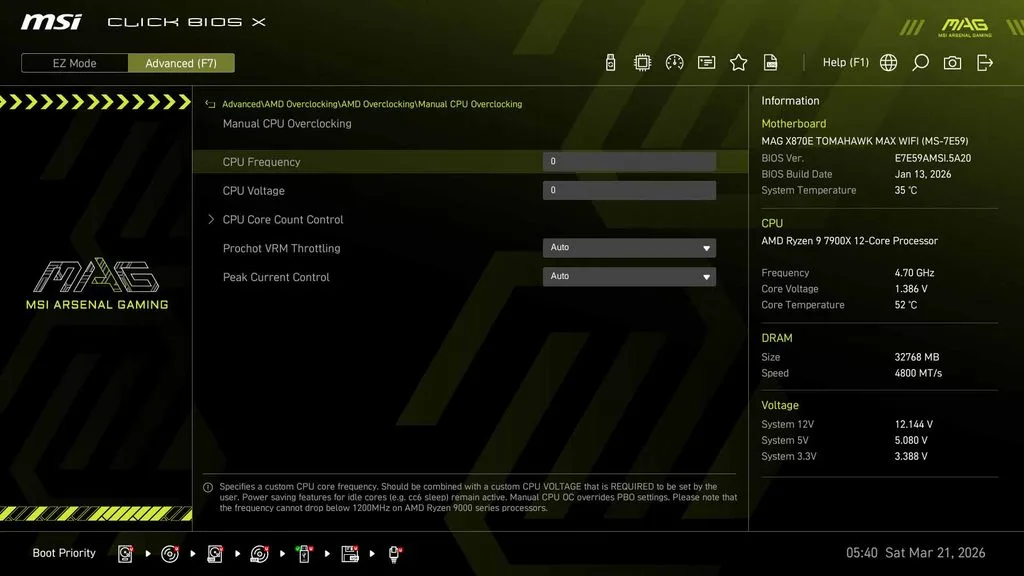
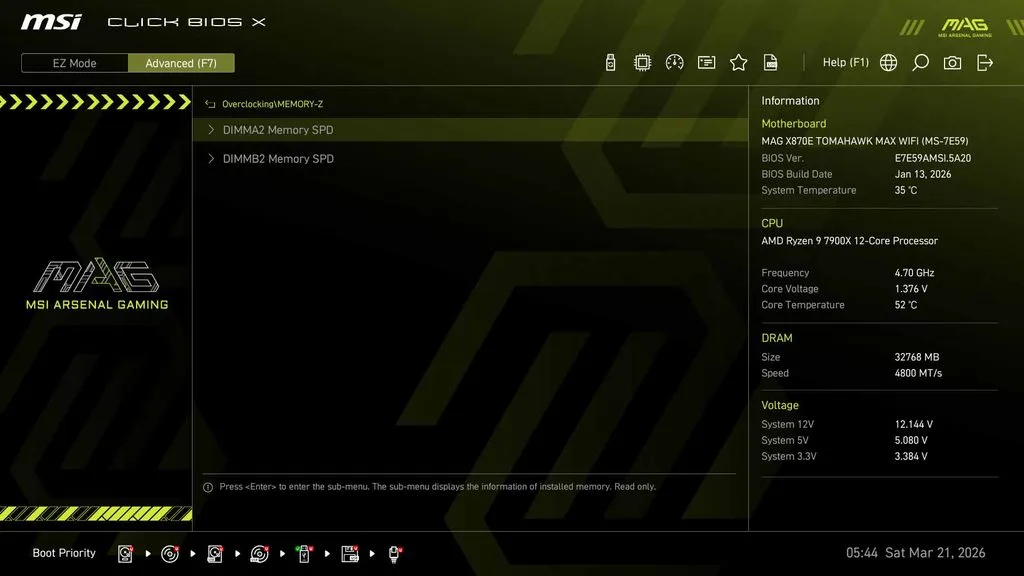
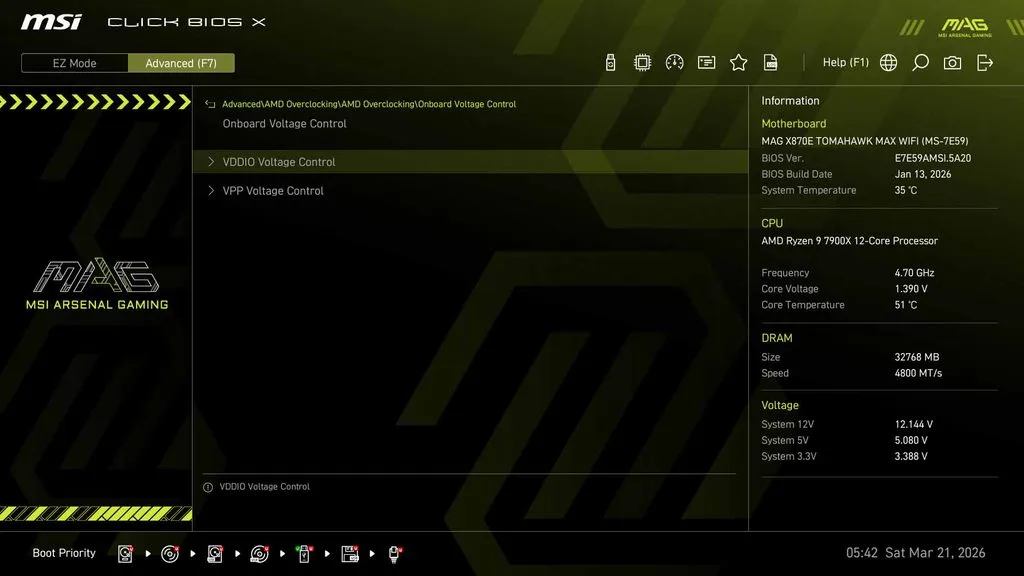
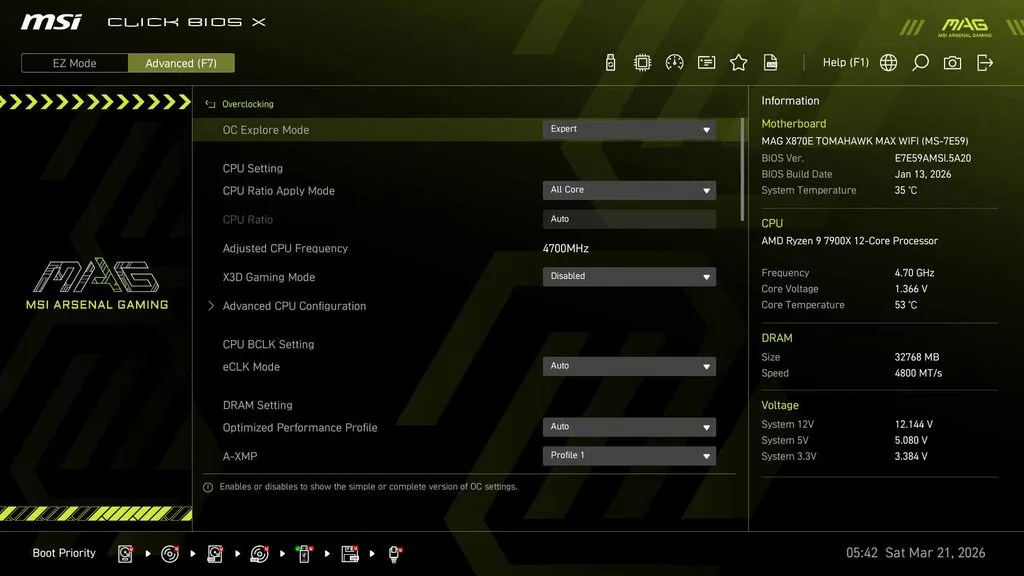
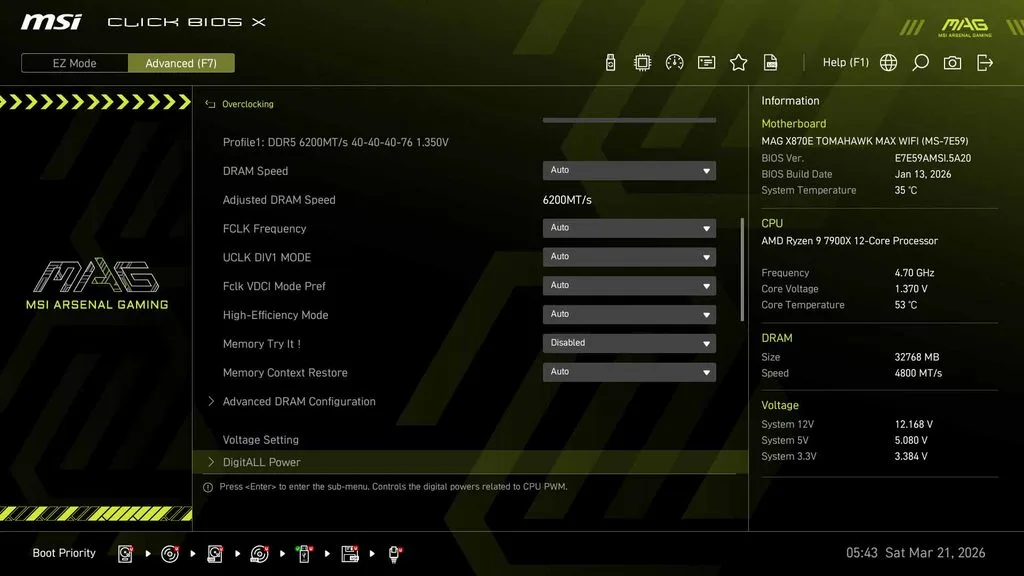
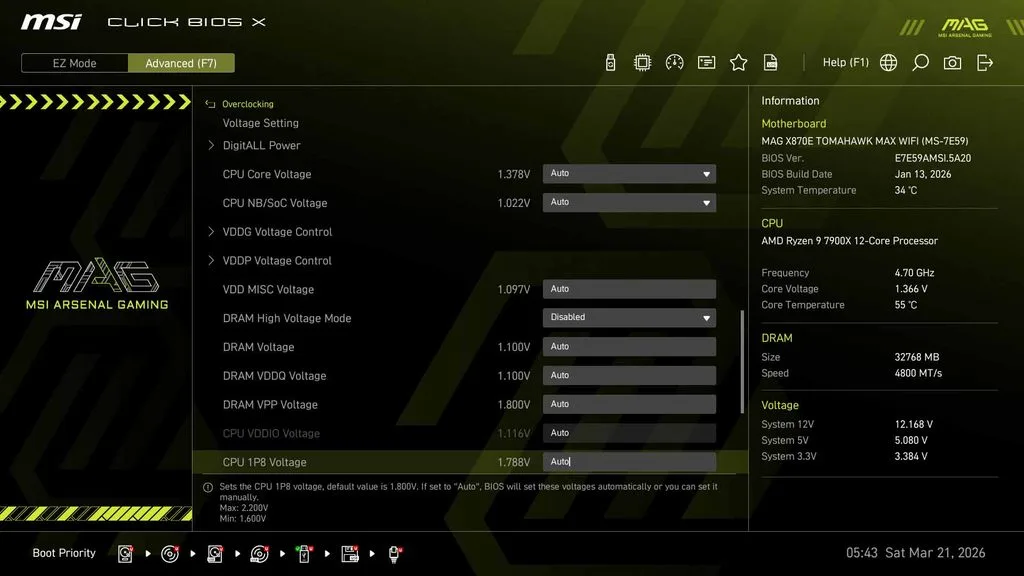
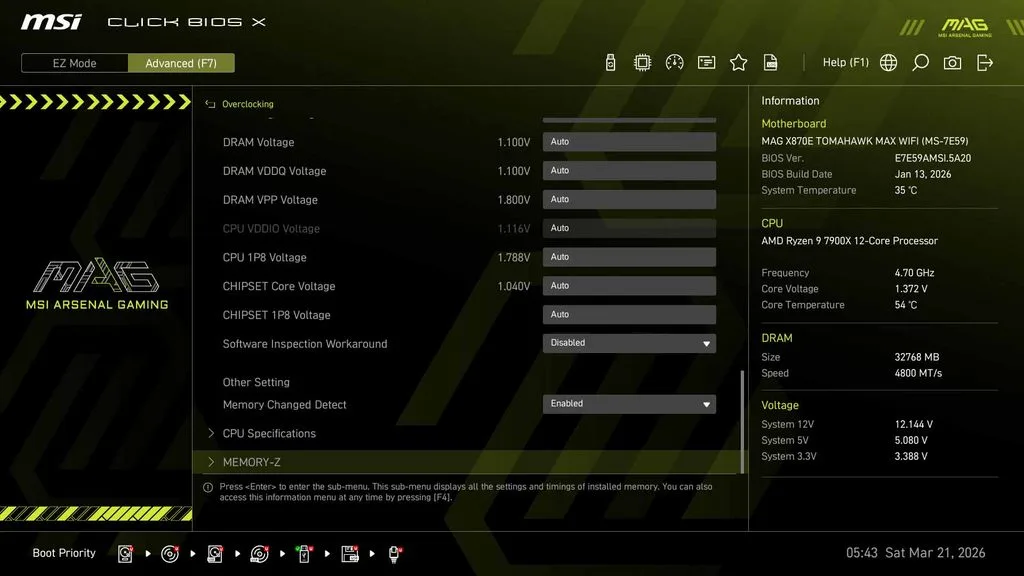
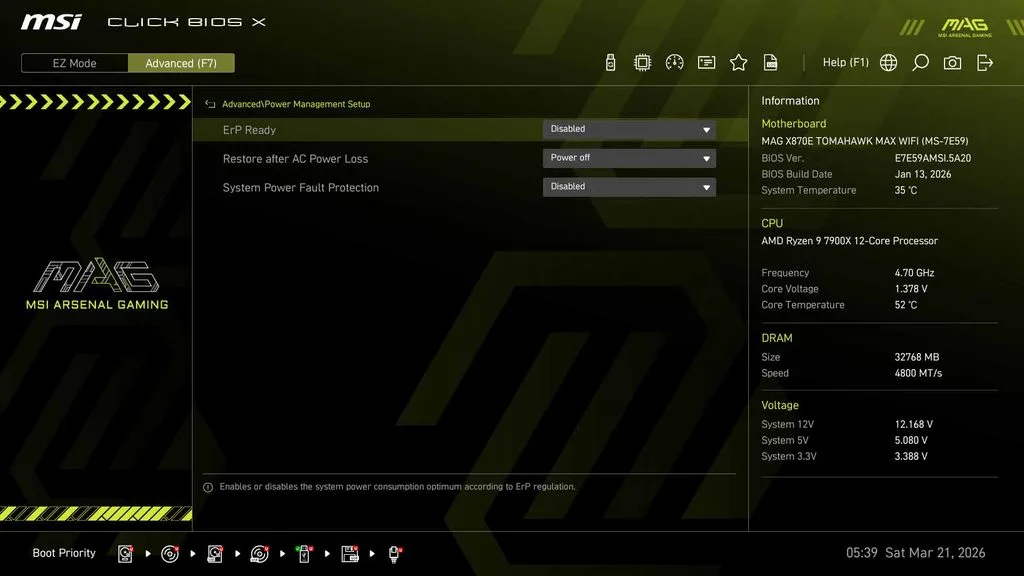
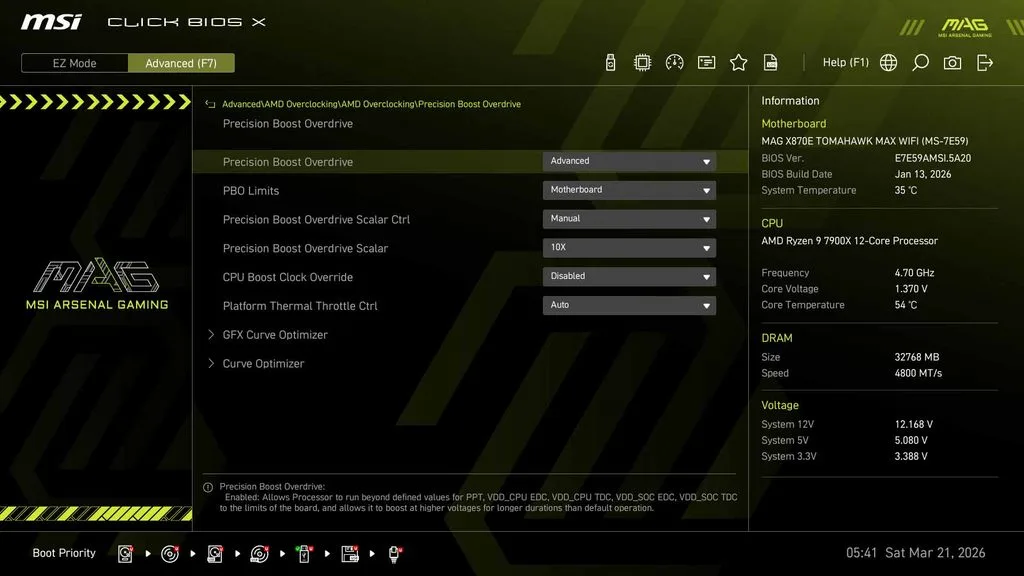
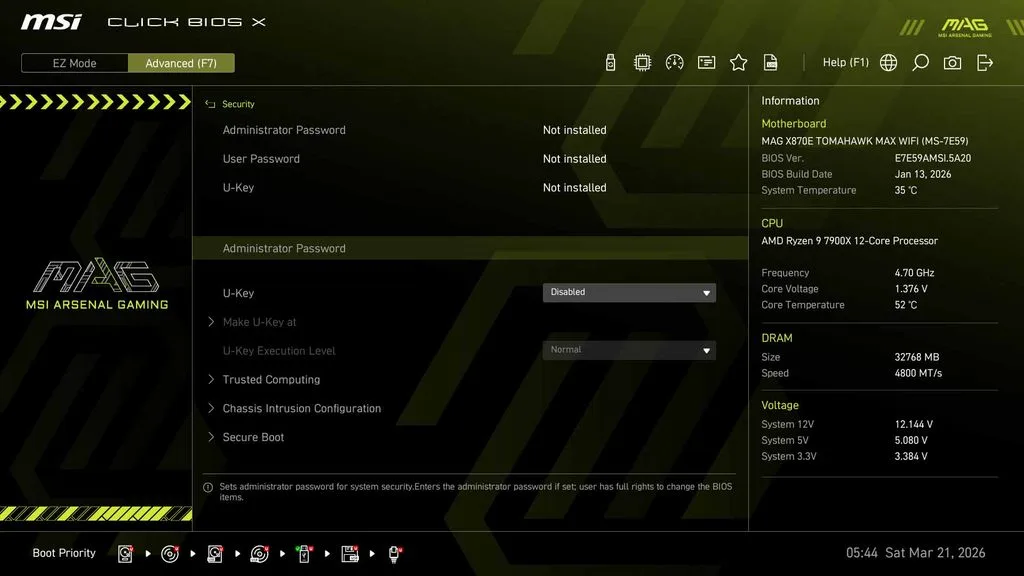
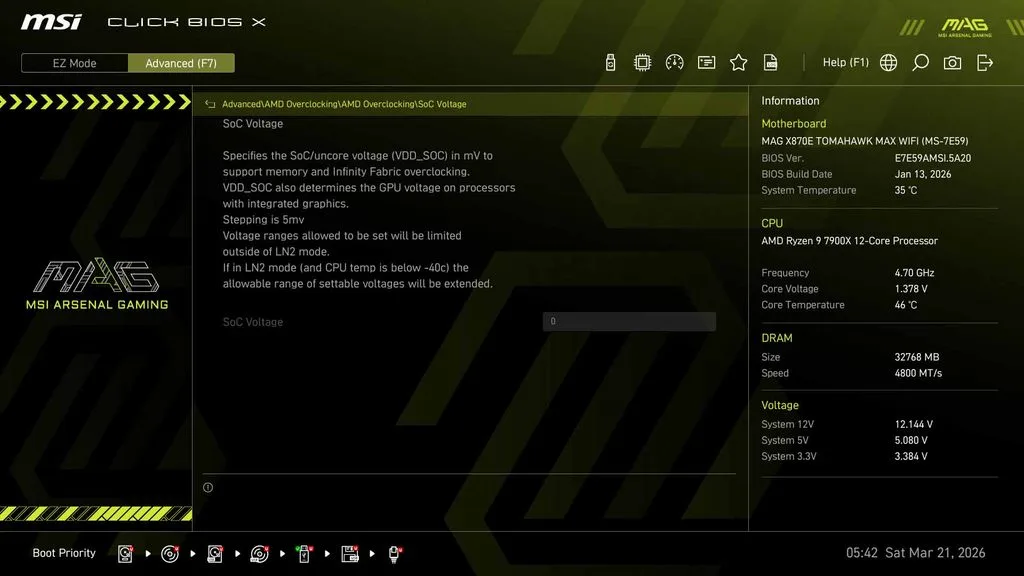
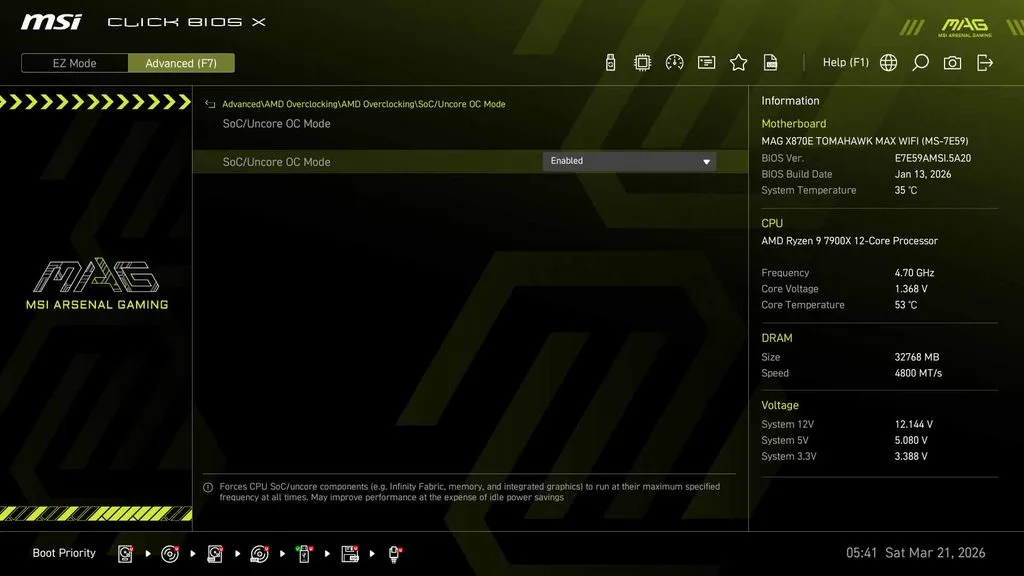
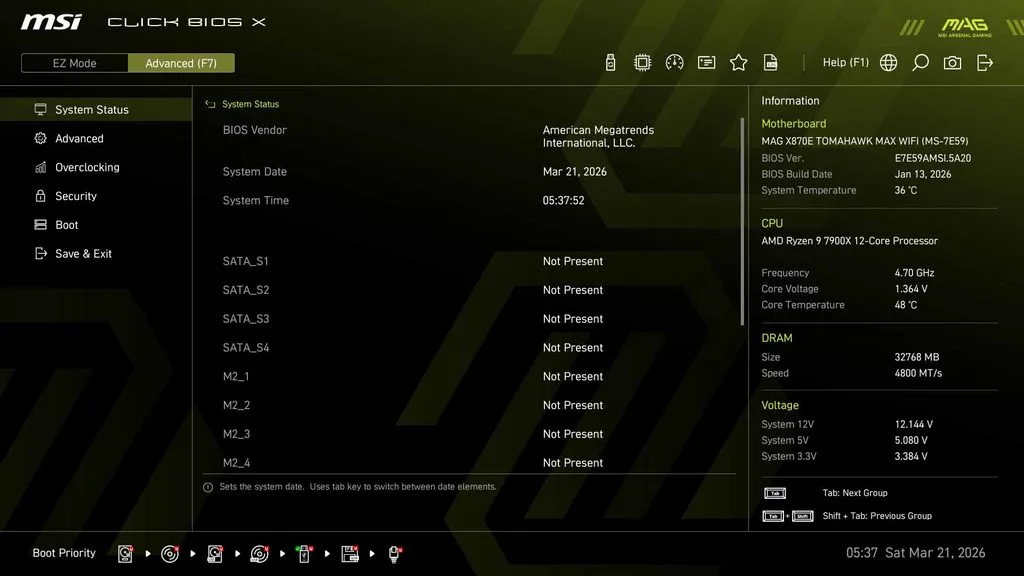
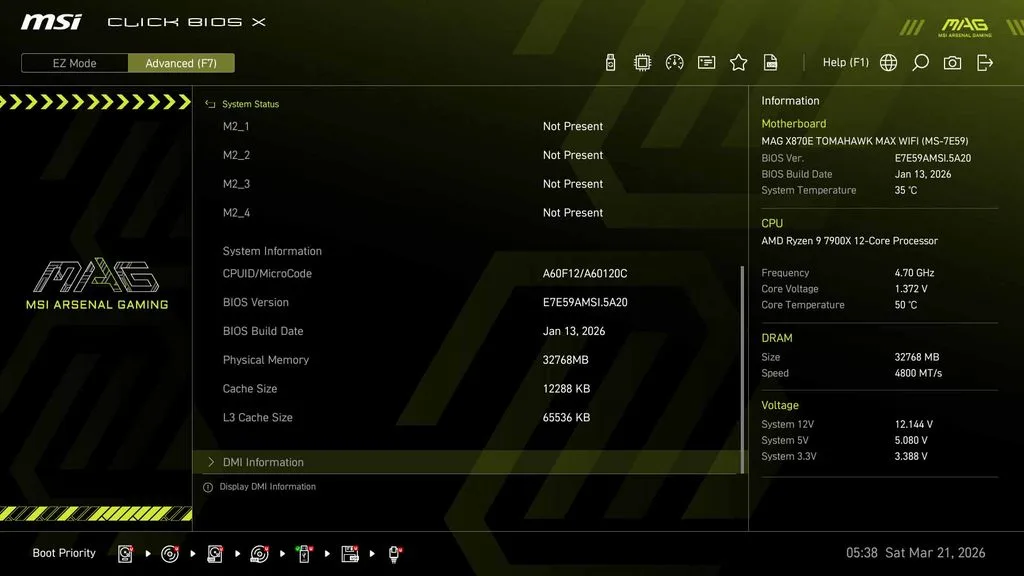
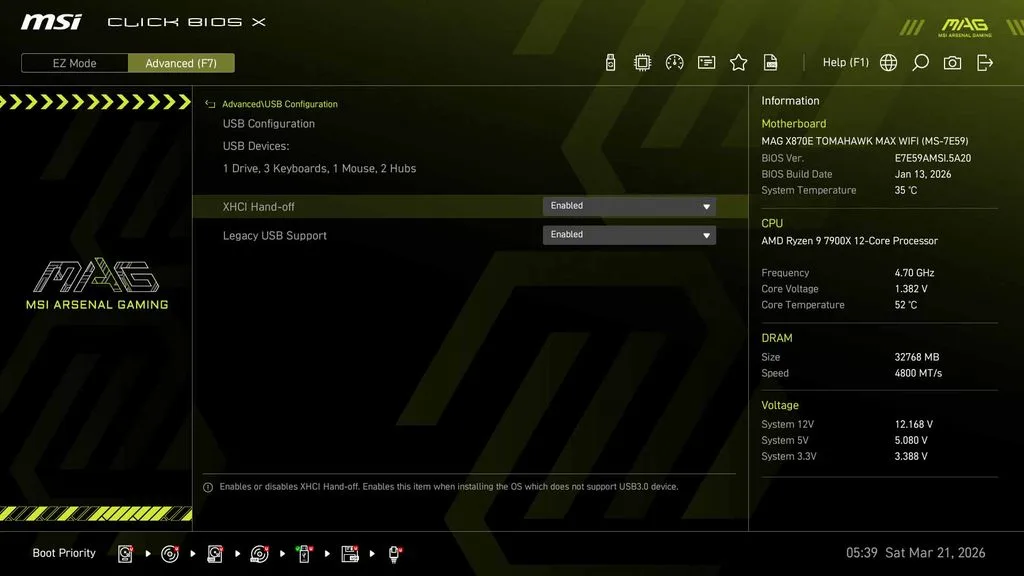
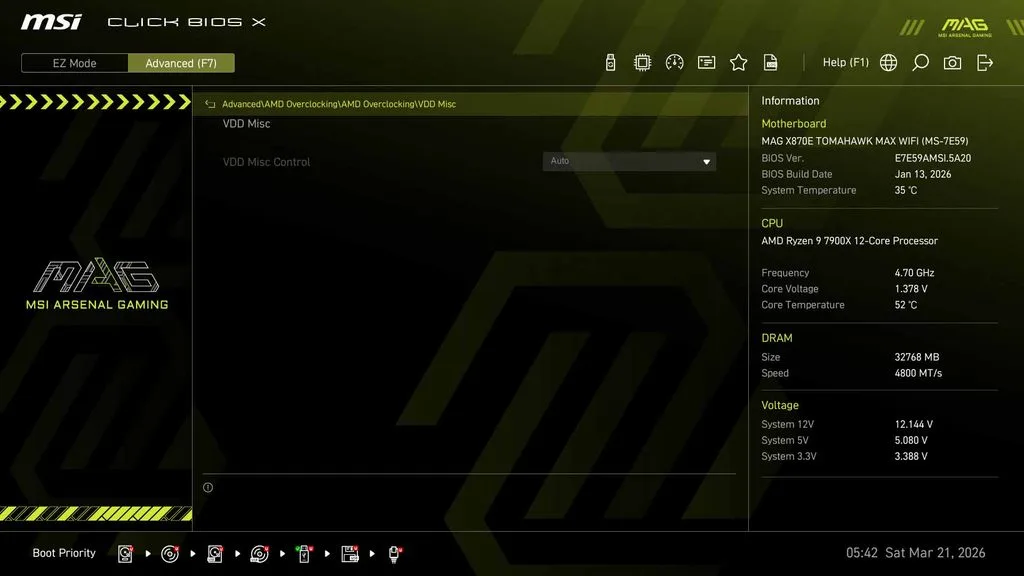
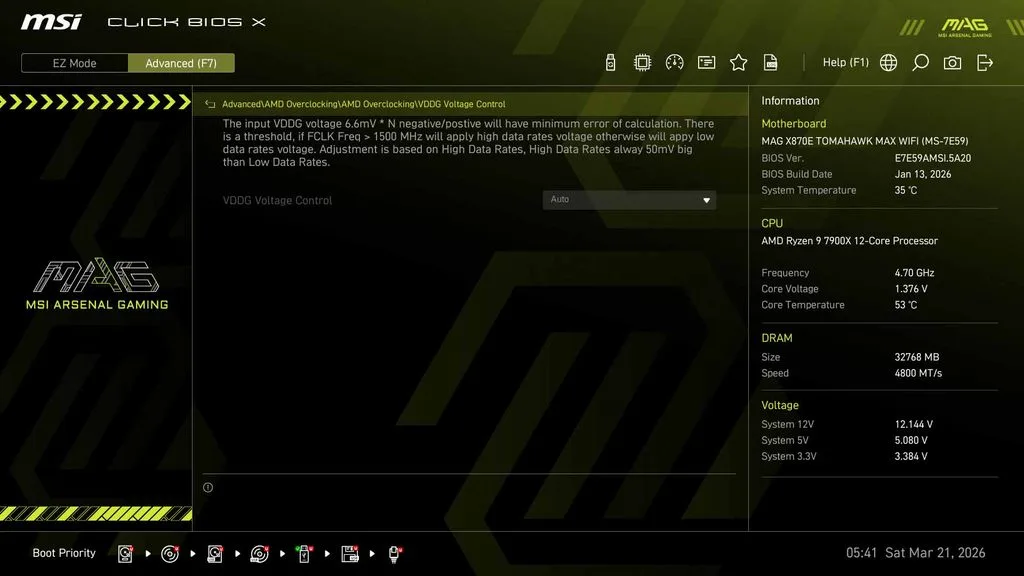
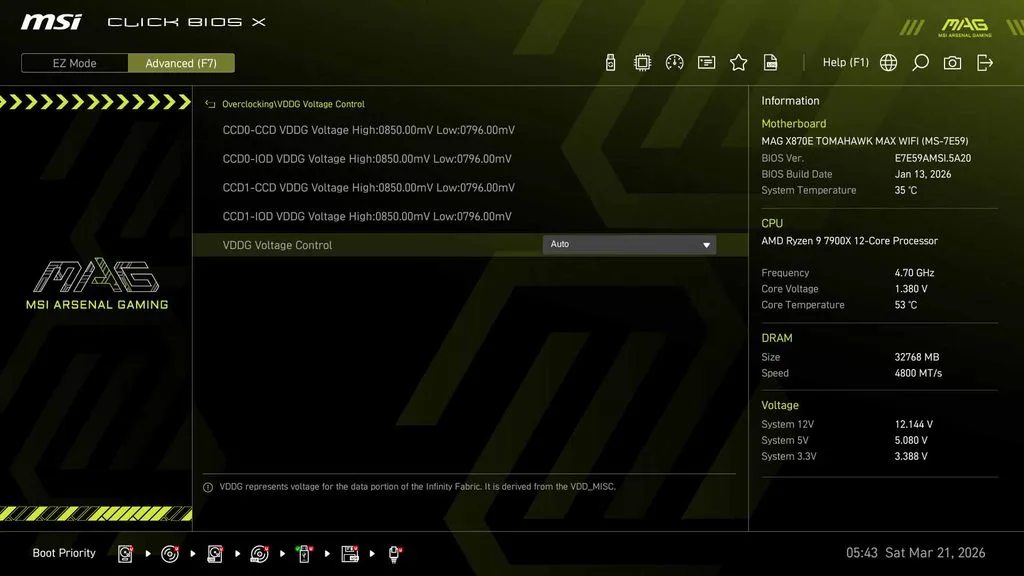
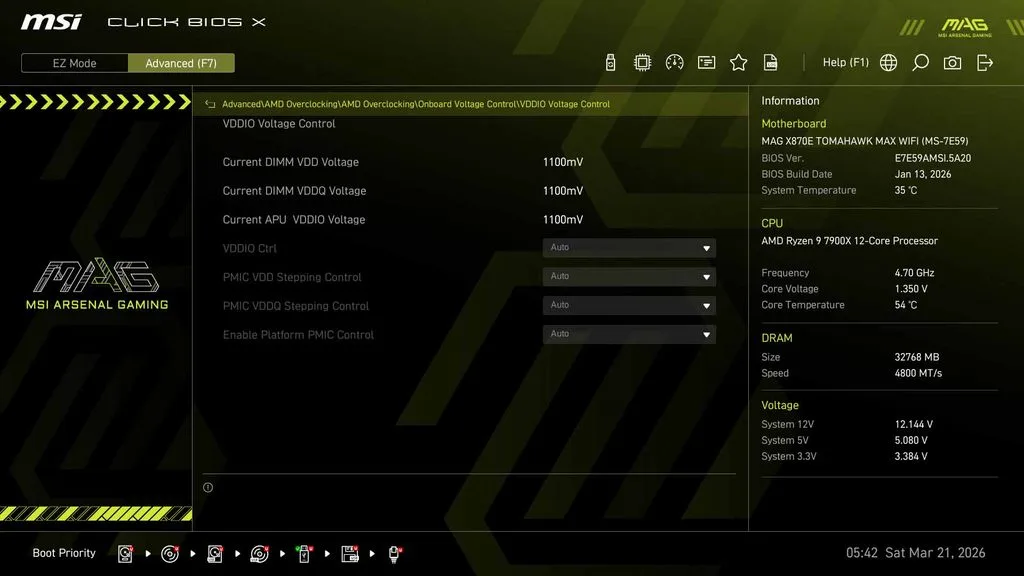
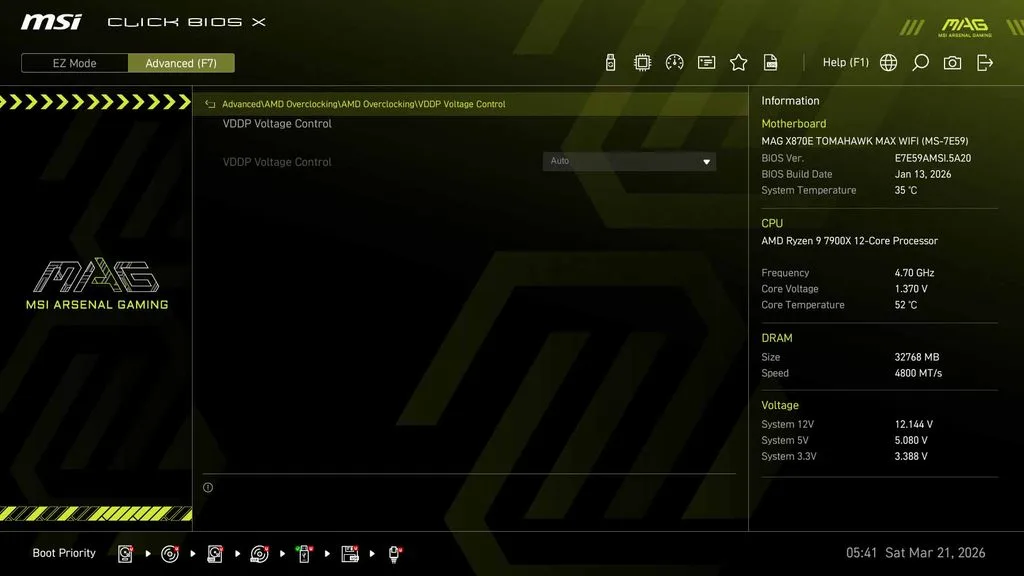
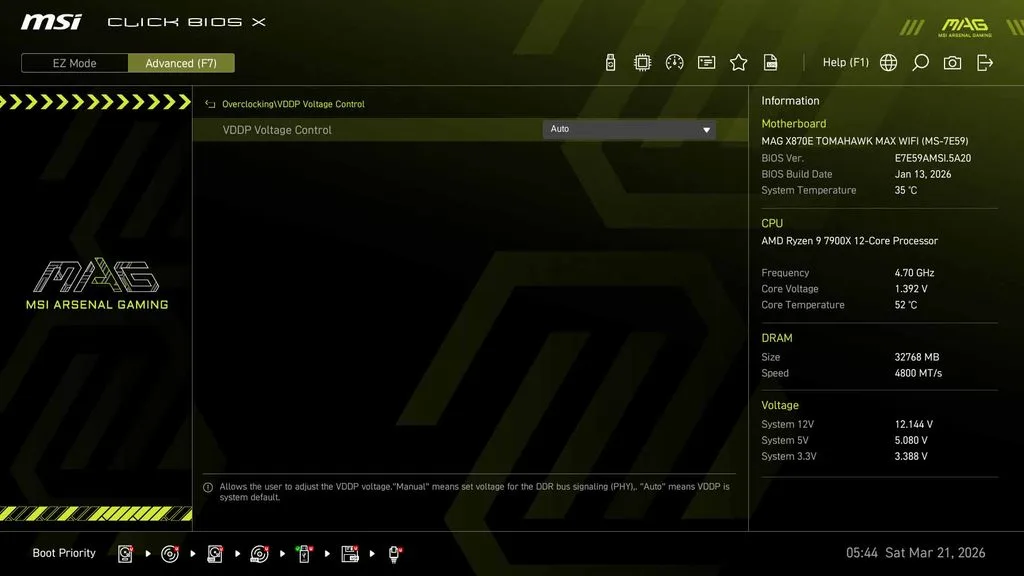
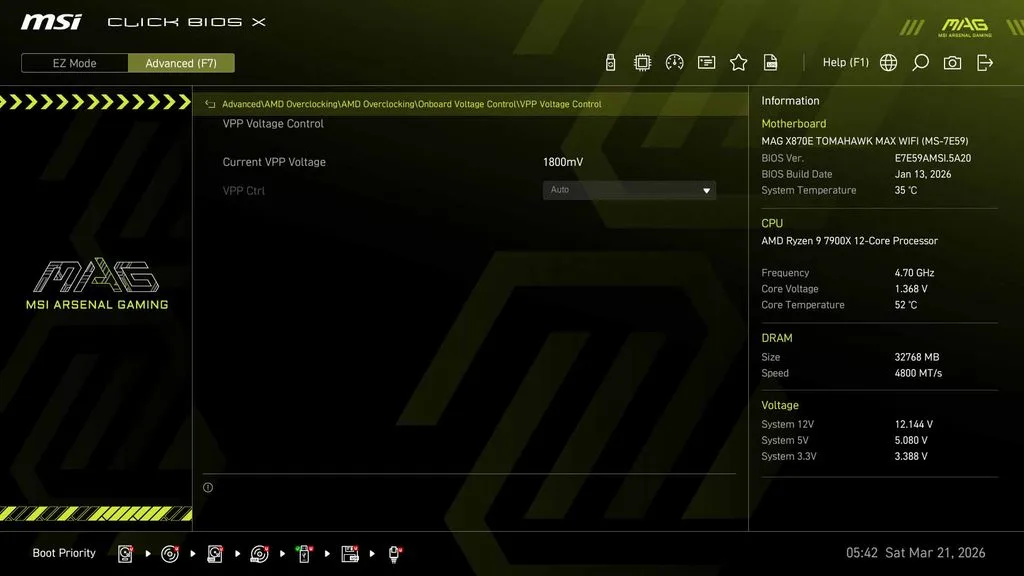
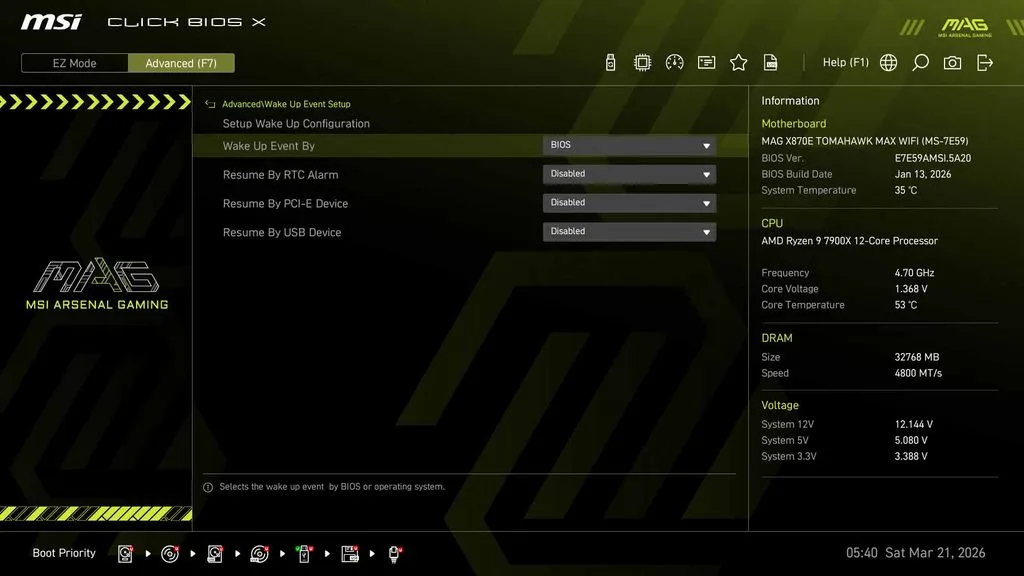
MSI has once again gone with its relatively new “Click BIOS X” interface for the MSI MAG X870E TOMAHAWK MAX WIFI, which we have come to appreciate for its ease of use and overall layout. With this BIOS interface having been around for quite some time now and having been covered in depth in several of our previous MSI motherboard reviews, we will not be going in depth on every setting available. Instead, we will point out a few of the more interesting features specific to this motherboard and encourage you to take a look at the gallery below. One thing worth mentioning right off the bat is that MSI has increased the BIOS ROM to 512Mb on the MAX version, double what we saw on the original X870E TOMAHAWK WIFI last year.
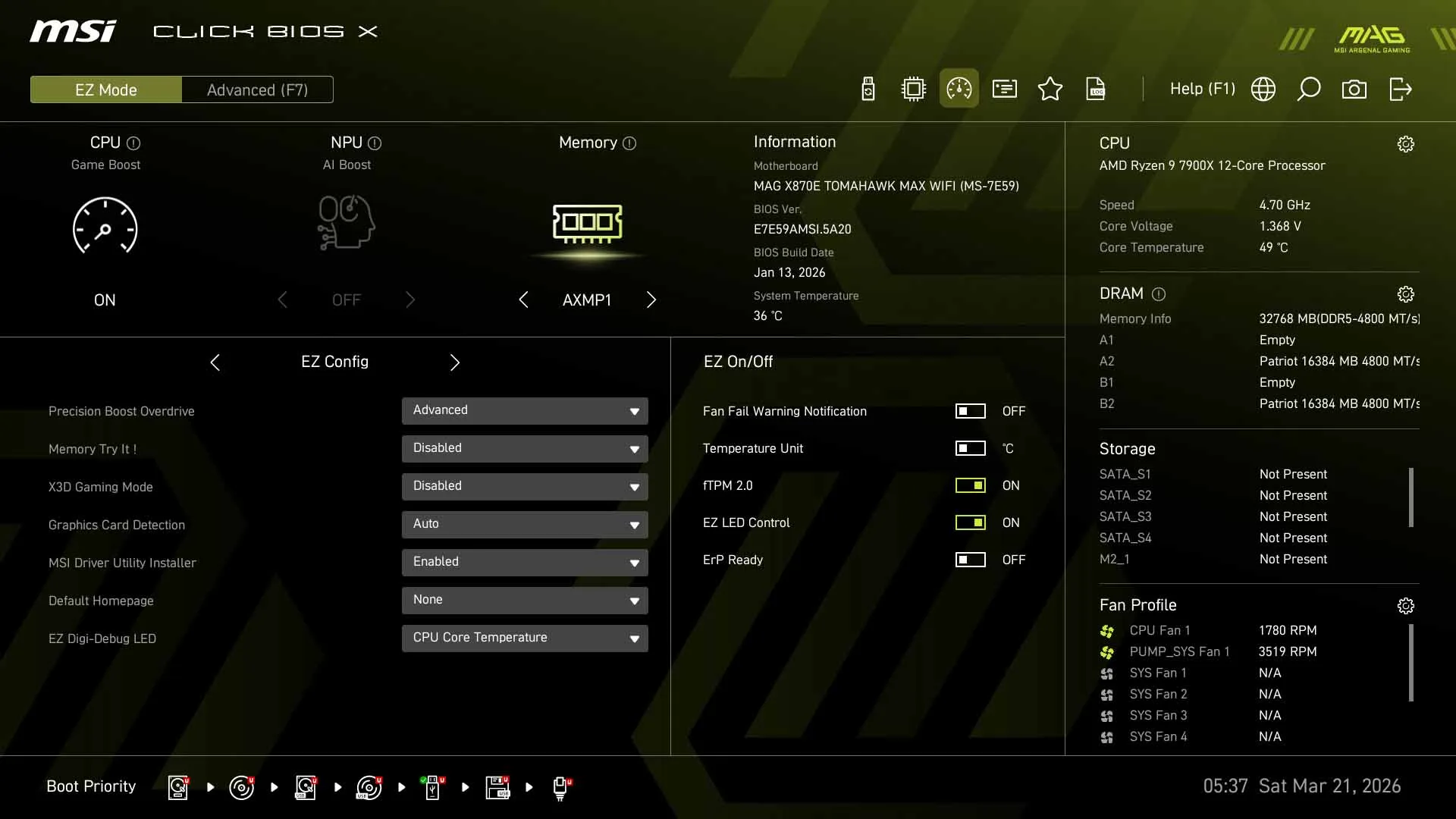
The first thing you will see upon entering the UEFI is the familiar Performance screen, asking you to select either “Auto” or “Enabled” for Precision Boost Overdrive (PBO). While these might seem like the same option, they are a little bit different. Choosing “Enabled” will explicitly turn on PBO, while “Auto” leaves this up to the BIOS and AMD’s default settings. Once you have made your selection, you are greeted with the standard “EZ Mode” screen, giving you a quick overview of CPU and memory speeds, system temperatures, fan speeds, and connected storage devices.
Beyond this, you have quick access to AMD EXPO memory profiles, performance presets, M-Flash for BIOS updates, and the Hardware Monitor for adjusting fan and pump settings. Along the top of the screen, you will also find the BIOS Log, which allows you to review what settings have been modified during your current session, something that also appears when you go to save your changes and exit the UEFI.
Looking at Advanced Mode, which can be accessed by either clicking the option at the top of the screen or simply pressing “F7”, you will immediately find yourself at the System Status screen. This gives you information on the current BIOS version and build date, along with connected storage devices and general system information.
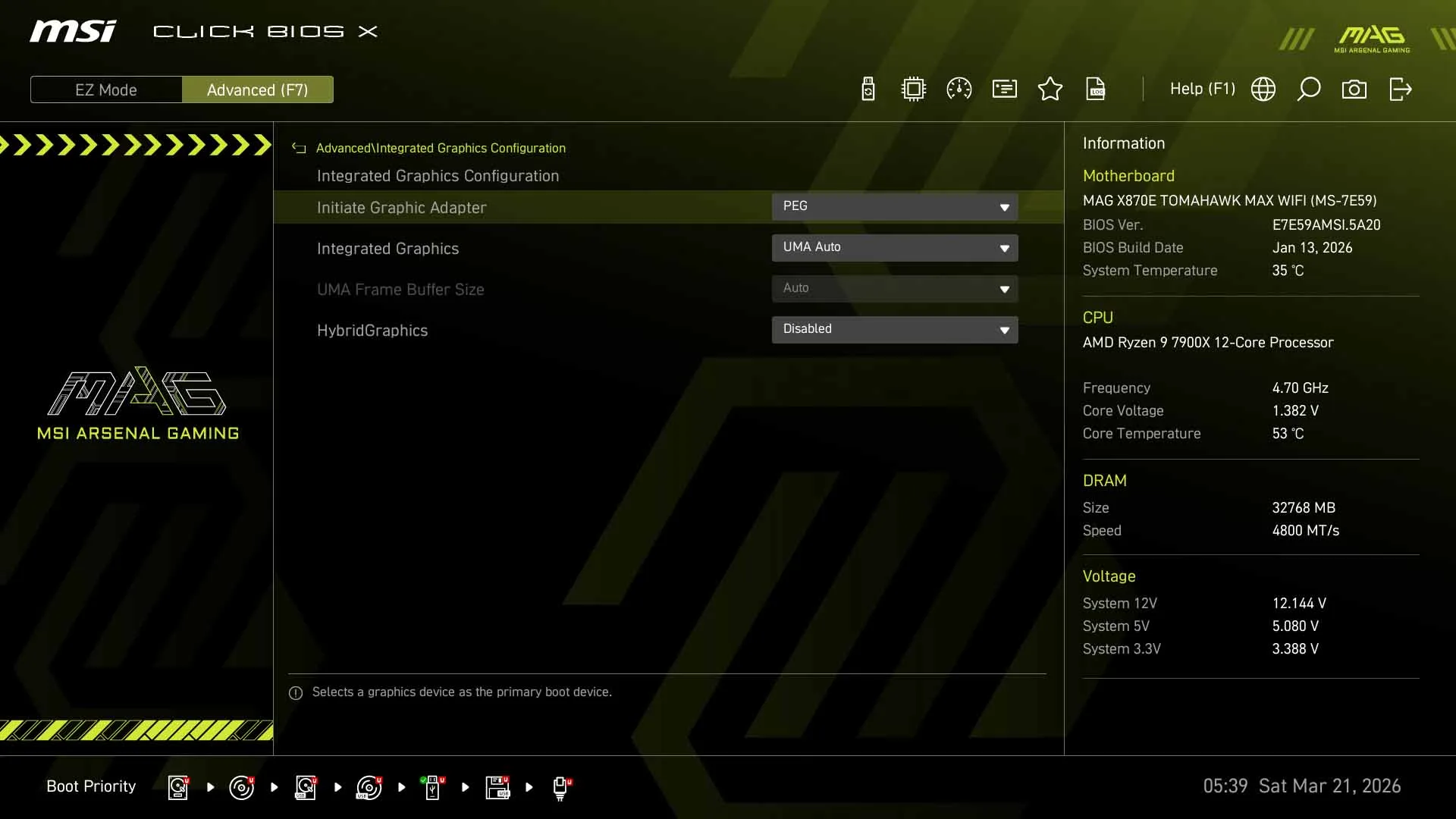
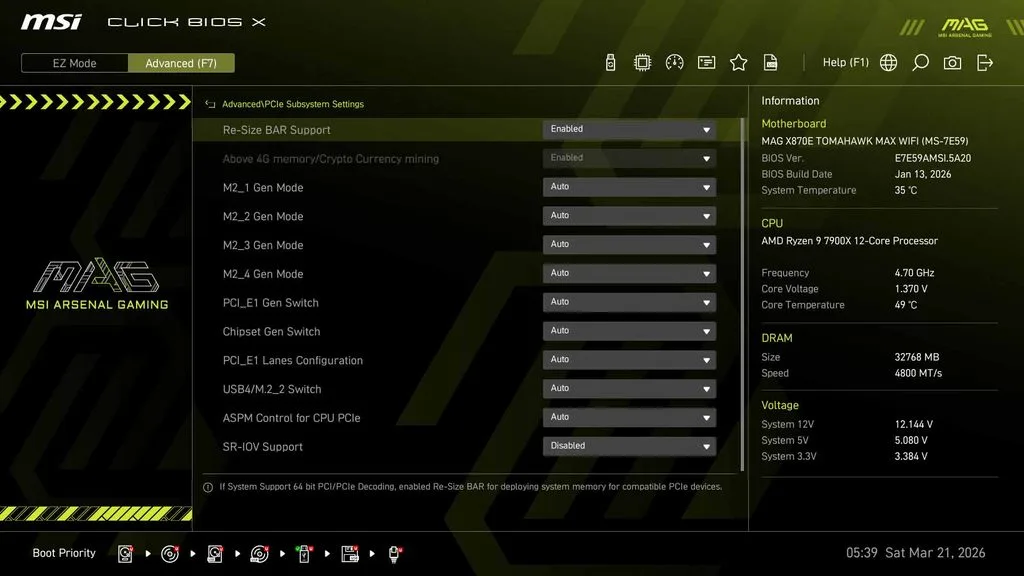
The information panel on the right side remains visible throughout the different pages, which is a nice touch as you can quickly reference CPU frequency, voltages, temperatures, and memory information without having to back out of the menu you are in. Moving into the Advanced settings gives you access to everything from PCIe subsystem settings, integrated graphics configuration, USB settings, and wake-up events, to the AMD Overclocking menu for some of the more detailed CPU options.
One item we want to point out here is the ability to adjust how the second Gen5 M.2 slot (M2_2) operates. As we mentioned previously, this slot shares bandwidth with the onboard USB4 controller, and by default will operate at reduced bandwidth when populated to allow the USB4 ports to remain functional. MSI does give you the ability to change this behavior through the BIOS, allowing M2_2 to operate at its full PCIe 5.0 x4 speed, but doing so will disable both of the rear USB4 ports. While we always like to see options like this available to the end user, it is something you will want to keep in mind if you plan on utilizing the second M.2 Gen5 NVMe slot, as you won’t be able to use the USB4 ports.
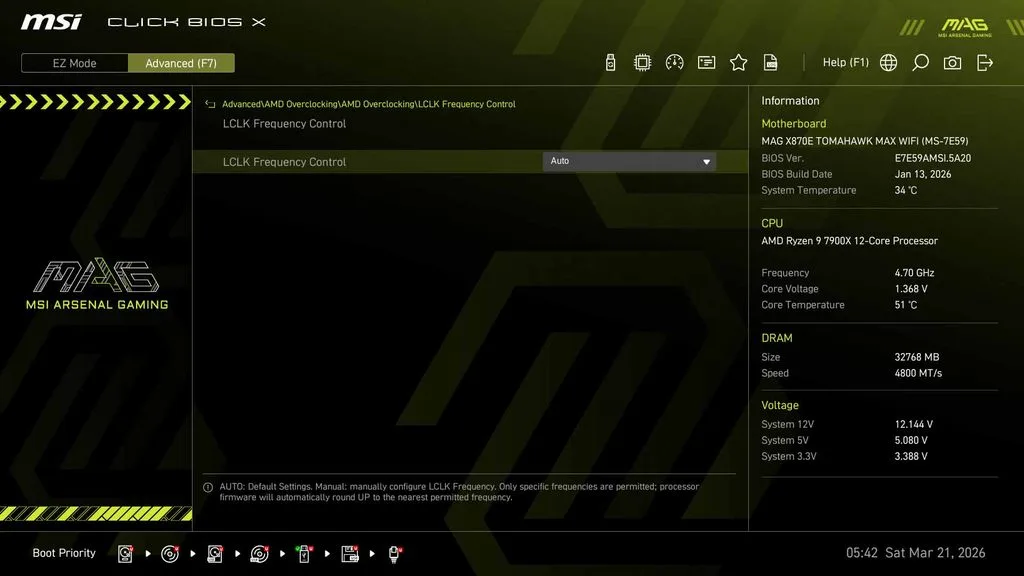
Outside of the Advanced settings, the Overclocking tab provides quick access to most of the settings an enthusiast will be looking for, from CPU frequencies and voltages to memory speeds, timings, and Precision Boost Overdrive settings. One of the more interesting additions with the MAX version is MSI’s dedicated “OC Engine”, which is a dedicated chip on the motherboard that provides asynchronous BCLK overclocking through a separate clock generator. This gives you additional control over the CPU base clock without necessarily impacting the other components tied to the system clock, something that can be particularly useful when looking to squeeze a little more performance out of your processor.
Overall, there is not much to complain about with MSI’s Click BIOS X implementation, and we continue to find it one of the easier UEFI interfaces to navigate. Most of the settings you will be looking for are readily accessible, while the more advanced options are available without having to dig through too many menus. For a closer look at the available settings, we encourage you to take a look at the BIOS gallery below.
Motherboard Performance
For the latter half of 2026, we will still be using our Ryzen 9 7900X CPU for all of our performance testing and benchmarks. As always, we will be outlining our results here, while including the full gallery of our results at the end.
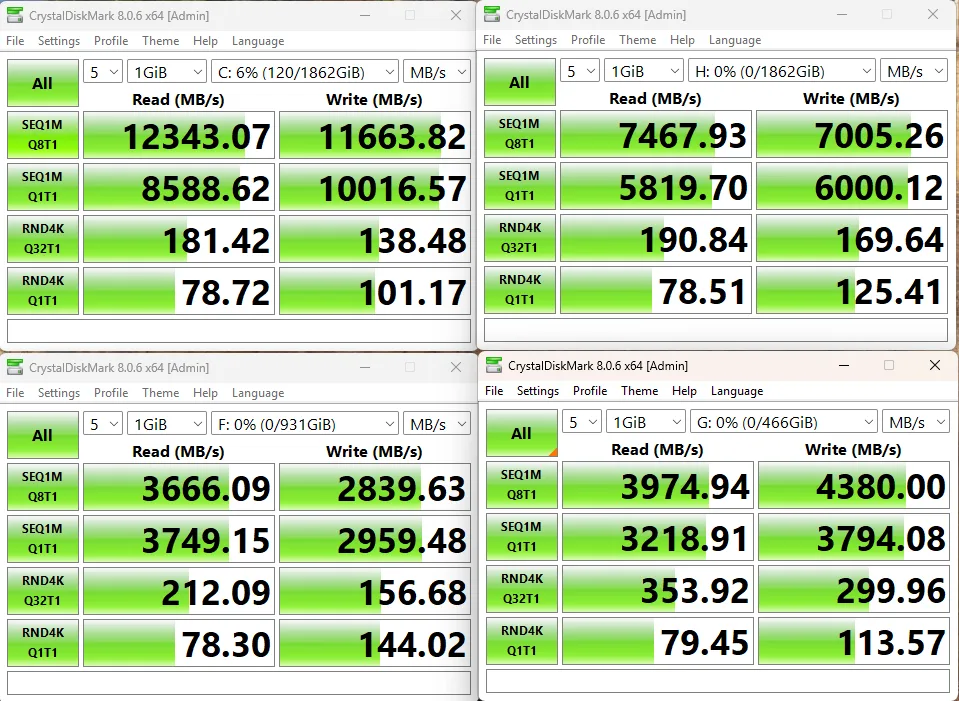
Our first test is the storage test, and as we mentioned above, with this review we have done something slightly different from what we typically do. We still are using our MSI SPATIUM M570 PRO FROZR (originally reviewed at the end of 2023) as our primary drive, and our ADATA LEGEND 970 2TB NVME SSE in the second Gen5 slot, and for this review we have added two additional drives, an SK Hynix Platinum P41 1TB and a Samsung 980 Pro 500GB, with the goal of pushing the CPU and chipset as far as we can.
During testing, the M570 came in at 12,343 MB/s read and 11,664 MB/s write; the LEGEND 970 came in at 7,468 MB/s read and 7,005 MB/s write. The P41 1TB drive clocks in at 3,975 MB/s read and 4,380 MB/s write, while the Samsung comes in at 3,666 MB/s read and 2,840 MB/s write. These speeds are generally in line with what we have historically seen from these drives, but interestingly they are slightly behind the B850 TOMAHAWK.
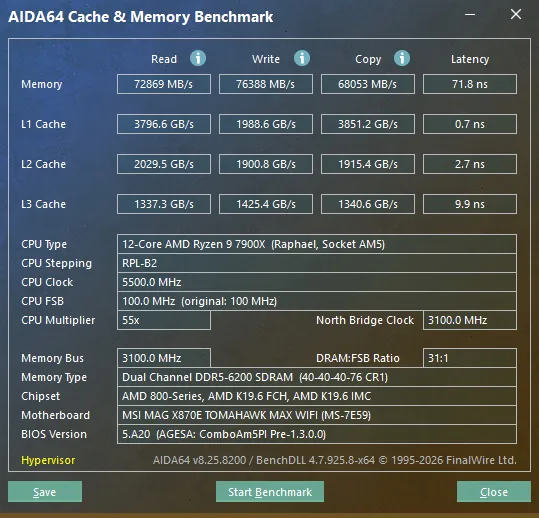
The next test is our memory testing using AIDA64’s Cache & Memory Benchmark. The MSI MAG X870E TOMAHAWK MAX WIFI was able to achieve a read speed of 72,869 MB/s, a write speed of 76,388 MB/s, and a copy speed of 68,053 MB/s. The read and write speeds are actually slightly lower than the B850 TOMAHAWK, while the copy speed is ever so slightly higher. Overall, these speeds are somewhat disappointing when compared with other X870E motherboards.
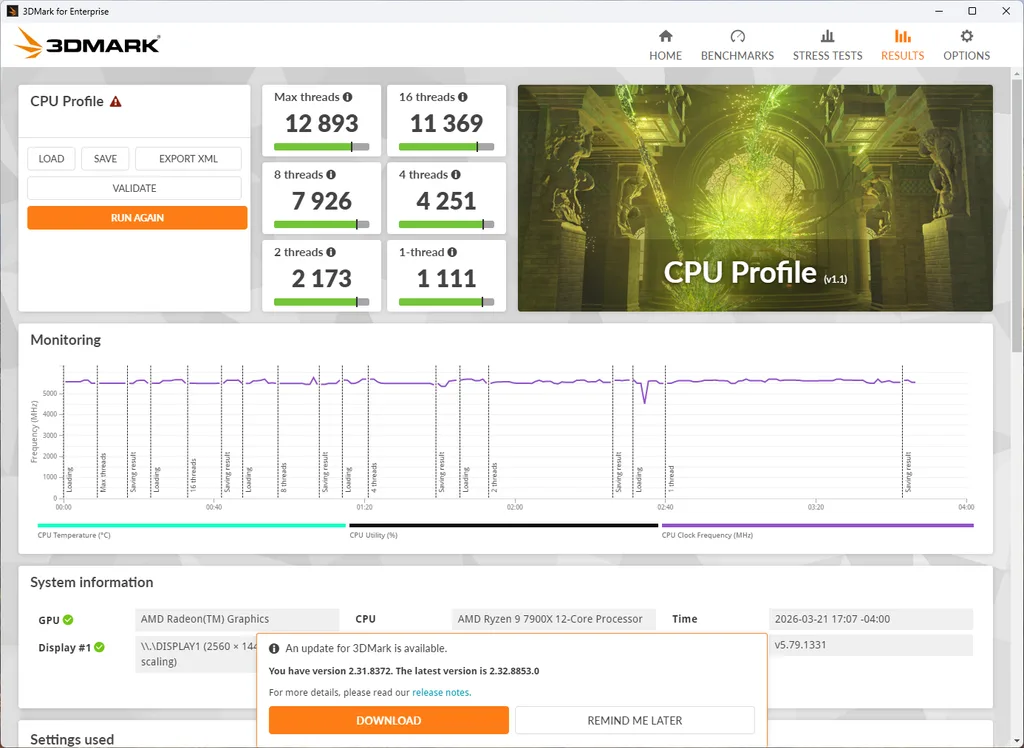
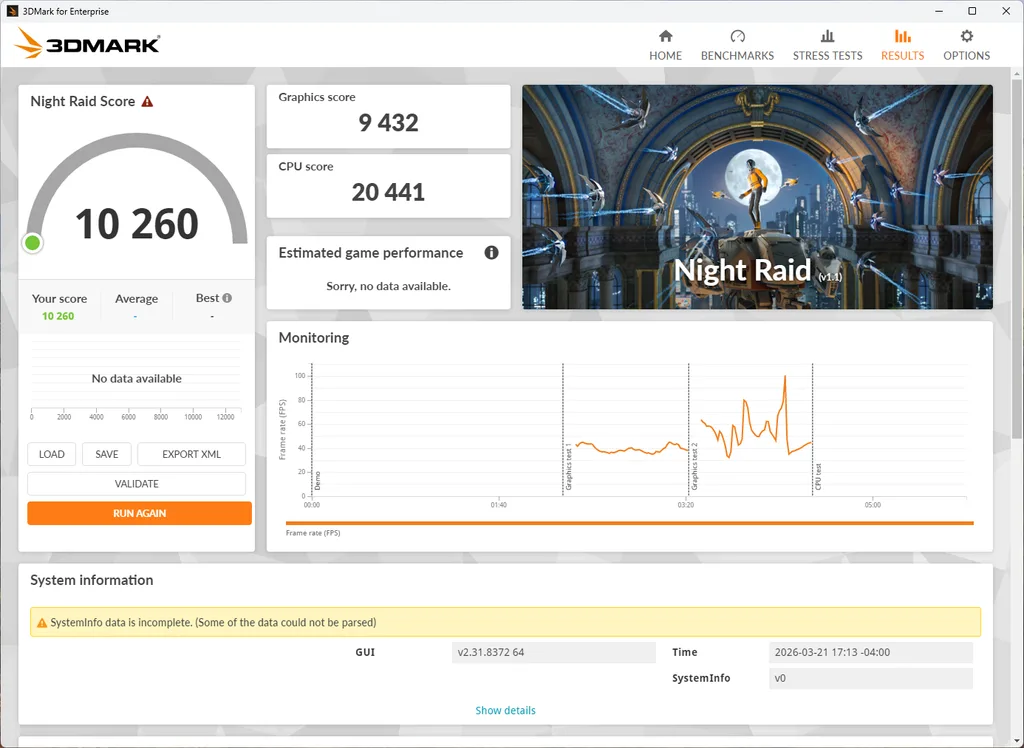
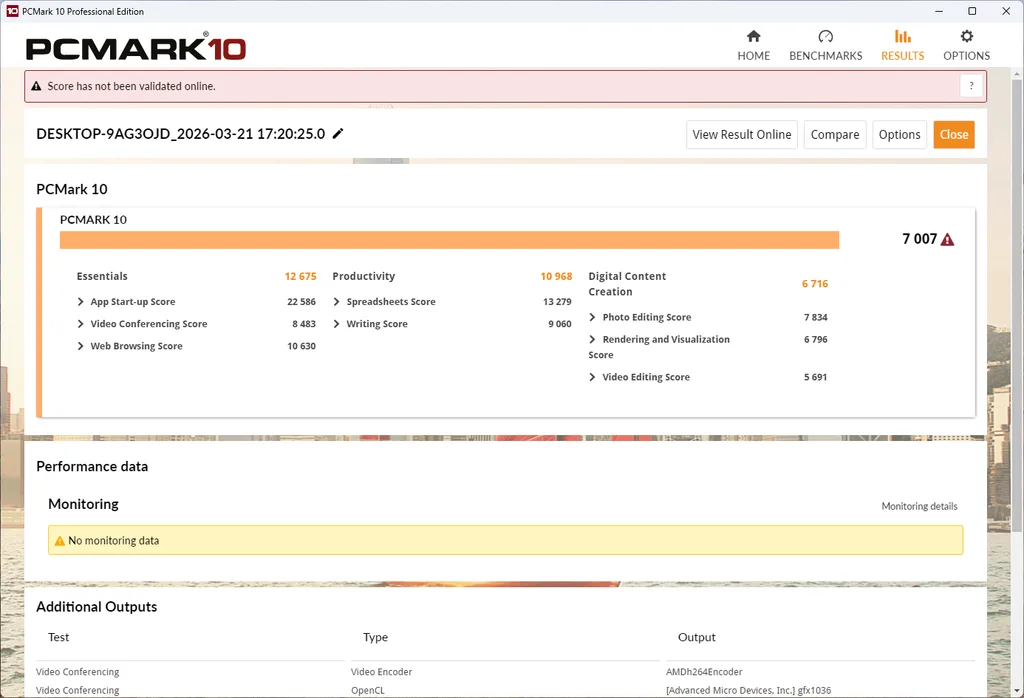
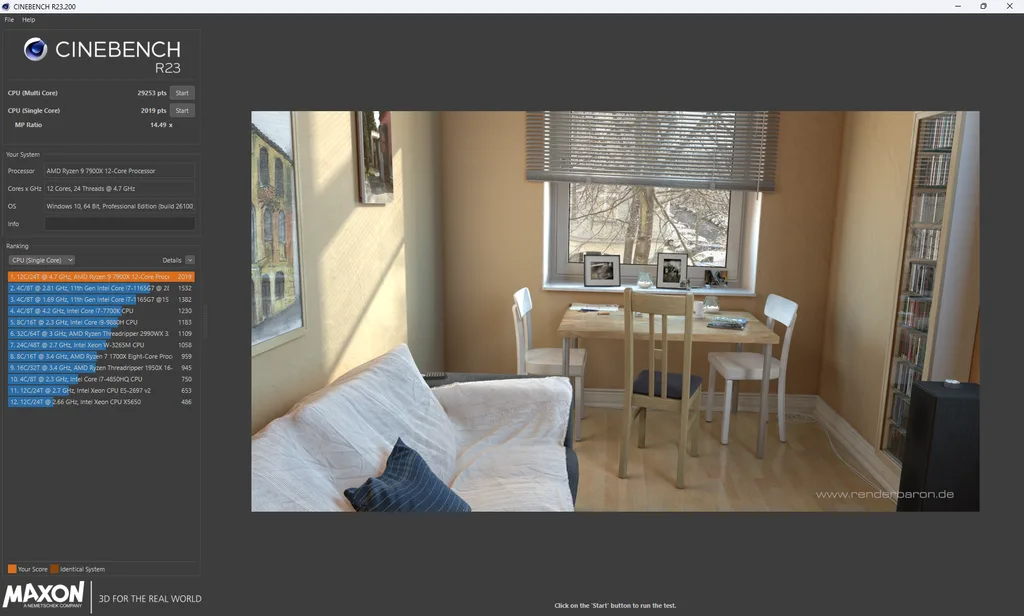
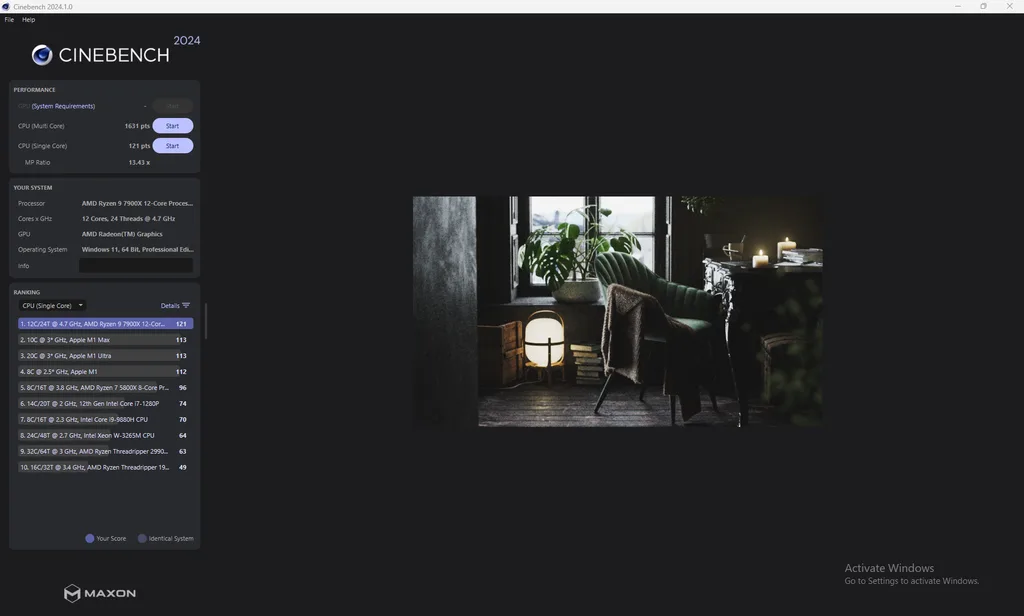
Our synthetic benchmark tests are up next, with 3DMark, PCMark, Cinebench (R23 and 2024), V-Ray, Blender, and finally GeekBench6. 3DMark comes in with a score of 12,893 for maximum threads in the CPU Profile test, and a CPU score of 20,441 for Night Raid, with a total score of 9,432 (Includes full system). PCMark comes in with a total score of 7,007, which continues the trend we saw with both the MSI MEG X870E ACE and the B850 TOMAHAWK WIFI of lower scores than anticipated with this CPU.
After this, Cinebench R23 clocks in at 29,253 points on the Multi-Core, and 2,019 points on the Single-Core test, and 2024 comes in with 1,631 points and 121 points, respectively, both Cinebench results bring us back to where we expect to be with our testing, but again slightly behind what we saw on the B850 TOMAHAWK WIFI.
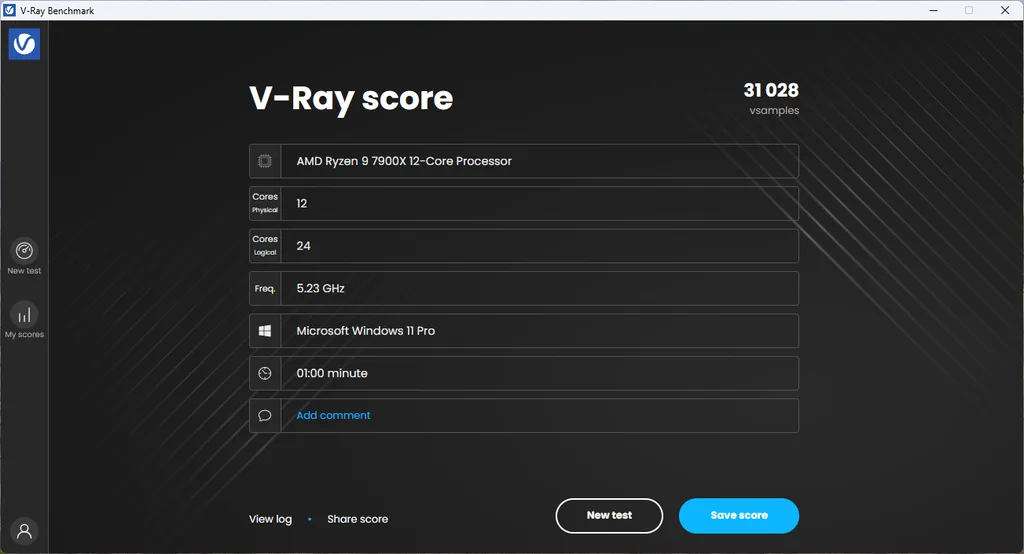
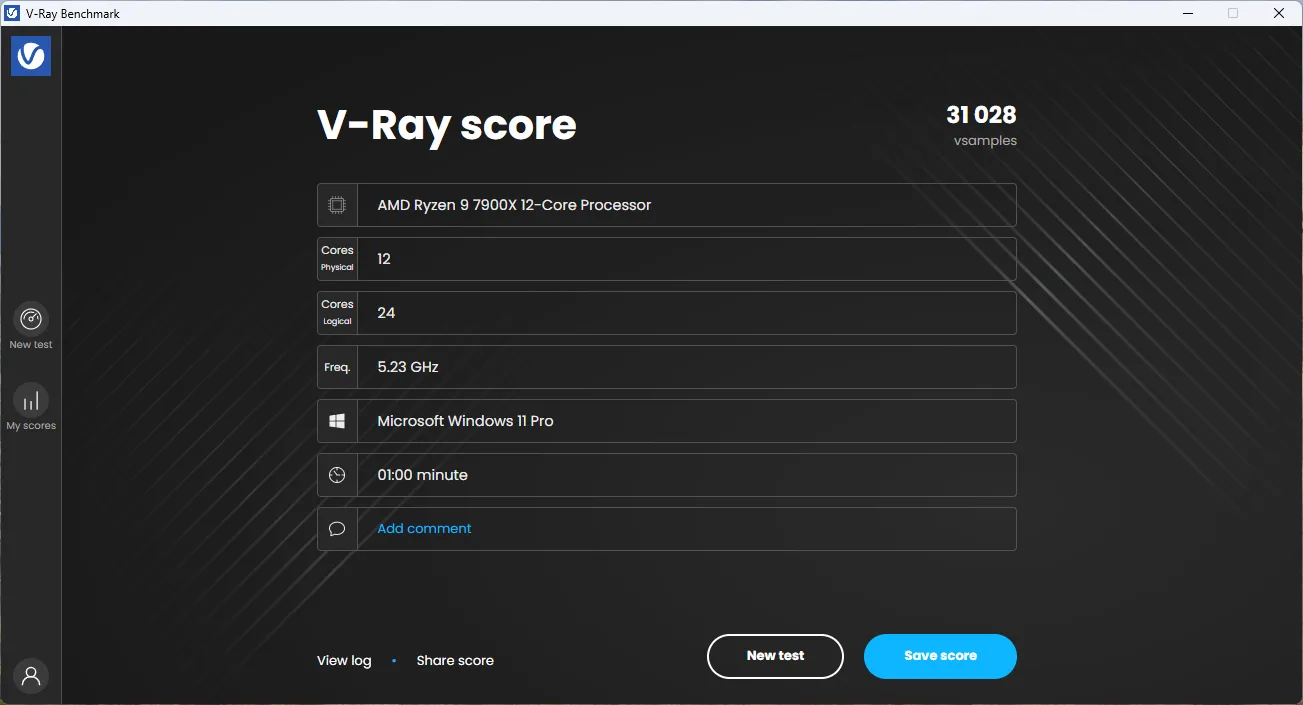
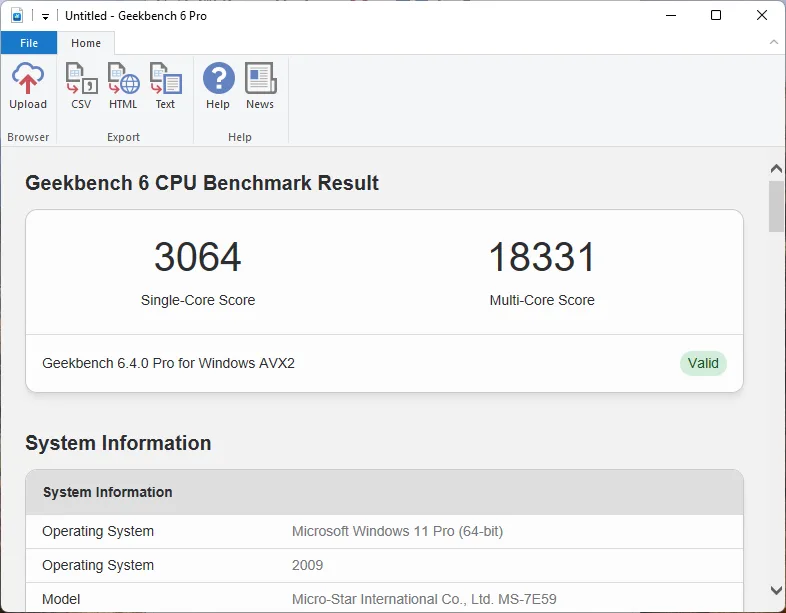
With V-Ray, we had a final score of 31,028, which is right at what we expect with this setup. Blender comes in at 207 for the Monster test, 154 for junkshop, and 113 for classroom, again right in line with expectations. Our final synthetic benchmark is Geekbench, where we hit a Multi-Core score of 18,331 and a Single-Core score of 3,064, which is in line with what we expect, if not slightly ahead.
VRM Temperature
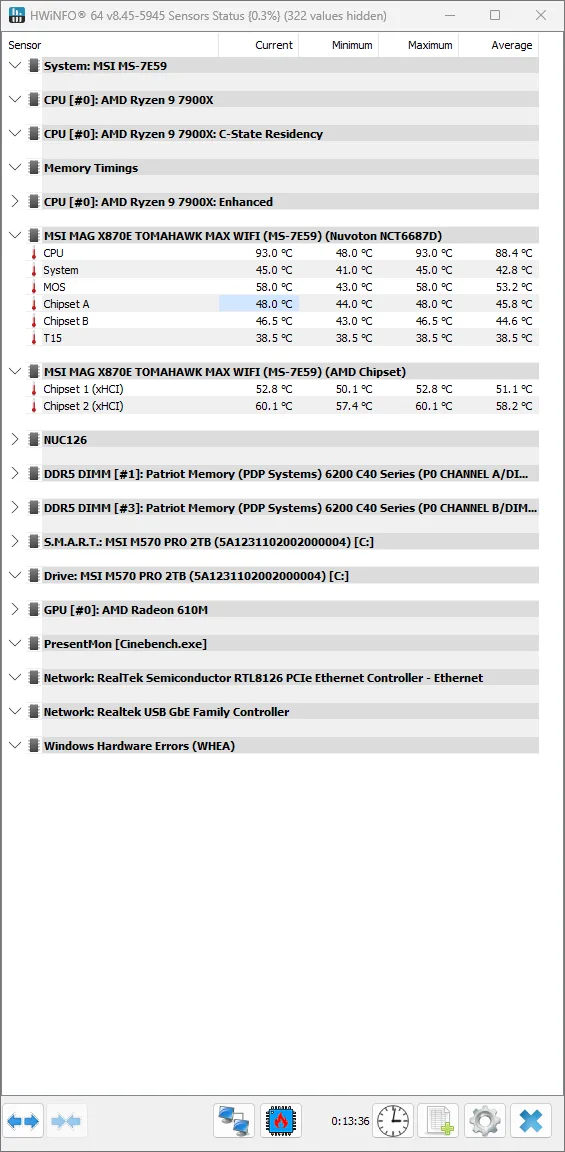
The last testing we completed on the MSI MAG X870E TOMAHAWK MAX WIFI is the VRM temperature test. For this test, we run the Cinebench 2023 Multi-Core test for a minimum of 15 minutes to fully stress the system. At the 15-minute mark, we take a screenshot and record the temperatures as reported by the most current version of HWiNFO 64, as well as a manual temperature reading with a Handheld Infrared thermometer. All testing occurs at an ambient temperature of approximately 75°F (24°C).
Cooling for the MSI MAG X870E TOMAHAWK MAX WIFI is beefed up compared to its B850 sibling, but not quite as good as some X870E motherboards we have seen previously. Our handheld thermometer read a high temperature of 50.6°C, while HWiNFO gave us a maximum MOSFET temperature of 58.0°F and a chipset temperature of 58.0°C; both of these are higher than expected compared to some of the other motherboards we have seen recently.
Conclusion
Today we took a look at the MSI MAG X870E TOMAHAWK MAX WIFI, which sits a bit above its “little brother,” the MSI MAG B850 TOMAHAWK WIFI in the MAG lineup at MSI. MSI kept the same 14+2+1 power delivery; however, oddly enough, even though there was larger cooling provided, it did not keep pace with the B850 version. Performance, though, was able to meet or on occasion exceed some of the MEG and MPG boards that sit above it in the product lineup.
Installation and Use
We had no issues with the physical installation of the MSI MAG X870E TOMAHAWK MAX WIFI; two of the three M.2 coolers are tool-less, the RAM slots have double-sided latching, and all power connections are in easy-to-access locations. Software wise was even easier, Windows 11 recognized all of our devices, and installed without a hitch. Driver updates were even easier with MSI’s software popping up on our first login offering to update everything, though we made sure to go out and get the latest chipset drivers directly from AMD for testing purposes.
Final Points
The MSI MAG X870E TOMAHAWK MAX WIFI is an adequate motherboard. It has good enough performance, decent layout, plenty of storage expansion, and metal reinforcement on the Primary PCIe slot along with an easy release. In keeping with the TOMAHAWK line, it is not flashy with all manner of RGB LEDs; it instead focuses on rugged performance. But with a price tag of $339, we are left wondering: is there a world in which we could recommend it over the MSI MAG B850 TOMAHAWK WIFI? We don’t think so, at its normal MSRP of $219 its close, however it has been going on sale for $180 frequently, and for that big of a price difference gaining the additional M.2 slot to us does not warrant the extra money.
Discussion
Join Discussion →No replies yet. Be the first to reply on the forum.