
UEFI/BIOS
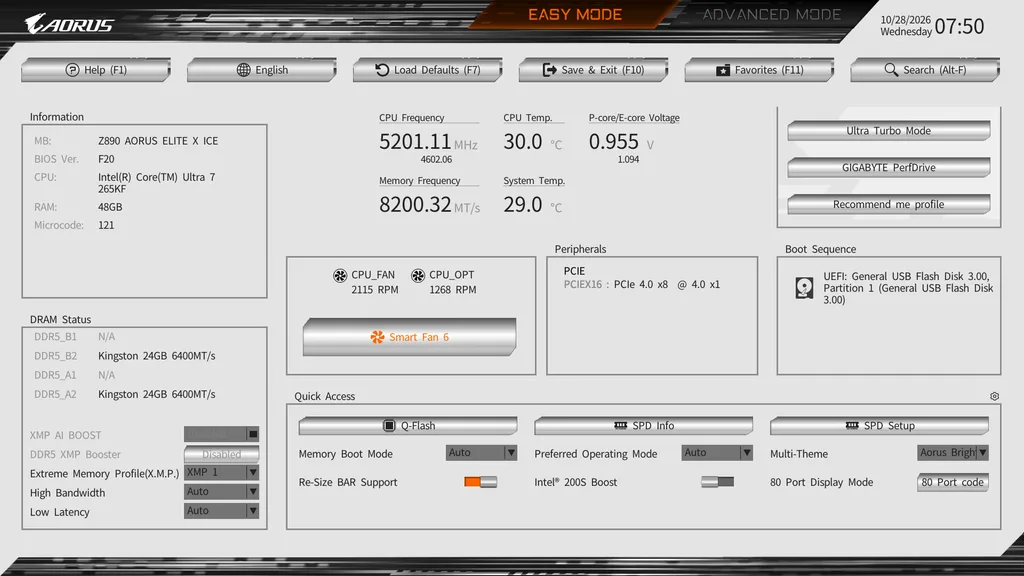
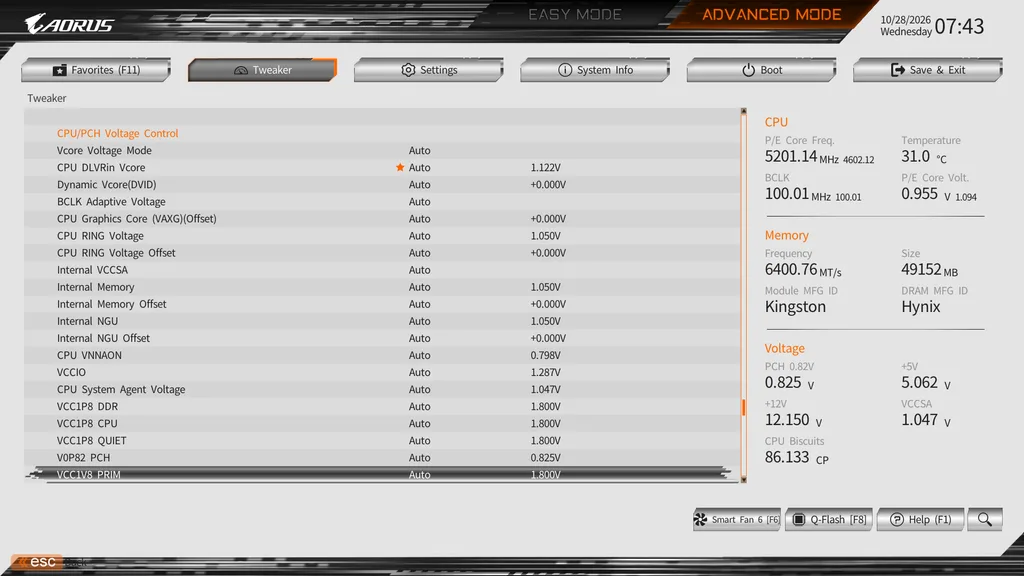
The GIGABYTE Z890 AORUS ELITE X ICE uses the modern, one-click “UC BIOS” from GIGABYTE. The UC stands for user-centric and is essentially the standard for all recent GIGABYTE motherboards, at least in the ELITE tier and above. This is otherwise a standard 32MB AMI BIOS. The UEFI/BIOS has the usual “Easy and Advanced” modes. The home page of choice can be selected from the Easy Mode menu. All in all, the design of the BIOS, ease of selection, location of menus, and appearance is very well done.
The BIOS is very responsive, things are easy to find, and the design is easy on the eyes. The Easy Mode has a selection of basic menus, and quite honestly, most of what you need. There are some AI-directed choices in the upper-right portion of the Easy Mode. GIGABYTE also spends some time advertising their “AI Snatch” and “D5 Bionic Corsa” software on the boards webpage. Essentially, these are software additions that unlock preselected memory profiles and a few CPU overclocking profiles. We reviewed this software in our GIGABYTE X870E AERO WOOD motherboard review and found them to be essentially no better than enabling the XMP profiles or EXPO profiles, and there was quite a bit of “hoop-jumping” to enable them as well.
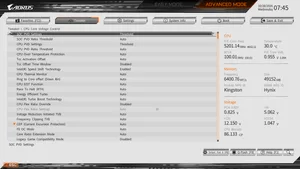
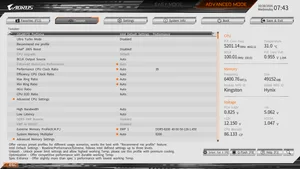
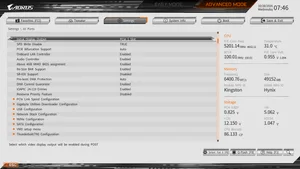
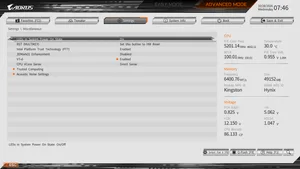
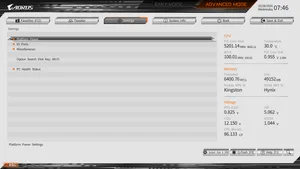
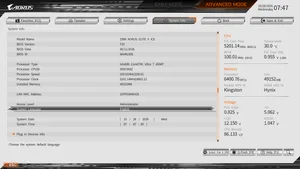
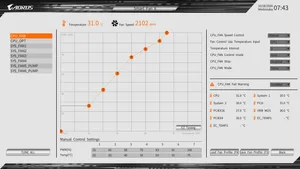
The biggest difference you will find in the BIOS is the simplification of “Advanced Mode”. GIGABYTE has reduced headings to four: Tweaker, Settings, System Info, and Boot. It is actually quite simple to find what you are looking for, with all the major menus on one page. The adjustments available to the CPU and memory, as you would guess, are all under “Tweaker,” while board I/O settings are under…..well…..”Settings”. While Tweaker is fairly vast, Settings is very straightforward. Overall, the UC BIOS was very nice to work with, and the explanations of each menu item were actually pretty helpful.
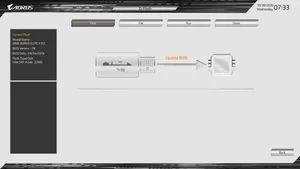
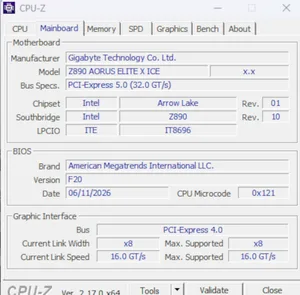
The GIGABYTE Z890 AORUS ELITE X ICE came to us with BIOS F8 dated 29 SEP 24, the release BIOS version. The most up-to-date version is F20 dated 10 JUN 26. We used the on-board Q-Flash to flash the latest edition. Q-Flash is quite straightforward, needing only the unzipped BIOS version on a flash drive. Once inside the BIOS, choose Q-Flash (F8) and follow the prompts. The software locates the BIOS version and does all the work. You may also use Q-Flash-Plus from the small button located on the motherboard. This method only requires the flash drive and the power supply plugged in and turned on.
Below, we have posted a brief gallery of screenshots from the GIGABYTE Z890 AORUS ELITE ICE to demonstrate the look and organization of the new UC BIOS. Also, please review the BIOS section of the Z890 AORUS ELITE WiFi, as, other than the color theme and logo, it has the same exact BIOS.
Discussion
Join Discussion →No replies yet. Be the first to reply on the forum.