
Introduction
Cyberpunk 2077 2.0 update debuts with NVIDIA DLSS 3.5 support, bringing Ray Reconstruction to the game, for the first time in RT Overdrive mode. In addition, other DLSS 3 features such as Super Resolution, NVIDIA Reflex, and Frame Generation are included, all with the intent of improving the gameplay experience. In our performance evaluation today, we are going to take the brand new Cyberpunk 2077 update 2.0 for a spin across all the GeForce RTX 40 Series GPUs and test performance in this game. We will look at the Quick Preset: “Ultra” performance, Ray Tracing: “Ultra” performance, in addition to DLSS Super Resolution, the new Ray Reconstruction, and of course Frame Generation, in our Cyberpunk 2077 2.0 DLSS 3.5 performance review.
Want to know how DLSS 3.5 Ray Reconstruction affects performance in Cyberpunk 2077 2.0? We will find out. Understand that the goal and point of Ray Reconstruction is to provide better image quality to Ray Tracing in games. Instead of using traditional denoisers, Ray Reconstruction utilizes AI and machine learning that is trained on a reference image, to provide better Ray Tracing image quality. The benefit will be an image quality improvement with Ray Tracing, especially in poorly optimized games with lesser denoisers or less accurate denoisers.
Any performance differences are likely due to the simple fact that some games can have layers of complex denoiers, and removing or lessening that burden, can have a side effect of improving performance, but keep in mind that a performance improvement is not the goal, merely a side effect that can potentially occur in a game. There can also be the opposite, where adding complexity requires extra horsepower, and for an image quality improvement, there could be a slight performance hit. This will all simply vary by the game. You can read all about Ray Reconstruction and what it will do for you here.
For the new Cyberpunk 2077 2.0 update, Ray Reconstruction will function when running in the Ray Tracing (RT) Overdrive mode only. Once you enable RT Overdrive, and once you enable DLSS, there will be a toggle that you can turn Ray Reconstruction on or off. The other key point is that DLSS has to be enabled for this to work. You cannot turn on Ray Reconstruction without DLSS, DLSS Super Resolution (DLSS SR) is required. Let’s go over the menus and how this all works in Cyberpunk 2077 2.0.
Quick Preset: Ultra
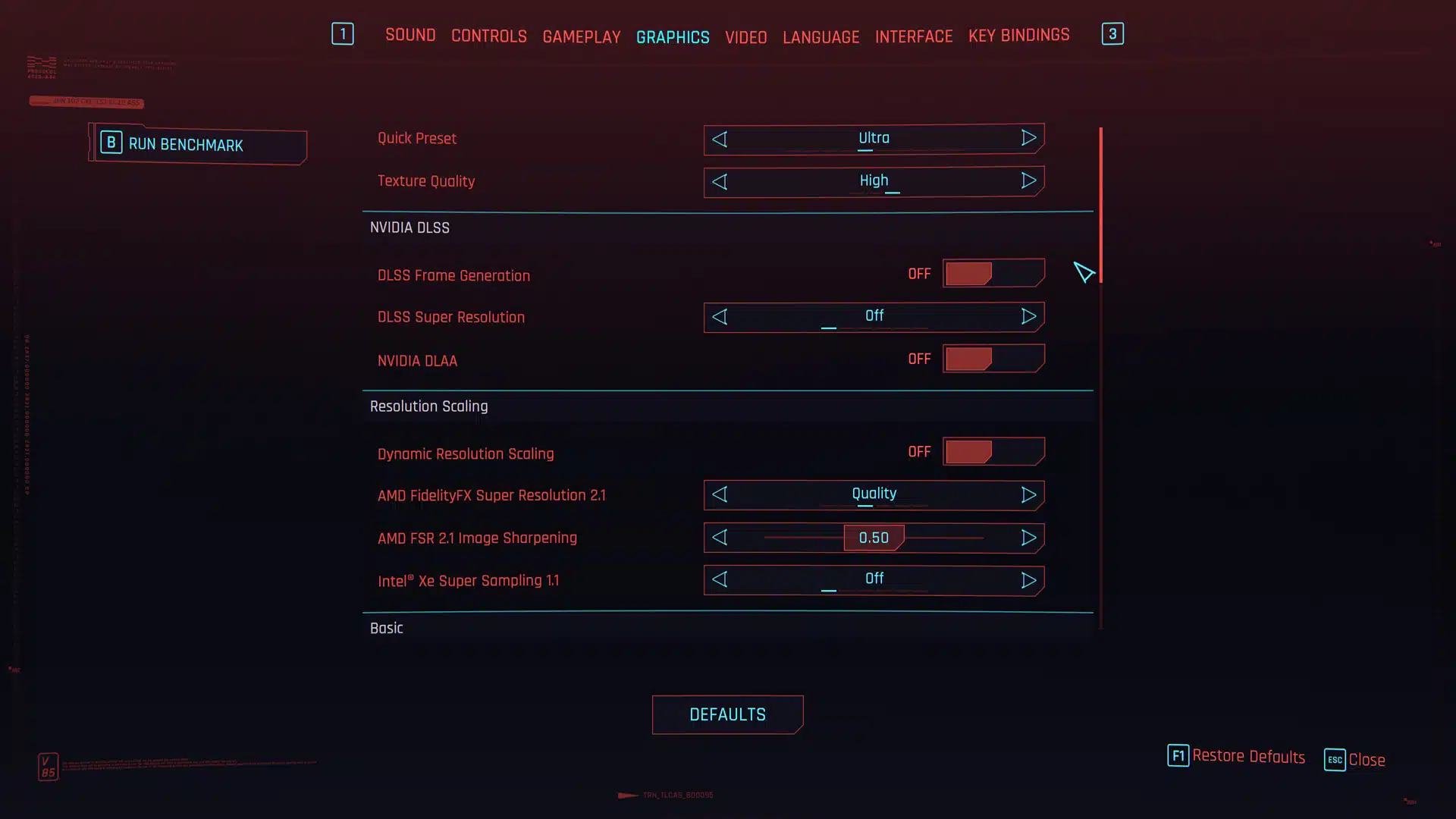
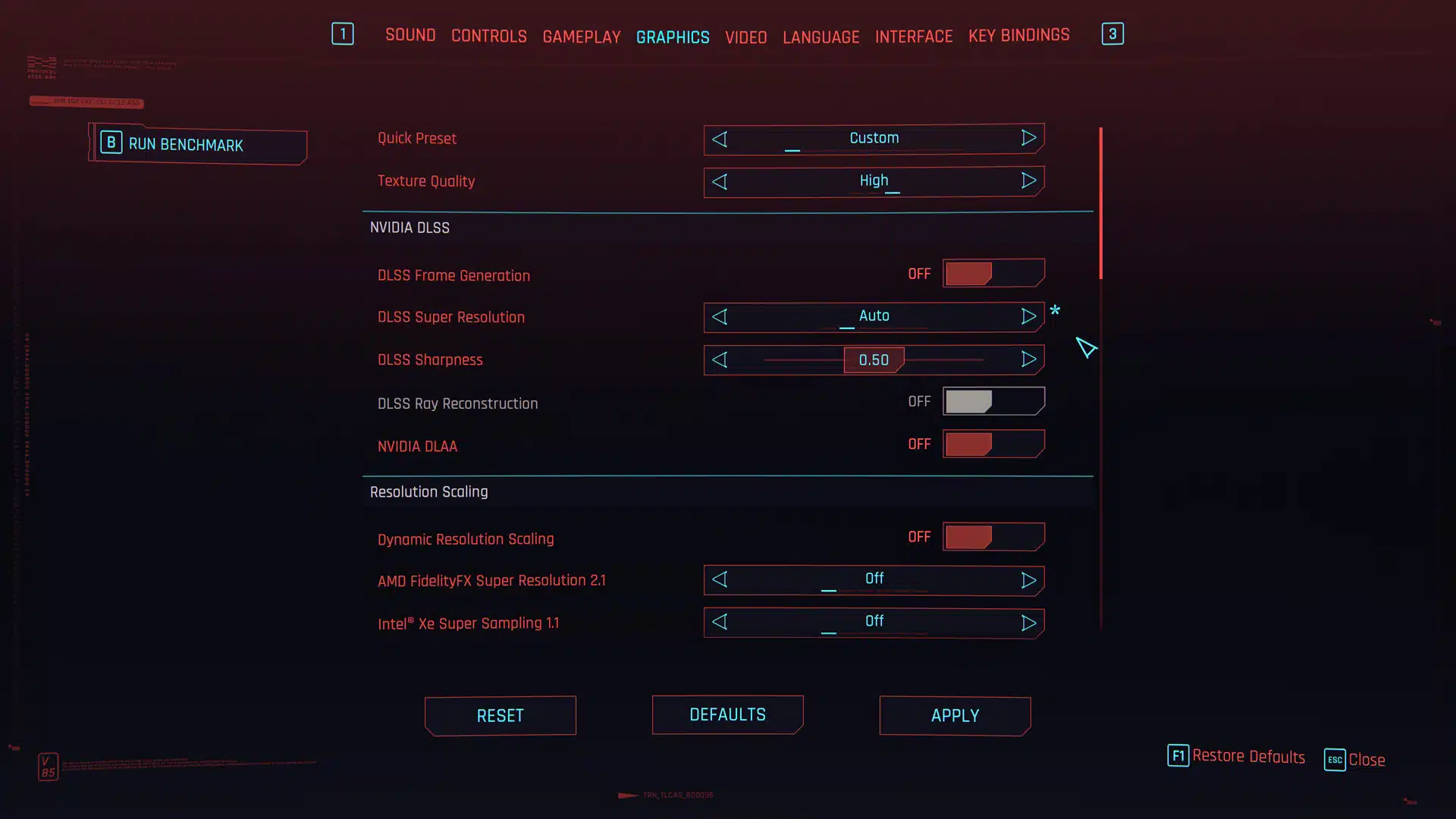
First, let’s start with the base settings using the “Quick Preset” option of “Ultra” quality in the. Just like the previous version of Cyberpunk 2077 when you set the Quick Preset to “Ultra” quality a pre-defined set of Ultra options are enabled. Be aware that doing this automatically enables AMD FidelityFX Super Resolution (FSR) to the Quality mode. Therefore, you will want to manually disable this option so that you can then enable NVIDIA DLSS options right above that.
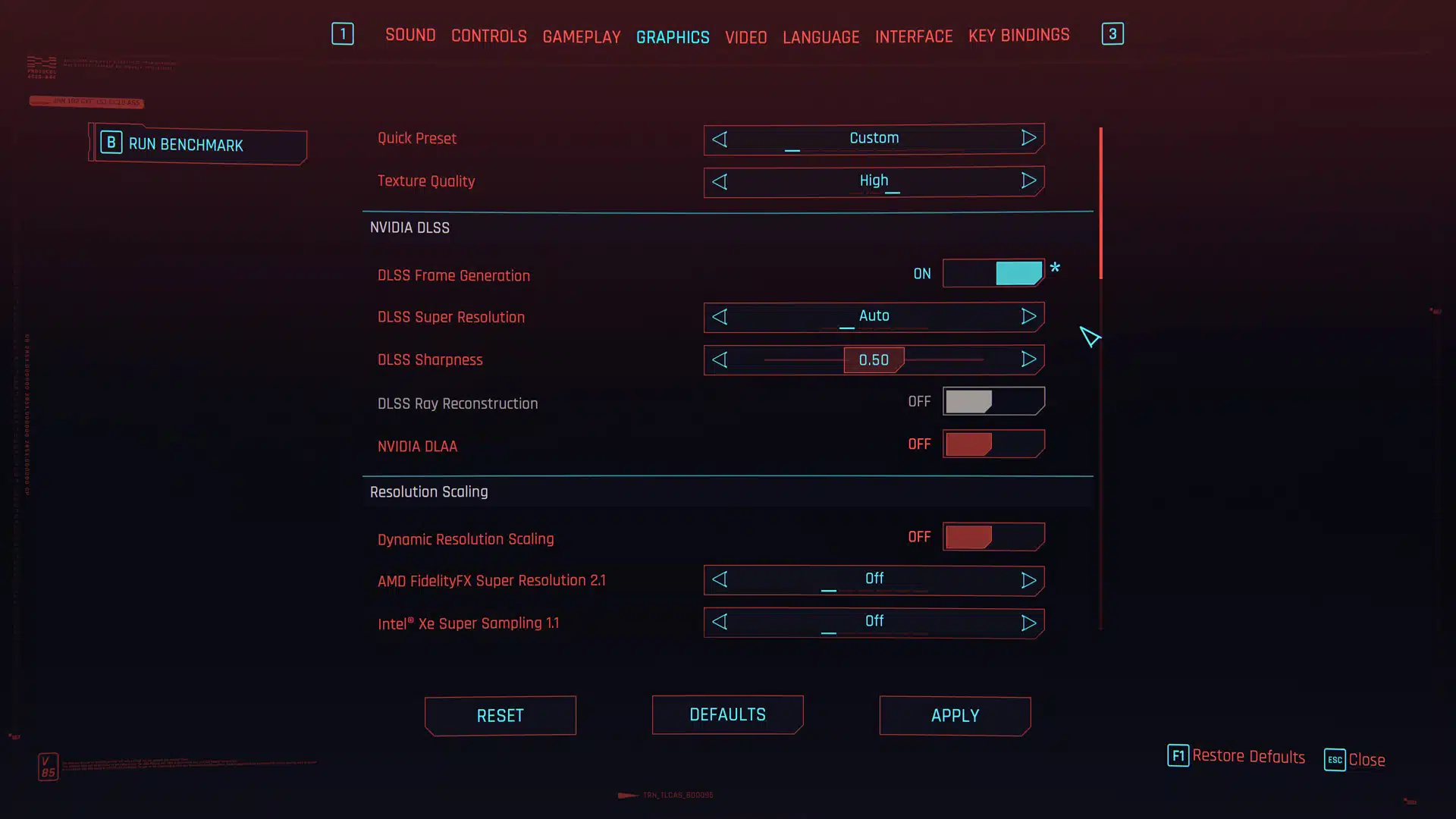
In regular Ultra mode, once you enable NVIDIA DLSS Super Resolution, and set the quality level you want, you will see a new toggle called DLSS Ray Reconstruction. This is greyed out because it only works in RT Overdrive mode. However, under Ultra settings you can still enable DLSS Super Resolution to any quality you want (we used Auto for testing) and you can also enable Frame Generation. That’s right, Frame Generation is a separate toggle, and you can enable or disable that at any time, in any mode as long as DLSS Super Resolution is enabled.
Ray Tracing: Ultra
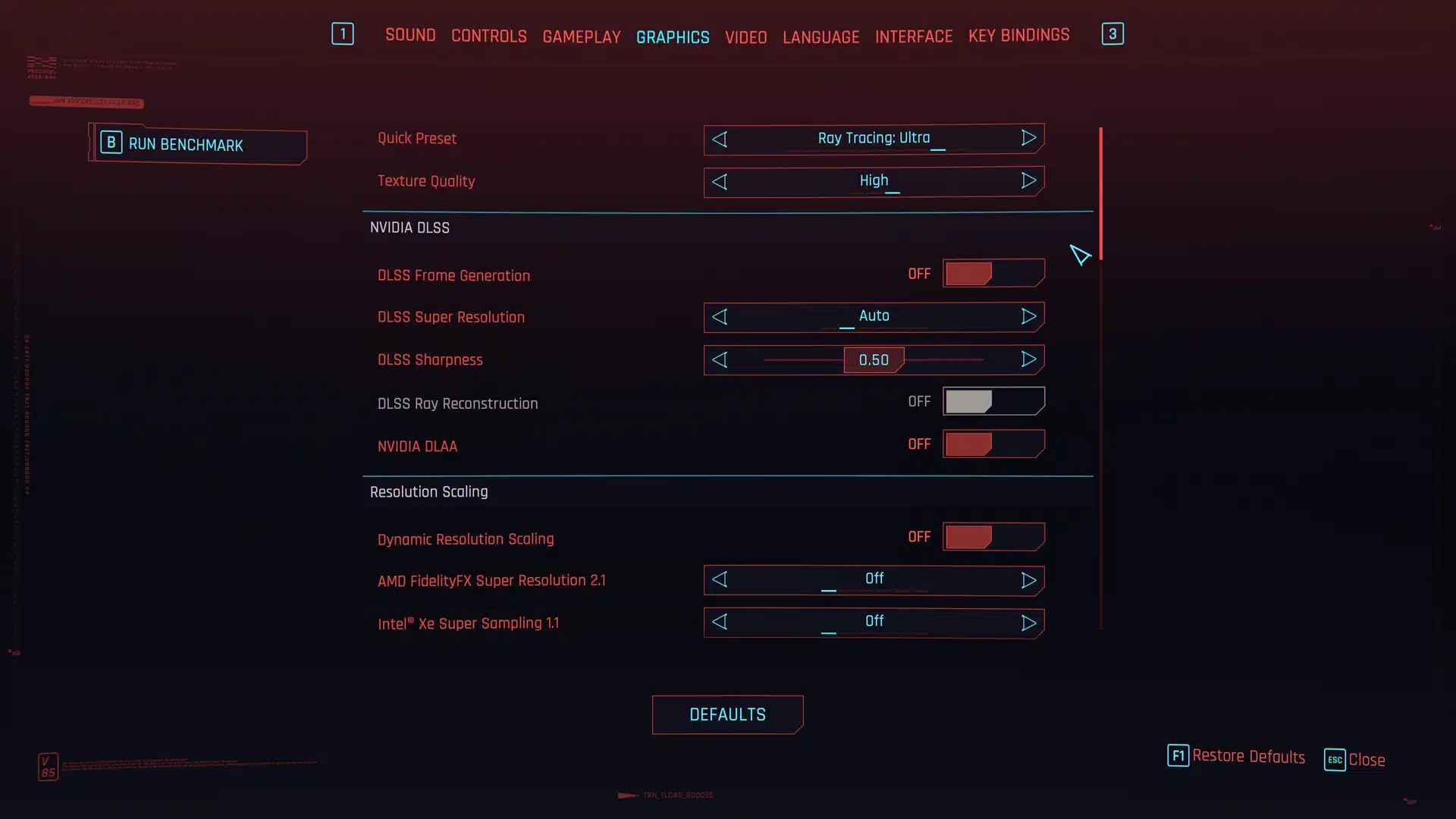
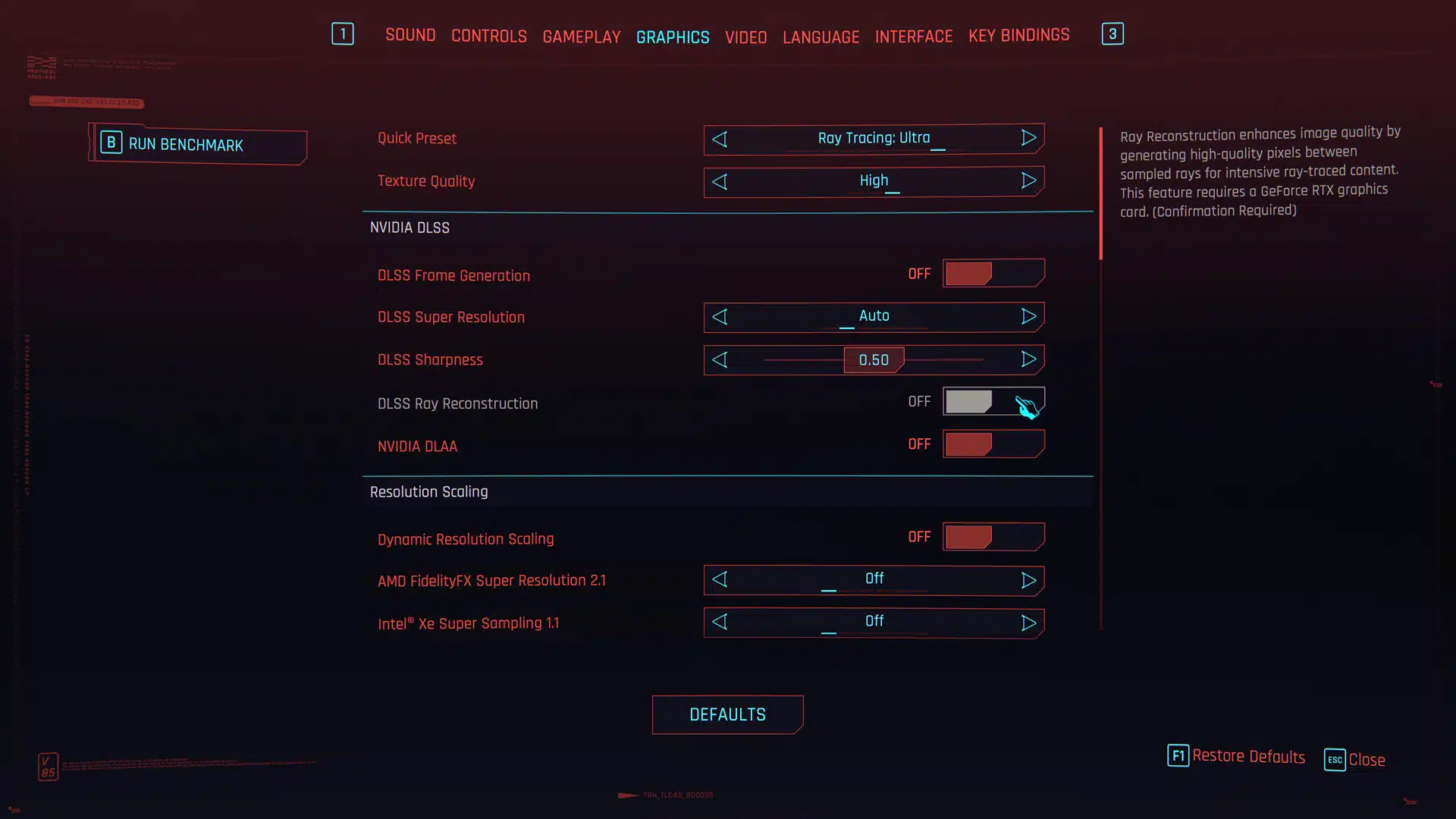
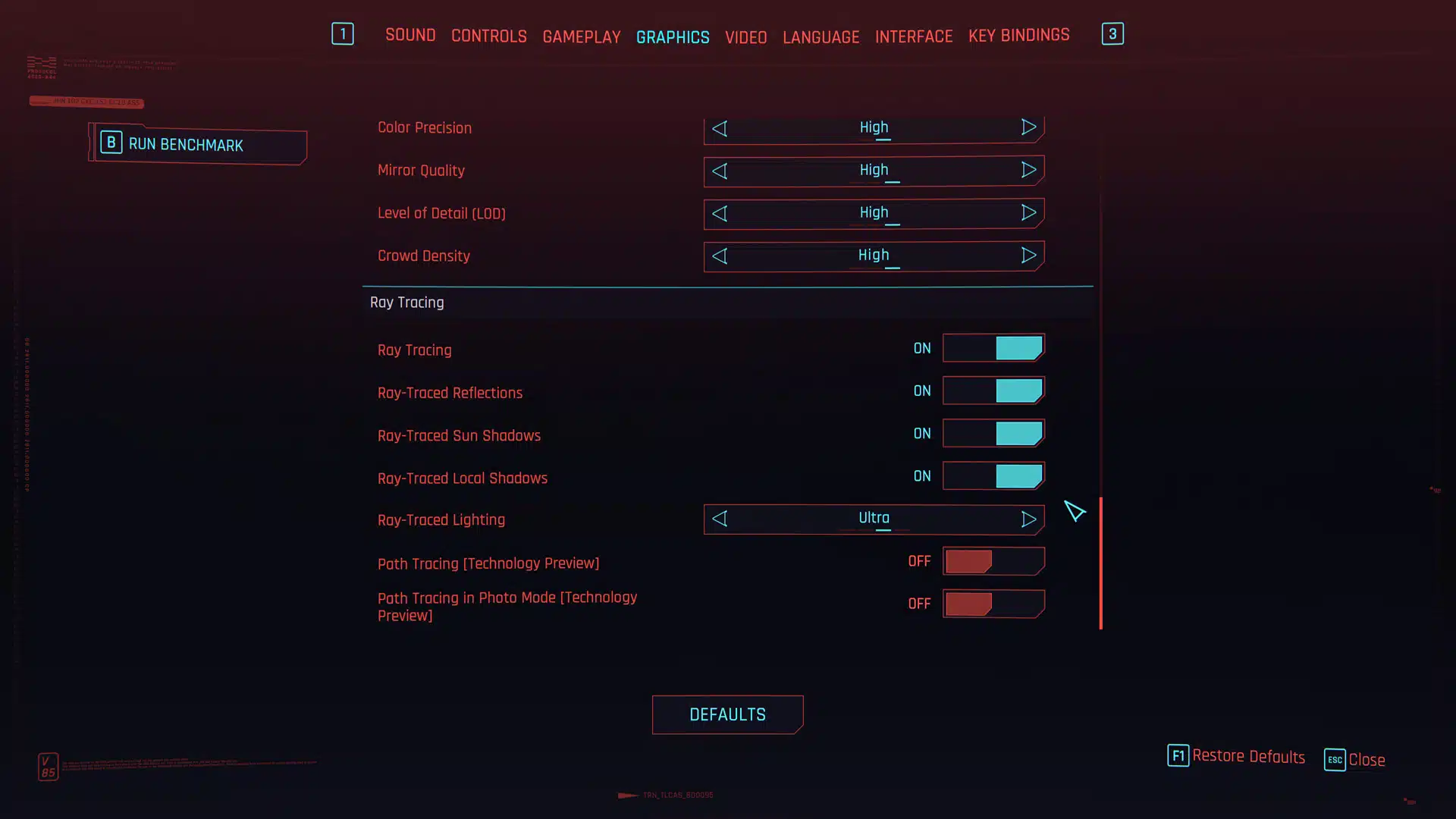
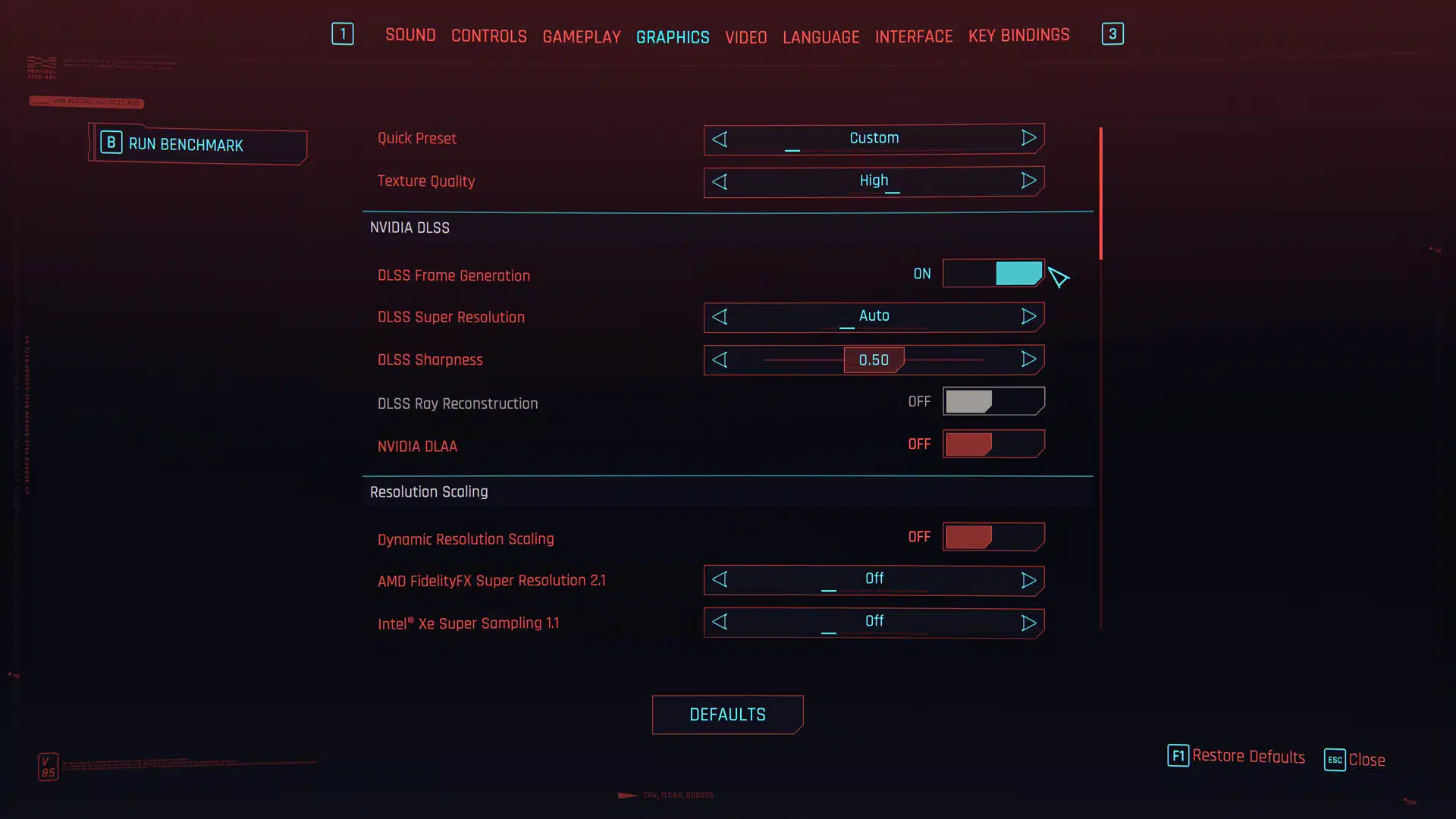
Now let’s look at the original Ray Tracing: Ultra option in the game. When you select the Quick Preset for Ray Tracing: Ultra you will find that the game automatically enables NVIDIA DLSS and sets DLSS Super Resolution to Auto. Therefore, if you don’t want DLSS enabled you will have to manually disable it, as it is enabled by default with Ray Tracing: Ultra mode. You will also notice that once again the Ray Reconstruction mode is disabled because this only works in RT: Overdrive mode. You can though turn on Frame Generation in Ray Tracing: Ultra mode.
Ray Tracing: Overdrive with Ray Reconstruction
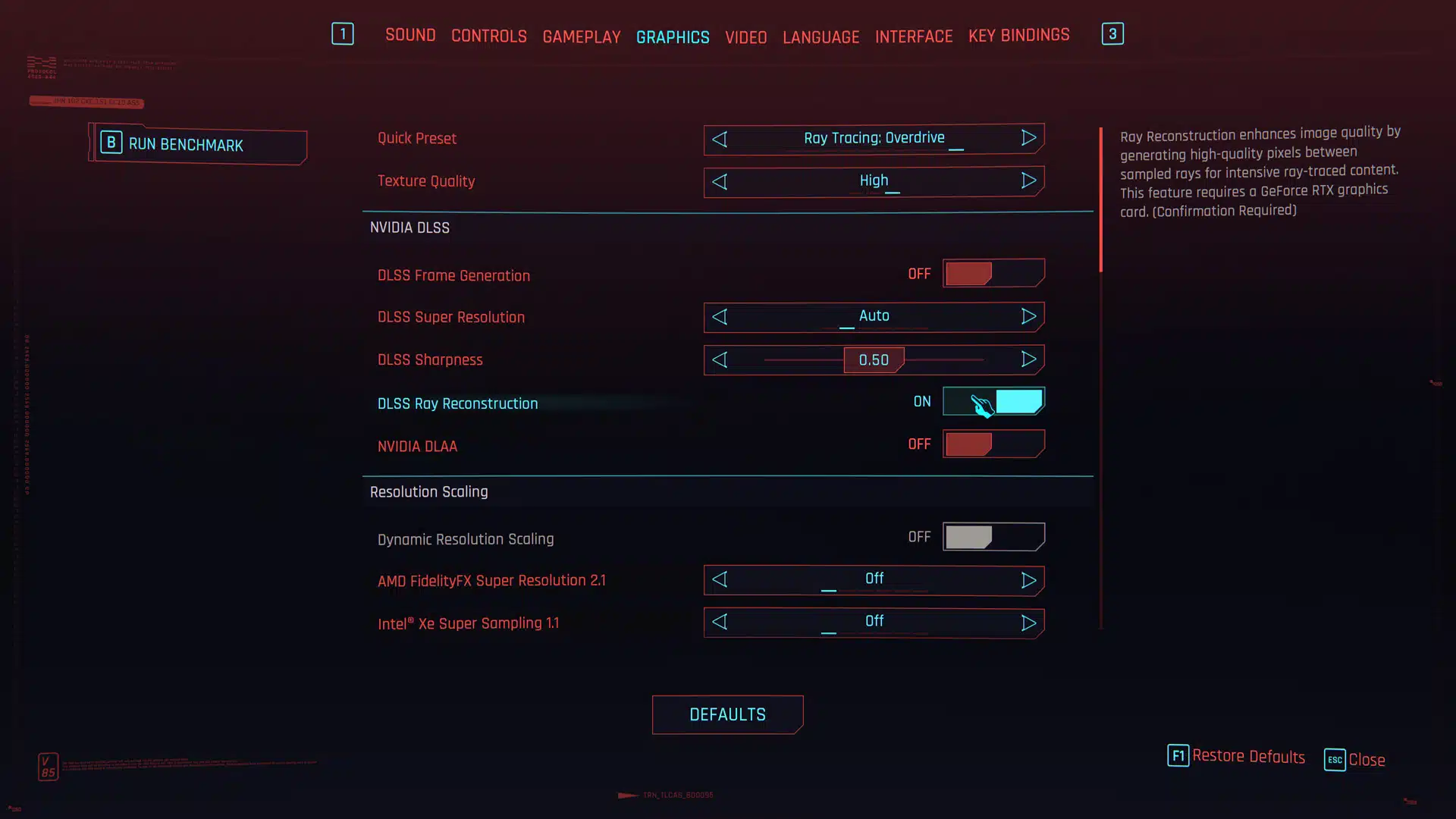
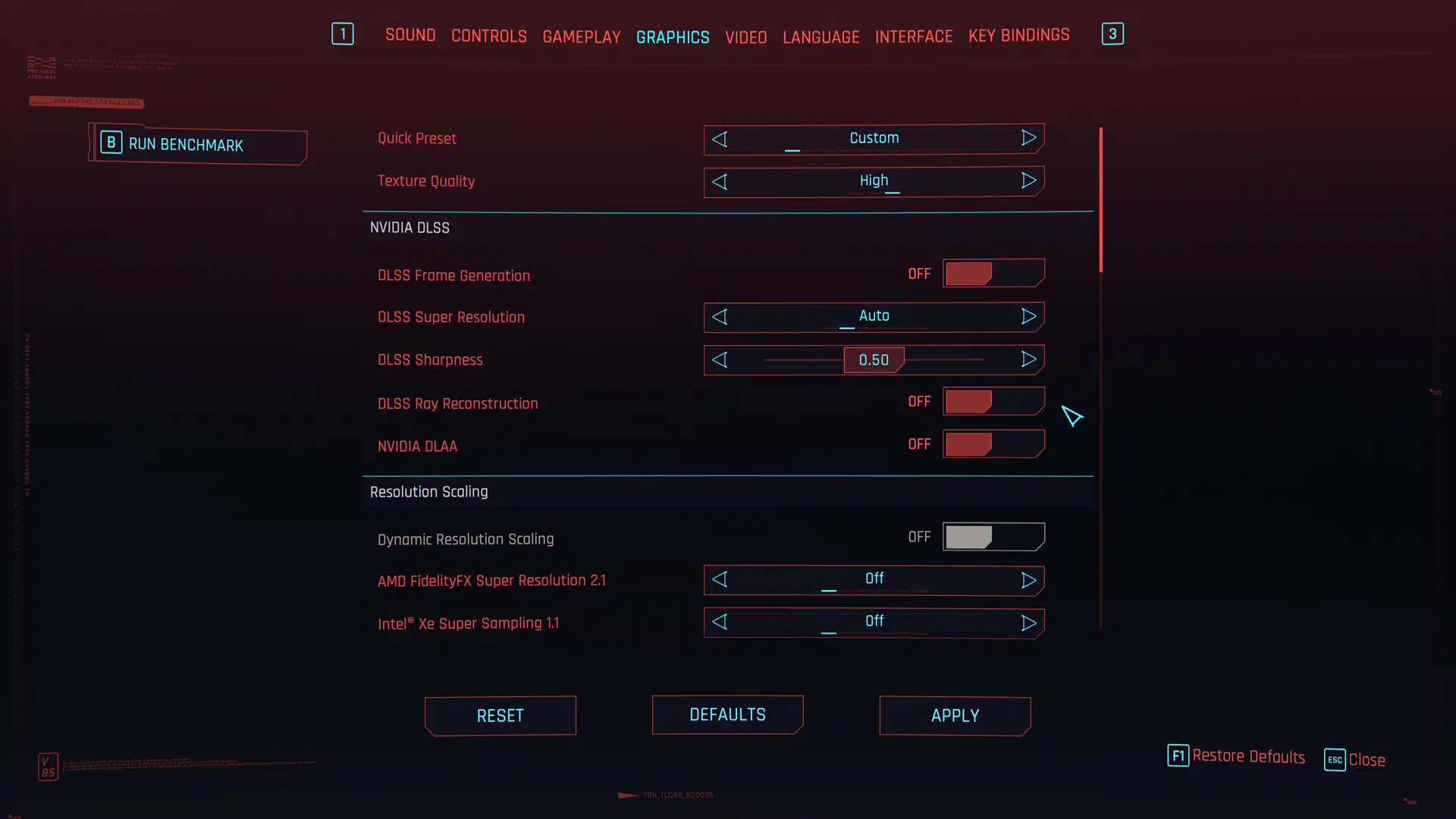
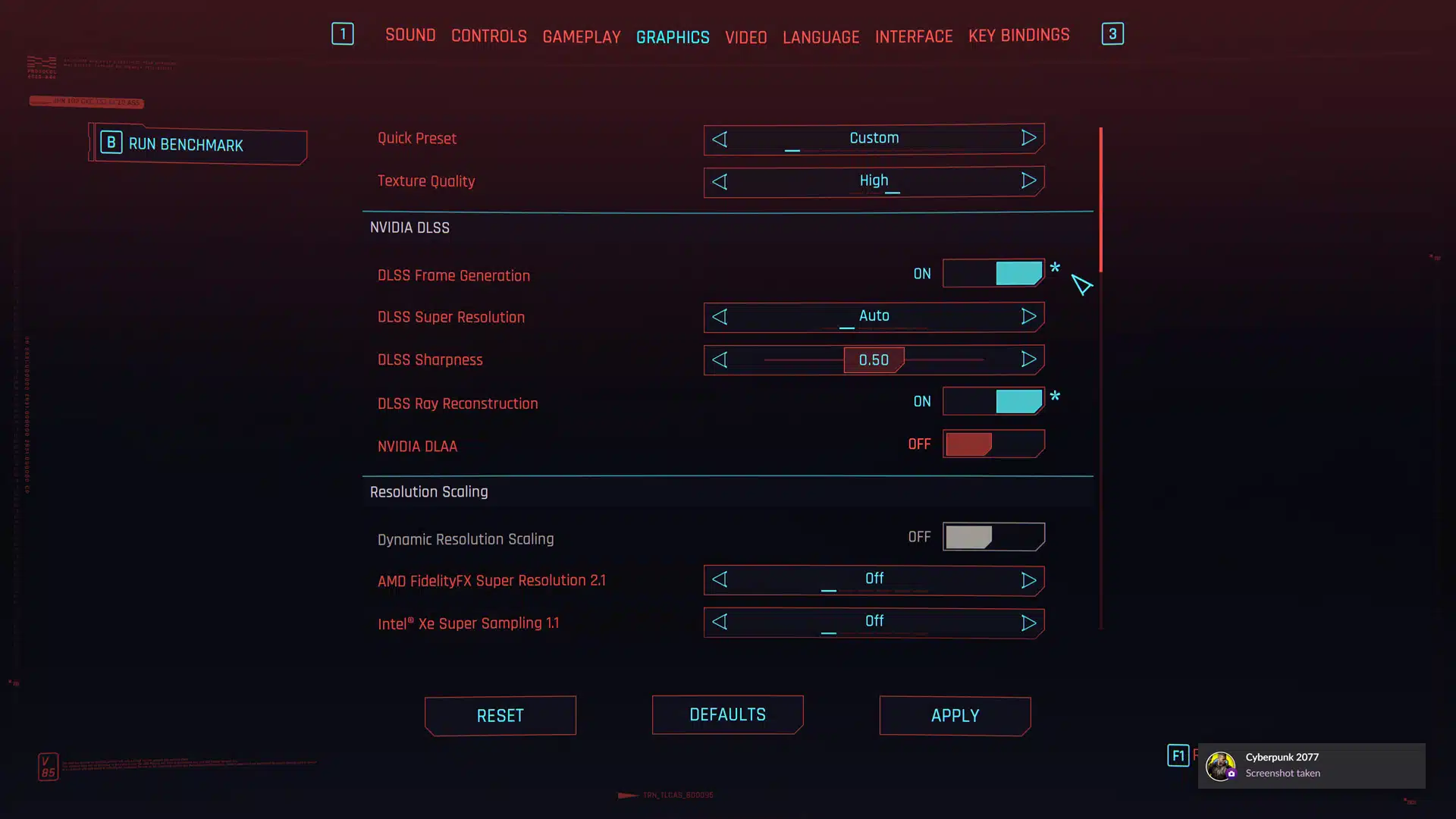
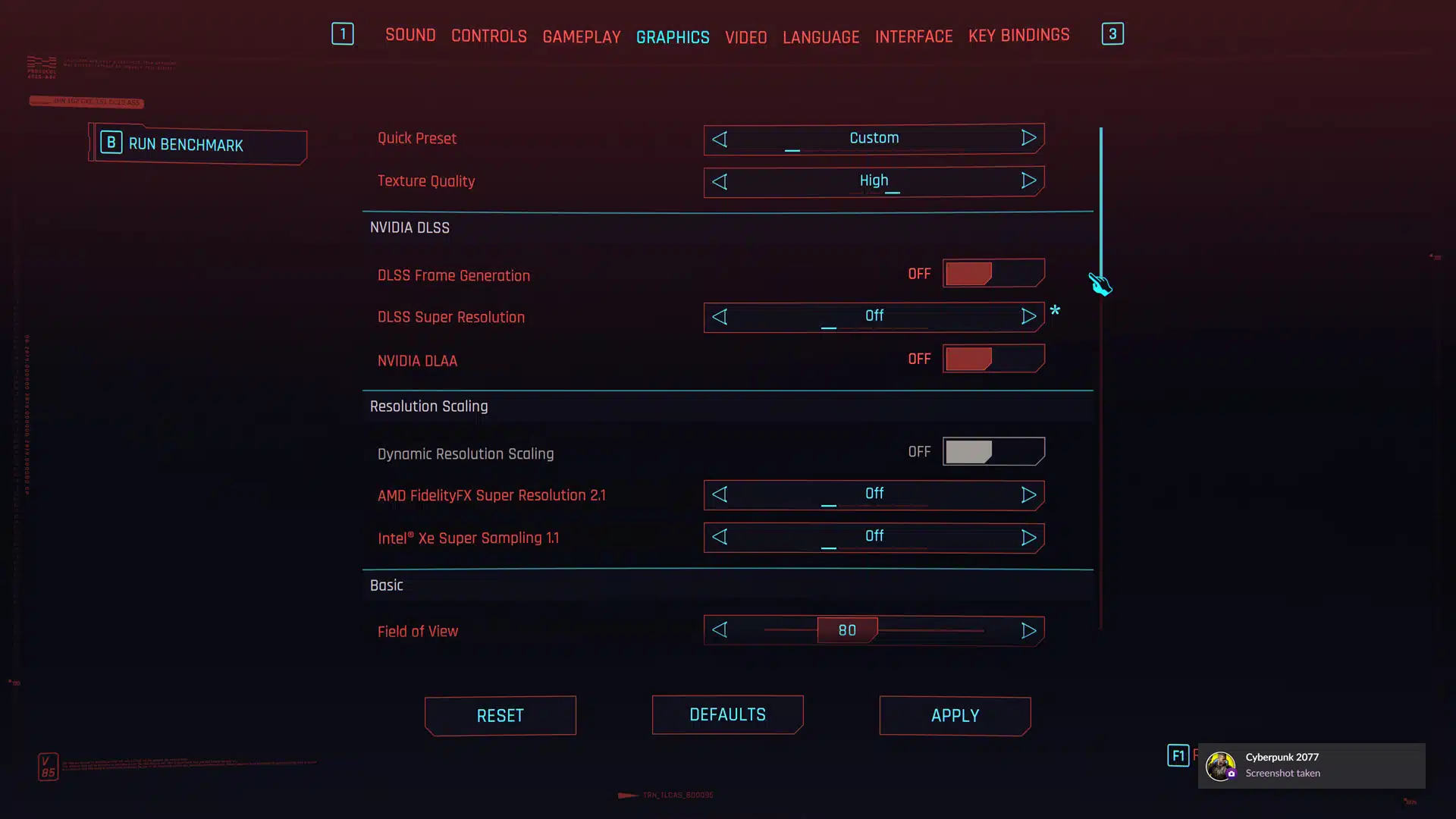
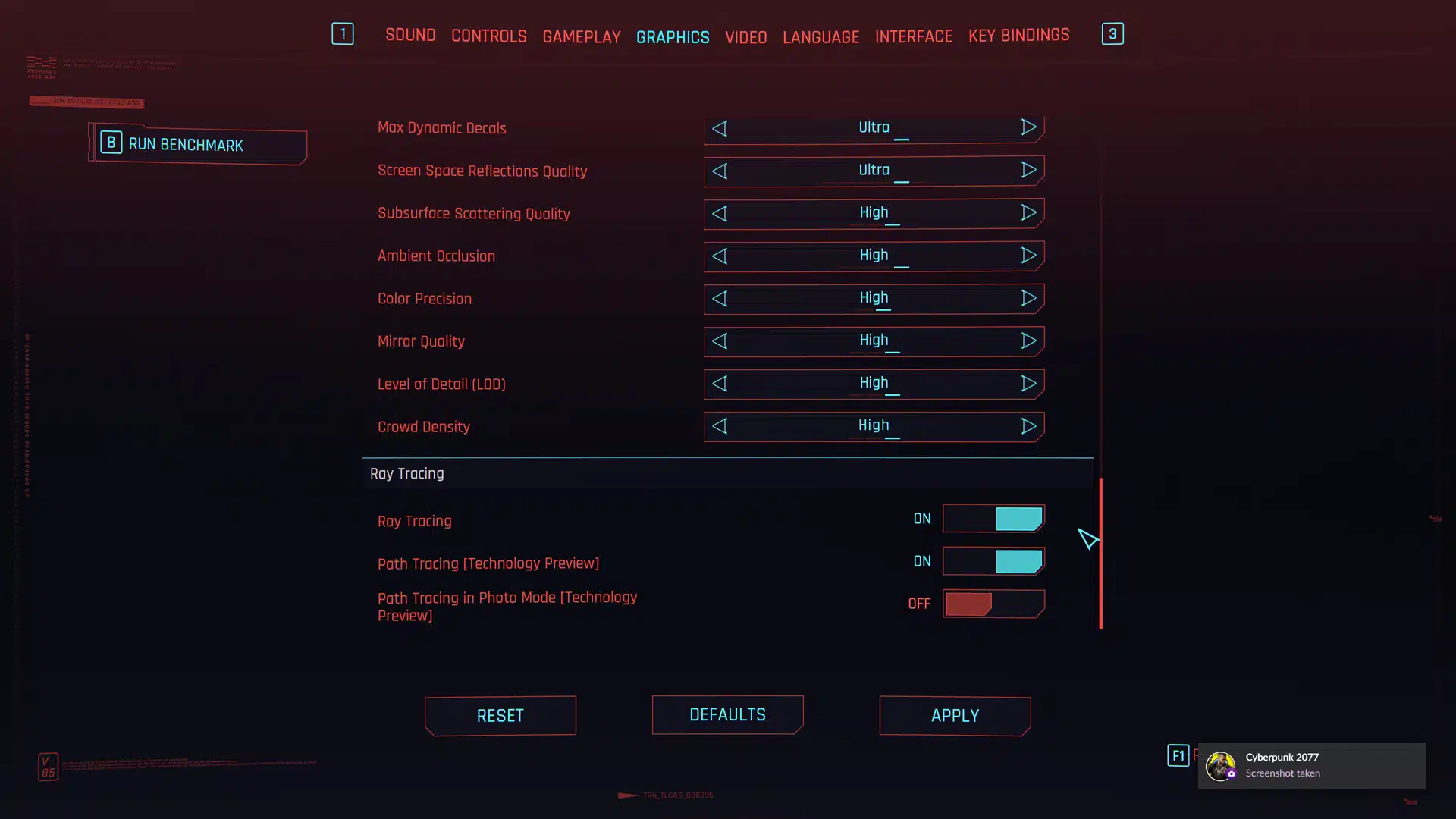
Now we come to the Ray Tracing Overdrive, this is where the fun begins with Path Tracing in Cyberpunk 2077 2.0. When you select Ray Tracing: Overdrive from the Quick Preset option, you will find NVIDIA DLSS is automatically enabled as well. It enables the DLSS Super Resolution at Auto quality. In addition, it will now also enable the new DLSS Ray Reconstruction by default.
You can see that the toggle is enabled, and we can disable it if we want to. That means we can just run DLSS Super Resolution without Ray Reconstruction, but we cannot run Ray Reconstruction without DLSS Super Resolution. If you turn off NVIDIA DLSS you will not get Ray Reconstruction. In addition, we can also enable Frame Generation at any point with or without Ray Reconstruction. Remember, make sure NVIDIA Reflex is enabled when using Frame Generation, it should be by default.
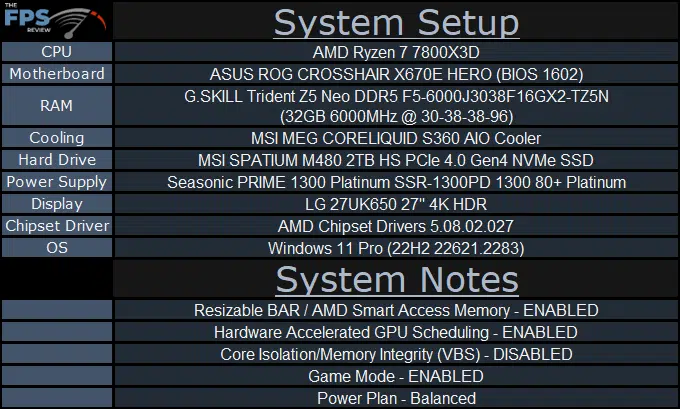
For our system setup, we are using our standard GPU Review rig, with every series of NVIDIA GeForce RTX 40 series GPUs using the latest NVIDIA driver, 537.34.
Discussion (12 replies)
Join Discussion →So I have a question. Why is it you went with DLSS set to Auto? Controlling every other variable other than DLSS by forcing a setting seems like it would make getting good back to back tests with different cards difficult because you're likely not getting a true apples to apples comparison based on run?
Also did you note any trouble having your settings actually stick between tests/cards? I've seen at least one review that noted that was an issue for them.
Otherwise nice write up. :)
Auto does not dynamically change the render target, or quality level while playing the game. Auto selects the quality mode based on the display resolution you are running at, for example, Quality DLSS at 1440p, 1080p, and Performance at 4K. So 1080p and 1440p were at Quality technically, since that's what mode it uses. Therefore all the performance is comparable at the same resolution, the key factor is comparing by resolution when DLSS is on Auto. That is why are graphs are separated like they are, with each card testing its features at the same resolution, per graph. So it is comparable.
Since this was not a GPU vs GPU comparison, this was fine because I'm testing game feature performance, not GPU vs GPU performance. In addition, NVIDIA recommended Auto for testing, to keep everything fair when testing feature sets. We wouldn't have done this if we were cross-comparing video cards.
In addition, Auto is the "default" setting when enabling the Quick Presets, which we used. We like to use default preset options when possible, because it represents what the end-user/gamer will be using, and is a quick way for someone to match up with us and compare results. Auto is the default DLSS setting, so it's a real-world test.
Now, in our GPU reviews that we do, we manually use the Quality setting for every resolution regardless, and we will continue to do so, therefore look to those video card reviews to see what Quality DLSS mode performs like when comparing GPUs. This review wasn't about comparing DLSS quality modes, or GPUs to each other.
Just remember, you CAN use Auto to compare video cards, at the same resolution. You just can't compare them cross-resolutions, if using Auto.
Cyberpunk 2077 is notorious for changing settings or reverting back to enabling FSR or DLSS and settings not sticking. It is a constant pain in the butt me and Rick have to endure it. We just have to triple-check our settings. I've known about it for a long time.
NVIDIA's DLSS magic sauce packets are the answer. I'm glad that NVIDIA has continued to invest in new DLSS technology and it shows. Granted most of us would like a simple approach with a big hammer but at the rate new graphical features are being added to games that 's just not a realistic approach, especially in terms of cost.
Can't wait to try all this on this weekend.
Its getting really hard to hate DLSS 3.5
DLSS ray reconstruction seems like the holy grail, better IQ and a little boost on performance. Well done nvidia.
BTW IQ screenshots would be welcome.
Here are a few from the 4090 rig in my signature. I had to compress them a bit to upload but all are in 4K. Brent had to keep all settings uniform in order to have accurate results across all cards but the following screenshots were taken using Advanced settings at max, basic off, and DLSS Quality. Aside from compression artifacts, I will say that screenshots these days are somewhat subjective due to the display they are being seen on. I really cannot accurately explain the "wow" factor of seeing this game in HDR on an LG C2. Turning off HDR to take these screenshots is like giving the game a kind of visual handicap but they do still look nice imho.
Oh just to add, turning all this stuff on and at max, pluc OC settings on the 4090, made the card power hungry! In one of the screenshots you can see the 4090 consuming 489W! On average though, during this canned bench run, which we all know isn't the most demanding, it averages around 458-475W.
Makes me consider getting at least a RTX 4070Ti.
Thank god I'm poor and can't afford one. :D ;) :p
What's DRS?
Dynamic Resolution Scaling. Something I turn off in any game that has it. Basically, the game will alter the render resolution in order to keep FPS higher. It's not exclusive to NV. Starfield even has it and so do some Halo games. If I'm going to alter anything about a game's render resolution I'll do it via DLSS and use the quality setting.
[URL unfurl="true"]https://halo.fandom.com/wiki/Dynamic_resolution_scaling#:~:text=Dynamic%20resolution%20scaling%20is%20a,which%20aren't%20as%20demanding.[/URL]
They have been dropping in price and we could see some decent deals around BF or the holidays.
We can all thank the RX7800XT for that.
It first rose to prominence with the 8th-gen consoles, and then we started seeing it in more and more PC games. A f*ckton of games across all platforms have it now. I never really understood the need for it on PC. Makes sense for consoles. The games that don't do it so well, you can see the resolution change right before your eyes, and it's kinda jarring. It's weird to be playing a game with the resolution always changing. That's what the 8th-gen consoles had to do to keep framerates up though. In scenes where the rendering load was greater and the minimum framerate couldn't be maintained, the resolution would drop in order to maintain the framerate. When the rendering loads lightens, the resolution goes back up. The tech never seemed to work as well on PC as on consoles. Fine by me cuz we don't need it on PC anyways.
Some games this isn't so bad on... but most yeah, it's not great and I'd rather take the hit in FPS than I would having everything suddenly shift to a blurry mess.
I've tried it a few times and it looks like a bad youtube streaming.