
Introduction
Phantom Blade Zero was recently released on October 29th, 2026, powered by the Unreal Engine 5 game engine; it is a single-player action role-playing style game developed and published by S-GAME. It features modern, technical graphics features to improve image quality, including: Path Tracing, ReSTIR Global Illumination, Ray Tracing Reflections, Shadows and Water Caustics, NVIDIA DLSS 4.5 with Multi Frame Generation, DLSS Ray Reconstruction, and FSR 4 with Frame Generation.
In today’s Performance and Image Quality Review, we’ll take this new game and see how it performs across NVIDIA’s lineup, as well as an AMD Radeon video card. We will compare all the cards to each other, look at Ray Tracing and Path Tracing performance, look at Frame Gen performance, and also the performance differences between each in-game quality mode. We’ll also take a look at some image quality comparisons to see what Ray Tracing and Path Tracing add to the game.
Phantom Blade Zero Graphics Features
With Phantom Blade Zero being based on the Unreal Engine 5 gaming engine, it utilizes Lumen GI and Nanite Geometry. With Lumen GI, it is a software-based lighting technique for indirect lighting, light bouncing, and ambient occlusion. The game also has Motion Matching & Kung Fu Mo-Cap used for the choreography in the game. It also has Interactive Foliage with grass, bushes, and vegetation bending and swaying with movement and sword strikes. It has Secondary Cloth & Hair Physics for loose garments and hair that move dynamically in the game.
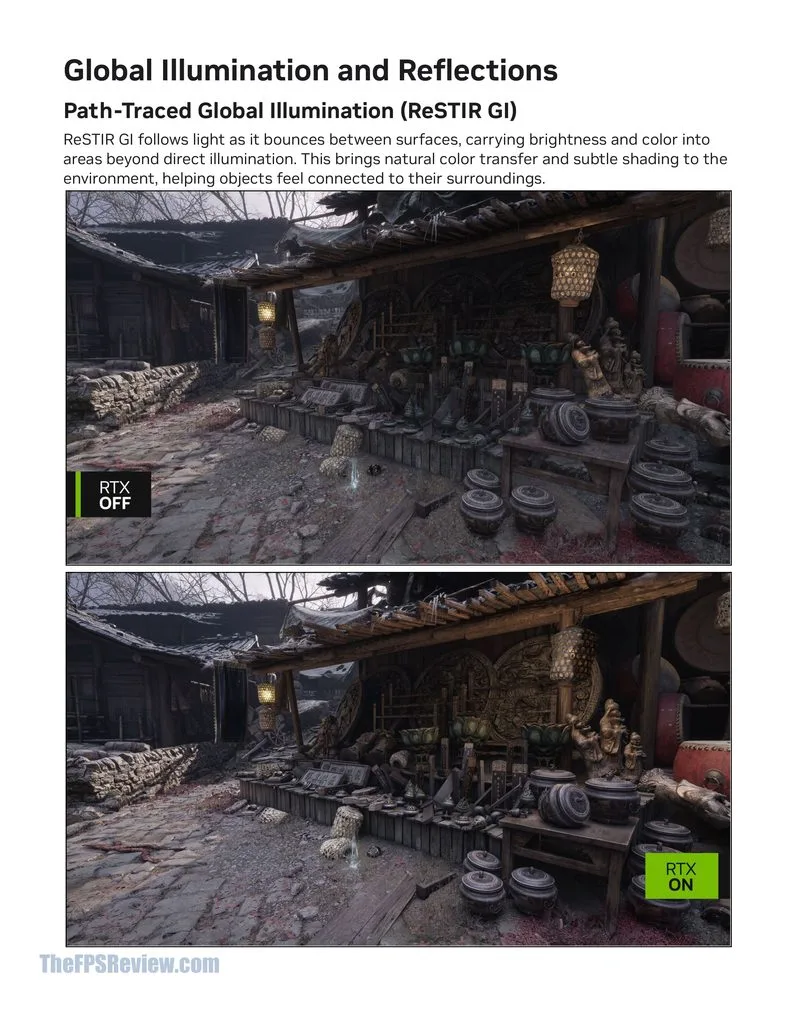
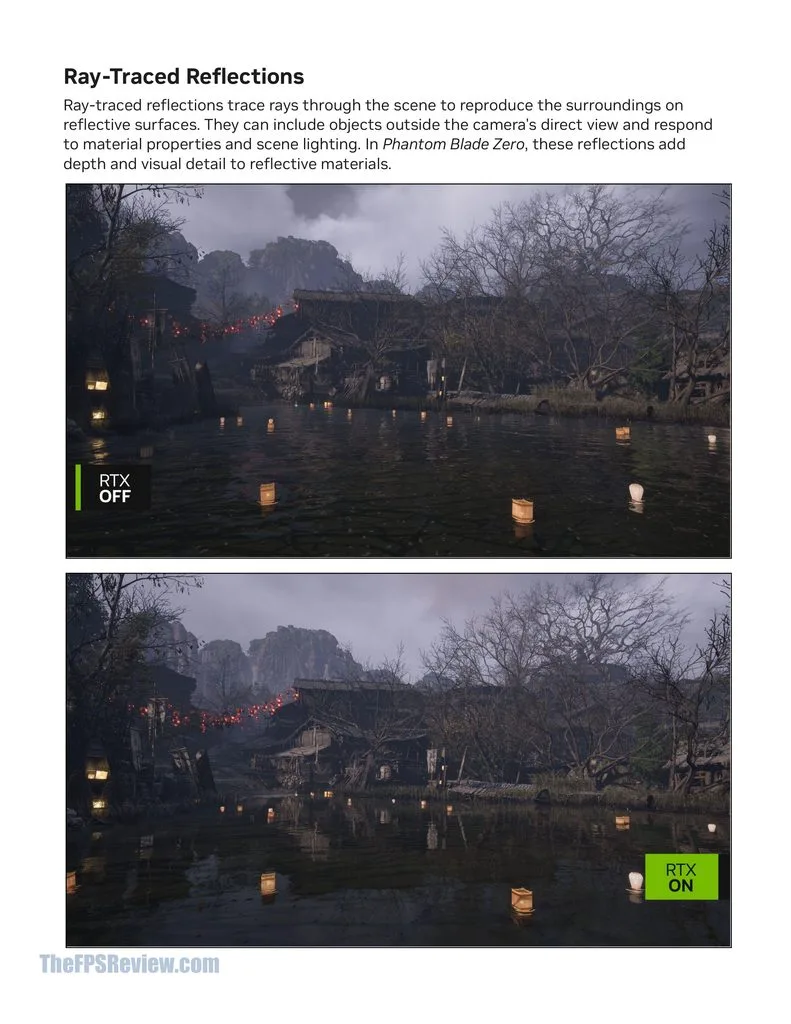
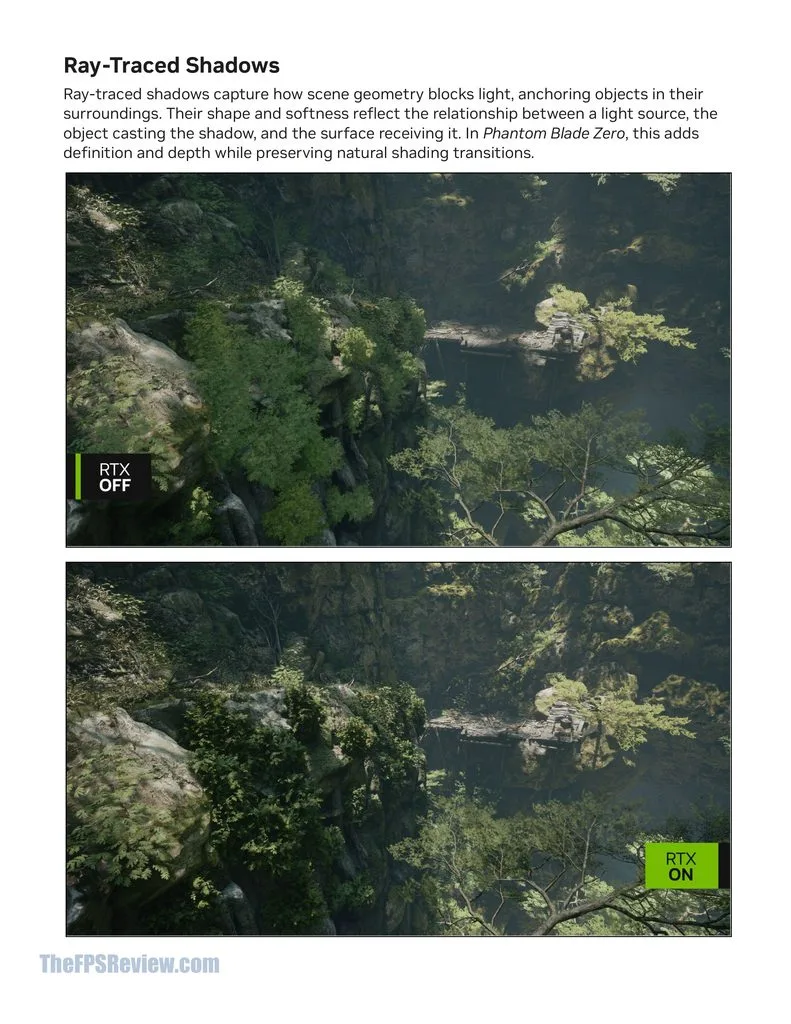
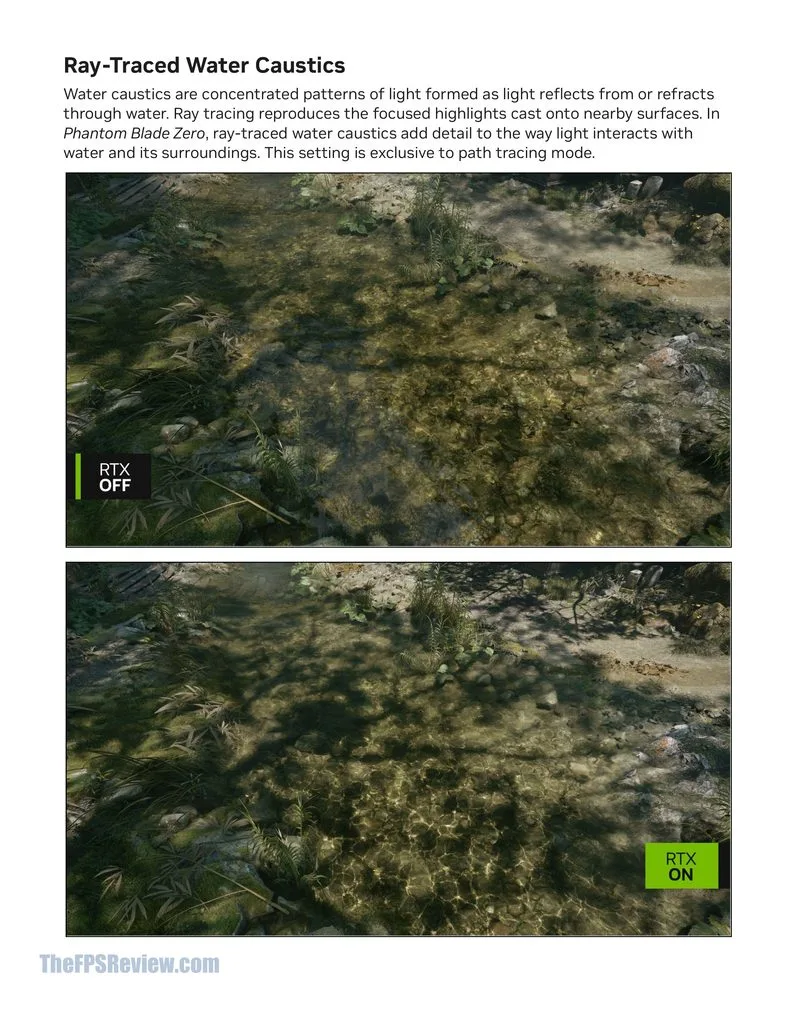
NVIDIA has partnered with S-GAME Studio and S-GAME publishing to bring some modern Path Tracing feautres to the game. Specifically, Path Traced Global Illumination with ReSTIR GI. ReSTIR GI provides more accurate bounded lighting and color bleeding between all of the surfaces. It allows finer indirect shadowing and occlusion that helps everything in the scene provide better light and dark areas, as it should, providing a lot more contrast. It helps in all areas of the game, such as the outdoor forested areas, shadows in the depth of trees and foliage, even on rocks, and in villages and areas with extreme light differences.
In addition, Path Tracing adds Ray Traced Water Caustics as well. This is light that is reflected or refracted through the water itself. The light from that refraction can be cast onto nearby surfaces in the environment. This is only enabled in Path Tracing mode.
For performance reasons, there is a lesser Ray Tracing mode provided in the game, which is more performance-friendly, though with compromises. It retains ray-traced reflections and Ray Traced shadows, but omits ReSTIR GI and Ray Traced Caustics. Without ReSTIR GI the game falls back to Lumen GI as part of the Unreal Engine 5 game engine.
In both Path Tracing and Ray Tracing modes, you’ll get Ray Traced Reflections. As we’ve become used to, this reproduces the surrounding environment more accurately on reflective surfaces.
In both Path Tracing and Ray Tracing modes, you’ll also get Ray Traced Shadows. With Ray Traced Shadows, as the geometry blocks light, Ray Tracing can more accurately soften and shape the shadows on the object, providing better depth and definition. This, in combination with Path Tracing’s Global Illumination, greatly improves shadow quality in of itself.
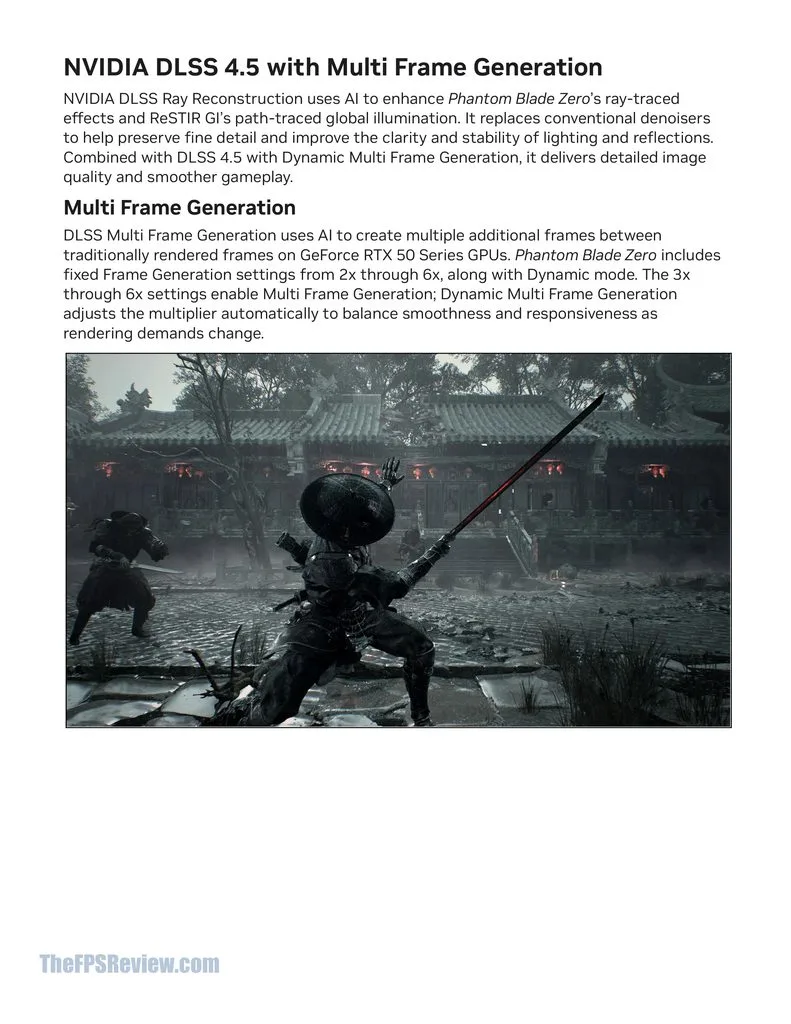
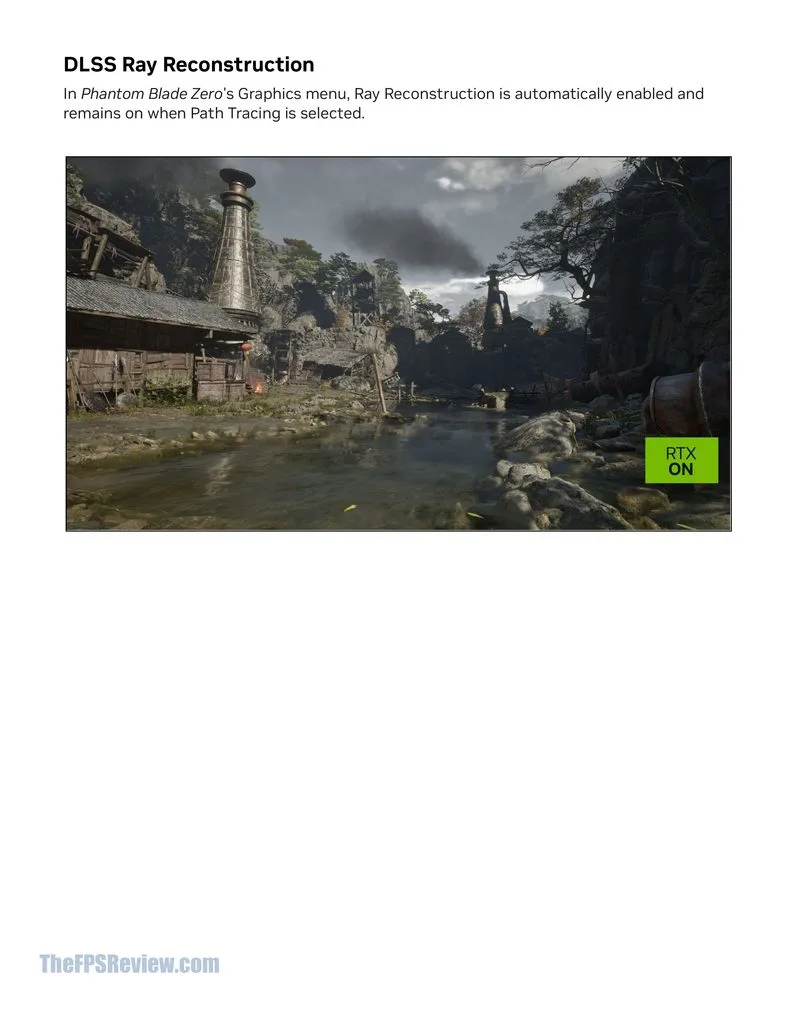
The full suite of NVIDIA features is supported in this game. NVIDIA DLSS 4.5 using Transformer Model 2 is in play with native game support. This game also supports NVIDIA Reflex. You will get NVIDIA DLSS Ray Reconstruction as an option to enable with standard Ray Tracing, and is enabled by default with Path Tracing. With DLSS Ray Reconstruction, it replaces the game’s denoiser and helps provide fine detail and improve image quality and stability with light and reflections. You’ll be able to run DLSS 4.5 Transformer Model 2 with Ray Reconstruction in this game. This game also fully supports NVIDIA DLSS Multi Frame Generation at 2X through 6X mode, as well as Dynamic Multi Frame Generation. This game also supports AMD’s FidelityFX Super Resolution (FSR) 4.1 Upscaling and FSR Frame Generation as well.
Graphics Menu Options
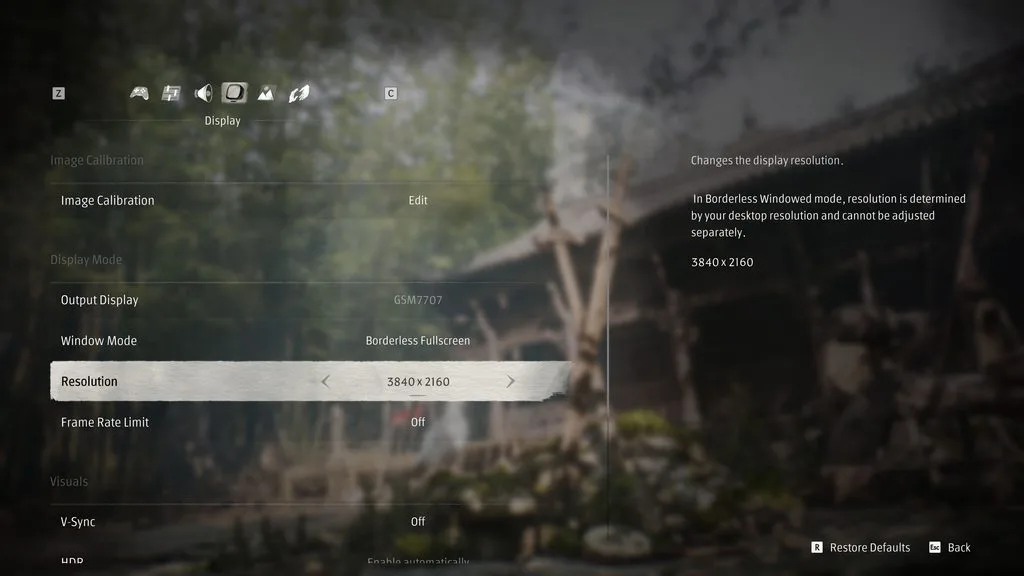
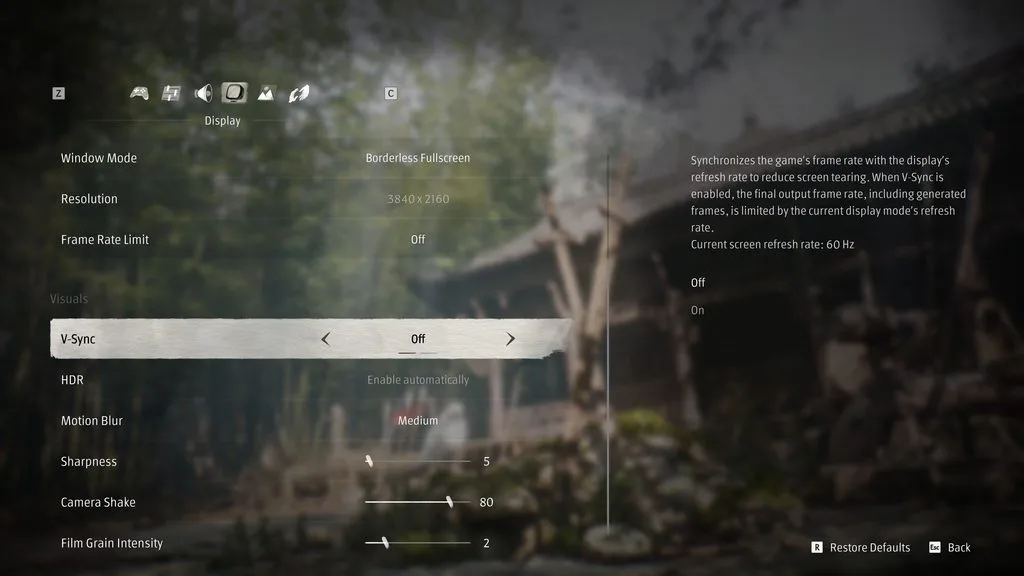
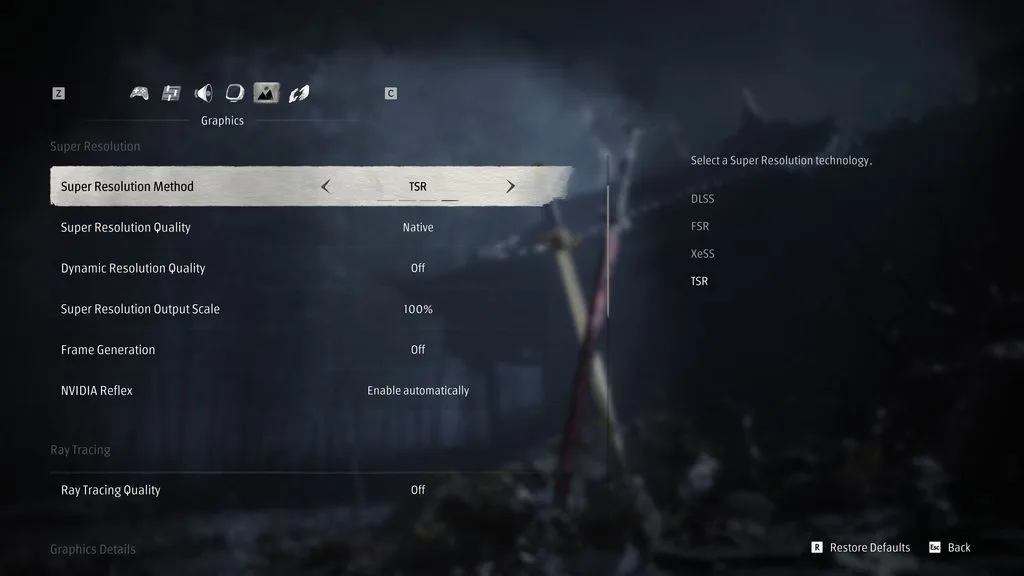
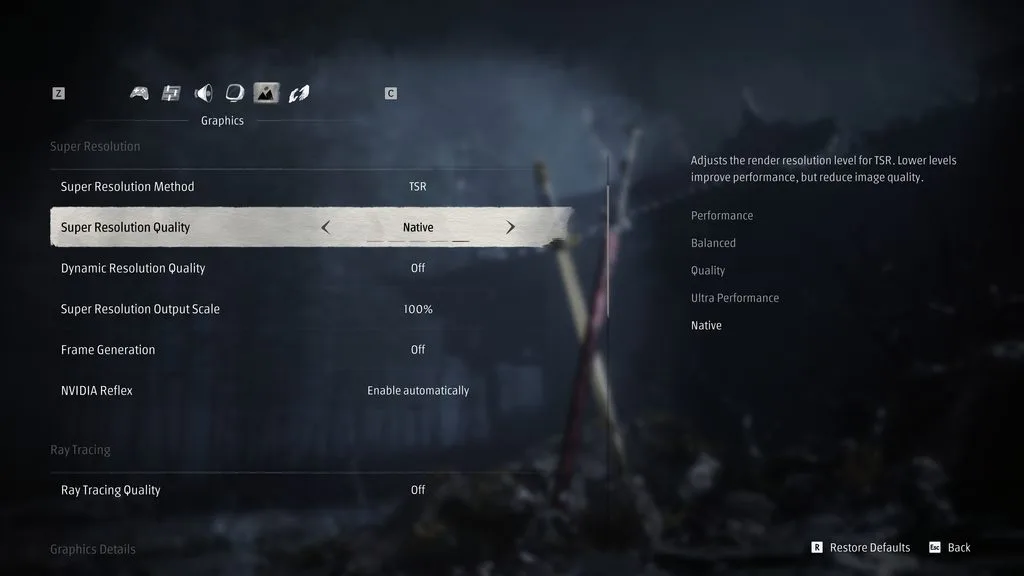
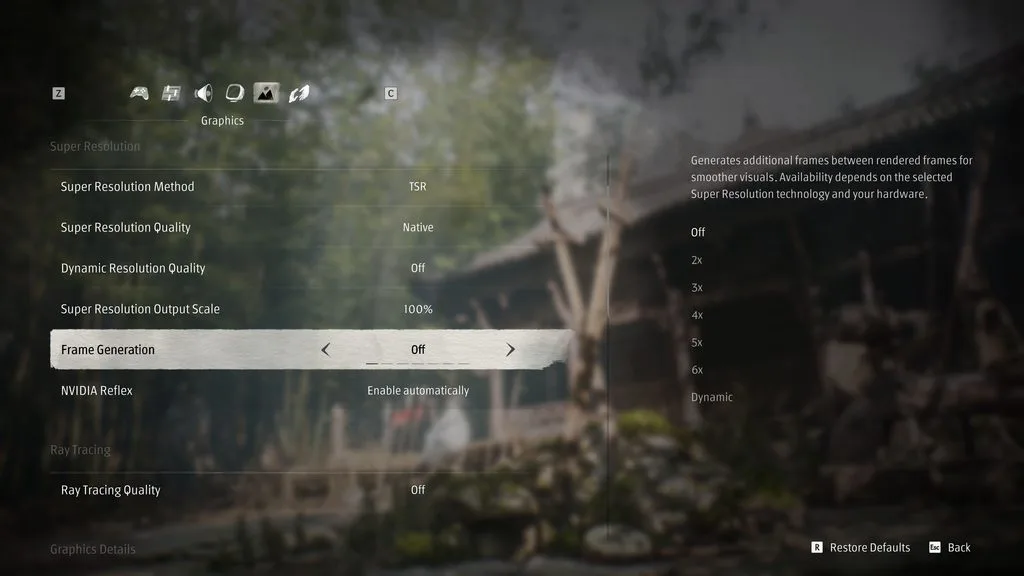
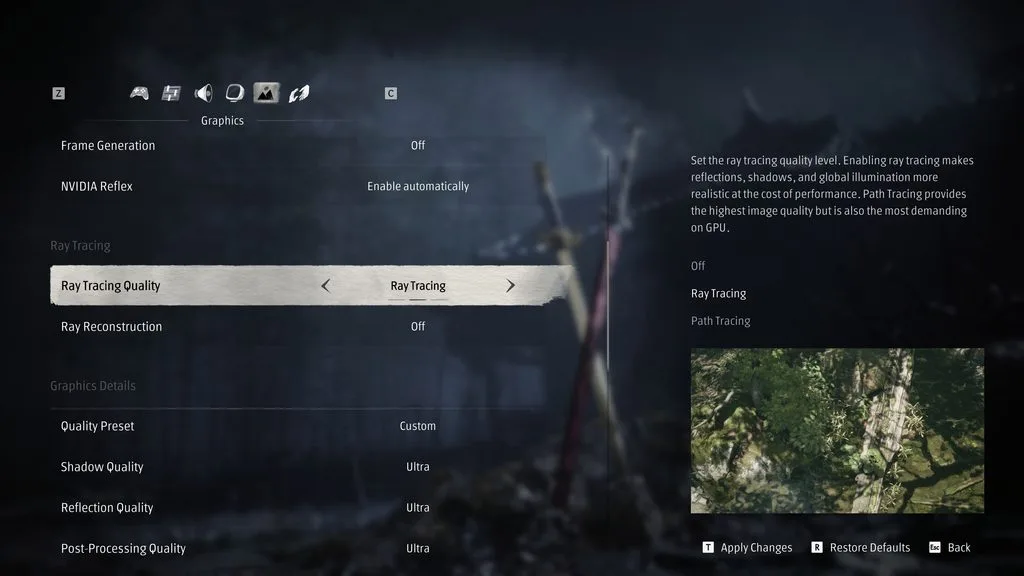
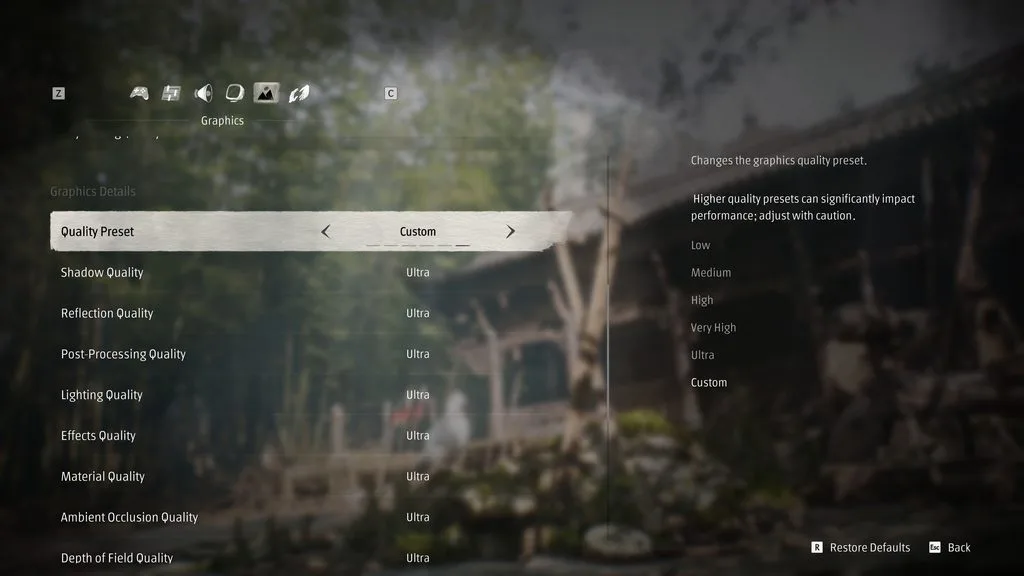
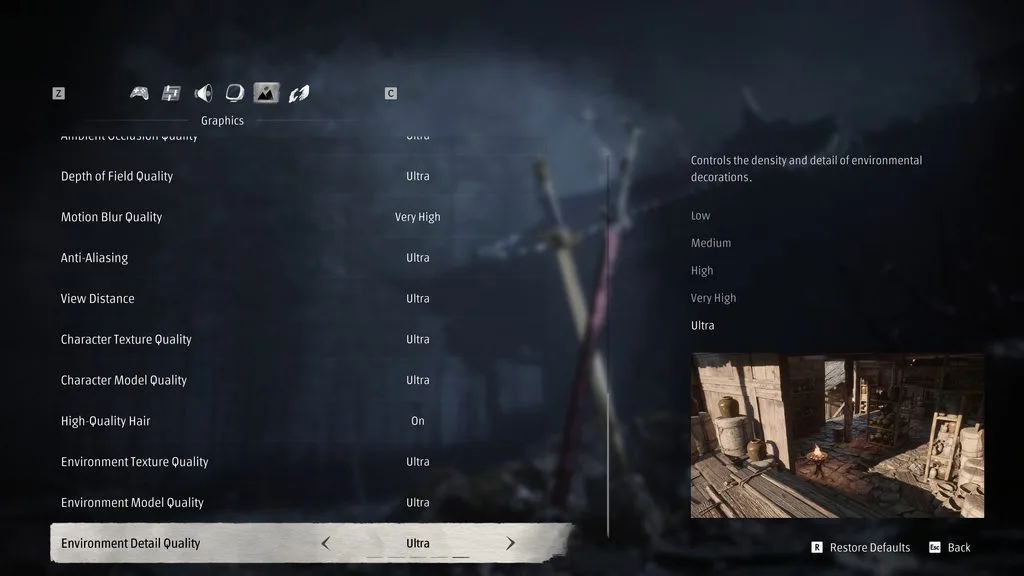
Display Options
Under the main display options, you can select the resolution and run it in different window modes, and also set a frame rate limit if you wish. This is also where you will be able to set VSYNC, HDR, and Motion Blur, which is set to Medium by default. Under Graphics Options is where all the interesting things are.
Graphics Options
The first thing you’ll want to note is the Graphics Options themselves at the bottom. This game has these presets available: Low, Medium, High, Very High, and Ultra. There are individual options you can tweak here, but we found it was only necessary to stick to a defined preset. There are no hidden settings, and nothing above Ultra; when you select the Ultra preset you are running at the highest in-game quality settings.
Super Resolution Method and Quality
The Super Resolution Method is the option for DLSS and FSR that you want to pay attention to. This game supports DLSS, FSR, XeSS, and the default Unreal Engine setting of TSR. TSR stands for Temporal Super Resolution, and it is an Unreal Engine 5 vendor-agnostic option for upscaling.
Once you select the mode you want, the next important option is Super Resolution Quality. This will determine the quality of the Upscaling. If you want none at all, there is a “Native” option here. If you run TSR Native, you are running the default game engine’s version of Native resolution. If you select DLSS, then this option will change to DLAA to show the “Native” resolution option. With FSR, it will show “Native.” Otherwise, you can select the quality of the Upscaler: Quality, Balanced, Performance, and Ultra Performance. DLSS 4.5 is automatically used, and FSR 4.1 is automatically used.
If you keep the Super Resolution Output scale at 100%, it will scale to your monitor’s current output resolution. Or, you can change this if you need to scale the window up or down.
Frame Generation
Under Frame Generation, the options will be dependent on the video cards you have installed. On GeForce RTX 50 Series video cards you will have all the modes available to you: 2X, 3X, 4X, 5X, 6X and Dynamic. However, on earlier series, you may only see 2X as the maximum. On AMD Radeon video cards, the toggle will only be either “On” or “Off” for Frame Generation. When set to “On,” it is at 2X Frame Gen. You can also turn on NVIDIA Reflex on NVIDIA video cards. However, on AMD video cards, this option is only labeled as “Low Input Latency,” which you can enable. There is no specific support for AMD Radeon Anti-Lag.
Ray Tracing
The Ray Tracing Quality option provides two main settings and one sub-setting. First, you can simply have it turned “Off,” and the game will run using Lumen GI. You can set the game to “Ray Tracing,” which will enable Ray Traced Shadows and Reflections, but still use Lumen GI. On NVIDIA GPUs, when you select “Ray Tracing,” a sub-setting opens up where you can enable “Ray Reconstruction.” It is off by default, so you can enable it on manually. On AMD GPUs, you won’t have this option; this game does not support AMD Ray Regeneration.
The final option is “Path Tracing” where everything is turned on, and NVIDIA Ray Reconstruction is on by default. However, on AMD video cards, while you can enable Path Tracing, it won’t use any special denoiser, but rather the game’s default denoiser.
Discussion
Join Discussion →No replies yet. Be the first to reply on the forum.